
Appearance
Find leads
Find leads looks for new business contacts for you — people you have never talked to — by job title, company, industry and location, and adds the ones you choose to your pipeline together with their verified work email (and, if you ask for it, their mobile number). From there they are ordinary leads: label them, assign a manager, and reach out with a campaign.
Everything else on the Leads page works with people who already wrote to you or were imported. Find leads is the step before that.
Who has it
Find leads comes with every current Sales plan — there is nothing to switch on. Your account starts with 25 free lead credits, added the first time you open Find leads, so you can try it on real people before buying anything.
In the app
Open Leads in the left sidebar, then choose Find leads in the toggle at the top right — or go straight to app.mychatbot.app/leads?view=finder.
At a glance
| What you search by | The person: job title, seniority, department, where they are. The company: name, website, location, industry, company type, company size, business model, keywords, company status |
| What searching costs | 1 credit for each new page of results (25 people). Pages you've already opened — today or any other day, you or a teammate — are free, and so is a search that finds nobody. |
| What adding people costs | Contacts we actually find: 1 credit for a verified email, 10 credits for a mobile number (only if you ask for mobiles). Nothing found — nothing charged. |
| Where credits come from | Your account's lead credits: 25 free to start, then bought in packs: 250 for $10 · 1,000 for $40 · 5,000 for $175. They are separate from your message balance. |
| Where people go | Into the pipeline and stage you choose, with the labels and manager you choose. No chat is opened and nothing is sent to them until you decide to. |
| Who can use it | Owner, Admin and Sales lead roles can search, add people and buy credits. Other team members see the page but are asked to go through an admin. |
1. Say who you are looking for
Type it the way you would say it to a colleague and press Find — or press the microphone next to Find and simply say it (in your own language). What you said appears in the box; read it over, fix anything that was misheard, then press Find. Nothing is searched until you do.
For example:
- Marketing directors at software companies in Poland
- Founders of online stores in Kyiv
- Heads of sales at logistics companies in Germany, 50–200 people
Your description is turned into filters, shown as chips above the results — for example Job title: marketing director, Where the person is: Poland, Industry: Software Development. Remove a chip with ×, or open All filters to change anything by hand and press Update results.
If part of your description couldn't be matched to a known value (an unusual industry name, a misspelt city), it is listed under the chips so you can pick the right value yourself in All filters.
Fewer filters find more people
A person has to match every filter at once, so the same thing said twice finds almost nobody. That is why a description becomes fewer filters than it has words — each thing is said once, in the most specific way:
- a job title already says the level and the department, so you won't get Seniority or Department next to it. "Founders" and "C-level" are levels, so they become a Seniority and no job title;
- a place you name is where the person is — Where the company is is used only when you set the company's home apart ("sales reps in Poland working for German companies");
- a named company needs no industry, type or size; a city needs no country.
Add filters by hand the same way: start broad, then narrow.
The filters
All filters opens a panel with three groups. While it is open the button is highlighted and reads Hide filters — press it again to put the panel away and give the results the whole page.
Most fields take several values, so a field's box is for adding one more. What is already chosen is listed right under the box — the same tags as above the results, each with its own × — and a dropdown that already has a value reads Add another….
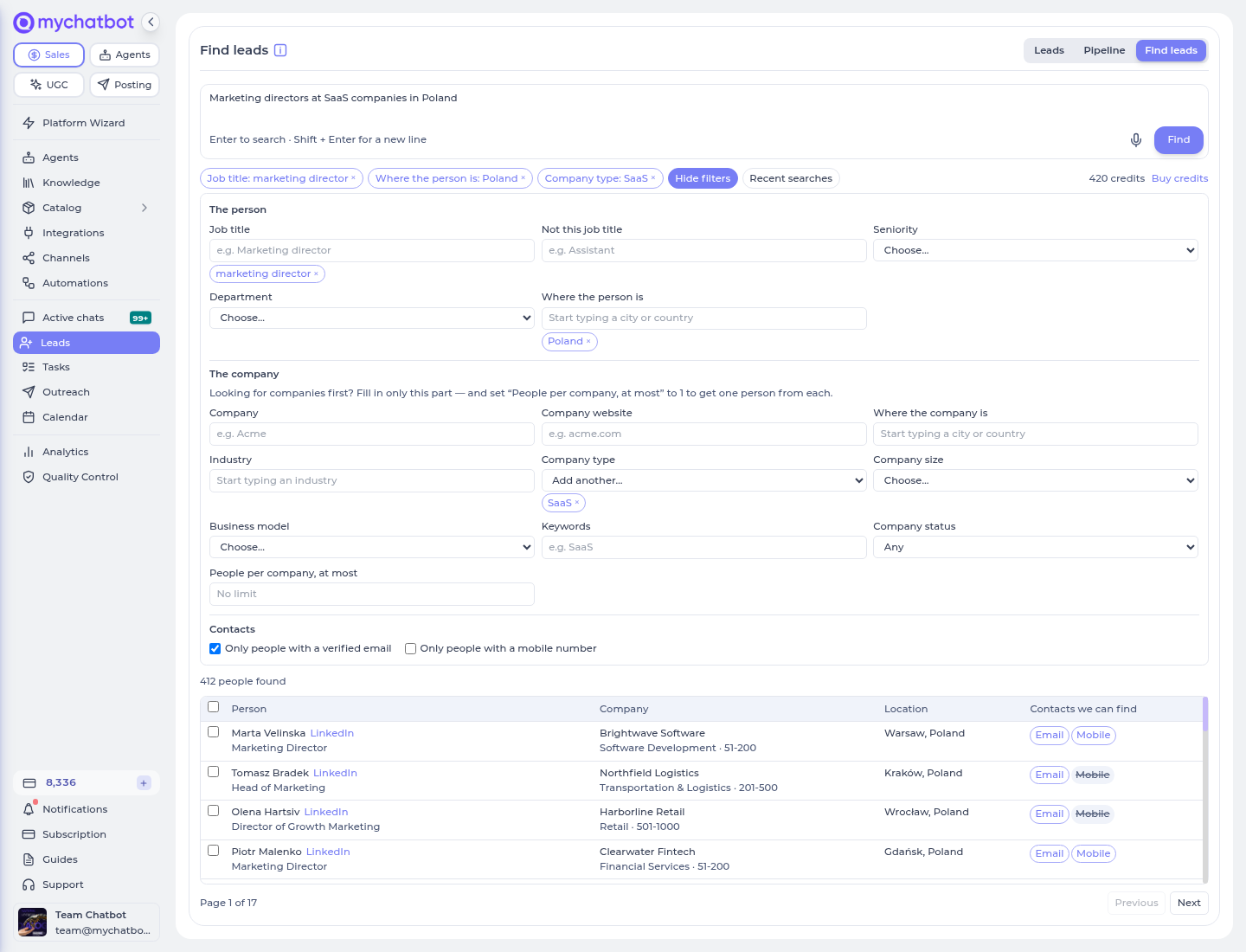
The person
| Filter | Notes |
|---|---|
| Job title / Not this job title | Type and pick from the suggestions, or press Enter to use your own wording. A title also finds its close equivalents: cto finds Chief Technology Officer, marketing director finds Head of Marketing. Use Not this job title to leave roles out (assistant, intern). |
| Seniority | C-Suite, Vice President, Director, Head, Manager, Senior, Entry, Intern, Founder/Owner, Partner. |
| Department | Sales, Marketing, Finance, HR, IT, Engineering & Technical, Legal, Operations, Product, Design, Consulting, Education & Coaching, Medical & Health, C-Suite. |
| Where the person is | Countries, regions or cities — start typing the name (Kyiv, Warsaw, Texas) and pick from the list. |
The company
| Filter | Notes |
|---|---|
| Company, Company website | One or more company names or domains. |
| Where the company is | As above, for the company's location. |
| Industry | Start typing and pick (Software Development, Law Practice, Retail…). |
| Company type | What the company is: SaaS, E-commerce, Marketplace, Agency, Consulting, Manufacturing, FinTech, HealthTech, Logistics, Retail, Real Estate and more. |
| Business model | Whom it sells to: B2B, B2C, B2B2C, direct-to-consumer, marketplace, franchise. |
| Company status | Private company, publicly listed, non-profit, or other. Non-profit is how you find associations, NGOs, chambers and foundations. |
| Company size | Number of employees, in ranges. |
| Keywords | Words that describe what the company does (solar panels, crm, dental). |
| People per company, at most | Keeps one big company from filling the whole page. |
Contacts
| Filter | Notes |
|---|---|
| Only people with a verified email | On by default — these are the people you can actually add. |
| Only people with a mobile number | Off by default. |
2. Look through the results
Results come 25 to a page. For each person you see their name and LinkedIn profile, job title, company (with industry and size), location, and which contacts we can find for them — Email, Mobile, or neither. Contact details themselves are not shown at this stage: they are looked up only for the people you add.
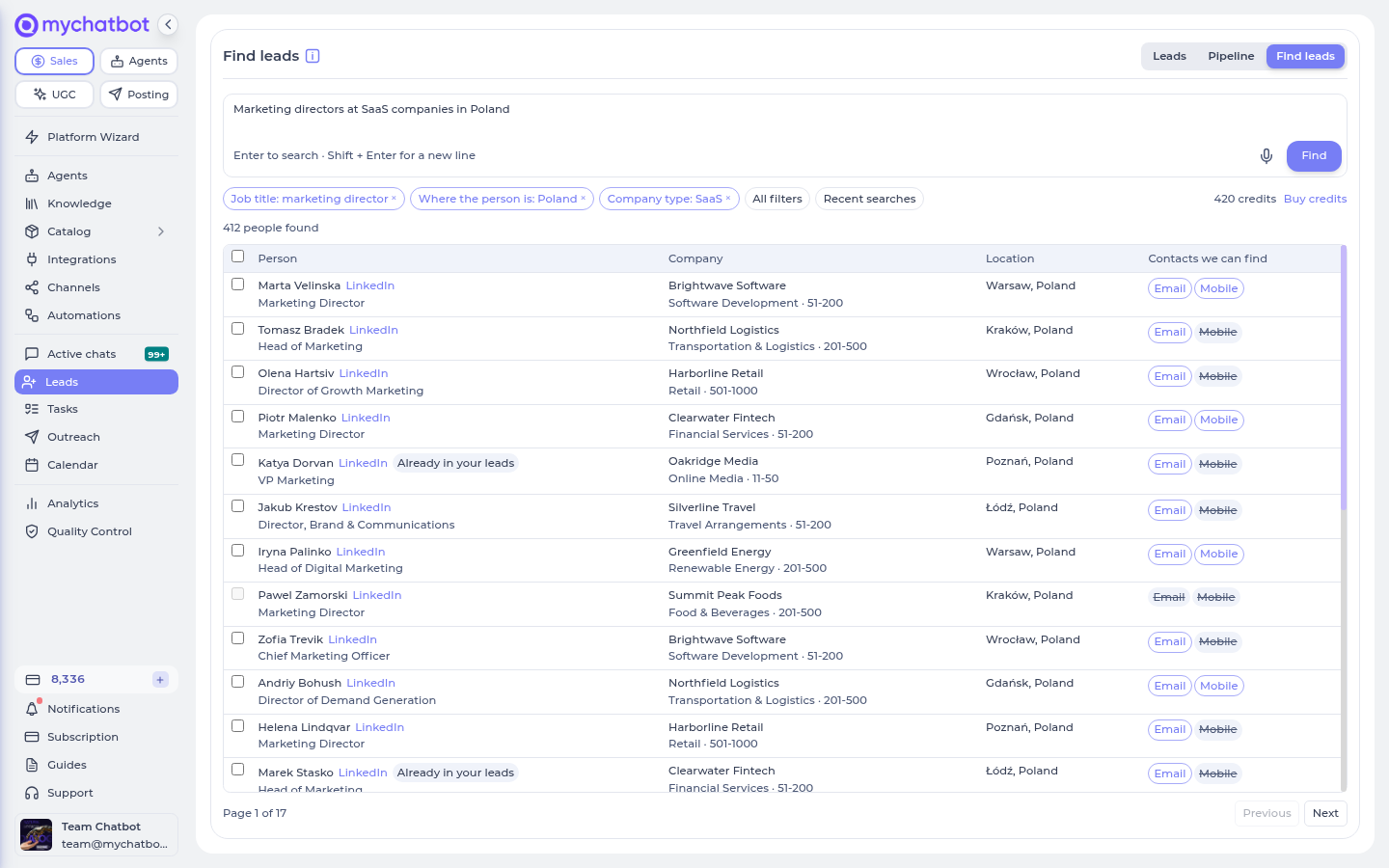
The people and companies in these screenshots are made up.
- People who are already in your leads are marked, so you don't add anyone twice by accident.
- A search can be paged up to 20 pages deep. If there are more people than that, narrow the search (add a location, a seniority, a company size) rather than paging further.
- Your account can load up to 40 new result pages a day. Re-opening a search from Recent searches (below) doesn't count.
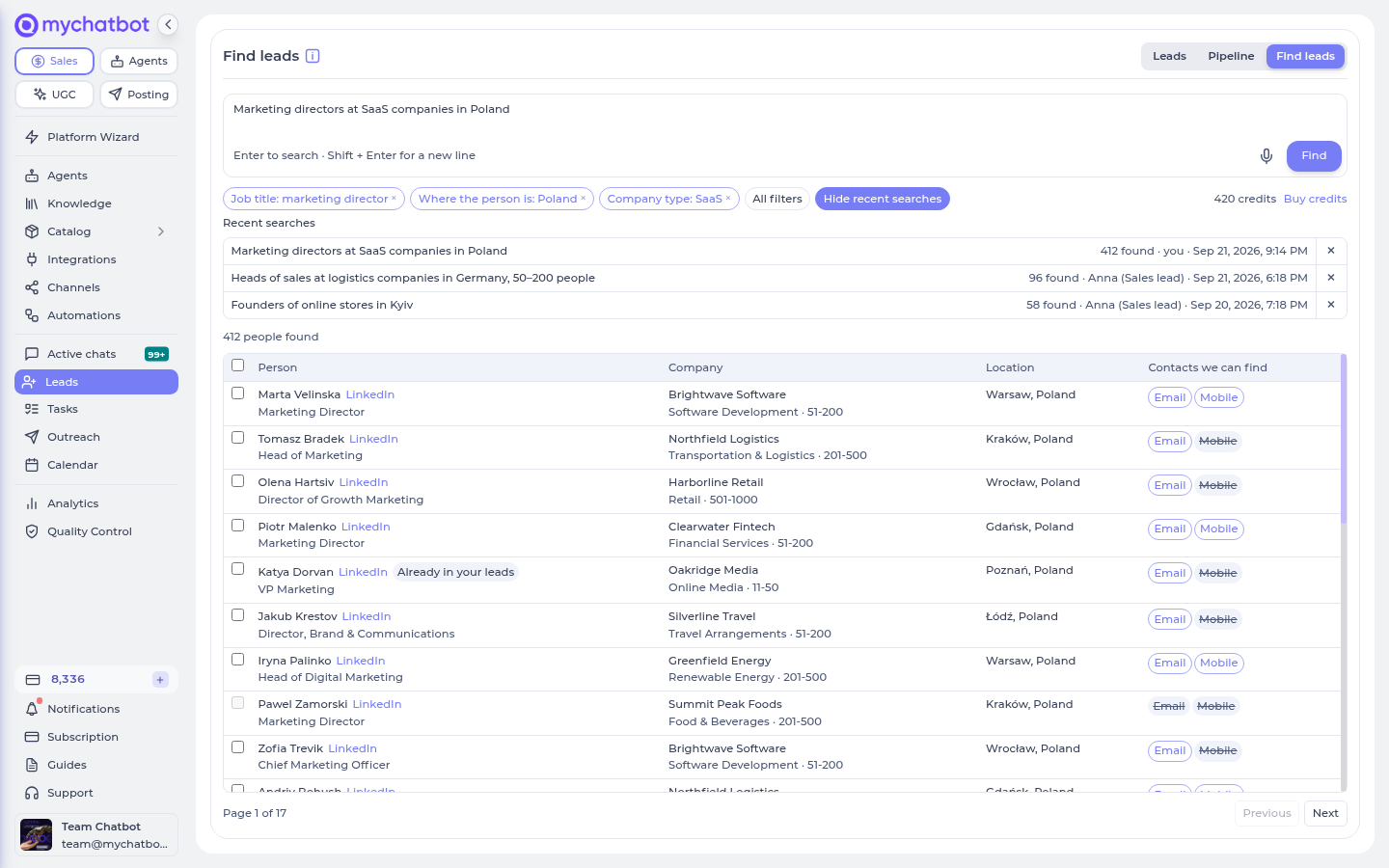
Recent searches
Every search is kept in your account for 30 days, with who ran it and when, so the whole team can see what has already been looked for. Open Recent searches and click one to see what it found — this opens the saved results and doesn't run the search again. When you come back to Find leads, your own last search from the past day is opened for you. To tidy the list, press × on an entry — it only leaves the list; leads you already added and your credits are not affected.
3. Add people to your leads
Tick the people you want (or Select everyone on this page) and press Add to leads. A bar at the bottom shows how many you picked and about how many credits it will take. Up to 500 people can be added at once.
Selecting a whole search at once
You don't have to tick page after page. Above the results, press Select the first…, type how many people you want (up to 500 — what one search can show on its 20 pages — or fewer if the search has fewer) and press Select.
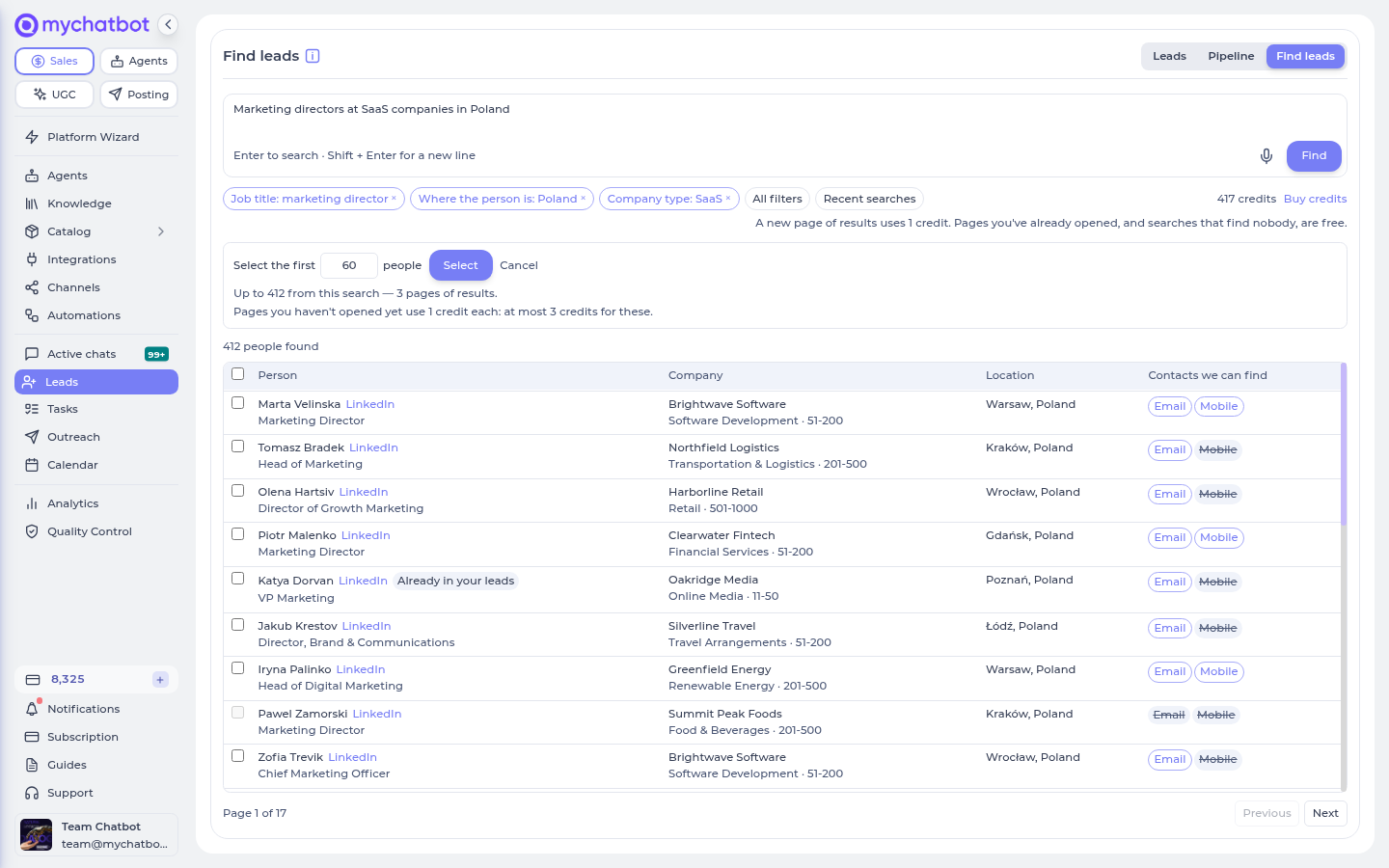
We go through the pages for you, one after another, and put the first N new people with a contact into your selection — skipping anyone who is already in your leads or has no contact we can find. Pages you have already opened come from memory; each new page is a credit, as it would be if you paged to it yourself, and the form says beforehand how many pages that is at most. You can press Stop at any time and keep what was selected so far.
When it finishes, the selection bar shows the count and the price, and Add to leads works exactly as for a hand-picked selection. If the search runs out before N, it says how many it could select. If it stops for a reason — you're out of credits, or today's search limit — it says which, and Try again carries on from where it stopped.
In the window that opens, choose:
- Pipeline and Stage — where the new leads land (both required).
- Labels — Lead Finder is suggested, so you can find this batch again later. Add your own, e.g. the campaign name.
- Manager — who owns these leads (optional).
- Also look for mobile numbers — off by default; each mobile found costs 10 credits.
Before you press the button you see the price: about how many credits it will most likely take, and up to how many are set aside while we work. Whatever isn't used comes straight back.
Under the price the window reminds you whose decision the next step is: you choose whom to contact, and by adding people you confirm you will reach out to them lawfully — with a legitimate business reason, saying who you are, and honouring opt-outs. The full wording is in section 4(e-1) of the Terms of Service.
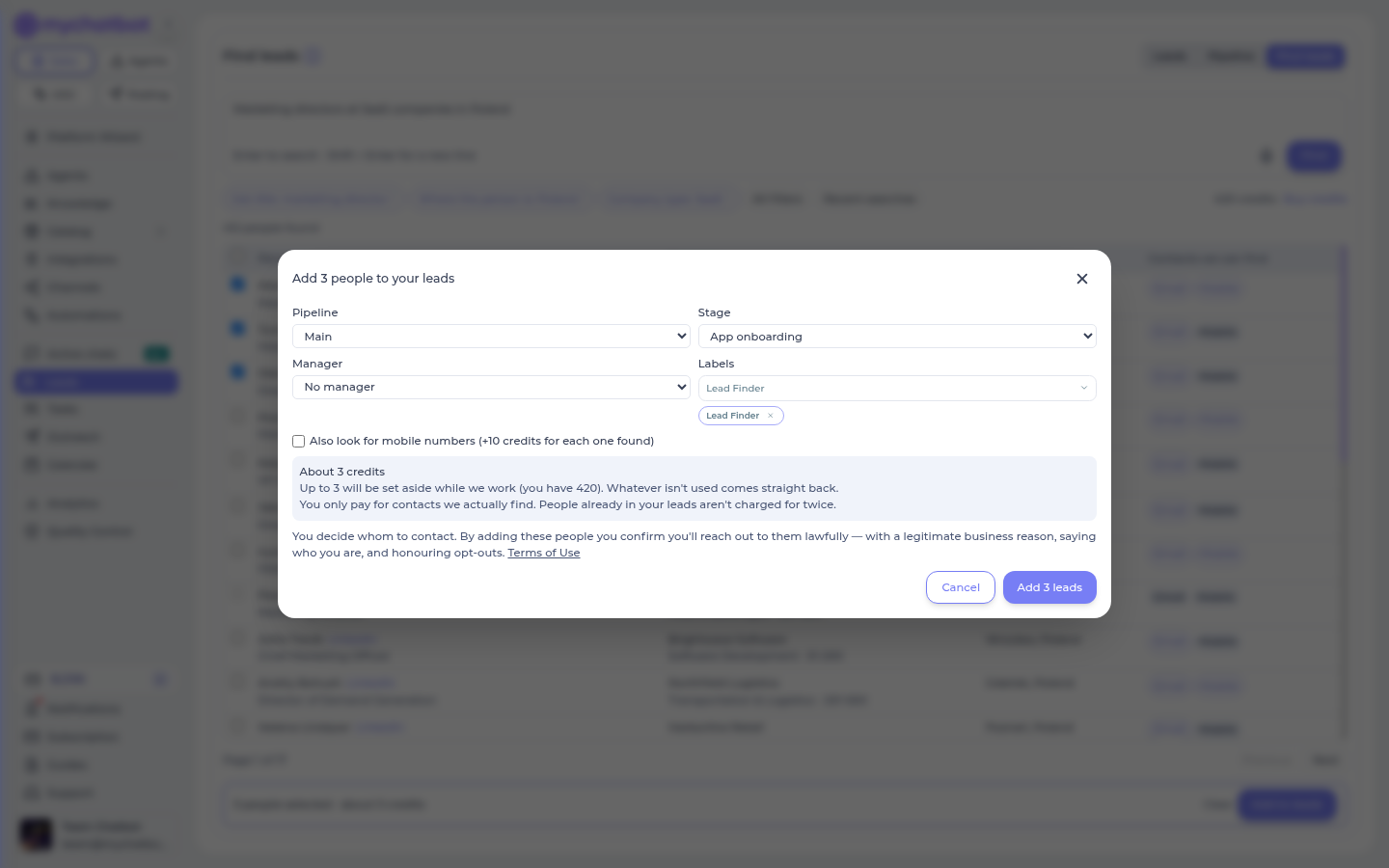
Then we look up each person's contacts and create the leads. You can close the window or leave the page — it keeps going, and the window shows the progress again when you come back. At the end you get a summary:
- Leads added — new leads in your pipeline.
- Already in your leads — we recognised them by email or phone and only filled in what was missing. Nothing you had is overwritten.
- No contact we could find — skipped, not charged.
- Credits used.
What a new lead looks like
Name, email, phone (if you asked for mobiles), company, and — under Additional info on the client card — job title, LinkedIn profile, location, seniority, company website, industry and company size. The lead's source is Lead Finder.
No chat is created and no message, greeting or follow-up is sent. These are people who have never heard from you: what happens next is your decision.
Reaching out
Filter your leads by the label you gave the batch (see Leads & pipelines), then start a campaign for that group — for example an email campaign or a call campaign.
Contact people lawfully
You decide who to contact and how. Make sure your outreach follows the rules that apply to you and to the people you write to — for example GDPR and anti-spam laws: have a legitimate reason to contact them, say who you are, and honour opt-outs.
Lead credits
Lead credits are a prepaid balance of their own. They are not your message balance and not your Agents budget: running out of lead credits never stops your assistants, and topping up messages doesn't add lead credits.
| Verified email found | 1 credit |
| Mobile number found (only if you ask for mobiles) | 10 credits |
| Nothing found for a person | 0 |
| Adding someone you already paid for | 0 — you never pay for the same person twice |
| A new page of search results (25 people) | 1 credit |
| A page you've already opened; a search that finds nobody | 0 |
Your first 25 credits are free. They are added once per account, the first time anyone on the team opens Find leads, and work exactly like bought credits — enough for a few searches and some twenty contacts.
A page is paid for once. The credit is for a page of results your account hasn't opened before. Reloading, saying the same search in other words, paging back, a teammate opening it, coming back next week from Recent searches — none of that is charged again. A price note under your balance says the same thing in the app.
How the charge works. When you press Add, the most it could cost is set aside from your balance. As each person is checked you are charged only for what was found, and when the job finishes the rest is released. Credits that are set aside can't be used for another batch until then.
If you don't have enough credits, nothing starts — neither a new search page nor adding people: you are told how many are needed and how many you have, with a Buy credits button. Pages you've already opened still open.
Buying credits
Press Buy credits next to your balance, choose a pack and pay by card on Stripe's secure page. You come straight back to Find leads, and the credits are added as soon as the payment goes through — usually before the page has finished loading.
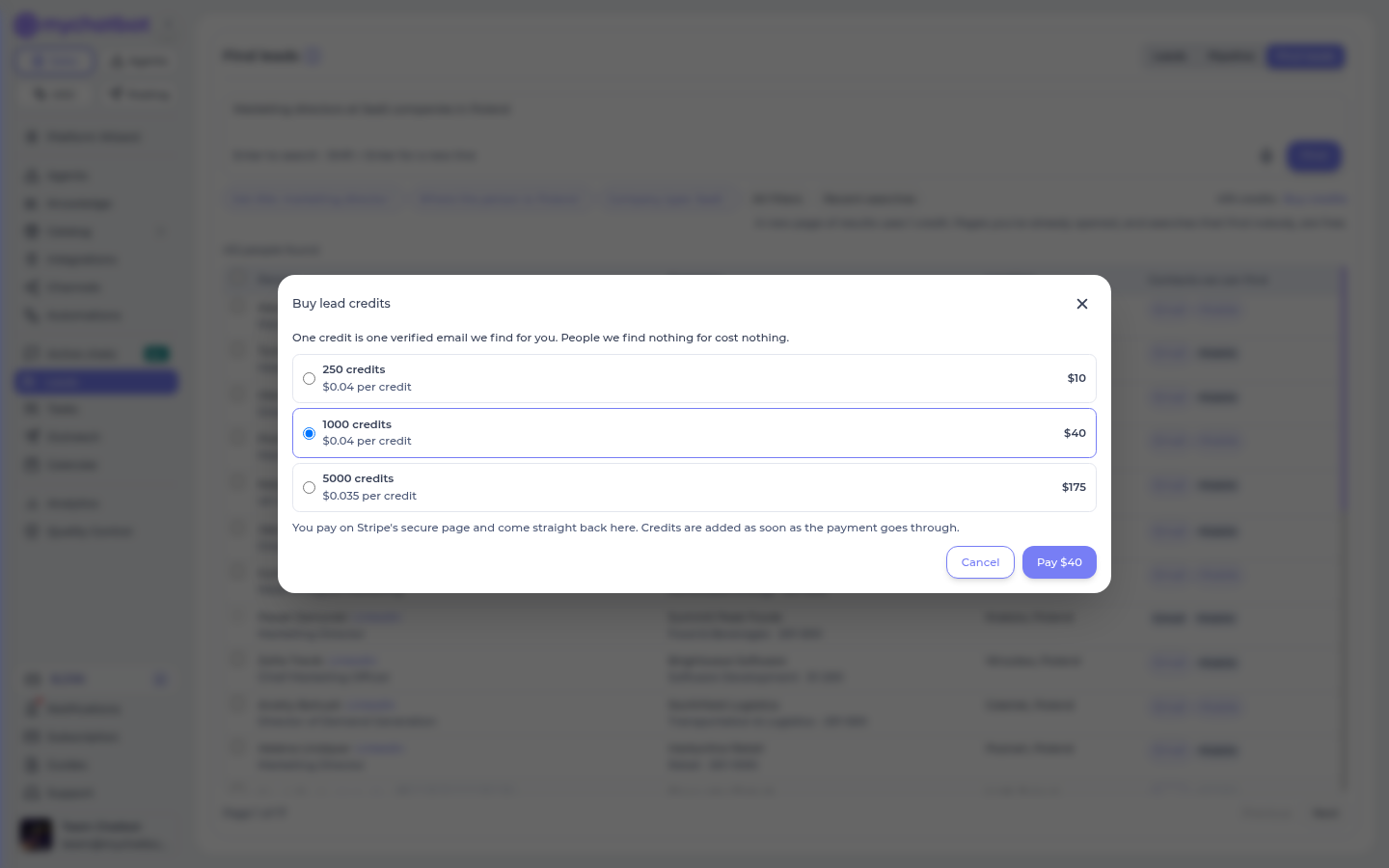
| Pack | Price | Per credit |
|---|---|---|
| 250 credits | $10 | $0.04 |
| 1,000 credits | $40 | $0.04 |
| 5,000 credits | $175 | $0.035 |
Depending on your country, the payment page may offer to charge you in your own currency.
How this relates to contact storage
People you add become contacts in your CRM like any other lead, so they count toward the contacts included in your plan — see Contact storage & pricing.
Used to another prospecting tool?
Find leads is built around one question — who do you want to reach? — rather than around a database with many screens. If you have used other prospecting tools, here is where the things you know from them are.
Where is the "Companies" search? There is one search, and the company filters are part of it (the The company group). To search company-first, fill in only that group — for example Industry: Software Development, Company type: SaaS, Where the company is: Germany, Company size: 51–200 — and set People per company, at most to 1: you get one person from each matching company. Found a company you like? Put its name in Company, clear the per-company limit, and you see everyone there we can reach.
How do I search inside a department — say, everyone in Finance? Choose Department: Finance. Narrow it with Seniority (Director, Head, C-Suite) or with Job title (controller, accountant, treasurer); all three work together.
Exact job title or "contains"? Neither: a job title is matched together with its close equivalents, which is what finds the most right people — cto also finds Chief Technology Officer, but not every Director. To tighten a search add Seniority or Department; to leave roles out use Not this job title.
SaaS, e-commerce, agencies? That is Company type. Business model is a different question — whom the company sells to (B2B, B2C…). You can use both: Company type: SaaS + Business model: B2B.
Non-profits, associations, NGOs? Set Company status: Non-profit — or just say it in your description ("non-profit organisations in the legal field in Ukraine").
Why can't I see the email before adding someone? Can I reveal one contact? Looking up a contact is the part that costs a credit, so it happens once, when you add the person — and the contact is then saved on the lead, never charged twice. To see one person's email, tick just that person and press Add to leads: it costs 1 credit, and they are in your pipeline with the email on their card.
Email or mobile — can I choose? Emails are always looked up. Mobiles are your choice, in the Add to leads window (Also look for mobile numbers, 10 credits for each one found). The price is shown before you press the button.
The filters take up the whole screen — how do I see the full table? Press Hide filters (the highlighted button above the panel). Your filters stay on as chips; the results get the page.
Can I add everyone the search found, in one go? Up to 500 at once — the first 500 new people with a contact, with Select the first… above the results (see Selecting a whole search at once). A search shows at most 20 pages, so that is as far as one action reaches; for more, narrow the search into two or three and run each. There is no button for tens of thousands at once, on purpose: every page and every contact is paid for, and a list that size is better built from several precise searches than from one broad one.
Can I export to CSV? Not from Find leads: contact details only exist once people are added, and then they are leads in your CRM like any others — filter them by the label you gave the batch and work with them there.
Can I change how many rows a page has, or sort the results? Results come 25 to a page, most relevant first. To see different people, narrow the search rather than paging deep — it also finds them with fewer pages, and each new page is a credit.
Saved searches? Every search your team runs is kept for 30 days under Recent searches, and opens again without running anew.
Limits
| Results per page | 25 |
| Pages per search | up to 20 |
| New result pages per account per day | 40 (resets at midnight UTC; re-opening a recent search doesn't count) |
| People added at once | up to 500 |
| Labels per batch | up to 10 |
| Recent searches kept | 30 days |
If something doesn't work
| You see | What it means | What to do |
|---|---|---|
| No Find leads button next to Leads and Pipeline | The account has no current Sales plan (for example it is on an Agents-only plan, or the plan has ended). | Choose a Sales plan under Subscription — see Balance and billing. |
| We couldn't turn that into a search | The description was too vague to make filters from. | Say it differently, or set the filters yourself in All filters. |
| Nobody matches all of that | The filters together are too narrow: a person has to match every one of them. | Remove a chip — start with the one that repeats another (a seniority next to a job title) or the narrowest one. |
| Lots of searches are running right now | A short queue on our side. | Wait a few seconds and press Try again. |
| You've reached today's search limit | 40 new result pages today. | Earlier searches still open from Recent searches; the limit resets at midnight UTC. |
| Not enough credits | The most this could cost is more than you have. | Select fewer people, turn off mobiles, or Buy credits. |
| You're out of credits (on a search) | A new page of results uses one credit and you have none free. | Buy credits, or open an earlier search from Recent searches — those pages are yours already. |
| We can't add this many people right now | We can't take a batch this size at the moment. Nothing was charged. | Select fewer, or try again a little later. |
| Find leads is temporarily unavailable | The problem is on our side; your credits are untouched. | Searches you already ran still open. It comes back by itself — the notice disappears when it does. |
| We had to stop early (in the summary) | Some people weren't checked, and weren't charged. | Add them again in a moment. |
Test it
- Open Leads → Find leads. Check your credits at the top right.
- Type Marketing directors in Kyiv and press Find — or press the microphone and say it. You should get chips for the job title and the city, and a list of people with Email marks.
- Remove the city chip — the results update. Open All filters, add a Company size and a Company type, press Update results, then press Hide filters to get the full table back.
- Open Recent searches — both searches are there. Click the first one: it opens instantly, without searching again.
- Tick two people, press Add to leads, choose a pipeline and a stage, keep the Lead Finder label, press Add 2 leads. Watch the progress, then read the summary.
- Switch to Leads, filter by the label Lead Finder: the two people are there with email, company and the extra fields on their card. No chat was opened for them.
- Check your balance: it went down by the number of emails found — not by the number of people you ticked.
- Select the same two people again and add them: it costs 0 credits.
See also
- Leads & pipelines — the table, the board, filters, bulk actions
- Contact storage & pricing
- Email campaigns · Call campaigns