
Appearance
Chats & client analytics
Active chats is the shared team inbox for every conversation your agents handle — all channels in one list, with the full message history, a manual-reply composer, and a client analytics card that shows who you're talking to and lets you work the lead (statuses, labels, manager, notes, tasks, documents) without leaving the chat.
In the app
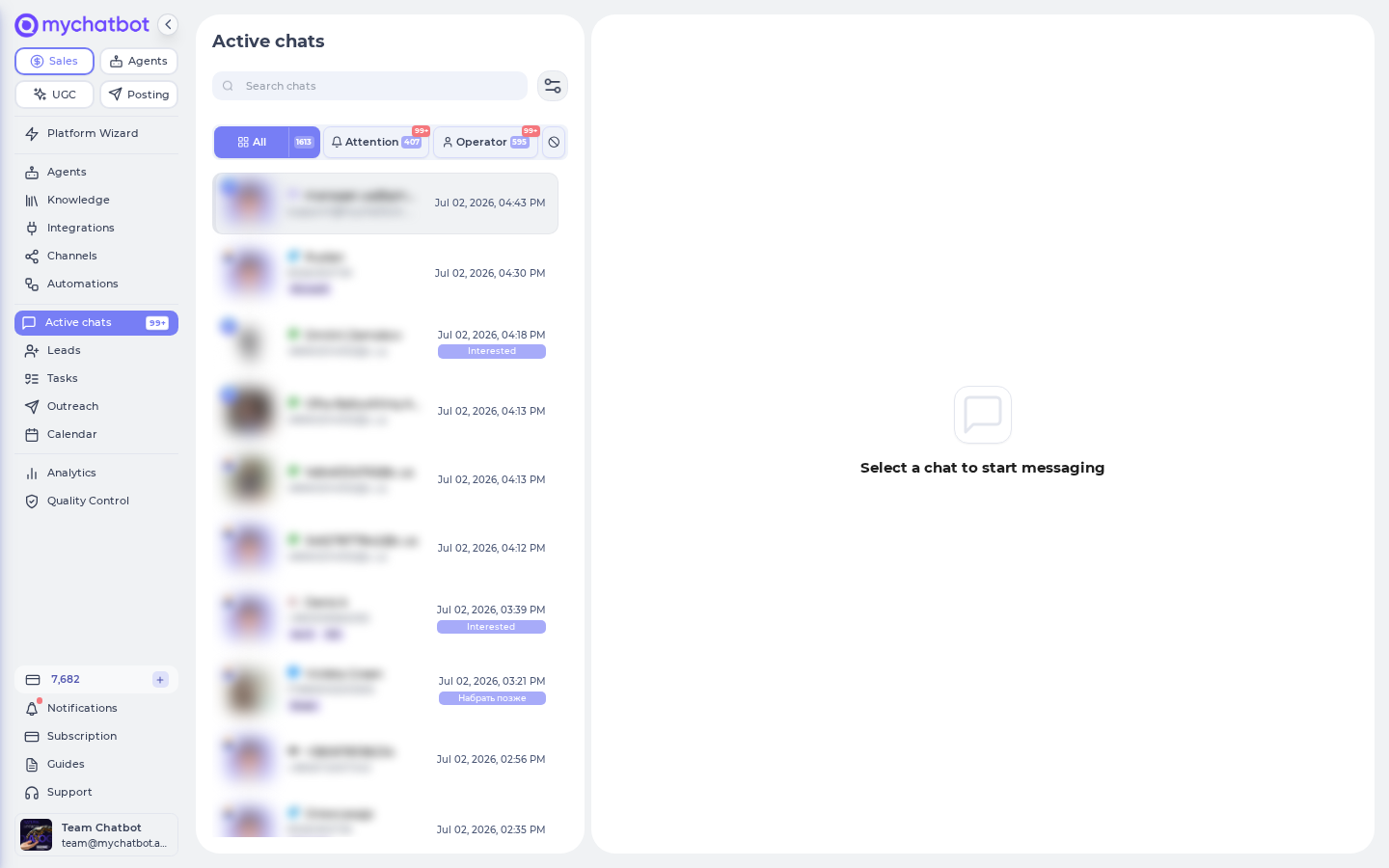
Open Active chats in the left sidebar at app.mychatbot.app/chats. Three panes: the chat list on the left, the conversation in the middle, and the client card on the right (toggle it with the arrow handle at the right edge). Every open chat has its own URL (/chats/<client>/<channel-page>), so conversations are deep-linkable and shareable with teammates (see Who can see and do what for how team access scopes what a link opens).
At a glance
| Pane | What's in it |
|---|---|
| Chat list (left) | Search, filter panel, four tabs (All / Attention / Operator / Spam), chat rows with unread counts, labels, funnel status, and last-active time. Refreshes automatically (about every minute, plus instantly re-sorts when a new message arrives) |
| Conversation (middle) | Message history with delivery statuses, activity events, translation, the composer (templates, AI reply drafts, attachments), the AI on/off switch, response timers, and the chat actions menu |
| Client card (right) | Client analytics: contact summary, collected context, lead management (pipeline/status/manager/labels/type), tracking data, plus Tasks, Notes, Documents, and Activity tabs |
Chat list
Tabs
| Tab | Shows | Tooltip (exact) |
|---|---|---|
| All | Every chat matching your current filters | "All chats that match your current filters (any AI or operator state)." |
| Attention | The review queue | "Queue for review: notifications, operator handoff, and other “needs attention” signals." |
| Operator | Human-handled chats | "Operator — chats where AI is off" |
| Spam (ban icon) | Manually spam-marked chats | "Chats you manually marked as spam: removed from active work — hidden from Active, Attention and the operator queue; no notifications and no AI auto-reply. Restore to normal work here." |
- The Attention and Operator tabs carry a dual badge: number of Chats in the list and number of Unread messages.
- The All tab shows a total-unread pill. Clicking it opens a confirmation — "Mark all unread messages across every chat in this account as read?" — with Mark all as read / Cancel. Success shows "All messages marked as read".
- On the Spam tab each row gets a Restore to work button; restoring shows "Chat returned to active work".
What puts a chat in Attention
A chat is flagged (red pulsing "Requires Attention" dot + a spot on the Attention tab, with sound and attention alerts) only when your agent explicitly asks for a human. Two signals do it, and both are decisions the agent makes based on its instructions:
| Trigger | What happens | Where you steer it |
|---|---|---|
| Operator notification | The agent decides a human should know (a hot lead, a question it can't answer, whatever your instructions tell it) and sends a notification. The chat is flagged; if the agent has a Telegram group connected under Flight Control, the notification (with the client's name/phone/email and a chat link) is also delivered there. AI stays on — the agent keeps talking. | The agent's instructions on the Agents page decide when; the Telegram destination is the group you connect under the agent's Settings → Flight Control |
| Handoff to operator | The agent decides a human should take over: the chat is flagged for attention and switches to operator mode (it also appears on the Operator tab with "Need operator"). | The agent's instructions decide when; handoff behavior (silent handoff, auto return) lives under the agent's Settings → Handoff Control |
What does not flag a chat:
- A new client message that nobody answered — that only raises the unread badge (use the Last message by: Client filter to catch those).
- Leads captured via webhooks — they show a Trigger Outreach card in the thread but skip the Attention queue.
- A handoff you initiate — replying while AI is on (implicit handoff) or flipping the AI switch moves the chat to Operator without flagging it; you're already looking at it.
The flag clears when you press Mark as handled (⋮ menu) — and also automatically when you take the chat yourself: replying, toggling the AI switch, or Mark as spam all remove it. After that, the chat re-enters the queue only when the agent raises one of the two signals again — that's the "until the system marks it again" in the Mark as handled tooltip.
Search
The Search chats box searches your clients (name, contact data) and also matches raw identifier fragments — typing part of a phone number finds the matching WhatsApp/Viber/Calls chat even when no contact name is saved. Search combines with the active filters and tab.
Filters
Click the filter toggle next to the search box to open "Select options for quick search". Each filter is a multi-select with Apply and a clear option; the Clear all button resets everything at once (it's disabled until at least one filter is applied).
| Filter | Options / notes |
|---|---|
| Assistants | Limit the list to chats handled by specific agents |
| Channels | Filter by channel (Website Widget, WhatsApp, Telegram, Instagram, Viber, Email, Calls, …) |
| Managers | Chats whose client is assigned to specific managers |
| Labels | Client labels ("No labels" when none exist yet) |
| Ads | The ad the client came from — built from loaded chats ("No ads found in loaded chats" otherwise) |
| Last message by | Client or Agent — great for finding conversations waiting on a reply |
| Client type | Your custom client types ("No client types" until you create some) |
| Pipeline + Status | Funnel filters; picking a pipeline narrows the status list to that pipeline's stages |
| Date | Last 7 days / Last 14 days / Last 30 days |
| Webhook source | The Trigger Outreach trigger or Meta lead form that created the lead, plus Without a webhook source |
| Hide failed outreach | A switch that applies at once: hides the empty chat rows left behind when a first-touch outreach could not be delivered (outreach creates the chat before it tries to send) |
Applied filters and the search text are written into the page URL — a reload (or a link you send a colleague) restores the exact same view.
Pin filters (the pin icon next to Clear all) saves the current filters and tab to your user and re-applies them every time you sign in, on any device — "Filters are pinned — automatically applied after sign-in." Clear all also unpins. The Assistants and Pipeline pickers only offer what your Access scope allows; they do not pre-fill it.
Chat rows
| Element | Meaning |
|---|---|
| Unread badge | Count of unread messages; opening the chat clears it |
| Book icon (hover, read chats) | "Mark this chat as unread" — puts the chat back in the unread queue |
| Red pulsing dot | "Requires Attention" — the chat is in the Attention queue |
| Channel icon + red dot | "Contact blocked the bot" — outbound messages won't be delivered until the contact unblocks it |
| Amber left border + ban badge | Chat is marked as spam |
| Label chips / ad chip | Client labels and the ad title the client came from |
| Status pill | The client's funnel status |
| Timestamp | Last activity in the chat |
Scroll to the bottom (or press More...) to load older chats. When nothing matches you'll see "No chats available at the moment"; with filters active on mobile, "No chats match your filters. Clear filters to continue".
Conversation view
Header
| Element | Behavior |
|---|---|
| Avatar, name, channel icon | Who and where. A username/handle shows under the name when it differs. A pulsing badge on the channel icon signals problems — errors in the activity log, a blocked/moderated message, or (for Calls) "The contact was busy or did not answer — the call was not connected." Hover it for details |
| AI status chip | "Talking with AI " or "AI is off". When AI is off, a small play button appears: "Run the assistant on this conversation (uses the full thread and main instructions)" — a one-shot AI reply without switching AI back on |
| Language | The conversation language the agent detected (it sets it automatically during the chat). In operator mode you can change it via Set language — useful before translating or handing back to AI. The same language is shown on the client card as Conversation language |
| Response timers | See Manual takeover below |
| Debug mode switch | Reveals technical events inline: tool calls, raw activity entries, and handoff annotations (e.g. "Interpreted as automatic handoff: manager reply disabled AI (implicit handoff)") |
| AI switch | Toggles between AI and operator mode for this chat |
| ⋮ actions menu | Mark as handled, Mark as spam, Clear chat history (see below) |
Manual takeover vs AI
- Flip the AI switch off to take over. Toast: "Switched to Operator mode". The chat moves to the Operator tab ("AI is off — a human is handling the chat"). Flip it back on to return the chat to the agent ("Switched to AI mode").
- Implicit handoff: simply typing a reply while AI is on also switches the chat to operator mode automatically — the activity log records "Chat switched to manager mode" and, with Debug on, annotates it as an implicit handoff. You never race the bot for a conversation.
- While in operator mode the header shows response timers:
| Timer | Meaning |
|---|---|
| First response | "How long the operator has waited to send their first reply after handoff. Turns red after 2 minutes." Once you reply it freezes to "Time from handoff to the operator's first reply." If the chat returns to AI without a reply, it shows the wait time until then |
| Processing / Processed | "Total time this chat has been in operator mode since the latest handoff." Frozen ("Processed") after the chat returns to AI |
Hovering a timer also shows who handed the chat off ("Handed off by .").
- Run assistant once: with AI off, the play button in the AI chip generates a single agent reply in the thread ("The assistant replied in this thread.") while keeping the chat in operator mode.
- If the toggle refuses: "Contact data is still loading — try again in a moment." or "Channel details are missing — open this conversation from the channel list."
Chat actions menu (⋮)
| Action | What it does |
|---|---|
| Mark as handled | Only shown while the chat is flagged for attention. "Clears this chat from Needs attention — sound and attention alerts stop for this thread until the system marks it again. Unread count and Need operator stay as they are." |
| Mark as spam | "Removes the chat from active work (hidden from Active, Attention and the operator queue). No notifications; AI stays off and won't auto-reply or turn on by itself. Restore from the Spam tab." |
| Clear chat history | Wipes the message history of this thread — immediately, with no undo. See the warning below |
Clear chat history is immediate and irreversible
There is no confirmation dialog — the wipe starts the moment you click Clear chat history, and there is no undo. What goes and what stays:
- Deleted: every message in the thread and its inline activity events — the client card's Activity History tab for this conversation empties out with it.
- Reset: the client's funnel Status, Labels, and pipeline placement are cleared; any follow-up sequence running on this chat is cancelled and its progress reset; the detected conversation Language is dropped (the agent will detect it again).
- Kept: the client record itself — contact data, Collected Context, custom fields — plus everything stored on the client card tabs: Tasks, Notes, and Documents (including files already synced into Sent / Received).
- Agent memory: the agent builds every reply from the thread's message history, so after a wipe it starts the conversation from scratch. Anything the client said that wasn't saved to Collected Context or the contact fields is gone for future AI replies.
If you just want a chat out of your queues, use Mark as spam instead — it's fully reversible from the Spam tab.
Spam
A spam chat shows an amber banner in the header: "Spam (manual): chat is out of Active work queues — not in Attention or the operator queue; no alerts and AI won't reply or turn on by itself. Reply manually. Restore via the Spam tab." The AI switch is disabled for spam chats; you can still read and reply manually. To bring the chat back, open the Spam tab in the list and press Restore to work.
Messages
- Delivery status appears next to your outbound messages where the channel reports it: Sent / Delivered / Read / Failed, with the status time.
- Failed sends carry a Send error indicator; clicking it opens the "Message send report" with Date, Channel, and Send status per attempt.
- If a client removes a message on their side, it stays visible with the note "The client deleted this message in the messenger. The text is kept here for your team."
- Files render with type-aware previews (PDF document, Word document, Excel document, PowerPoint presentation, Archive) — hover for Preview / "Click to download". Message reactions from the messenger show as badges.
- Hovering a message reveals quick actions: Translate (client messages), Reply (quote-reply), and Edit (your own messages, where the channel supports it).
Translation
| Feature | How it works |
|---|---|
| Translate message (incoming) | Hover a client message → translate icon → pick a language ("Translate to", with a Suggested section and searchable All languages). The bubble shows "Translated from " with Show original / Show translation toggles |
| Translate draft (outgoing) | Composer icon: "Choose a target language and translate your draft before sending". A banner lets you flip between your original and the translation before you hit send. If nothing changes: "The message is already in ." |
| Auto-translate on send | Globe icon in the composer: "Turn on: automatically translate your message to the chat language when you press Send". Saved per chat. If no chat language is known yet, you'll be asked to set one (or set a primary language in agent settings) |
Activity events
Status-style events render inline in the thread (and collected on the client card's Activity tab): "Chat created on ", "Chat switched to manager mode" / "Chat switched to AI mode", "Status changed", "Funnel status changed", "Labels changed" (with added/removed values), "Outreach triggered / sent successfully / send failed", "Message send failed", "User message blocked by content moderation", and follow-up lifecycle events ("Follow-up scheduled / postponed / step sent" with the follow-up name, step, scheduled time, and reason — e.g. "Outside working hours"). Each entry names the actor: System, Manager, or AI Assistant. Leads captured via webhooks show a Trigger Outreach card with the submitted fields.
Debug mode and the conversation log
With Debug off, the thread shows messages plus a fixed set of events: Chat created and the phone-unavailable hint while the thread is still empty, and every failure — send errors, outreach send failures, moderation blocks, duplicate-lead notices, attachment and model errors, reactions, and Follow-up could not be delivered. Everything else — tool calls and their results, the assistant's intermediate steps, model retries, trimmed context, and the routine follow-up entries (scheduled, postponed, not scheduled) — appears only with Debug on. Debug also stops the thread from auto-scrolling so you can read the log.
The Filter button in the header narrows the log by group — Messages, Delivery, Model, System — with an Errors only checkbox and a date range, and reports "Showing N of M". Unknown event types fall into System, so nothing is ever hidden by the filter itself.
Writing messages
The composer reads "Write a message or type / to match a template". Enter sends (Shift+Enter for a new line on desktop); messages are capped at 2500 characters.
| Tool | Behavior |
|---|---|
| Templates | "Insert a saved reply template into the message field (Ctrl/Cmd+K)" — or just type / for inline autosuggest. Placeholders (client name, manager, company, …) are filled from the chat. Manage templates under Settings → Messaging Templates |
| Translate draft | See Translation |
| Generate reply | AI draft on demand — "Generate an AI draft from chat history and assistant instructions — review and edit before sending (uses tokens)". Only available in operator mode. The draft lands in the input for review: "Reply draft inserted — review and send when ready". Rate limited ("Too many requests. Please wait a minute and try again.") |
| Emoji | "Insert emoji into your message" |
| Attach file | "Attach an image, document, or archive to this message". Also works by pasting or drag & drop ("Drop to attach — Attach files to this chat"). Wrong type: "Invalid file format. Allowed formats: images, documents, archives."; size limit: "File size should be less than MB" |
On mobile, the secondary tools collapse into a More actions menu (Templates / Translate / Generate reply / Emoji).
Channel-specific sending rules surface as errors: "Failed to send message for this channel", "This channel is disabled", and for Viber — "You cannot send messages to this chat because the client is not yet subscribed to the Viber bot. Ask the client to write to the bot first."
The messenger platforms have their own sending rules
Your manual replies go out through the same channel connection as the agent's, so each platform's policies apply to them too. On WhatsApp (the official business channel), business-initiated messages outside the standard messaging window require a pre-approved template — create those under the channel's WhatsApp templates section (see WhatsApp → Message templates); the composer's Templates (Settings → Messaging Templates) are internal saved replies, not WhatsApp-approved templates. On Personal WhatsApp, heavy outbound can trip the "Sending is temporarily restricted due to spam" status — outgoing messages then queue for 24h. When a platform refuses a message, the bubble shows Failed with a Send error indicator — open the "Message send report" to see the Date, Channel, and Send status per attempt.
One client, many channels
A floating pill at the bottom right of the conversation switches between all of the client's channels:
- Collapsed, it shows the current channel; click to expand into per-channel tabs (email tabs are labeled with the sender address).
- Channels the client hasn't used yet appear as extra tabs only where a first outbound message is actually possible: a Gmail tab when the client has a saved email, and the phone-based channels — Personal WhatsApp, Telegram Accounts, E-Chat Viber, E-Chat Telegram, Calls, Calls Ringostat, SMS — when the client has a saved phone number (the channel must also be connected and switched on). Selecting one starts a new outbound conversation on that channel; email tabs add a Subject field.
- With two or more channels an All Channels tab appears: a merged timeline of every channel with a channel badge on each message. Sending from the unified view delivers on the client's most recently active channel.
No cold outbound on bot and page channels
WhatsApp (official business channel), Instagram, Messenger, Telegram, Viber, TikTok, and the Website Widget never appear as new-conversation tabs — on those platforms the client has to write to you first, so their tabs show up only for conversations that already exist. And even in an existing conversation the platform's reply rules still apply — see the sending-rules warning under Writing messages.
Calls in chats
Chats on the Calls channels render as call cards instead of bubbles:
- Each connected call shows as "Call #N" with Inbound/Outbound direction, duration, a Recording player (Download recording), and a Show transcript / Hide transcript toggle ("No transcript available" when missing).
- Empty states explain what happened: "No calls yet" (nothing connected yet), "No connected call — contact was busy" and "No connected call — outreach failed" (with a pointer to the client card's Activity tab, or Debug for technical events in the thread), and "No calls recorded yet" when the thread has automation activity but no connected phone conversation.
- On chats with the Ringostat channel you can dial out: Start Ringostat call → Phone Number → Start Call ("No assistant assigned to this chat" if the thread has no agent). Toasts: "Initiating call..." → "Call initiated successfully! The conversation will appear shortly."
Client analytics side panel
The client card opens from the arrow handle at the right edge (swipe from the right edge on mobile). It has icon tabs: Main Info, Tasks, Notes, Documents, Activity History, plus Calendar and Finances (both "Coming Soon").
Main Info
The contact summary lists everything known about the client — only filled fields show:
| Row | Notes |
|---|---|
| Name, phone, email, company | If the AI collected no phone, a red "Phone number unavailable" hint appears |
| Ad Title / Ad ID / Ad Post ID | Which ad brought the client in (ad titles aggregate across the client's chats) |
| Conversation language | Language the agent set for this chat |
| Birthday, Widget status, custom fields | Any custom lead fields with values |
| Time zone, "last active", "created at" | The GMT offset is derived from activity — handy for choosing when to call |
| Page Context | The page the website visitor was on |
Press Edit to open the full Edit client panel (replaces the chat list): Personal Info (First/Last Name, Date of birth, Email, Phone number), Work Info (Company name), and Additional info with + Add new field (text or dropdown custom fields; deleting one warns that saved values remain on existing leads). You can also upload an avatar (PNG/JPEG, max 5MB). Saving validates phone/email format and duplicates — if the phone already belongs to another contact, a merge dialog offers "Merge these contacts into one?".
Below the summary, collapsible sections:
| Section | Contents |
|---|---|
| Collected Context | Fields the agent extracted during conversations, per the context schema you defined in the agent's settings |
| Lead Management | Work the lead from the chat — see below |
| Last chats | The client's other conversations ("No recent chats" when there are none) |
| User Tracking (open by default) | Acquisition data: Source, Channel, Campaign, Content, Keyword (UTM values), location, device (Desktop/Mobile/Tablet), Client ID, Tracking ID. Click a value to copy it ("Copied to clipboard"); missing values show "(not set)" |
| Visitor Behavior (open by default) | Source page, Widget, First visit, Chats with visitor |
Lead management from the chat
Everything in Lead Management applies immediately to the client (and is reflected on the Leads/pipeline views):
| Control | Behavior |
|---|---|
| Pipeline | "Choose pipeline" — the default pipeline is marked "(Default)". Confirm with Apply |
| Status | "Choose status" — the funnel stage, scoped to the selected pipeline. Add new status creates a stage inline (up to 30: "Limit of 30 items reached"); existing statuses can be renamed or deleted from the dropdown |
| Manager | "Choose manager" — assign a teammate; Apply/Clear inside the dropdown |
| Labels | Multi-select. Add new tag creates labels inline (limit 30); labels can be edited and deleted from the dropdown. Label changes appear on the chat row instantly |
| Client type | "Select client type" — free-form types you define; add/edit/delete inline |
Status, label, and type changes are recorded in the chat's activity log ("Funnel status changed", "Labels changed") with the actor — so you can always tell whether the AI or a manager moved the lead.
Tasks
Per-client to-dos with reminders (they also surface in the account-wide Task Manager):
- Add new task + opens the form: Title*, Description, Due date* (date & time), Recurring tasks toggle, Assignee, and Send via channels (optional) with "Default (Inherit from integration settings)".
- Telegram Reminders: At event time, 1 hour before, 15 minutes before, 1 day before, or Custom date & time, with a Timezone picker.
- Task cards can be checked complete, edited, or deleted ("Are you sure you want to delete the task?" → Yes, Delete). The tab label shows a count badge (" tasks").
Notes
Free-form notes on the client. Add new note + → optional Title + Note description*. Cards show the title (or "Untitled"), the author ("by …"), and the date, with Show more for long notes and Edit/Delete in the card menu. Notes written by automations or the agent appear alongside yours (author "System"), so the tab doubles as the client's qualification summary.
Documents
All files exchanged with (or kept about) the client, in three sections: Internal, Sent, Received. Attachments from the conversation are synced in automatically — files you send land in Sent, files the client sends in Received — grouped by kind (Image / Link / File).
- Add document +: "Select and upload up to 10 documents" (DOC, DOCX, XLS, XLSX, CSV, PDF, PNG, JPG, PPT, PPTX, JSON, ZIP — max 7MB each), choosing the Section.
- Filters (All / Internal / Sent / Received) and a "Search documents" box.
- Per-document menu: Preview, Open in new tab, Download, Edit category, Delete.
Activity History
The full event timeline for the chat — every status change, mode switch, outreach attempt, follow-up step, and send error, with timestamps and actors. Empty state: "No activity yet — All chat activities like status updates or manager assignments will appear here". This is the first place to look when a call didn't connect or an outreach failed.
What the numbers mean
| Number | How it is counted | What changes it |
|---|---|---|
| Unread badge on a chat row | That chat's unread count — one per client message stored | Opening the chat sets it to 0; Mark this chat as unread puts it back |
All-tab pill, sidebar Chats badge, browser tab title (N) and favicon | The sum of unread counts over every non-spam chat in the account — regardless of filters, tab, or your Access scope. Capped at 99+ on the sidebar and tab title | Any unread change anywhere in the account |
| Attention tab — Chats / Unread | Chats flagged for attention (not spam) within your scope, and the sum of their unread counts | The agent raising a signal; Mark as handled, any AI toggle, or Mark as spam clearing it |
| Operator tab — Chats / Unread | Chats with AI off (not spam) within your scope, and their unread sum | The AI switch, an operator reply under implicit handoff, the agent's handoff, spam / restore, auto return |
| Spam tab count | Chats you marked as spam, within your scope | Mark as spam / Restore to work |
| First response / Processing timers | See Manual takeover vs AI; refreshed about every 45 seconds | Handoff start, first operator reply, return to AI |
Three consequences worth knowing:
- Mark all as read matches the All-tab pill: it clears every chat in the account, spam included, whatever you have filtered.
- Mark this chat as unread sets the count to the total number of messages in that chat, not to the number you have not read — so the pill and the sidebar badge jump by the chat's whole length.
- A tab badge is corrected by what actually loads: if a tab's first page comes back empty, its badge is forced to 0, and once every row is loaded the badge equals the number of rows.
Notifications are gated differently from badges: a browser push is sent only for chats flagged for Attention, and toasts and the beep only for chats in Operator mode or Attention — never for the chat you are looking at. See Notifications.
Who can see and do what
Chat access follows your team setup under your avatar → app.mychatbot.app/profile/operators (Operators) and app.mychatbot.app/profile/teamAccess (Team & Access):
| Question | Answer |
|---|---|
| Who sees the inbox? | Every teammate signed in to the account. The account owner and Admins always see all chats. |
| Can I limit what an operator sees? | Yes — per agent, not per client. On Operators → Team management, open the operator and set the Access scope: "Choose which AI agents this operator can see. Linked pipelines are taken from each agent's Lead Management settings. Leave agents empty to grant access to all." An operator with Assigned AI agents only gets the chats those agents handle. |
| Does assigning a Manager hide the chat? | No. The Manager field on the client card is for routing and reporting (it feeds the Managers filter and the lead-distribution metrics) — it doesn't restrict who can open the chat. |
| Which chat actions are role-gated? | None. Mark as handled, Mark as spam, Clear chat history, Edit on the client card, and the account-wide Mark all as read pill are available to every teammate who can open the chat — so mind the Clear chat history warning under the chat actions menu above before granting broad access. |
| Who manages the team? | The Operators page (add operators, set Access scope, Lead distribution) is visible to the account owner and Admins only. Team & Access Levels — roles (Admin "Full access", Sales Lead "Team access", Manager / Operator "Own data only", Analyst "Reports access") and the Access rights by role matrix — is visible to Admins and Sales Leads; only Admins can change roles and permissions. |
TIP
The Access rights by role matrix on Team & Access governs leads, analytics, finances, products, and team management. Chat visibility is controlled by the operator's Access scope (assigned agents) — a shared chat URL is only useful to teammates whose scope includes the agent handling that chat.
Use cases
- Morning triage — open the Attention tab, work through the queue, and clear each thread with Mark as handled; then check Operator for chats still waiting on a human ("First response" timers going red = someone dropped the ball).
- Take over a hot lead — just start typing: your reply flips the chat to operator mode automatically. Set the funnel Status and Manager on the client card, add a note, and flip AI back on when you're done.
- Sell across a language barrier — turn on auto-translate on send, translate the client's incoming messages on hover, and let Generate reply draft answers you polish before sending.
- Qualify from the card — the User Tracking section tells you which campaign/keyword brought the lead; Collected Context shows what the agent already learned; set labels the follow-up sequences can target.
- Clean up bot noise — Mark as spam removes junk chats from every queue without deleting them; audit them later on the Spam tab and Restore to work any false positives.
- Reach out on a second channel — the channel pill shows every way you can contact the client; start an email (with subject) or a call from the same thread and read it all in the All Channels view.
Test it
- Handoff loop — write to your own agent from a test channel (e.g. the Website Widget), then reply from Active chats. Verify: the chat jumps to the Operator tab, the activity log shows "Chat switched to manager mode", and the First response timer froze at your reply time. Flip AI back on and confirm "Switched to AI mode".
- Attention queue — in a test chat, ask the agent for a human (or whatever your instructions define as a notify/handoff condition, per What puts a chat in Attention); see the red pulsing dot on the row, the dual badge on Attention, and — if Flight Control is connected — the Telegram notification. Then use ⋮ → Mark as handled and confirm the row leaves the queue while its unread count stays.
- Spam round-trip — ⋮ → Mark as spam on a test chat: it disappears from All/Attention/Operator, shows the amber banner with the AI switch disabled, and comes back via Spam tab → Restore to work.
- Filters in the URL — apply Channels + Last message by: Client, copy the browser URL into another tab, and check the same filtered view loads.
- Client card writes — change Status and add a Label from the chat; verify both appear on the chat row, in the activity log, and on the Leads pipeline. Send a file in the chat and find it under Documents → Sent.
- Translation — set a chat language via Set language, enable auto-translate on send, send a message in your language, and confirm the client-side text arrives translated (check the sent bubble's translation banner).
See also
- Agent configuration — the instructions, Flight Control, and Handoff Control settings behind the Attention queue and AI/operator switching.
- WhatsApp — the official-channel WhatsApp templates for messages outside the messaging window, and Personal WhatsApp send statuses.
- Labels and statuses — pipelines, funnel stages, and labels you set from the client card.
- Follow-ups — automated sequences that target the statuses/labels you assign in chat.
- Automations — how leads and outreach conversations get created before they land in Active chats.
- Task Manager — the account-wide view of the tasks you create on the client card.
- Channels — connect the channels whose conversations appear here.
- Sales Platform overview — how chats fit into the rest of the platform.