
Appearance
Bitrix24 CRM Integration
Let your MyChatBot agent create and manage leads, deals, and contacts directly in your Bitrix24 account — so your AI assistant can run CRM operations mid-conversation, without human intervention, streamlining sales and customer management.
At a glance
| You need | Where | Result |
|---|---|---|
| Bitrix24 admin access + partner registration | vendors.bitrix24.com | Ability to create a REST app |
| A Use Rest API app | Bitrix24 Vendors → My Applications | Client ID + Client Secret |
| Domain + Client ID + Client Secret | MyChatBot → Integrations → Bitrix24 CRM → Connect | Connected agent |
| Entities & fields turned on | MyChatBot → Entities & Data Fields Configuration | Your agent can create/update leads, deals & contacts |
Connect in 4 steps
- Create a Use Rest API app in Bitrix24 Vendors and grab its Client ID + Secret.
- In MyChatBot, pick your agent and Connect Bitrix24 CRM with Domain + Client ID + Secret.
- Turn on the Leads / Deals entities and pick the fields your agent may fill under Entities & Data Fields Configuration.
- Tell your agent, in plain language, when to create or update leads and deals (see Guiding your agent).
App creation on Bitrix24
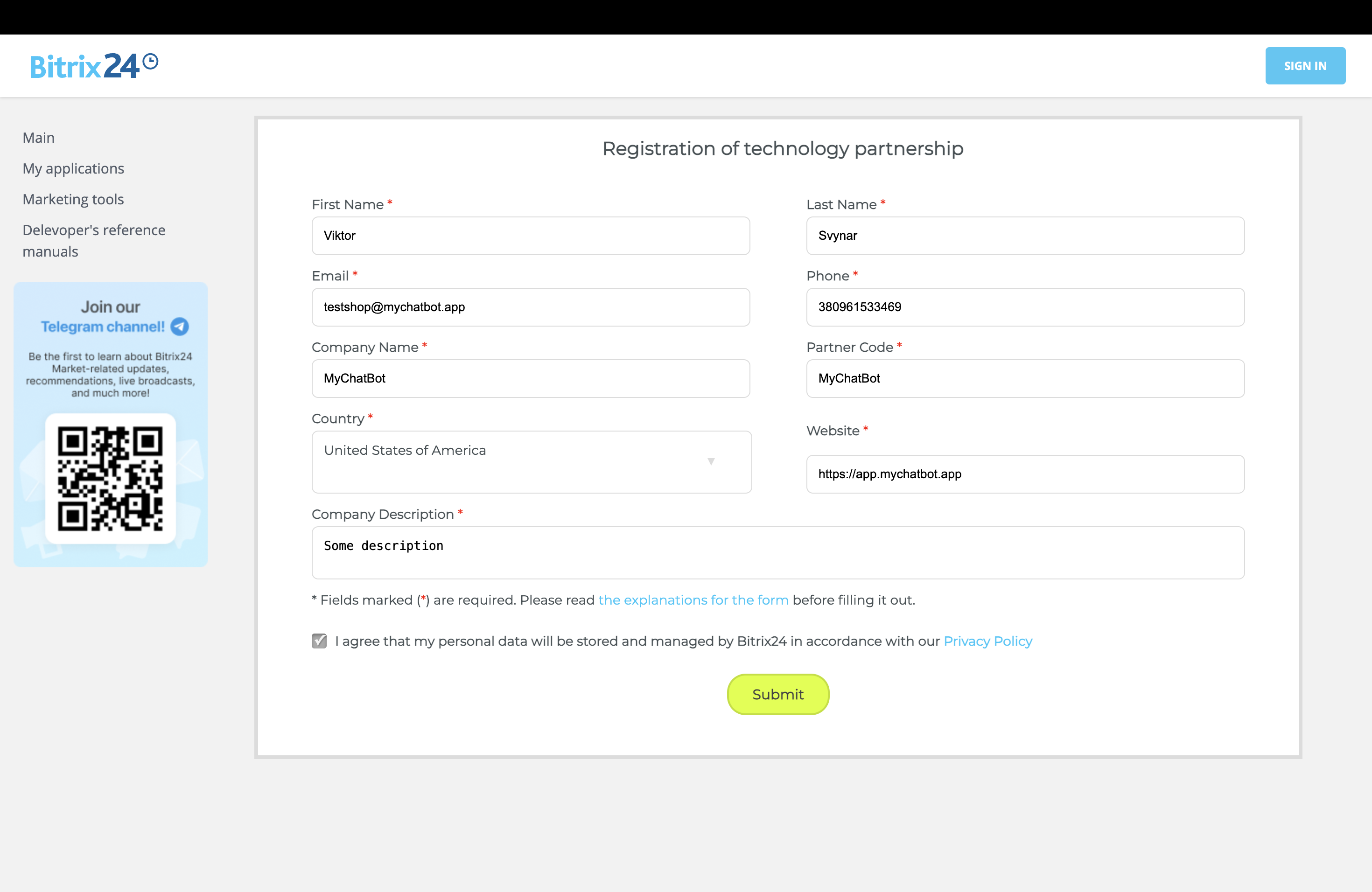
- Log in to your Bitrix24 account as an administrator. First fill in the Registration of technology partnership form — https://vendors.bitrix24.com/technology-partnership/
- Navigate to https://vendors.bitrix24.com/app/ and select My Applications
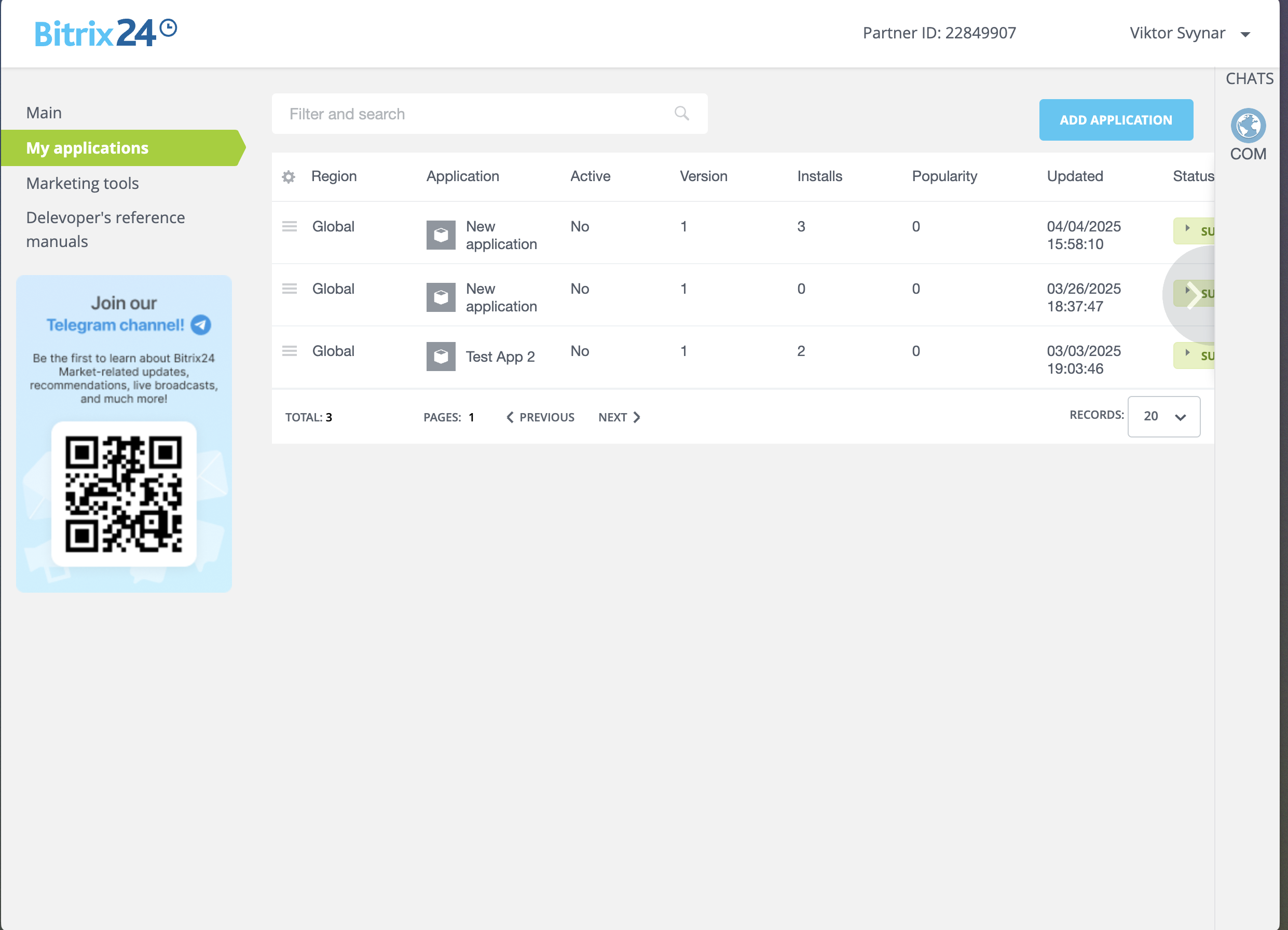
- Click Add Application
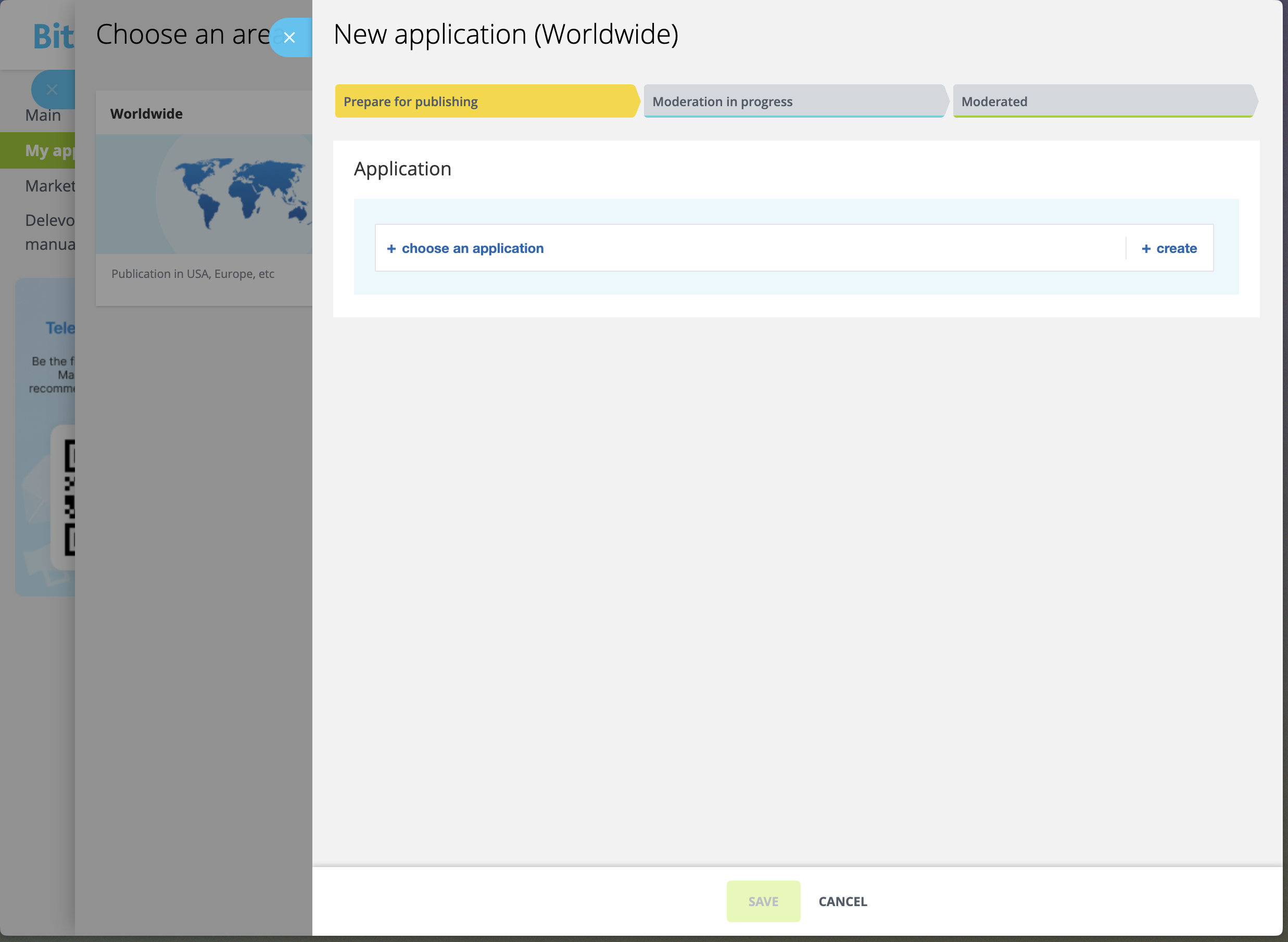
- In Choose an area click Worldwide
- In the Application block click + create, then open the Application version 1 block
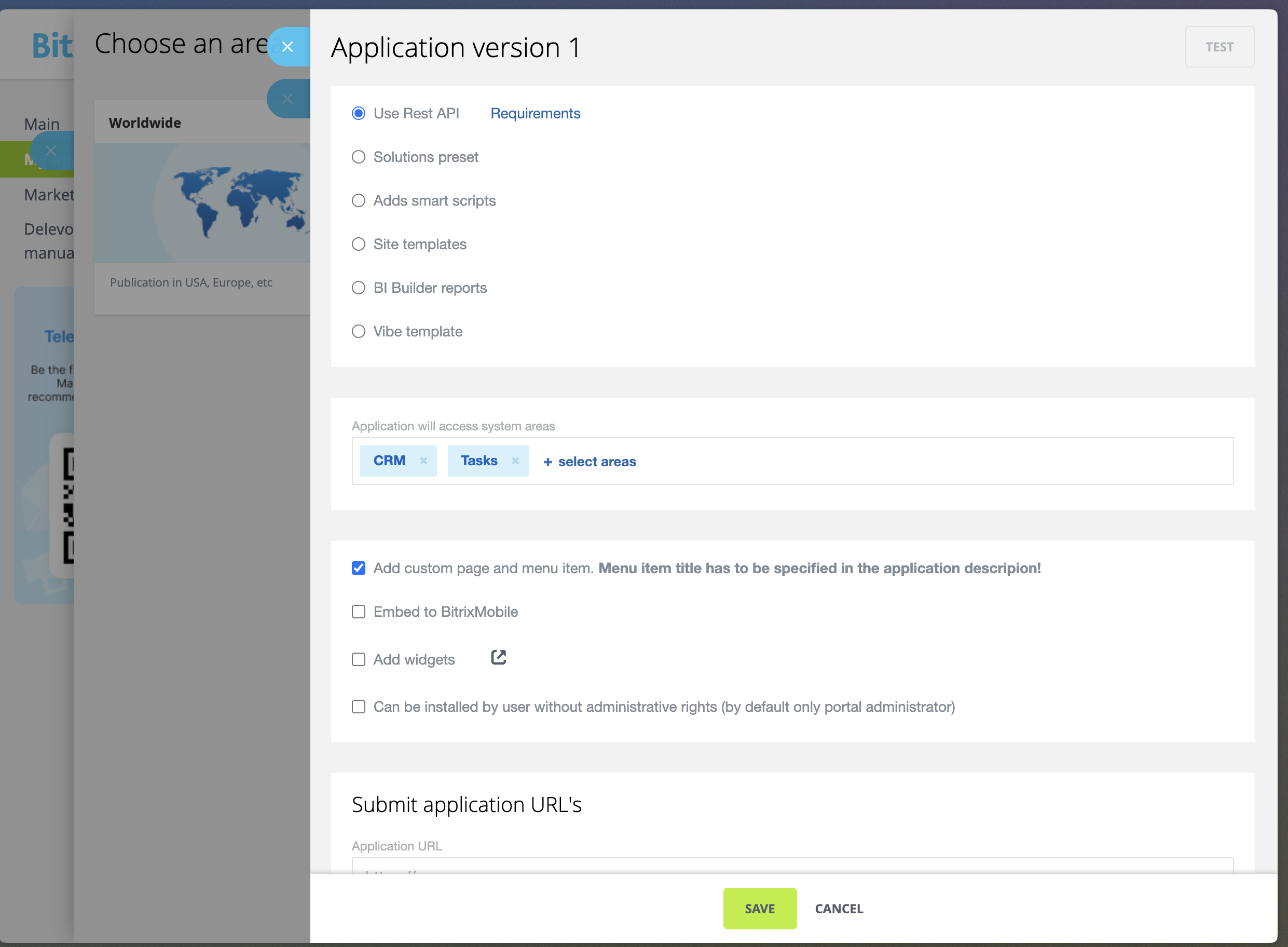
- Pick Use Rest API and fill in the required information:
- Application URL:
https://app.mychatbot.app/integration?integration=Bitrix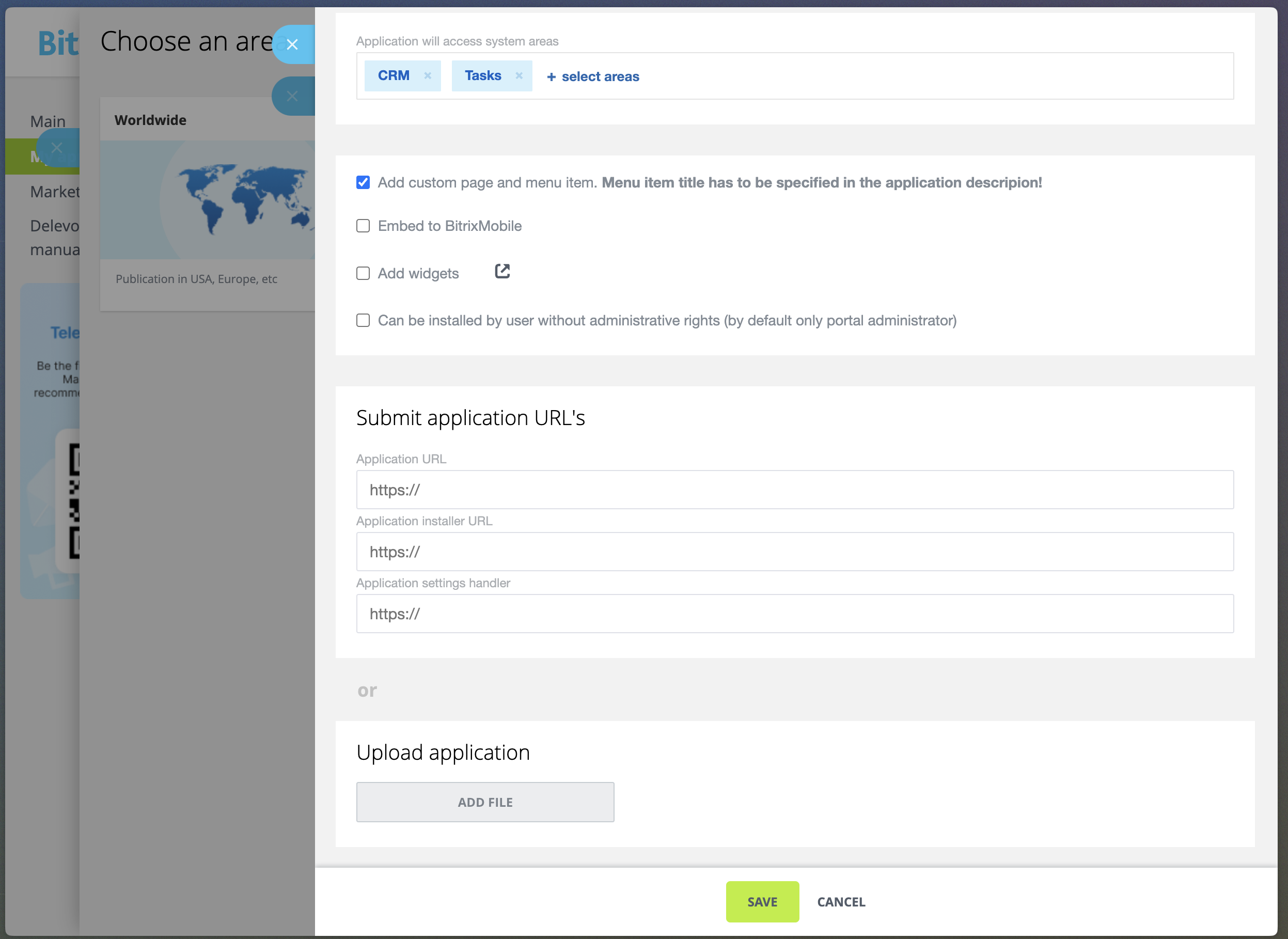
- Application URL:
- Click Save to create your application
- Click Test in the top-right corner of the Application version 1 block to get your Client ID and Client Secret
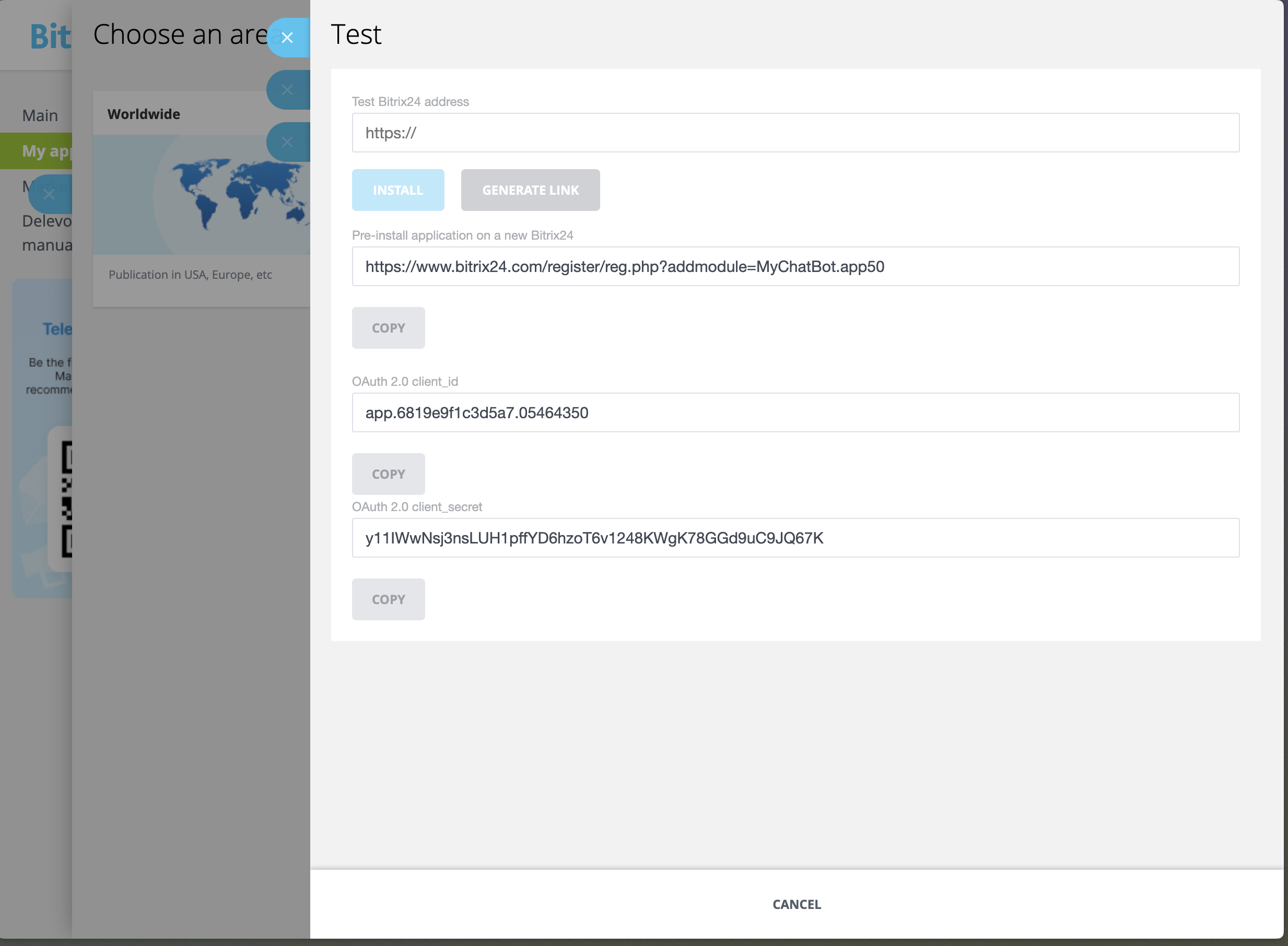
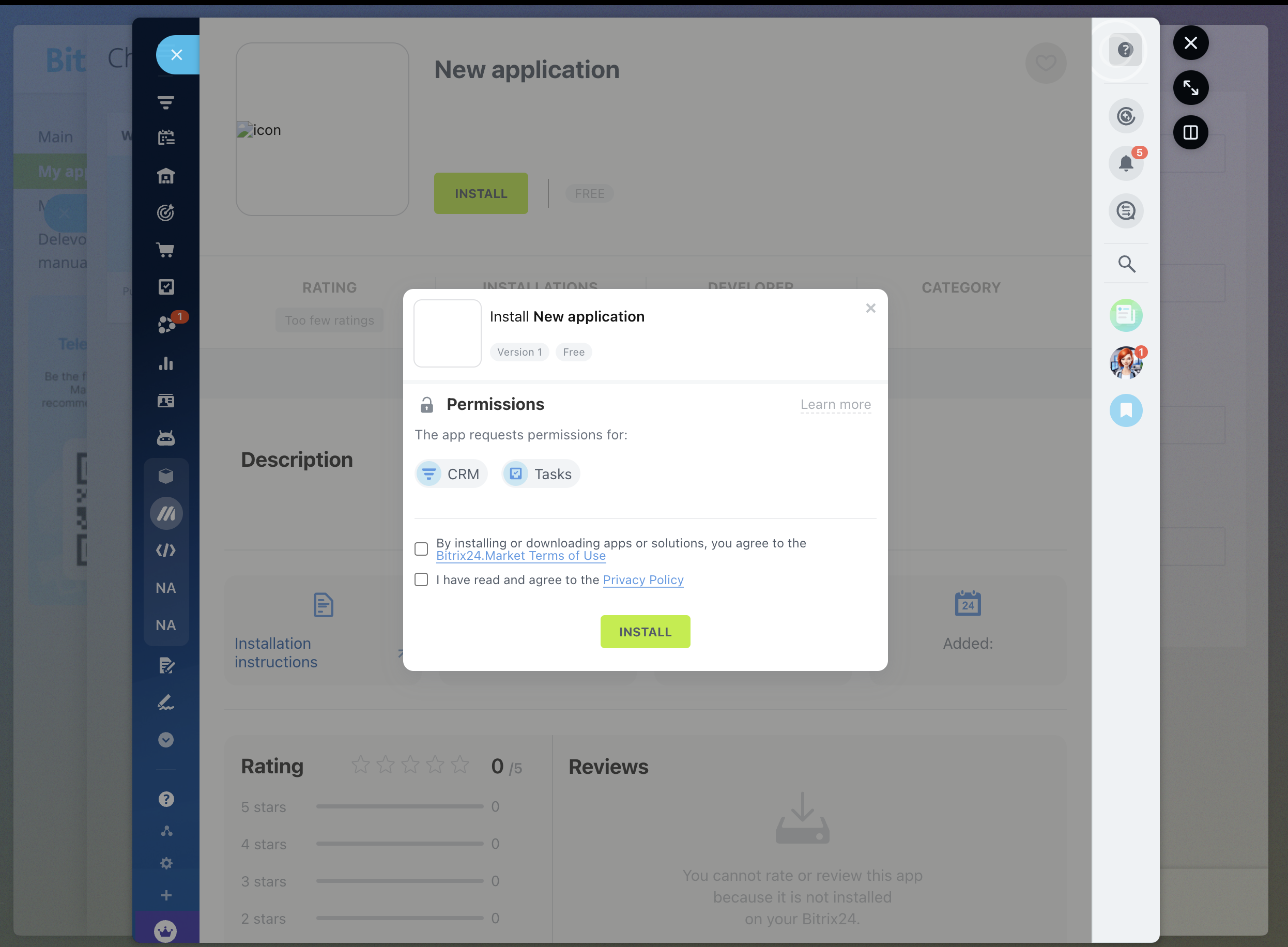
- Paste your Domain in Test Bitrix24 address and click Install — you'll be redirected to the install page in MyChatBot
- Check all checkboxes and click Install; the app will be installed
Connecting Bitrix24 in MyChatBot
In the app
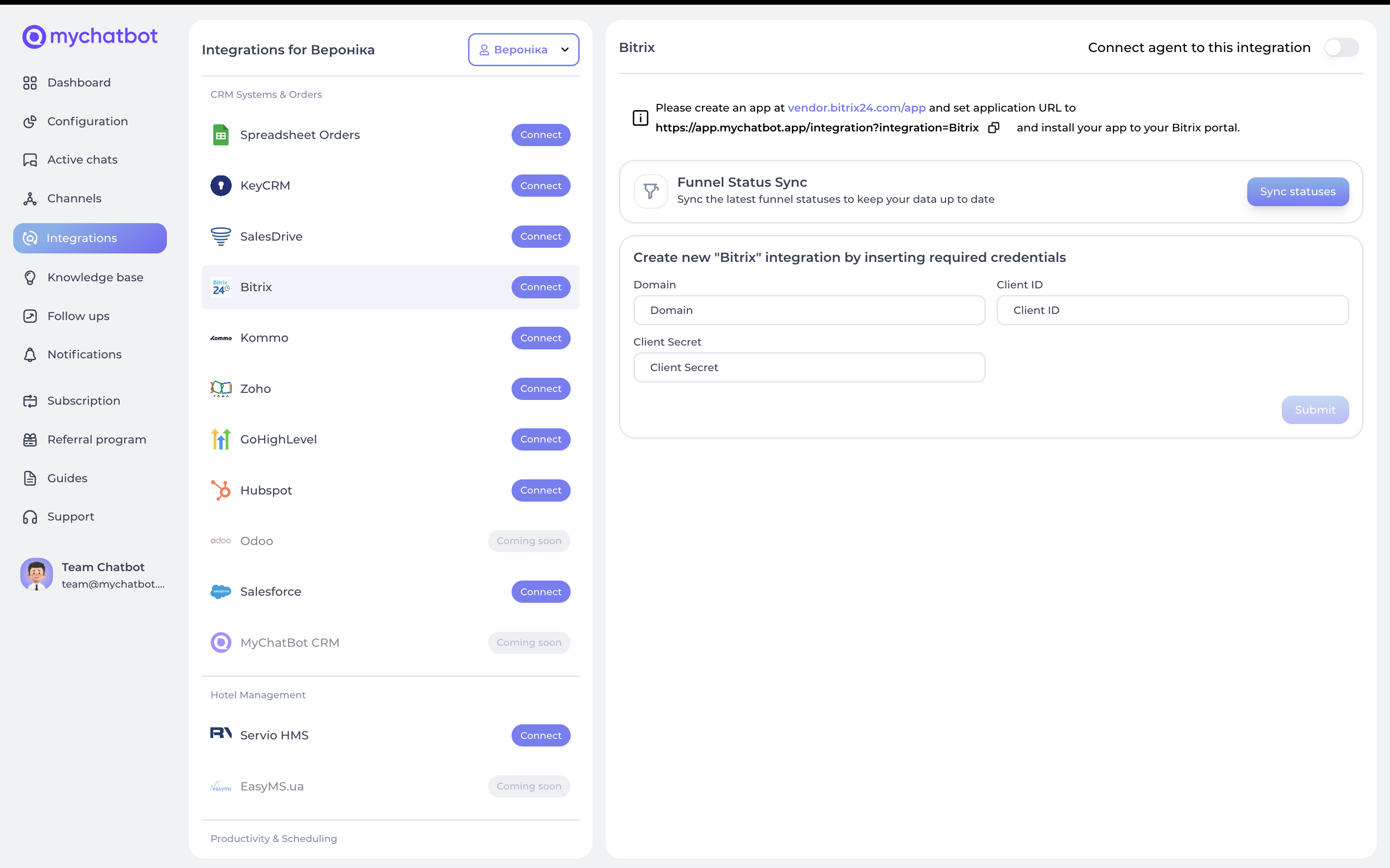
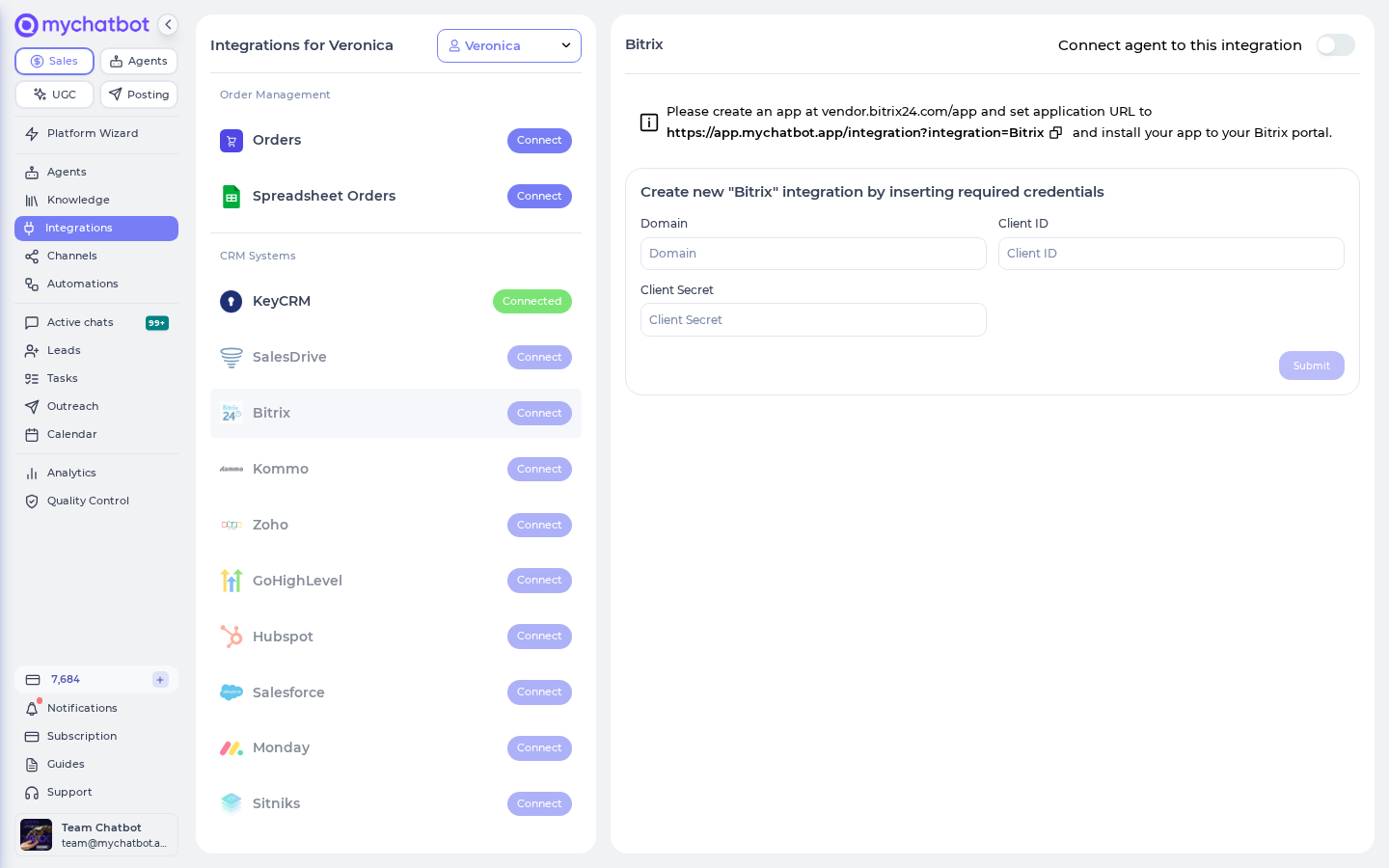
Open Integrations → pick your agent → find Bitrix24 CRM → Connect. App URL: https://app.mychatbot.app/integration?integration=Bitrix
- Go to the Integrations tab in your MyChatBot dashboard — https://app.mychatbot.app/integration?integration=Bitrix
- Select the agent you want to connect to Bitrix24
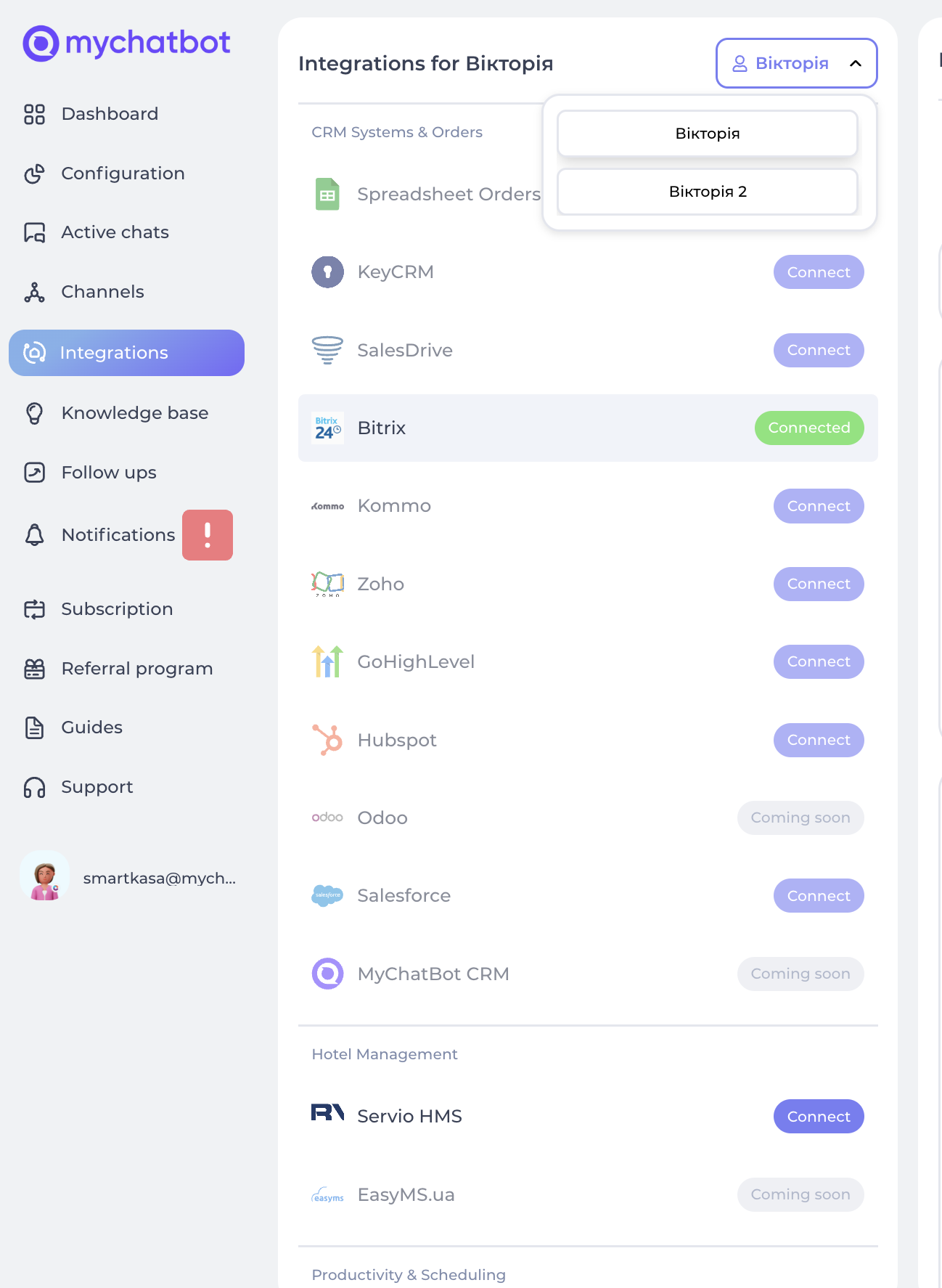
- Scroll down to find Bitrix24 CRM in the integrations list
- Click the Connect button
- Provide the following credentials:
- Domain: Your Bitrix24 domain (e.g.,
your-company.bitrix24.eu) - Client ID: The Client ID from your Bitrix24 app
- Client Secret: The Client Secret from your Bitrix24 app
- Domain: Your Bitrix24 domain (e.g.,
- Click Submit to save your integration
Entities & data fields configuration
After connecting your Bitrix24 account, choose which entities and fields your agent can touch. This lives in the Entities & Data Fields Configuration section ("Select the entities and their fields you want the assistant to fill"). 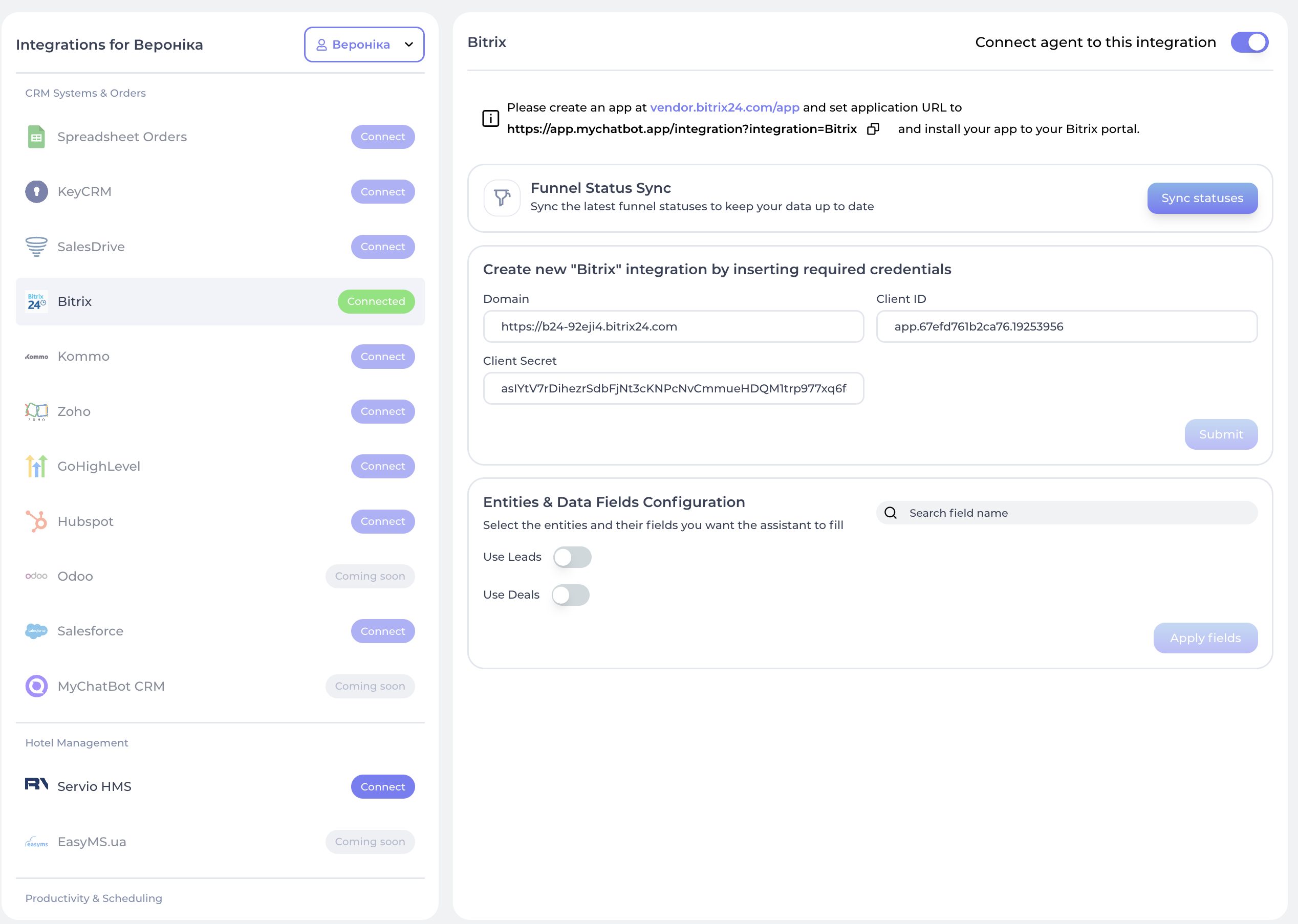
In the app
Integrations → your agent → Bitrix24 CRM → Entities & Data Fields Configuration.
- In Entities & Data Fields Configuration you can:
- Turn on Leads to let your agent manage leads
- Turn on Deals to let your agent manage deals
- For each entity, pick the fields your agent may fill:
- Standard Bitrix24 fields
- Custom fields that exist in your CRM
- Click Apply fields to save your configuration
- To pull the latest funnel statuses, use the Sync statuses button
Understanding entity types
The Bitrix24 integration supports three main entity types:
- Leads: Potential sales opportunities
- Deals: Sales transactions in progress
- Contacts: Individual client information
Field types
Each entity has two types of fields:
- Standard fields: Default fields provided by Bitrix24 (appear under "Standard fields for Leads/Deals")
- Custom fields: User-defined fields specific to your CRM setup (appear under "Most used custom fields" or "Other custom fields")
Special fields
A few fields behave in a special way:
Status
- For leads: represents the current stage in the lead pipeline
- Common values include "New", "In Progress", "Qualified", "Disqualified"
- Must match exactly with statuses defined in your Bitrix24 account
- Refresh the available values with the Sync statuses button
Source
- Identifies where the lead originated
- Automatically set to
AI-+ the name of your assistant - Helps you track which leads came from your AI assistant
Chat Link
- Automatically added to each lead or deal
- Contains a link back to the conversation that generated the record
- Stored in both the Comments field and a dedicated Chat Link field
Status values must match Bitrix24 exactly
The Status your agent sets (e.g., "New", "Qualified") must match the statuses defined in your Bitrix24 account character-for-character, or the update will fail. After changing your funnel in Bitrix24, click Sync statuses to pull the latest values.
Working with pipelines
Deals in Bitrix24 are organized into pipelines with multiple stages:
- Select the appropriate pipeline from the Select Pipeline dropdown in the MyChatBot dashboard
- Your agent will use this pipeline when creating new deals
- The stages within the pipeline can be used to move deals through your sales process
What your agent can do
Once Bitrix24 CRM is connected, your agent can run these CRM actions on its own during a conversation. Every field you turn on in Entities & Data Fields Configuration becomes something the agent is allowed to fill.
| Action | What the agent provides | What happens automatically |
|---|---|---|
| Create a lead | Contact name (required), phone, status, any custom fields you enabled | Creates or finds a contact by phone and links it to the lead; adds a link back to the chat; sets the source to AI- + your assistant's name |
| Update a lead | New status/stage and any field values | Updates the lead already tied to this customer, in place |
| Create a deal | Contact name and phone (required), an optional list of products, any custom fields | Creates or finds a contact by phone; adds the products (creating new ones if needed); adds a link back to the chat; drops the deal into the pipeline you selected |
| Create or update a contact | Full name and phone (required) | If the customer already has a lead, links this contact to it; keeps the customer's MyChatBot profile in sync |
Phone number is the key
Leads, deals, and contacts are matched to a customer by phone number. If your agent has the customer's phone, MyChatBot avoids creating duplicate contacts and keeps everything tied to the same person.
Guiding your agent
You don't trigger these actions yourself — your agent decides when to use them based on your instructions. Write your agent instructions in plain language describing when to create or update records and which values to set. The agent maps your intent to the right Bitrix24 action.
Creating leads or deals
Add examples like these to your agent's instructions:
When a customer expresses interest in our services, create a lead in Bitrix24:
- Use their name as the lead title
- Set the status to "New"
- Include their phone number
- Add any product details to the comments field
For deals:
When a customer confirms a purchase intention, create a deal in Bitrix24:
- Use their full name
- Include their phone number
- Add the products they're interested in
- Add any relevant notes to the comments field
Updating lead or deal status
When a customer requests a call back:
1. Create a lead if they're new
2. Update the lead status to "Callback Requested"
3. Add the preferred callback time to the comments

When a customer confirms an appointment:
1. Update the lead status to "Appointment Scheduled"
2. Add the appointment details to the comments field
For deals:
When a customer completes a payment:
1. Update the deal stage to "Closed Won"
2. Update the deal amount to match the final purchase value
3. Add payment details to the comments field

When a customer declines to proceed:
1. Update the deal stage to "Closed Lost"
2. Add the reason for declining in the comments field
Match your funnel names
Whenever you name a status or stage in your instructions (e.g. "Closed Won"), use the exact wording from your Bitrix24 funnel. Click Sync statuses first so you're working from the current list.