
Appearance
KeyCRM Integration
Connect your MyChatBot agent to KeyCRM so it can create and manage leads, orders, and contacts directly in your account — handling CRM work as part of the sales conversation, without human intervention.
At a glance
| You need | Where | Result |
|---|---|---|
| KeyCRM API key | KeyCRM → Settings → General → Create New API Key | Credential for the connection |
| Access Token | MyChatBot → Integrations → KeyCRM → Connect | Agent linked to KeyCRM |
| Entities & fields | Entities & Data Fields Configuration panel | Choose what the agent can read/write |
| Funnel statuses | Sync statuses button | Lead stages match your CRM |
Connect in 4 steps:
- Generate an API key in KeyCRM (Settings → General).
- In MyChatBot, open Integrations → KeyCRM, pick your agent, and Connect.
- Paste the API key as the Access Token and Submit.
- Configure entities and fields, then Sync statuses to pull your funnel stages.
Once connected, your agent can create and update leads, create orders, and add or update contacts in KeyCRM — all automatically, in the flow of the conversation.
Status values must match KeyCRM exactly
The Status field maps to a stage in your KeyCRM pipeline and must match the statuses defined in your account character for character. After changing pipelines or stages in KeyCRM, click Sync statuses in the MyChatBot dashboard, or lead creation/updates will fail to set the stage.
Create an API key in KeyCRM
- Log in to your KeyCRM account as an administrator.
- Navigate to Settings → General.
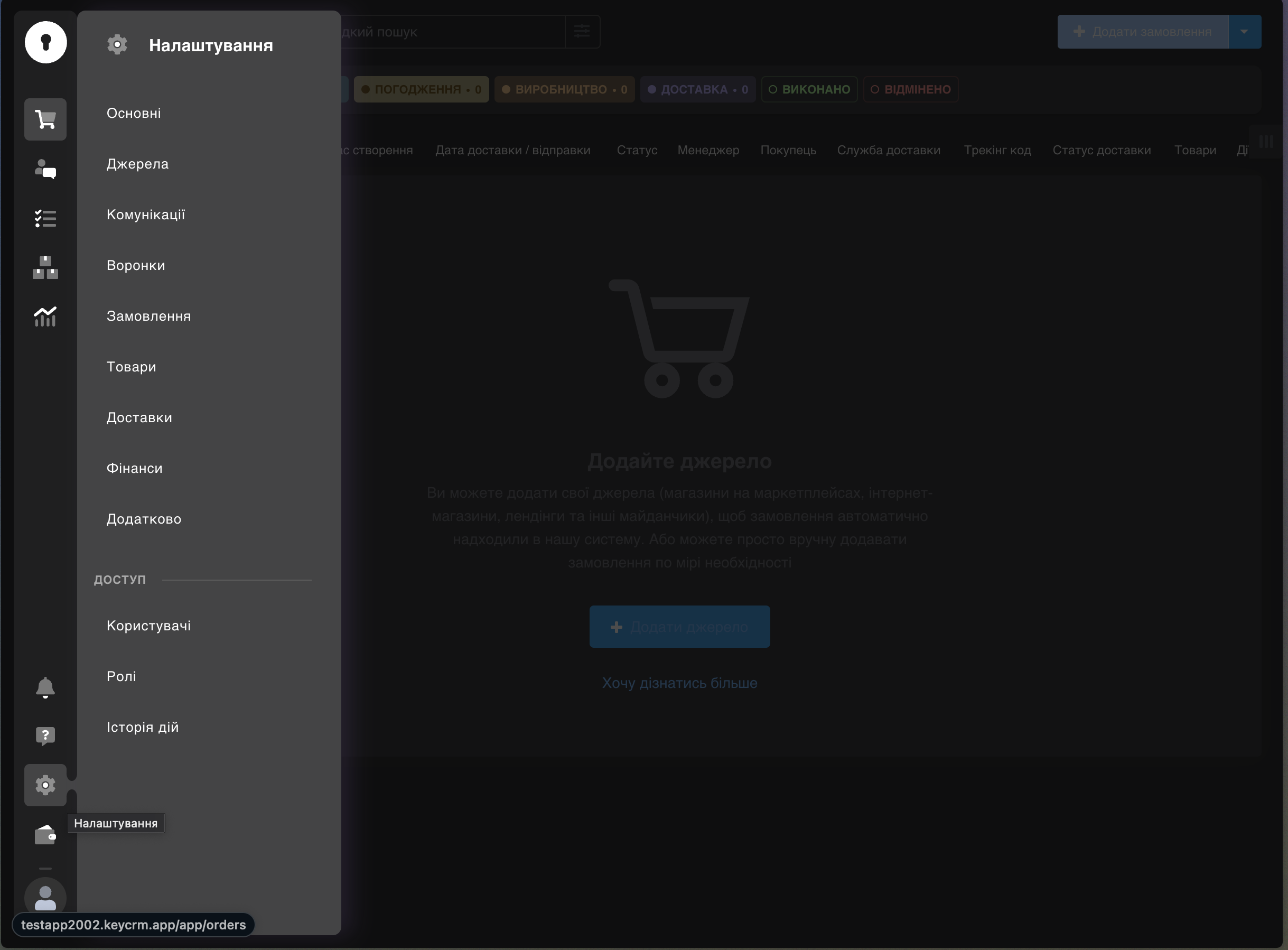
- Click Create New API Key.
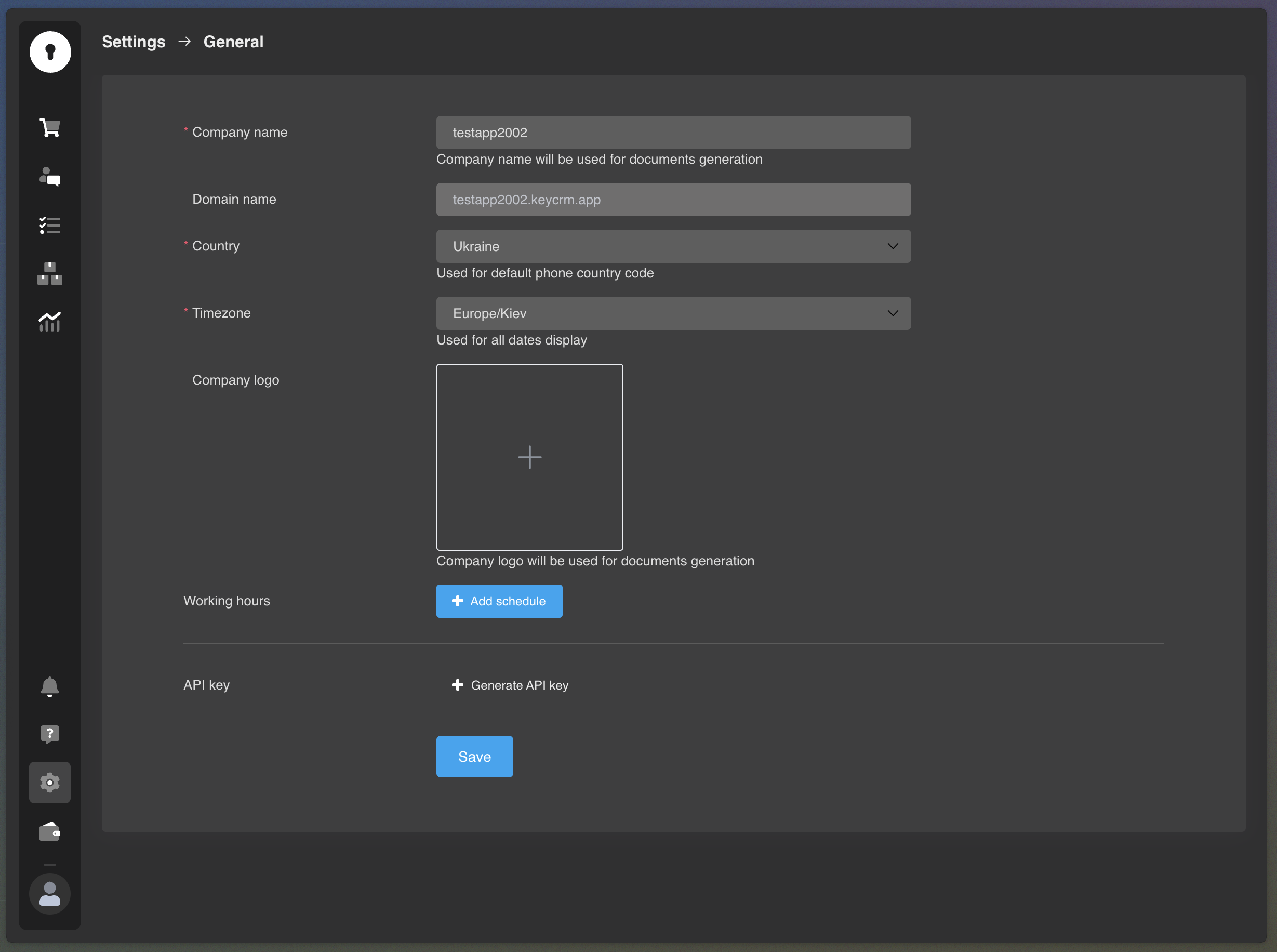
- Click Save to store your API key.
Connect the integration in MyChatBot
In the app
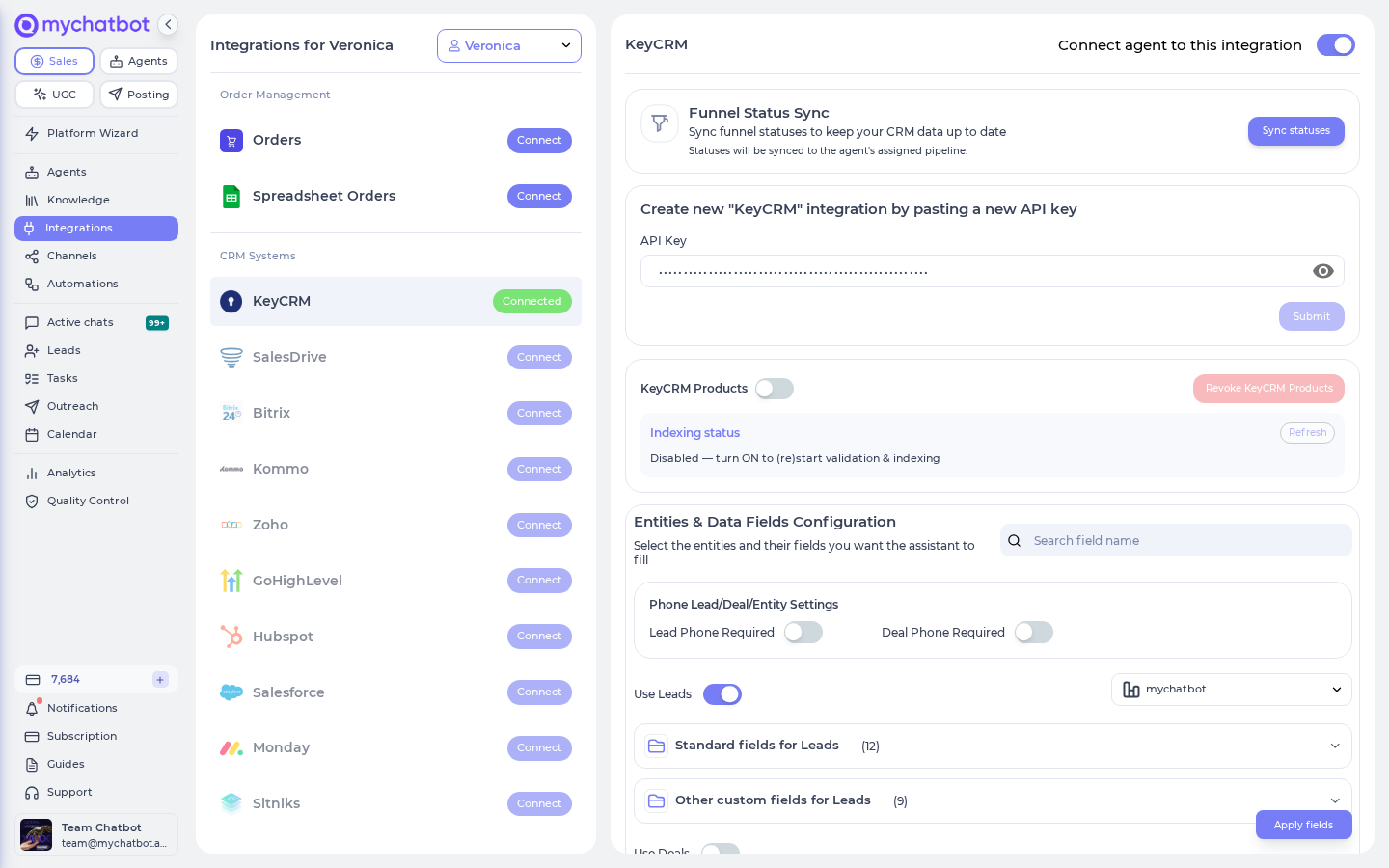
Integrations → KeyCRM → Connect — https://app.mychatbot.app/integration?integration=KeyCRM
- Open the Integrations tab in your MyChatBot dashboard.
- Select the agent you want to connect to KeyCRM.
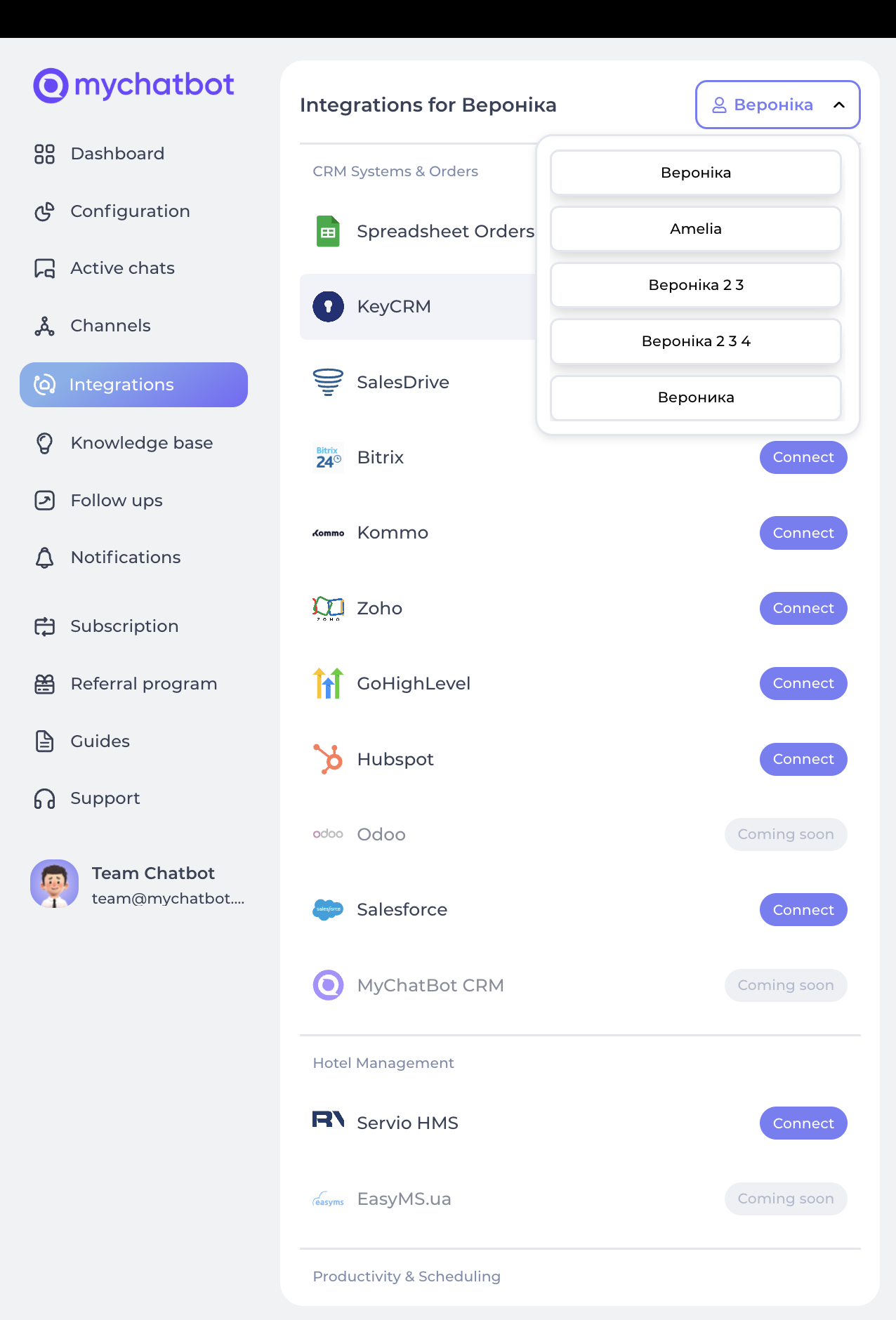
- Scroll down to find KeyCRM in the integrations list.
- Click Connect.
- Provide the required credential:
- Access Token: your KeyCRM API key
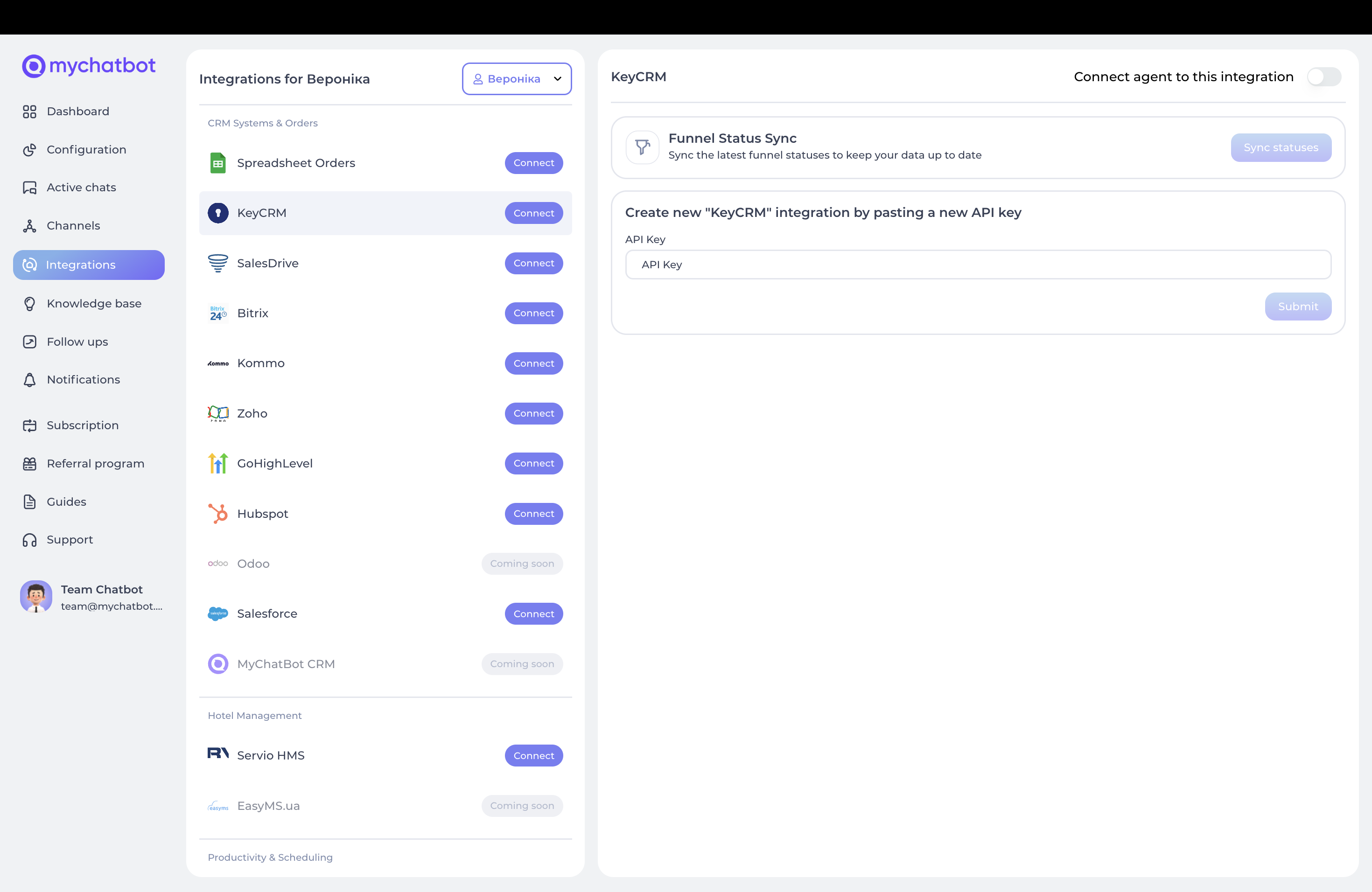
- Access Token: your KeyCRM API key
- Click Submit to save the integration.
Configure entities & data fields
After connecting your KeyCRM account, choose which entities and fields your agent can access. 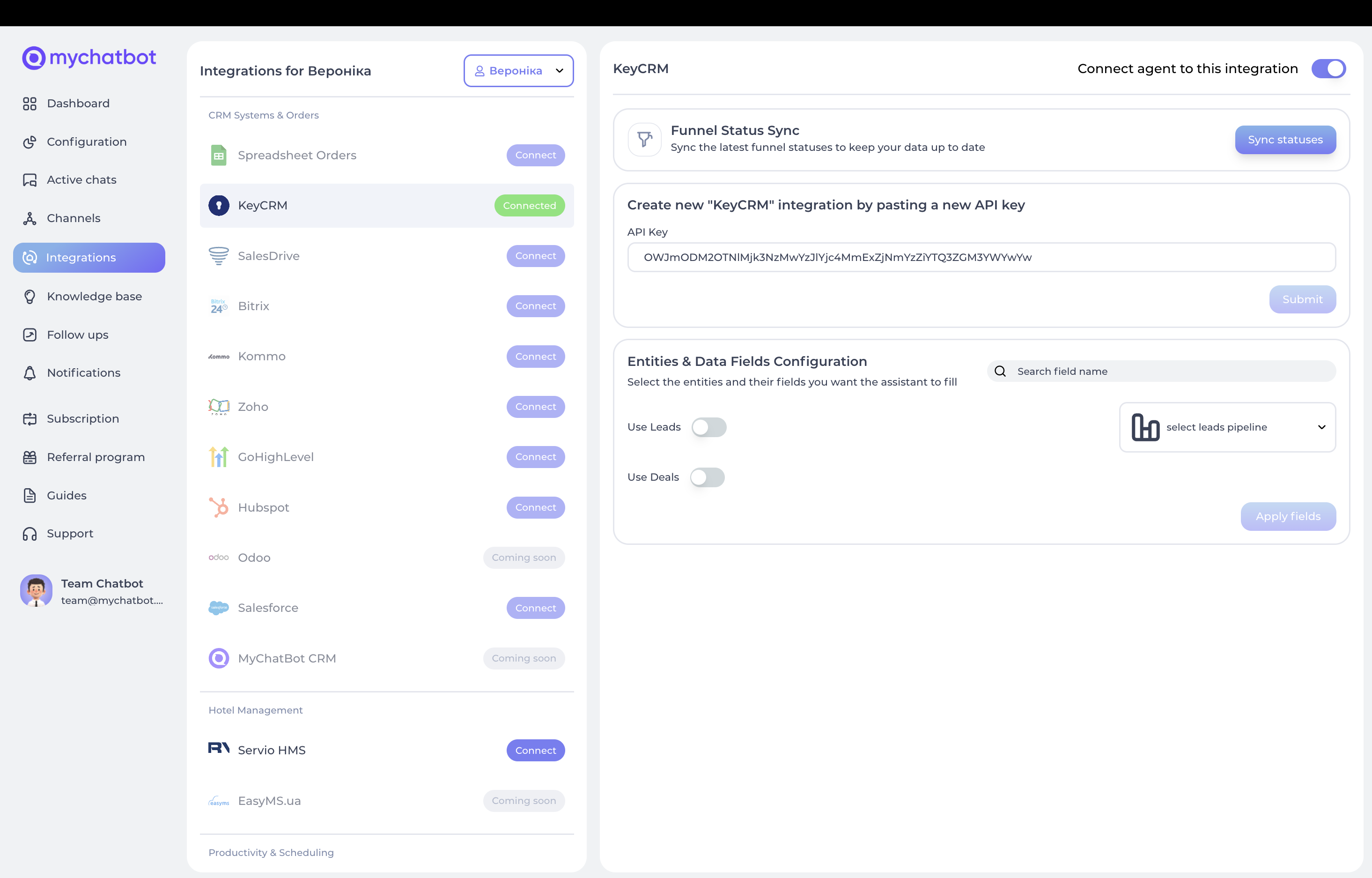
- In the Entities & Data Fields Configuration section, you can:
- Toggle Use Leads to enable lead management.
- Toggle Use Deals to enable order management.
- For each entity type, select:
- Standard fields from KeyCRM.
- Custom fields that exist in your CRM.
- Click Apply fields to save your configuration.
- To sync the latest funnel statuses, use the Sync statuses button at the top.
Entity types
KeyCRM integration supports three main entity types:
- Leads — potential sales opportunities.
- Orders — sales transactions in progress.
- Contacts — individual client information.
Field types
Each entity has two types of fields:
- Standard Fields — default fields provided by KeyCRM.
- Custom Fields — user-defined fields specific to your CRM setup.
Special fields
Several special fields require specific attention:
- Status
- For leads: represents the current stage in the lead pipeline.
- Must match exactly with statuses defined in your KeyCRM account.
- Can be updated using the Sync statuses button.
- Source
- Identifies where the lead originated.
- Automatically set to the communication channel (e.g., "Telegram", "WhatsApp"), or "AI" if not specified.
- Helps track which leads came from your AI assistant.
- Chat Link
- Automatically added to each lead or order.
- Contains a link back to the conversation that generated the lead.
- Stored in the manager comment field.
Working with pipelines
Leads in KeyCRM are organized into pipelines with multiple stages:
- Select the appropriate pipeline from the dropdown in the MyChatBot dashboard.
- Your agent uses this pipeline when creating new leads.
- The stages within the pipeline move leads through your sales process.
KeyCRM Products (catalog search)
Once the integration is connected, a KeyCRM Products panel appears in its settings. Turning it on imports your KeyCRM product catalog and indexes it, so the agent can find and recommend products during a chat.
- Flip the KeyCRM Products switch on — validation and indexing start immediately ("KeyCRM Products enabled (validation/indexing started)").
- Watch the Indexing status line; the panel auto-refreshes while the import is preparing or indexing. Click Refresh at any time to check for updates manually.
- When it finishes, the status reads Completed — N products / N categories (with an image count where images were indexed).
| Indexing status | What's happening |
|---|---|
| Preparing / preprocessing feed… | The product feed is being fetched and pre-processed (the panel shows an estimated time) |
| Parsing products… | Products are being read from the feed |
| Generating embeddings… | Products are being converted into a searchable form |
| Indexing products… | The searchable catalog is being built |
| Completed | Done — shown with product and category counts |
| Idle. / No active indexing | Nothing is running right now |
While the panel is on, three switches control ongoing behavior:
- Auto-update products — re-imports the catalog on a schedule so the index stays current with KeyCRM.
- Notify in Telegram on error — messages you in Telegram if an update fails.
- Agentic Search — "for complex product discoveries": the agent searches the catalog in several refining steps instead of a single lookup.
To remove the indexed catalog, click Revoke KeyCRM Products — the button is active only while the panel is switched on. Switching the panel off shows "Disabled — turn ON to (re)start validation & indexing".
What your agent can do in KeyCRM
Once connected, your agent gains four CRM capabilities. Every field you select in Entities & Data Fields Configuration becomes something the agent can fill in for the matching capability.
| What the agent can do | When it kicks in | What happens automatically |
|---|---|---|
| Create a lead | A customer shows interest | Contact created or matched by phone, lead linked to it, chat link + source added |
| Update a lead | A lead's stage or details change | Contact matched by phone, lead updated, chat link + source kept in sync |
| Create an order | A customer confirms a purchase | Contact matched, products added (matched or created), shipping recorded |
| Add / update a contact | A customer shares their details | Any existing lead and related orders are updated with the contact |
Create a lead
Information the agent can fill in:
- Full name — contact's full name (required)
- Phone — contact's phone number
- Status — current stage in the sales pipeline
- Custom fields — any additional fields you've configured
When a lead is created:
- A contact is automatically created or found based on the phone number.
- The lead is linked to this contact.
- A chat link is automatically added to trace back to the conversation.
- The source is set to identify your AI assistant.
Update a lead
The agent updates the lead already associated with the client. It can change:
- Full name — update the contact's name
- Phone — update the contact's phone number
- Status — update the lead's status/stage
- Custom fields — update any field values as needed
The same automatic behavior applies as when creating a lead: the contact is matched by phone, the lead is linked, and the chat link and source are kept in place.
Create an order
Information the agent can fill in:
- Full name — contact's full name (required)
- Phone — contact's phone number (required)
- Shipping (required)
- Delivery city — city for delivery (required)
- Receive point — branch or address for pickup (required)
- Products (required)
- SKU — product SKU
- Name — product name
- Price — product price
- Quantity — product quantity
- Custom fields — any additional fields you've configured
When an order is created:
- A contact is automatically created or found based on the phone number.
- The order is linked to this contact.
- Products are added to the order (matching existing products or creating new ones).
- The order is added to your system with the appropriate shipping information.
- MyChatBot keeps its own record of the order in sync.
Add or update a contact
Information the agent can fill in:
- Full name — contact's complete name (required)
- Phone — primary phone number (required)
When a contact is created or updated:
- If a lead already exists for the client, it's updated with this contact.
- The client's information in MyChatBot is also updated.
- Any related orders are updated with the contact information.
Configure in agent instructions
Your agent decides when to use each CRM capability based on the guidance in its instructions. Add examples like the ones below so it knows when to create leads, create orders, and update statuses. Describe the intent in plain language — you don't need to name any tools.
Creating leads
When a customer expresses interest in our services, add them to KeyCRM as a lead with:
- Their name as the lead title
- Their phone number
- Status set to "New"
- Any relevant information in custom fields
Creating orders
When a customer confirms a purchase intention, create an order in KeyCRM with:
- Their full name
- Their phone number
- Shipping information:
  - City for delivery
  - Branch or address for pickup
- The products they want, each with:
  - Product name
  - SKU (if available)
  - Price
  - Quantity
Updating lead status
When a customer requests a call back:
1. Create a lead if they're new
2. Update the lead status to "Callback Requested"
3. Add the preferred callback time to comments

When a customer confirms an appointment:
1. Update the lead status to "Appointment Scheduled"
2. Add appointment details to the comments field
Adding or updating contact information
When a customer provides their contact details:
1. Add their information to KeyCRM as a contact
2. Include their full name and phone number
3. Update any existing lead with this information