
Appearance
Altegio Integration
Connect your AI sales assistant to Altegio — the online booking and appointment-scheduling platform — so it can look up services, find open time slots, and book, reschedule, or cancel appointments for clients directly in your Altegio account, right inside the conversation.
At a glance
| You need | Where | Result |
|---|---|---|
| Partner Token | Altegio (partner / developer access) | Credential that authorizes the connection |
| Branch ID + Chain ID | Altegio account settings | Identifies which location and chain to book into |
| Login to Altegio | MyChatBot → Integrations → Altegio | Signs you in and fetches your User Access Token |
| Submit | Same screen | Assistant linked to your Altegio location |
Connect in 4 steps:
- In MyChatBot, open Integrations, pick the assistant you want to connect, and find Altegio.
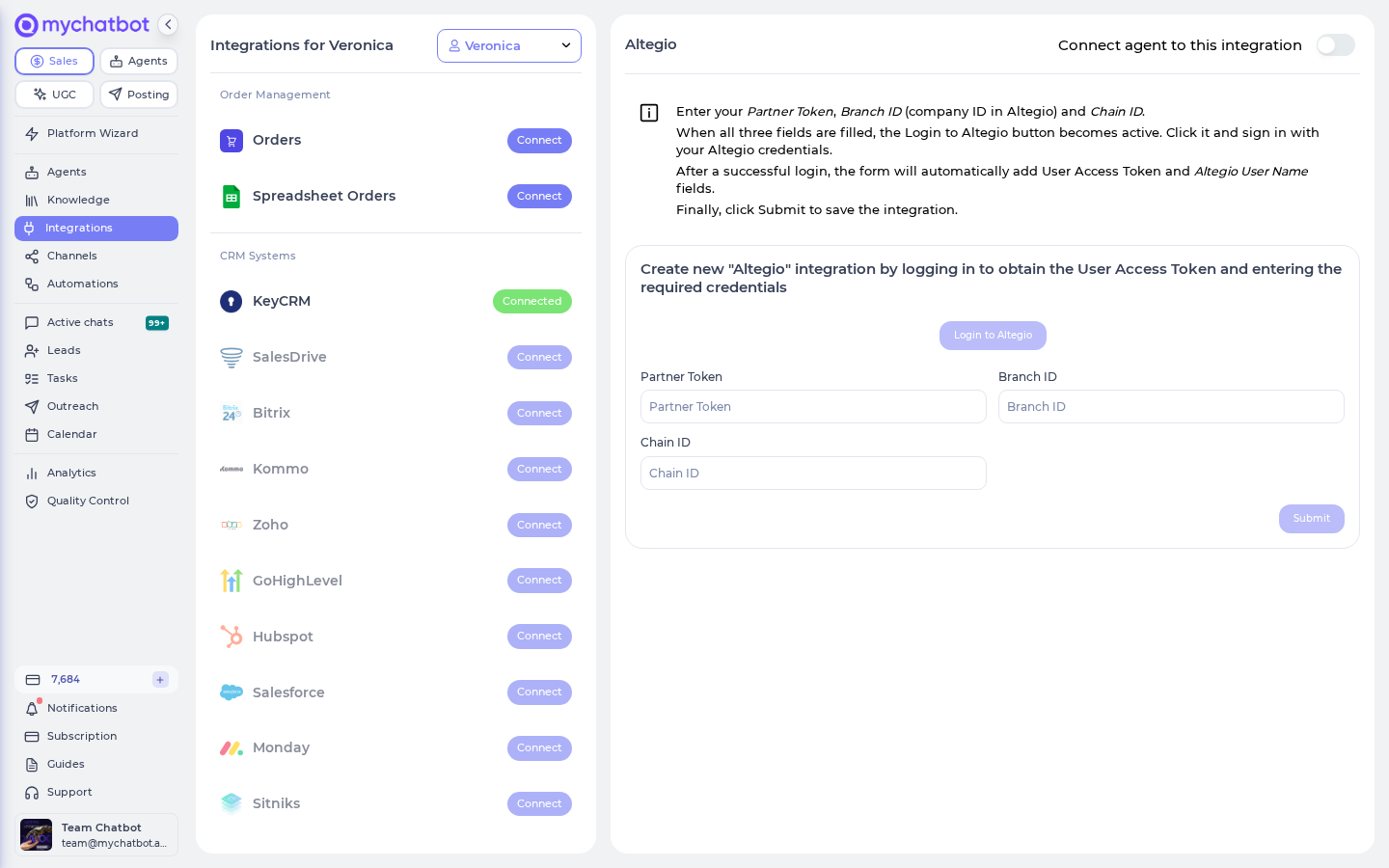
- Enter your Partner Token, Branch ID (your company ID in Altegio), and Chain ID.
- Once all three fields are filled, the Login to Altegio button activates. Click it and sign in with your Altegio credentials — the form then fills in User Access Token and Altegio User Name for you.
- Click Submit to save the integration.
Once connected, your assistant can answer "what do you offer / who's available / when can I come in?" and complete the whole booking flow — no human hand-off required.
Connect the integration in MyChatBot
In the app
Integrations → Altegio — https://app.mychatbot.app/integration?integration=Altegio
- Open the Integrations tab in your MyChatBot dashboard.
- Select the assistant you want to connect to Altegio.
- Scroll to find Altegio in the integrations list and open it.
- Enter the three credentials:
- Partner Token — from your Altegio partner / developer access.
- Branch ID — the company ID of the location in Altegio.
- Chain ID — the chain this branch belongs to.
- When all three are filled, click Login to Altegio and sign in with your Altegio login and password.
- After a successful login, the form automatically adds a read-only User Access Token and Altegio User Name.
- Click Submit to save.
Branch ID vs. Chain ID
These are two different values. Branch ID is the specific location (the "company ID" in Altegio) the assistant books into; Chain ID is the parent chain. Entering the wrong one can point bookings at the wrong location. If unsure, check your location settings in the Altegio dashboard.
You don't type the User Access Token yourself
You never paste the User Access Token manually — it's fetched for you when you click Login to Altegio and sign in. If it doesn't appear, double-check the Partner Token, Branch ID, and Chain ID, then try the login again.
What your assistant can do in Altegio
Once connected, the assistant gains a full set of booking capabilities. It decides when to use each one based on the conversation and its instructions — you don't need to name any tools.
| What the assistant can do | When it kicks in | What happens |
|---|---|---|
| List services, staff & promotions | A client asks "what do you offer?" | The assistant reads your live catalog of services, employees, and current promotions for the branch |
| Find open time slots | A client asks "when can I come in?" | The assistant searches available sessions by service, staff member, and date |
| Recognize returning clients | A client gives their phone number | The assistant checks past appointments to see whether they've visited before |
| Book an appointment | A client confirms a time | The assistant books it against the chosen service, staff member, and time, with the client's name and contact details |
| Reschedule an appointment | A client wants a different time or service | The assistant edits the existing booking (time, length, services, status) |
| Cancel an appointment | A client can't make it | The assistant cancels a booking it previously created |
Phone number is the client key
Availability, returning-client lookups, and bookings all revolve around the client's phone number. Make sure your assistant's instructions ask for a phone number early so it can recognize repeat clients and complete a booking.
Bookings may need an SMS confirmation code
Some Altegio setups require the client to confirm a new appointment with a code sent by SMS. When that happens, the assistant will ask the client for the code and finish the booking once they provide it. This is controlled by your Altegio account settings, not by MyChatBot.
Configure in assistant instructions
Your assistant decides when to book, reschedule, or cancel based on the guidance in its instructions. Describe the intent in plain language — no tool names needed. A few examples you can adapt:
Guiding a new booking
When a client wants to book:
1. Ask which service they want, and offer our list of services if they're unsure.
2. Ask for a preferred date and, if they have one, a preferred staff member.
3. Offer the available time slots for that service/date.
4. Ask for their full name and phone number.
5. Confirm the details, then book the appointment.
Recognizing returning clients
When a client gives their phone number, check whether they've visited us
before. If they have, greet them by name and offer to rebook a service
they've had previously.
Rescheduling and cancelling
If a client asks to move an appointment, confirm the new date/time and
update the existing booking rather than creating a second one.

If a client can't make it, cancel the appointment and offer to rebook.