
Appearance
Assistant configuration
Everything your sales assistant is — its role, tone, knowledge, tools, working hours, and handoff rules — is configured on one page: Agents in the sidebar, at app.mychatbot.app/configuration (the page is titled Agent configuration). This is the reference for every setting on that page: what it does, where it hides, and the nuances that aren't obvious from the labels.
Not the Agents Platform
This page covers the Sales Platform assistant — the AI that answers your customers. Building autonomous agents for open-ended work happens elsewhere; see the Agents Platform docs for that.
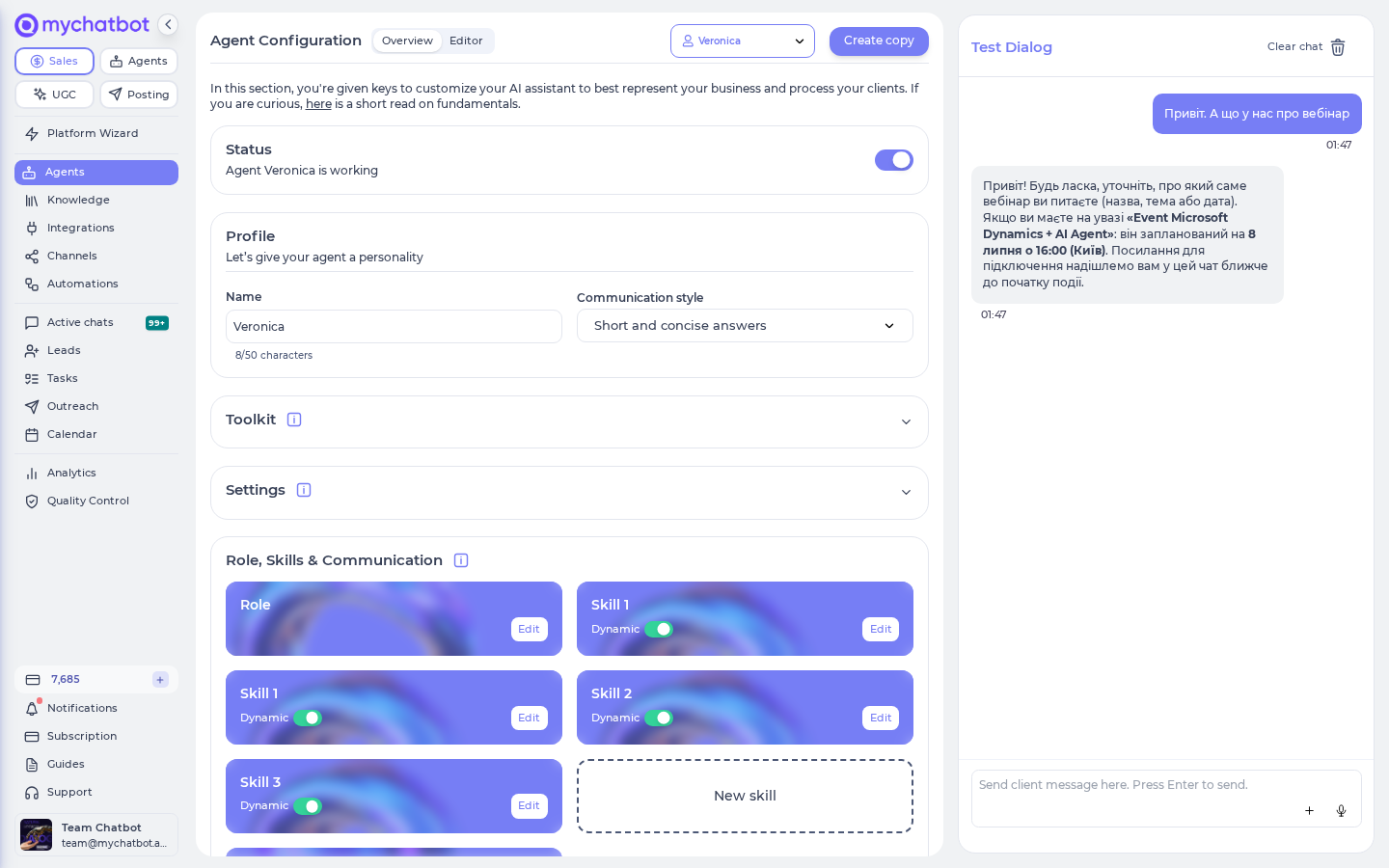
Page map
| Section | What you configure there |
|---|---|
| Header | Which assistant you're editing, Create copy, and the Overview / Editor toggle. |
| Status | One switch: is the assistant working or paused. |
| Profile | Name and Communication style (tone). |
| Toolkit (collapsible) | Knowledge base, Web Search, Integrations, Lead Management, Contact Details, Client Context, Follow ups. |
| Settings (collapsible) | Work Hours, Flight Control, Handoff Control, Reply & Tools. |
| Role, Skills & Communication | Instruction cards: Role, one card per skill, + New Skill, Communication — plus Sub-Agents when present. |
| Test Dialog (right rail) | A live chat with the current configuration. |
Header: pick, copy, switch views
| Control | What it does |
|---|---|
| Assistant dropdown (Select an assistant) | Switches between assistants on the account. The URL carries the selection (/configuration?assistantId=…), so you can bookmark or share a direct link to one assistant's config. |
| Create copy | Duplicates the current assistant — all settings and its integrations are cloned so the copy is fully independent. You'll see "…has been cloned from …, now edit and save it". Disabled while you have unsaved instruction changes ("Save changes before duplicating the assistant"). |
| Overview / Editor | Toggles between the settings overview and the full-screen instructions editor. The page remembers which view (and which tab) you had open per assistant. |
Adding and removing assistants
Your first assistant is created during onboarding. After that, Create copy is the only way to add another one — the button's tooltip literally reads "Add a new assistant". There is no blank "new assistant" form: clone your closest existing assistant, rename it, and edit from there.
There's no delete button either. Assistants are hidden, not deleted, so chat history and data survive: go to Settings → Agent Actions (app.mychatbot.app/profile/agentActions), pick the agent under Agent Visibility, and click Hide Agent — "This will not delete any chat history or data associated with the agent." Hidden assistants move to the Hidden Agents list on the same screen, where Restore brings one back.
How many assistants can be active?
You can create any number of assistants, but on the Standard and Pro plans only "1 active sales assistant at a time" works — the most recently updated stays active, the others switch off automatically. Multipro and above allow "multiple active sales assistants — no auto-deactivation". On a single-assistant plan the Channels page also redirects you to the active one: "Your subscription plan does not allow using multiple assistants."
Saving — and when changes take effect
Most of the page saves itself; a few cards want an explicit Save:
| Saves | Controls |
|---|---|
| Instantly, on change | Status, Name (on click-away), Communication style, the knowledge base pick and Strip knowledge base results from history, Web Search and Search model, Lead Management, Contact Details, Client Context (switch and each field), Follow ups, and the Static / Dynamic switch on skill cards. |
| On explicit Save | Work Hours (you'll see "Schedule saved"), Handoff Control, Reply & Tools, and all instruction text in the editor (Role, skills, Communication). |
Once saved, a change is live from the next message the assistant answers — including conversations already in progress, on every channel. There is no propagation delay and no "new chats only" rule: the assistant re-reads its configuration on each reply.
Status
A single switch with the label "Agent <name> is working" / "Agent <name> is paused". Paused means the assistant stops replying in every channel connected to it (which channels those are is decided on the Channels page — see which assistant answers which channel); chats keep arriving and operators can still answer.
Assistants can pause themselves
If your balance runs out or the subscription lapses, assistants are switched off automatically and the reason is recorded. A payment switches them back on (usually within the hour) — unless you had paused the assistant yourself: the platform never overrides the owner's switch, and flipping it in either direction marks the assistant as owner-managed from then on. Assistants muted before mid-August 2026 carry no recorded reason and must be switched on by hand. Turning an assistant on without any plan is refused with "active subscription required to enable agent." A Work Hours schedule flips this same switch on and off automatically. Full rules: Balance & billing → How agents come back.
Which assistant answers which channel
Pointing a channel at an assistant does not happen on this page — it happens on the Channels page (app.mychatbot.app/channels). The same assistant dropdown sits at the top there; the title becomes "Channels for <assistant>", and every channel you connect while that assistant is selected belongs to it.
- To split channels between assistants, select assistant A in the dropdown and connect its channels, then switch the dropdown to assistant B and connect the rest.
- A channel identity connects to one assistant at a time — Telegram, for example, warns: "This bot token is already connected to another assistant. Please revoke it first or use a different bot." To move a channel, disconnect it under its current assistant, switch the dropdown, and reconnect it under the new one.
- Each channel has its own Connect agent to this channel switch, separate from the assistant's Status. Saving or updating a channel's credentials turns that switch off — re-enable the channel after every credential edit, or the assistant goes silent there while its Status still reads "working".
Profile
"Let's give your agent a personality."
| Setting | Details |
|---|---|
| Name | Up to 50 characters. Saves as soon as you click away from the field. |
| Communication style | A dropdown of tone presets, applied on top of your instructions. |
The Communication style options:
| Style | Use when |
|---|---|
| Short and concise answers | Fast-paced messenger chats, mobile-first audiences. |
| Normal | Default, balanced replies. |
| Verbose and descriptive answers | Complex products that need explanation. |
| Energetic tone that spotlights offers and ends with a clear call to action. | Promo-driven selling. |
| Warm, empathetic tone that acknowledges concerns and guides calmly to a resolution or escalation. | Support-heavy or sensitive niches. |
| Trustworthy advisor tone that explains options plainly and suggests gentle upsells when relevant. | Considered purchases, consultative sales. |
Where's the welcome message?
The first-message greeting is not on this page. Set it per channel under Channels → your channel → Instant welcome message (it's also asked during onboarding). That way each channel can greet differently.
Toolkit
"Provide your assistant with business knowledge and tools to handle product data, process leads, and close deals."
Click the Toolkit header to expand it.
Knowledge
Assigns a knowledge base to this assistant and shows which sources feed it.
| Control | What it does |
|---|---|
| Knowledge base dropdown | Pick which knowledge base this assistant reads (Default, Knowledge base №2, …). Create new jumps to the Knowledge page. If none exists yet you'll see "No Knowledge base added yet" with a Connect knowledge base button. |
| Source cards | The business and product sources connected to the selected knowledge base, with shortcuts into the relevant Knowledge page section. |
| Strip knowledge base results from history | Removes knowledge-base results from conversation history before the next AI call. Reduces input tokens for faster, cheaper replies. The agent can re-search if needed, and full results are always saved in chat logs. |
Nuances of the strip toggle:
- It applies to all sources in the selected knowledge base at once — one switch, every source.
- Calls channels take a snapshot of the knowledge base when the channel is created — later changes to the knowledge base reach a voice agent only after the Calls channel is recreated.
- Turn it on for large catalogs where every reply triggers a product search: history stays lean and costs drop. Leave it off if your flow depends on the assistant re-reading earlier search results without searching again.
Web Search
"Real-time internet search for improved responses."
| Control | What it does |
|---|---|
| Web Search switch | Lets the assistant search the live internet when your knowledge base doesn't cover a question. |
| Search model | Sonar (default) or Sonar Pro Search. The Pro option digs deeper, but "each Sonar Pro search call counts as extra message usage". |
Integrations
"Connect to external tools and CRM or manage leads locally."
Read-only status cards for the integrations attached to this assistant, plus a Connect integrations link that opens the Integrations page pre-scoped to this assistant. If nothing is connected you'll see "No integrations connected".
Lead Management
Controls how this assistant's conversations turn into leads.
| Setting | What it does |
|---|---|
| Manage leads locally | On: pipeline statuses and labels are created and edited inside MyChatBot. Off with a CRM connected: "Lists are synced from your CRM and shown read-only here." |
| Disable auto-assign pipeline | By default a new assistant is automatically attached to your default pipeline. Turn this on to stop that and pick the pipeline yourself. |
| Pipeline selector | Which pipeline this assistant files its leads into. Statuses shown below are filtered to this pipeline. |
| Pipeline Statuses / Labels cards | The status and label sets the assistant can apply. Editable (edit/delete) when managing locally; read-only when synced from CRM. |
Statuses and labels feed the instructions editor
When the assistant has the status/label tools connected, your exact status and label names get highlighted inside the instructions editor — reference them by name in your sales script ("move the client to Qualified") and the editor shows you they match.
Contact Details
"Allow the agent to save client name, phone number, and email when shared during conversation."
One switch. When enabled, the agent can update the client's Full name, Phone number, and Email address on the client card whenever the customer shares them in chat — no instruction writing needed.
Client Context
"Collect and maintain client data points across conversations. Data is shared across all channels for the same client."
Contact Details covers name/phone/email; Client Context is for everything else you want remembered per client — budget, size, deadline, preferences.
| Control | What it does |
|---|---|
| Client Context switch | Enables collection. Behind the scenes this adds an always-active skill to the assistant (you'll see it as a card under Role, Skills & Communication marked Always active). |
| Data points to collect | The schema of what to gather. "Define what information the agent should collect from clients during conversations." |
| Add field | Adds a data point: a Label (e.g. Budget Range) and a Key (e.g. budget_range — generated automatically from the label, lowercase with underscores; you can override it). |
| + Add description | Optional per-field hint for the AI (e.g. "The client's budget for the project") — use it when the label alone is ambiguous. |
Collected values persist across conversations and channels: the same client on Instagram and WhatsApp shares one context.
Follow ups
Attach follow-up sequences to this assistant.
- Pick from your existing follow-ups or Add follow-up to create one; Open Follow-Ups jumps to the editor.
- Drafts don't run: "Draft follow-ups won't work until published. Open the Follow-Ups editor to publish." Draft entries are chip-marked Draft so you can spot them.
- Clear all detaches every follow-up from this assistant.
Settings
Click the Settings header to expand four cards: Work Hours, Flight Control, Handoff Control, and Reply & Tools.
Work Hours
Defines when the assistant is on duty.
| Control | Details |
|---|---|
| Enable working time | Master switch for the schedule. Off = always on duty. |
| Day selector + Time-from / Time-to | Per-day working window. Apply this schedule to all days copies the current day everywhere. |
| Time zone | "Select from the list or start typing. The agent uses this timezone as its current time — set it even if you don't limit working hours." The schedule is interpreted in this zone, and it is the clock the assistant quotes dates and times from in every conversation. |
| Breaks (time off) | Windows inside working hours when the assistant goes quiet (lunch break). Add break for more than one. |
| Extra working hours | Windows outside the main schedule when it should still work. Add extra hours to stack several. |
You'll see "Schedule saved" on success.
Outside the schedule, the assistant's Status switch flips to "Agent <name> is paused" automatically — exactly as if you'd paused it by hand. From the customer's side that means silence, not an away-reply: off-hours messages land in the chat unanswered and stay visible to your team, and operators can reply manually the whole time. When hours resume the switch flips back on and the assistant answers messages that arrive from then on — it does not go back and reply to the off-hours backlog, so have an operator sweep those chats (or rely on Follow ups to re-engage).
Flight Control
"Get information and give tasks to your agent."
Links a Telegram group to this assistant so your team can query and steer it from Telegram:
- Click Open in Telegram (or Copy Link & Close) to invite @mcbassistant_bot to the group you want this assistant to answer in. Telegram guides you through picking the group.
- "Once the bot joins the group, it will link the chat to this assistant automatically."
- Already linked? The card shows Already connected with the group. "Want to connect a different group? Disconnect first, then invite the bot again."
One group per assistant; Disconnect frees it.
Handoff Control
Rules for switching a chat between AI and a human operator.
| Setting | What it does |
|---|---|
| Stop word for manual handoff | A keyword under Handoff Mode. "When an operator types "<keyword>", the chat switches to operator mode." Other operator messages don't interrupt the AI. |
| Implicit operator handoff | "Any message from an operator immediately switches the chat to operator mode." No keyword needed. |
| Silent handoff (under Client Notification) | "Don't notify the client when switching between AI and operator." The customer sees one seamless conversation. |
| Auto return from handoff (under Auto Return) | "If an operator disables the agent in a specific chat and doesn't re-enable it within 24 hours, the agent will be enabled automatically." |
| Auto return after manual toggle-off | Same 24-hour auto-return, but for chats where the agent was turned off by hand via the UI toggle. Disable to keep such chats off until re-enabled manually. |
| Custom return interval (minutes) | Overrides the 24 h. "Leave empty to use the default (1440 min = 24 h). Min: 1, max: 10080 (1 week)." An automatic return is recorded in the chat's activity log. |
| Outreach failure alerts (under Owner Notification) | "Notify me on Telegram when an outreach can't reach a contact — they blocked messages, restricted their account, aren't on WhatsApp, or have no reachable number." Goes to the Flight Control group. |
| Automatic manager assignment | Assign a manager when a chat is handed over, the picking mode (By workload / In turn (random)) and the pool of eligible teammates — see Team & access → Automatic manager assignment. |
Keyword and implicit modes are mutually exclusive
The keyword field is "disabled while implicit handoff is enabled", and the implicit switch is "disabled while a keyword is set — clear the keyword to enable implicit mode." Pick one.
Changes here need an explicit Save.
Reply & Tools
A modal with three groups of switches. The button below the other Settings cards shows Configured once anything in it is on, Not set otherwise. Changes apply after Save.
Language Controls
| Setting | What it does |
|---|---|
| Primary reply language | Force a default reply language (about 50 to choose from), or "keep it not set to follow the customer's lead." |
| Allow agent to switch chat language | Lets the agent call the set_chat_language tool when needed — e.g. when the customer switches languages mid-chat. |
Agent Tools
| Setting | What it does |
|---|---|
| Allow agent to self schedule follow-ups | The agent can call the schedule_message tool to queue its own reminders ("I'll check back tomorrow") without a pre-built follow-up sequence. |
| Hide calculus expressions from user | Uses the perform_calculus tool to keep computations internal — customers see the result, not the arithmetic. |
| User can have last word in a chat | Enables the end_conversation tool so the agent can gracefully stop replying when the exchange is done (a final "thanks!" doesn't trigger yet another AI answer). |
Channel Representation — how replies are rendered in messengers:
| Setting | What it does |
|---|---|
| Remove Image Links | "Images are sent as native channel objects without the source link." |
| Remove Video Links | "Video links (YouTube etc.) are removed from the reply." |
| Remove File Links | "File links (PDF, Docx, etc.) are removed from the reply." |
| Send Google Docs links as attachments | Google Docs / Drive file links become real attachments. |
| Send links as separate messages | "Each URL is sent in its own message (recommended for Telegram to avoid broken text and stray Markdown characters)." |
| Split reply by paragraphs | "Long replies are broken into smaller chunks in connected channels" — several short messages instead of one wall of text. |
Role, Skills & Communication
The instruction cards. On a brand-new assistant you'll first see two starter cards — Businesses offering products and Businesses providing services — that route you into initial instruction setup. Once instructions exist, the cards become:
| Card | Contains |
|---|---|
| Role | The core instruction: who the assistant is, your sales script, what it must do. Answering questions is assumed by default. |
| Skill cards (one per skill) | Named instruction modules you split out of the role (returns policy, booking flow, objection handling). |
| + New Skill | Creates a new skill and opens it in the editor. |
| Communication | Communication guidelines — "the communication guidelines your agent follows when talking to customers." Tone and formatting rules, separate from the sales script. |
Clicking Role or Communication opens a review modal ("Only verified instructions are displayed") with:
- Edit instruction / Edit communication guidelines — after a confirmation ("Any changes you make will overwrite the current configuration"), opens the editor.
- See Connected Tools — "the signatures of the connected tools; use them to adjust behaviour within instructions and tune what values should be passed if needed" — every tool with its Parameters and which are (required).
Static vs Dynamic skills
Each skill card carries a switch:
| Mode | Meaning |
|---|---|
| Static | Always included in the assistant's system prompt — always "in mind". |
| Dynamic | Loaded by the agent on demand via a tool call — cheaper, fetched only when relevant. |
Keep skills the assistant needs on every reply Static; push long, occasionally-needed material Dynamic. The Client Context skill is system-managed and shows Always active instead of the switch.
Sub-Agents
If some of your integrations spawn helper agents, a Sub-Agents block appears below the cards — "Sub-agents are created automatically based on internal integration settings." You can Edit each sub-agent's instructions; its own tool list shows in the editor's Tools panel while you do.
The instructions editor
Open it with any Edit button or the Editor toggle in the header. It's a full markdown editor with tabs for Role, each skill, and Communication.
| Feature | Details |
|---|---|
| Tool highlighting | Names of connected tools light up inside the text, so you can see at a glance which tools your script actually references. Your pipeline status and label names highlight too (when the matching tools are connected). |
| Save / Reset / Close | Reset returns to the last saved text. Leaving with unsaved changes prompts "You have unsaved changes. Are you sure you want to leave?" |
| History | Every saved version of the instruction, marked Current / Latest / Oldest, with Restore. Restoring loads the old text as a draft diff — review it, then Save to make it current. |
| Inline autocomplete | AI suggestions while you type. Turn off (along with editor font and line numbers) in Settings → General Settings. |
Side panels
Four icon buttons switch the right-hand panel:
| Panel | What it's for |
|---|---|
| Tools (Available Tools) | "Tools referenced in Role & Sales Script are highlighted. Reference their exact names when you want the agent to call them." Click a tool to jump to where it's mentioned. Each tool has a Test button — fill in its parameters, Run, and inspect the Result without leaving the editor. |
| Context (Context Knowledge) | "Preview which knowledge snippets <assistant> will read before replying." Type a client message ("Ask about pricing, catalog, docs...") and see exactly which entries come back, from which knowledge base, and how many words each adds. |
| Test dialog | The live test chat, right next to the text you're editing. |
| Script lab (Role & Skills Builder) | An AI co-writer: "Use it to build role, character and skill set for this agent." Describe what you want in plain language; it drafts or edits the Role and skills, and the editor shows the proposed changes as a diff for you to save or reset. Only available on the Role & Skills tab. |
Tool Test runs are (mostly) live
Test → Run executes the actual tool once, with no AI reply around it — so it doesn't consume an AI message, but the tool does its real job: searches return live data, a Web Search run counts usage like any search, and write-type integration tools hit the live connected system. The exceptions are sandboxed: pipeline status and label tools, operator handoff/notification tools, and the client-context save tool only return a simulated confirmation in test mode.
Test Dialog
The chat on the right side of the page (a swipe-in drawer on mobile) talks to the assistant with its current saved configuration — knowledge base, tools, style, everything. Clear chat wipes the test conversation so you can rerun a scenario from a clean slate.
Test replies are free
Test Dialog replies are generated by the same engine as customer replies but are recorded as test usage and do not draw on your message balance — rehearse as long as you like. Because they are not billed they also do not appear in Analytics. See Balance & billing.
What runs for real in a test conversation
The Test Dialog, the test chat an agent or Claude opens for you, and every eval run share one rule: reads run live, writes are simulated.
| In a test conversation… | What happens |
|---|---|
| Knowledge, product and web searches, CRM and calendar lookups | Run for real against live data, the same as for a customer. |
| Lead actions (pipeline status, labels), operator handoff and notifications | Simulated — your pipeline stays untouched and no operator gets pinged. |
| Tools that write into a connected system — a calendar booking, a CRM deal, an order, a payment link | Simulated. The tool answers "Simulated in test mode: … nothing was created or changed" and the conversation carries on as if it had worked, so you can rehearse the whole flow without touching the live system. |
| Tools from a connected MCP server that the server marks as read-only | Run for real. |
| Any other tool from a connected MCP server | Not executed. The assistant is told the source is unavailable in test mode and must say so rather than guess — which is exactly what you want to see it do. |
MCP servers declare which of their tools only read (the standard readOnlyHint); the platform records that when you connect the server and again whenever you open its tool list. A server that declares nothing has all of its tools held back in test conversations. To let such a server's reads run, ask its maintainer to add the hint, then reopen the server's tool list under Integrations so the platform picks it up.
Check the tool, not just the answer
A simulated write still says so in the transcript. If a test conversation reports a booking or a deal, look for the "Simulated in test mode" line in the tool result before assuming the integration itself works — for that, use the Test → Run button on the tool (above), which does execute for real.
Model settings (account-level)
There is no per-assistant model or temperature knob. The engine is chosen per account: Settings → AI Core Settings (app.mychatbot.app/profile) — Choose Model from the catalog (priced per 100 AI messages), plus a Reasoning effort control (Low / Medium / High) for GPT-5 models: "higher effort means deeper reasoning and slightly slower replies." Per-assistant tone is what Communication style (above) is for.
Use cases
- Split sales and support: Create copy of your main assistant, rename it, give the copy the warm, empathetic style plus a support-oriented Role, and point each channel at the right assistant on the Channels page — see which assistant answers which channel.
- Collect qualification data hands-free: enable Contact Details + Client Context with fields like Budget Range and Deadline — the assistant fills the client card while it chats, on every channel.
- Night shift: set Work Hours with your timezone, and add Extra working hours for a weekend promo window.
- Human takeover without the customer noticing: enable Implicit operator handoff + Silent handoff, and set a Custom return interval of 120 minutes so the AI resumes if the operator walks away.
- Trim token costs on a big catalog: enable Strip knowledge base results from history and move long policy texts into Dynamic skills.
Test it
- Open app.mychatbot.app/configuration, pick your assistant, and use the Test Dialog to ask something a real customer would. Clear chat between scenarios.
- Editing the script? Open the Editor, then the Context panel — type the customer's question and confirm the right knowledge snippets come back before you blame the prompt.
- Verify a tool works with the Tools panel → Test → Run (e.g. run a product search with the exact words a client used) — remember write-type tools execute for real, so use dummy data you can clean up.
- Check handoff: type your stop word (or any message, in implicit mode) as an operator in a live chat and confirm the chat flips to operator mode — and returns after your interval.
- Finally, message the assistant through a real connected channel — channel representation settings (link stripping, paragraph splitting) only show their effect there, not in the Test Dialog.
See also
- Sales Platform overview — the map of everything around the assistant.
- How search works — what happens when the assistant queries your product knowledge.
- Follow-ups — building the sequences you attach in the Toolkit.
- Labels & statuses — the pipeline vocabulary Lead Management manages.
- Channels — connecting the places customers actually talk to the assistant; this is also where each channel is assigned to an assistant (and where per-channel welcome messages live).
- Agents Platform — the other kind of agent; don't confuse the two.