
Appearance
Connect Calls Ringostat
Connect your Ringostat telephony so real phone calls — inbound and outbound — land in the same client chats as your text channels. Each answered call is recorded, transcribed, and speaker-labeled (manager vs. client) right inside the conversation, and your managers can place outbound calls straight from the chat with one click.
Use this channel when your business already runs on Ringostat as its phone system and you want human calls, recordings, and searchable transcripts to sit alongside everything else in MyChatBot. This is a human-telephony connector — real people talk on the phone; there's no AI answering the call. (For an AI voice agent that talks to callers, use the separate Calls channel instead.)
At a glance
| You need | Where | Result |
|---|---|---|
| Your Ringostat Auth Key, Project ID, and SIP Number | From your Ringostat account | Credentials ready to paste |
| An agent to connect | Channels → your agent → Calls Ringostat | Agent selected for the channel |
| The channel connected | Connect button on the setup form | "Connection Details" appear |
| The MyChatBot webhook added in Ringostat | Your Ringostat dashboard (not in MyChatBot) | Ringostat sends call events to us |
| The bot switched on | Connect agent to this channel toggle | Calls start flowing into chats |
Connect in 5 steps:
- Open Channels and select your agent.
- Open the Calls Ringostat channel.
- Enter your Auth Key, Project ID, and SIP Number, then click Connect.
- In your own Ringostat dashboard, register the MyChatBot webhook so Ringostat sends us call events.
- Turn on Connect agent to this channel to start ingesting calls.
In the app
Everything on this page lives under Channels → your agent → Calls Ringostat. App URL: https://app.mychatbot.app/channels
Before you start
You'll need three values from your Ringostat account:
| Field | What it is |
|---|---|
| Auth Key | Your Ringostat API authorization key |
| Project ID | The identifier of your Ringostat project |
| SIP Number | The manager's Ringostat phone number (SIP account), in international format (e.g. +380...) |
The SIP Number is the number your calls run through — it's the line your managers use to make and receive calls in Ringostat.
Connect the channel
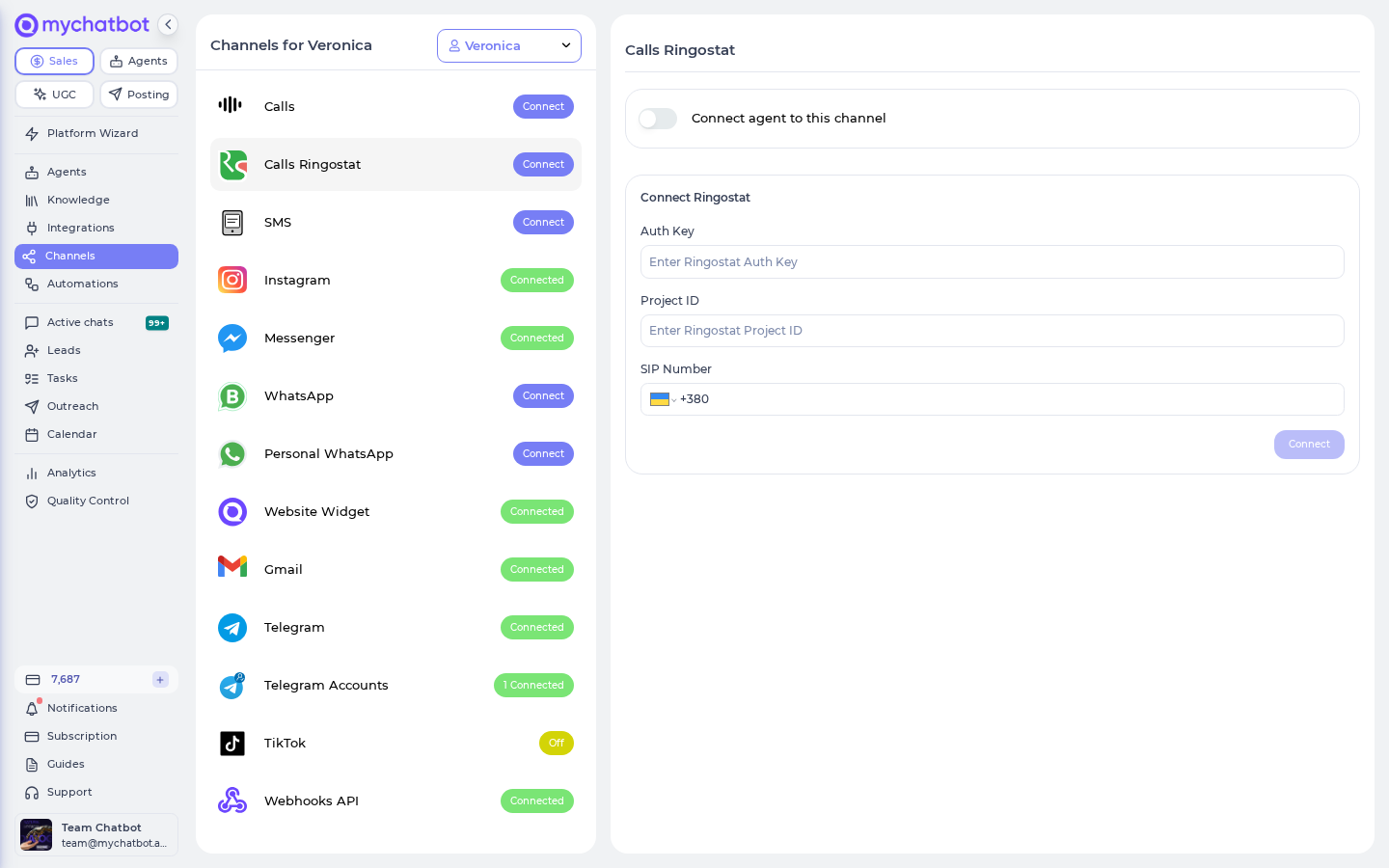
- Go to Channels and select the agent you want to connect.
- Open the Calls Ringostat channel. You'll see the Connect Ringostat form.
- Fill in all three fields:
- Auth Key
- Project ID
- SIP Number — enter it in international format (the field defaults to a
+380prefix).
- Click Connect.
On success you'll see a Ringostat Channel Connected confirmation, and the form is replaced by a Connection Details panel showing your SIP Number, Auth Key (hidden by default — use the eye icon to reveal it), and Project ID.
Fill in every field
If any of the three fields is empty, you'll see "Please fill in all the fields." All three are required to connect.
Already connected?
If you see "This Ringostat channel is already connected to the system," that SIP number is already linked to an agent. Each SIP number can be connected once per agent.
Register the webhook in Ringostat
This is the step that's easy to miss — and calls won't appear without it.
MyChatBot doesn't register anything on Ringostat's side for you. You need to open your own Ringostat dashboard and add the MyChatBot webhook URL there, so Ringostat sends each completed call to us. Once that's in place, Ringostat posts every answered call event to MyChatBot automatically.
The webhook is set up on Ringostat's side
Connecting the channel in MyChatBot does not register the webhook. Until you add the MyChatBot webhook in your Ringostat dashboard, no calls will flow in. If you're unsure of the exact URL to paste, contact support@mychatbot.app.
Turn it on
The channel is created switched off. While it's off, incoming calls are silently ignored.
- Turn on Connect agent to this channel at the top of the channel page to go live.
- Turn it off to pause the channel without disconnecting — calls stop flowing in while it's off.
- Use Revoke Channel to remove the connection entirely.
Off means calls are dropped
While the channel is off, Ringostat call events are ignored — no chat, no recording, no transcript. Switch on Connect agent to this channel before you expect calls to appear.
What happens on a call
Once connected and switched on, here's what you get for each call:
- A chat thread per client. All calls to and from the same client phone number group into one conversation, alongside that client's other channels. Inbound and outbound calls land in the same thread.
- The recording, playable in chat. Answered calls show a recording card with an audio player you can scrub and replay.
- A transcript, speaker-labeled. The recording is transcribed and split into turns labeled manager and client, so you can read the call without listening to it.
A few things to know about what gets ingested:
- Only answered calls with real conversation are transcribed. Missed calls, voicemail, or calls with no talk time create the chat routing but no transcript or recording card.
- Speaker labels are a best guess. The manager/client split is inferred from the recording and call direction, so it can occasionally be off on ambiguous calls.
- No typing back into a call thread. Because a phone call isn't a text conversation, the message input is hidden in Ringostat chats — you reply by calling back.
Outbound click-to-call
You can place outbound calls to a client without leaving the chat.
- Open the client's chat (any Ringostat conversation, or a chat where you have the client's phone number).
- Click Start Call.
- Ringostat rings your manager's SIP number first, then dials the client.
The call itself connects immediately, but the recording and transcript only appear after the call ends and Ringostat sends us the completed-call event. Give it a moment after hanging up for the recording card to show up.
You can also use Calls Ringostat as a follow-up/outreach channel in Automations — for example, to auto-dial a lead who filled out a form. The lead must have a phone number for the call to go out.
How billing works
Ringostat calls are billed simply: one "Call" message per transcript, and nothing else on the MyChatBot side.
- Each call that produces a speaker-labeled transcript costs one message, deducted from your plan's message balance.
- There's no per-minute or per-call-duration charge. A call is at most one billed message, regardless of how long it lasted.
- Calls with no transcript — missed, voicemail, or no talk time — cost nothing on MyChatBot.
Two separate bills
Your Ringostat telephony minutes are billed by Ringostat directly, outside MyChatBot. MyChatBot only charges the single "Call" message when a transcript is produced.
Managing the connection
| Action | Where |
|---|---|
| View or reveal your credentials | The Connection Details panel (eye icon reveals the Auth Key) |
| Pause the channel | Turn off Connect agent to this channel |
| Disconnect entirely | Revoke Channel |
Troubleshooting
Calls aren't appearing in chats.
- Confirm Connect agent to this channel is turned on — the channel starts off, and calls are dropped while it's off.
- Confirm you've registered the MyChatBot webhook in your Ringostat dashboard. Without it, Ringostat never sends us the calls.
- Remember that only answered calls with real talk time produce a transcript — missed and voicemail calls won't create a recording card.
Still stuck?
- Check the MyChatBot documentation for updated information.
- Contact our support team at support@mychatbot.app.
- Include your Project ID, SIP Number, and a rough time of a test call for faster resolution.