
Appearance
Automations
Event-driven playbooks that capture leads and start conversations without anyone touching the inbox. Each automation attaches to one of your agents: the automation fires on its trigger (a form email, a webhook call, a Meta lead form submission, an Instagram comment, or a schedule), and the agent takes the conversation from there.
In the app
Open Automations in the left sidebar at app.mychatbot.app/automations. Pick the agent in the dropdown at the top right, then choose a template from the list on the left — its settings open on the right. On single-agent plans the agent picker is fixed.
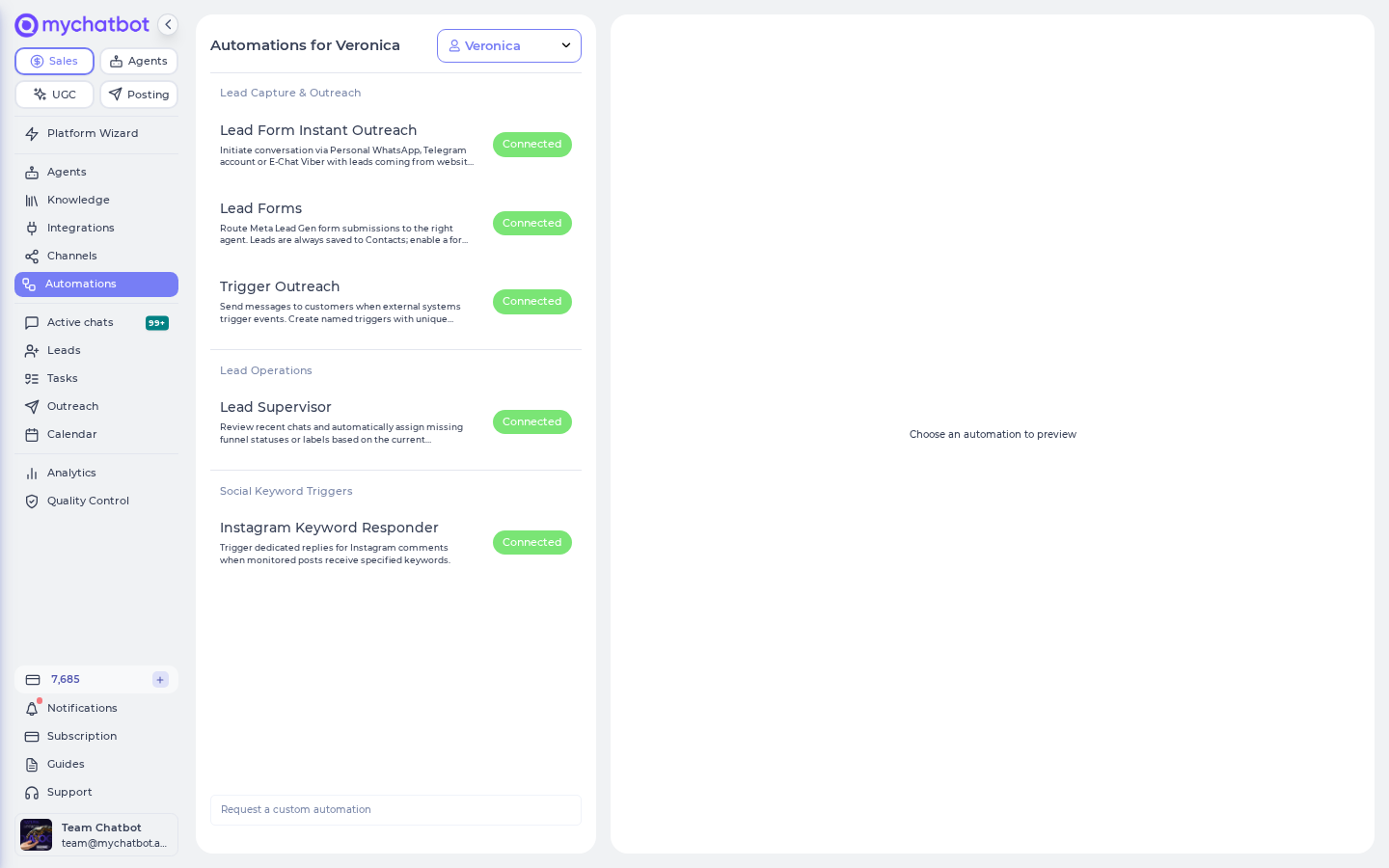
At a glance
| Automation | Category | Trigger | What it does |
|---|---|---|---|
| Lead Form Instant Outreach | Lead Capture & Outreach | An email from your website form arrives in the connected mailbox | Creates a lead and (optionally) sends a first message via Personal WhatsApp, Telegram account, E-Chat Viber and other channels; the agent handles replies |
| Lead Forms | Lead Capture & Outreach | A Meta (Facebook/Instagram) Lead Gen form is submitted | Saves the lead to Contacts always; per enabled form, routes it to an agent for instant outreach |
| Trigger Outreach | Lead Capture & Outreach | An external system POSTs to a unique webhook URL | Creates a lead and (optionally) sends a message — order updates, appointment reminders, CRM events |
| Lead Supervisor | Lead Operations | A schedule you set (daily / every 3 days / weekly) | Reviews recent chats and fills in missing funnel statuses and labels from conversation context |
| Instagram Keyword Responder | Social Keyword Triggers | A monitored Instagram post receives a comment containing a keyword | Replies publicly under the comment and/or sends a private DM |
| Telegram funnels | Lead Capture & Outreach | Someone opens your bot through a link from an ad, or writes to it for the first time | Runs a step-by-step scenario with buttons, reminders counting down to an event and an offer, then hands over to the agent — see Telegram funnels |
Each template in the list carries a chip: Connected (this agent already uses it), Connect (available), or Soon (coming soon). At the bottom of the list, Request a custom automation lets you describe a bespoke workflow (up to 2000 characters) — save it with Save request and the team follows up.
Automations vs follow-ups
Both send messages automatically, but they solve different problems:
| Automations | Follow-ups | |
|---|---|---|
| Starts from | An external event (form email, webhook, lead form, comment) or a schedule | An existing conversation that matches a status/label and goes quiet |
| Audience | New leads that don't have a chat yet (or chats needing maintenance) | Clients your agent has already talked to and tagged |
| Typical job | First touch: capture the lead and open the conversation | Re-engagement: nudge a lead that stopped replying |
| Configured at | Automations (/automations) | Outreach (/follow-up) |
Rule of thumb: use an automation to start the relationship, a follow-up to revive it. Lead Supervisor is the odd one out — it doesn't message anyone; it keeps your pipeline data clean so follow-ups have accurate statuses/labels to target.
How the page works
| Element | Behavior |
|---|---|
| Create automation | Creates the setup and attaches it to the selected agent. Disabled while required channels are missing (a yellow warning explains what to connect first) |
| Save changes | Replaces Create automation once connected; persists edits |
| Connect agent switch | Shows connection state in the panel header. Flip it off to disconnect the automation from this agent (the setup itself is kept, not deleted) |
| Use an existing automation setup | If another agent on your account already has this automation configured, buttons labeled with that agent's name let you attach the same setup instead of building a new one |
| Automation status card | Appears once connected; refreshes about once a minute while the page is open |
The Automation status card shows a state badge — Pending, Processing, Paused, Finished, Error, or Interrupted — plus Last updated, a "Processed X of Y leads/chats/comments" summary, and metric tiles: New leads queued (or New chats queued / New comments queued), Processed, Failed, Skipped. Failures show under Recent errors (N) with the item, channel, and time; only the last three display ("…N more logged in history").
Status badges and recovery
| Badge | Meaning | What to do |
|---|---|---|
| Pending | Connected and waiting — for the first trigger event, the next scheduled run, or messages held back by a Send Delay / Sending Window | Nothing; it starts on its own |
| Processing | A run is working through the queue right now | Wait — the card refreshes about once a minute while the page is open |
| Finished | The last run completed; the automation stays connected and fires again on the next trigger | Nothing |
| Error | The last run hit a problem | Read Recent errors, fix the cause (most often a disconnected channel or expired access — reconnect it on Channels), then fire the trigger again; the next run replaces the badge |
| Paused / Interrupted | A run stopped part-way (rare) | No manual resume exists — none is needed: the next trigger event or scheduled run starts fresh and replaces the badge |
Retry semantics: each trigger event is processed once — items counted as Failed are not retried automatically. To retry a lead, fire its trigger again: re-send the webhook call, re-submit the form, or post the comment again. Re-firing is safe — contacts are matched by phone/email, so a retry updates the existing lead instead of duplicating it. (One exception: messages already queued for delayed delivery that catch the Telegram account channel while it is reconnecting are retried automatically a few times before being marked Failed.)
Error history: "…N more logged in history" means older failures from the same run stay in the Recent errors (N) count, but there is no separate error-history page — the card is the whole view. The durable per-client record lives in the conversation itself: open the client's chat on Chats and look for the "Outreach sent successfully" / "Outreach send failed" activity entries in the timeline. Lead Form Instant Outreach failures additionally raise an alert on Notifications.
One setup per agent
An agent can hold one setup of each automation type — creating a new one replaces the old attachment. The exception is Lead Form Instant Outreach, which supports up to 5 lead sources per agent ("You can connect up to 5 lead source emails for this assistant").
Shared outreach settings
The lead-capture automations (Lead Form Instant Outreach, Lead Forms, Trigger Outreach) share the same outreach building blocks:
| Setting | What it does |
|---|---|
| Destination channels | Which channel(s) send the first message. Only channels connected to the agent are selectable — others show (not connected). Channels are attempted in order; the first successful send stops further attempts for that client |
| Message type | Agent instruction — the AI composes the first message from your guidance ("Describe the outcome, tone, and key talking points"). Custom message — you write the exact text; {name} and {context} placeholders are substituted. Type / in either field to insert a saved message template (create templates in profile settings) |
| Email Subject and Attachments | Extra tab that appears when the Gmail/Email channel is selected; an email subject is required when using a custom message over email |
| Omit core instructions | The agent uses only the instruction written here and ignores its general core instructions |
| Delay & Throttling Options | Send Delay (e.g. 5m, 1h) — wait after the trigger fires; empty sends as soon as rules allow. Interval Seconds — minimum gap between consecutive sends to avoid API blocking (e.g. 15 queues 1 message every 15 s). Timezone + Sending Window (optional) — inside the window messages go out immediately; outside they wait for the window to open (e.g. hold until 09:00) |
Channel lineups differ slightly: Lead Form Instant Outreach offers the "cold-start" channels (Personal WhatsApp, Telegram account, E-Chat Viber, E-Chat Telegram, Gmail, Calls, Calls Ringostat, SMS). Trigger Outreach and Lead Forms additionally list WhatsApp, Telegram bot, Viber bot, Messenger, Instagram, TikTok, and OLX — those can only deliver when the client already has a chat on that channel.
Lead Form Instant Outreach
Turns website-form emails into instant conversations. Your form notifications land in a mailbox; the automation watches that mailbox and reacts to each new lead.
| Setting | Notes |
|---|---|
| Form sender email | The sender address of your form notifications (e.g. form-leads@yourdomain.com) — so the automation only processes letters from that specific sender, not everything in the mailbox |
| Automation mode | Collect leads only — capture submissions into the leads pipeline, no message sent ("Outreach stays off in this mode. Switch anytime when you are ready."). Collect and send instant outreach — queue the lead for an immediate agent follow-up |
| Pipeline stage (optional) | In collect-only mode, pick a default funnel status so leads land in the right column (No default stage otherwise). Leads are assigned to this agent's pipeline |
| Outreach agent instruction | "The AI agent sends one message to start the conversation. Explain the greeting and how to respond to typical lead questions." |
| Add lead source | Tabs across the top let you run up to 5 form mailboxes per agent, each with its own settings |
Prerequisites (shown as warnings until met):
- "Email channel is not connected, and it has to be connected with the same mailbox that receives website form leads." — connect the receiving mailbox as an Email channel on this agent (see Email channel).
- In outreach mode: "Connect at least one outbound channel (Personal WhatsApp, Telegram account, Email or E-Chat Viber) for this assistant before creating the automation."
How lead details are read from the email
There is no required email template. The automation takes each notification whose sender matches the Form sender email (HTML emails are fine — they're converted to plain text, attachments included) and an AI step extracts four things from whatever the text contains: the lead's name, phone number, email address, and Telegram username. Anything it can't find stays empty; local phone numbers are normalized to international format. Clearly labeled lines parse most reliably:
From: form-leads@yourdomain.com     ← must match the Form sender email
Subject: New enquiry from the website

Name: Maria Kovalenko
Phone: +380 67 123 45 67
Email: maria@example.com
Message: Interested in the spring collection
What happens when parsing comes up short:
| Situation | Outcome |
|---|---|
| No identifier usable by any selected channel (e.g. no phone for Personal WhatsApp, no email address for Gmail) in outreach mode | Counted as Skipped on the status card — no lead is created and no message is sent |
| Parsing or sending fails outright | Counted as Failed, listed under Recent errors, and an alert appears on Notifications |
| Collect leads only mode | The lead is saved to Contacts with whatever was found — even just a name; free-text from the form is kept as a note on the contact |
When a message does go out (or delivery fails after a chat was created), the full form email text is written into the chat as the first message, so the original submission stays readable next to the agent's outreach.
Lead Forms (Meta Lead Gen)
Routes Facebook/Instagram Lead Ads form submissions to an agent. Leads are always saved to Contacts. Enable a form to also run an agent.
Setup flow:
- Connect a Facebook account — click Connect Facebook (the account that owns your Lead Gen forms). Connected social accounts are billed at $10/mo each (on your Stripe invoice: Social overage: 1 extra connected account, prorated); accounts included with your plan are free.
- After the redirect, Choose a Facebook Page and confirm with Connect Page.
- Pick the Facebook account in the dropdown; its Lead forms list loads with a per-form lead count. Use Refresh to re-pull; new forms appear once they exist in Meta.
- Toggle Enable on each form you want an agent to handle.
Per enabled form:
| Setting | Notes |
|---|---|
| Agent | "Leads from this form are handled by the selected agent" — each form can go to a different agent |
| Mode | Capture only — "Save the lead to Contacts without sending any message." Capture and send outreach — "Save the lead and let the agent start an immediate follow-up." |
| Channels, message, delays | The shared outreach settings above |
Save changes confirms with "Lead form routing saved".
Configure by agent
Everything after step 2 — listing forms, routing a form to an agent, changing modes and channels — can also be done by an AI agent (or an external MCP client like Claude Code) through the Automations area of the sales-management MCP. Changes always come back as a preview first and apply only on an explicit confirm. See the Sales tools reference. Connecting the Facebook page itself stays here in the app — it's an OAuth step only you can do.
Meta Ads add-on
If the connected account lacks the Meta Ads add-on, the form list can't be shown: "This account doesn't have the Meta Ads add-on enabled, so lead forms can't be listed. Leads received via webhooks are still saved to Contacts."
The add-on is the Ads Manager capability on the connected social account — it's what lets MyChatBot list your Lead Gen forms from Meta. To enable it:
- Check your plan on Subscription: the Ads Manager comes with the Multipro and Corporate plans here, or with the UGC Scale plan and higher. There is no separate add-on fee — only the connected-account pricing above applies.
- In the content studio at ugc.mychatbot.app (same login), open the Ads Manager and connect the Meta ad account that owns your Lead Gen forms to the already-connected Facebook profile.
- Back on Automations, press Refresh — the Lead forms list loads with per-form lead counts.
You're not blocked on capture in the meantime: submissions keep landing in Contacts; you just can't enable forms for agent routing yet.
Trigger Outreach
Webhook-driven messaging: "Send messages to customers when external systems trigger events." Create up to 20 named triggers, each with its own webhook URL — one per CRM event, order status, reminder type, and so on.
Per trigger:
| Setting | Notes |
|---|---|
| Trigger name | Required; e.g. "Order Confirmation", "Appointment Reminder" |
| Webhook URL | Generated on first save ("Save the automation to generate webhook URL"); Copy puts it on the clipboard. Send a POST with JSON body { "phone_number": "+1234567890", "name": "John Doe", "context": "Extra info" } — or { "email": "john@example.com", "name": "John", "context": "Extra info" } when the trigger sends over email |
| Automation mode | Capture only — "Receive webhook data and create a lead without sending any message" (with an optional default pipeline stage). Capture and send outreach — immediate agent follow-up |
| Communication channel | One or more channels; each selected channel must be connected for that trigger to save |
| Message type | Agent instruction / Custom message (with {name} and {context} placeholders) / Email Subject and Attachments — see shared settings |
| Skip chat history | "The agent starts this outreach without loading the contact's prior conversation history" |
| Send-only (don't let the AI change the lead) | Agent-instruction mode only. The assistant composes and sends but "cannot update the lead card, custom fields, status, labels, CRM, orders, or bookings — even if the instructions ask it to. Read-only lookups (order status, product info) still work." |
| Recipients (email only) | Primary email only, All contact emails (also Cc's the addresses stored on the contact), or Custom field (Cc's the addresses in a field you name) |
| Attach files from the webhook payload (email only) | On by default: "file URLs sent in the webhook payload (attachments, files, documents…) are delivered as email attachments" |
| Notify Telegram group about new leads (capture-only mode) | Posts every captured lead, with all form answers, to this agent's Flight Control group — capped at 30 notifications per hour per agent, and once per lead per 24 hours. Needs a group under the agent's Flight Control. Switching the trigger back to outreach mode clears this and the default stage |
| Preview (dry run) | Paste a sample payload and Run preview: shows the mode, recipient, subject, composed message, attachments and which tools would be allowed or blocked — "Nothing is sent and no lead data is changed." |
| Omit core instructions | Use only the trigger's instruction, ignore the agent's core instructions |
| Delay & Throttling Options | Send Delay, Interval Seconds, Timezone, Sending Window |
| Call result callback | Appears when the Calls channel is selected: "After each call, the agent POSTs a JSON result to your URL so you can update your CRM." Provide a Callback URL (must be https://) and Result fields — each field has a Name (JSON key) (snake_case), a Description of what the agent should put there, and optional Allowed values. The callback needs both a URL and at least one field, and field names must be unique |
The context value you POST is handed to the agent, so your CRM can pass order numbers, appointment times, or anything else the message should reference.
Webhook reference
Security. The URL is the credential: it contains a long random key unique to your automation setup plus a per-trigger id. There is no signature header or extra authentication — treat each webhook URL like a password; anyone holding it can create leads and message your clients. If a URL leaks, remove that trigger (Delete trigger), save, and create a new one — the old URL immediately stops working (404). Requests must be POST with a JSON body.
Responses. Every reply is JSON with a status of ok or error and a human-readable message:
| HTTP code / message | When | Notes |
|---|---|---|
200 — "Outreach prepared, sending message" (or "…queued for scheduled delivery" with a Send Delay / Interval) | Outreach accepted | Delivery happens after the response: 200 means accepted, not delivered. Check the Automation status card and the client's chat for the outcome |
200 — "Lead captured successfully" | Capture only mode saved the lead | |
200 — "No phone, email, or action provided, skipping outreach" | The payload had no contactable identifier | Nothing is created — this is also why CRM "test webhook" pings succeed |
400 — "Invalid request body" / "Assistant is not active" | The body isn't valid JSON, or the attached agent is switched off | Fix the payload; re-enable the agent |
404 — "Invalid webhook URL" / "Trigger not found" | The key or trigger no longer exists (trigger deleted, URL mistyped) | Re-copy the URL from the trigger's Webhook URL field |
500 — "Failed to capture lead" / "Failed to prepare outreach" | The lead couldn't be saved or the message couldn't be prepared — including a "duplicate event" refusal when a concurrent POST for the same contact is already in flight | Safe to re-send after a pause (see dedup rules) |
Duplicates and idempotency.
- Contacts are matched by phone number / email: re-POSTing the same
phone_numbernever creates a second lead — the existing contact is updated and messages land in the same chat. - Each accepted POST in Capture and send outreach mode is a fresh event and composes one new message, so a CRM that fires twice will message the client twice. Only simultaneous duplicates (same trigger + same contact, while the first request is still being processed) are blocked — the loser gets the "duplicate event" error.
- MyChatBot never replays an inbound webhook on its own: a request that returned an error is dropped unless your system re-sends it.
Payload parsing. Only phone_number (or email on email triggers) is needed for anything to happen; name, context, company_name, country_code and city are optional and land on the lead. phone_number and email must be top-level keys. Extra JSON fields are kept — they're saved onto the lead as custom fields and handed to the agent alongside context (nested objects are flattened). If phone_number is empty, any extra field whose name contains "phone" and holds 7+ digits is used instead, and any value that looks like an email address can stand in for email. Phone numbers are normalized to international format before matching.
Lead Supervisor
A scheduled housekeeping agent: "Review recent chats and automatically assign missing funnel statuses or labels based on the current conversation context." No messages are sent to clients.
How it works (as shown on the page):
- Your assistant reviews chats active during the period at the specified time.
- For each chat, it takes the last intent and sets the specified attributes.
- Only empty fields are updated — existing statuses or labels are not changed. With Overwrite existing values enabled, all selected attributes are overwritten with the agent's analysis instead.
| Setting | Notes |
|---|---|
| Attributes to update | Status and/or Labels (at least one; the Labels option only appears once your account has labels). Statuses are set within the agent's assigned pipeline |
| Overwrite existing values | Off by default — the safe "fill gaps only" behavior |
| Activity cut-off | Past N days (default 30, max 365) or Since a date with an exact date and time; "Current selection" previews the effective cut-off |
| Run time / Run timezone | When the queue is processed (defaults to the agent's or your browser's timezone) |
| Frequency | Daily, Every 3 days, or Weekly |
Once connected, a Current configuration box summarizes attributes, cut-off, run time, timezone, and frequency, and the status card counts chats processed. Pair it with Labels and statuses so follow-ups always have accurate targeting data.
Instagram Keyword Responder
"Trigger dedicated replies for Instagram comments when monitored posts receive specified keywords." Classic comment-to-DM: someone comments "PRICE" under a post, the automation answers publicly and/or slides into their DMs.
| Setting | Notes |
|---|---|
| Instagram account | Which connected Instagram channel to monitor (the agent must have an Instagram channel connected first) |
| Select Instagram posts | Pick up to 100 recent posts (Reels are labeled). Refresh posts re-pulls the latest, with a 30-second cooldown. Previously selected posts that fall outside the latest 100 stay monitored |
| Trigger keywords | Add each word or phrase that should fire the automation — matching is not case sensitive |
| Under comment reply | A short public reply posted directly below the comment. "Leave blank to skip the quick public reply and only send the private message." |
| Dedicated agent instruction | Guidance for the Private Reply sent via Instagram DM (Agent instruction), or switch to Custom message to send an exact DM instead |
| Settings per post | By default all selected posts share the same reply/message. Select a post to override individually — "Leave a field empty to use the global default." Overridden posts show a Custom badge |
The status card counts comments (metric: New comments queued). If the channel's access expires you'll see "Instagram channel token is missing or expired. Reconnect the channel to keep monitoring comments."
Telegram funnels
Step-by-step scenarios your Telegram bot runs on its own: a link from an ad brings people in, buttons capture their choice, reminders count down to your event, an offer goes out afterwards, and the agent takes over when someone has a question. Exit rules stop the selling messages the moment a lead reaches a status such as "Paid" — including through a Trigger Outreach set_status webhook. Funnels are built on a visual canvas with a rehearsal mode and a live People view; the full guide is on the Telegram funnels page.
Use cases
- Website form → instant WhatsApp reply — Lead Form Instant Outreach on the mailbox that receives form notifications; leads get a personal message within minutes of submitting.
- Facebook Lead Ads qualification — Lead Forms saves every submission to Contacts and lets a dedicated agent qualify each form's leads over the right channel.
- Order/appointment notifications from your CRM — Trigger Outreach with one named trigger per event; your CRM POSTs to the webhook with the client's number and context.
- AI phone follow-up with CRM write-back — a Trigger Outreach trigger on the Calls channel plus a Call result callback that returns structured fields (lead temperature, outcome) to your system after every call.
- Pipeline hygiene — Lead Supervisor nightly, so untagged chats get statuses/labels and your follow-up sequences actually match someone.
- Comment-to-DM promos — Instagram Keyword Responder on a giveaway post with the keyword "WIN": public thank-you under the comment, details by DM.
- Launch countdown in Telegram — a Telegram funnel from the Countdown template: an ad link registers people with one tap, reminders go out a day, an hour and at the start of the event, the offer follows, and a payment webhook takes buyers out of the sequence.
Test it
- Lead Form Instant Outreach — submit your own website form (or send yourself an email from the configured sender address to the connected mailbox). Watch the Automation status card: the counter should move from New leads queued to Processed, and the first message should arrive on the selected channel. Failures land in Recent errors with the channel and reason.
- Trigger Outreach — copy the Webhook URL and POST the sample JSON from the helper (e.g. with your own phone number as
phone_numberand a test note ascontext). Expect a200with "Outreach prepared…" in the JSON reply (see the webhook reference —200means accepted, delivery follows). In capture-only mode, check the lead appears in your pipeline; in outreach mode, check you receive the message — including after the configured Send Delay and inside the Sending Window. - Lead Forms — use Meta's Lead Ads testing tool to submit a test lead to an enabled form, then confirm it shows in Contacts and (in outreach mode) that the agent's first message goes out.
- Lead Supervisor — set the run time a few minutes ahead, keep the cut-off wide (e.g. past 30 days), and after the run verify a previously untagged chat received a status/label. The card should report chats processed and state Finished.
- Instagram Keyword Responder — comment one of your trigger keywords on a monitored post from another account; expect the under-comment reply and/or the DM.
- Telegram funnels — use the Rehearsal tab first, then open the funnel's link from your own Telegram account: expect the first message with its buttons, a timeline entry in the chat, and the People tab listing you at the current step.
The status card only refreshes while the page is open (about once a minute) — reopen Automations and select the automation to see the latest run.
See also
- Telegram funnels — button-driven scenarios on a Telegram bot, with an event countdown and exit rules.
- Follow-ups — status/label-targeted sequences for existing conversations, and Immediate outreach broadcasts.
- Labels and statuses — the pipeline data Lead Supervisor maintains and follow-ups target.
- Email channel — connect the mailbox Lead Form Instant Outreach watches.
- Instagram channel — prerequisite for the Instagram Keyword Responder.
- WhatsApp and Telegram account — the usual first-touch outreach channels.
- Webhooks channel — other ways to wire external systems into MyChatBot.