
Appearance
Leads & Pipelines
The Leads page is the Sales Platform's built-in CRM surface: every contact your agents talk to (plus any leads you create or import yourself) in one place, viewable as a sortable table or as a drag-and-drop pipeline board with funnel stages.
In the app
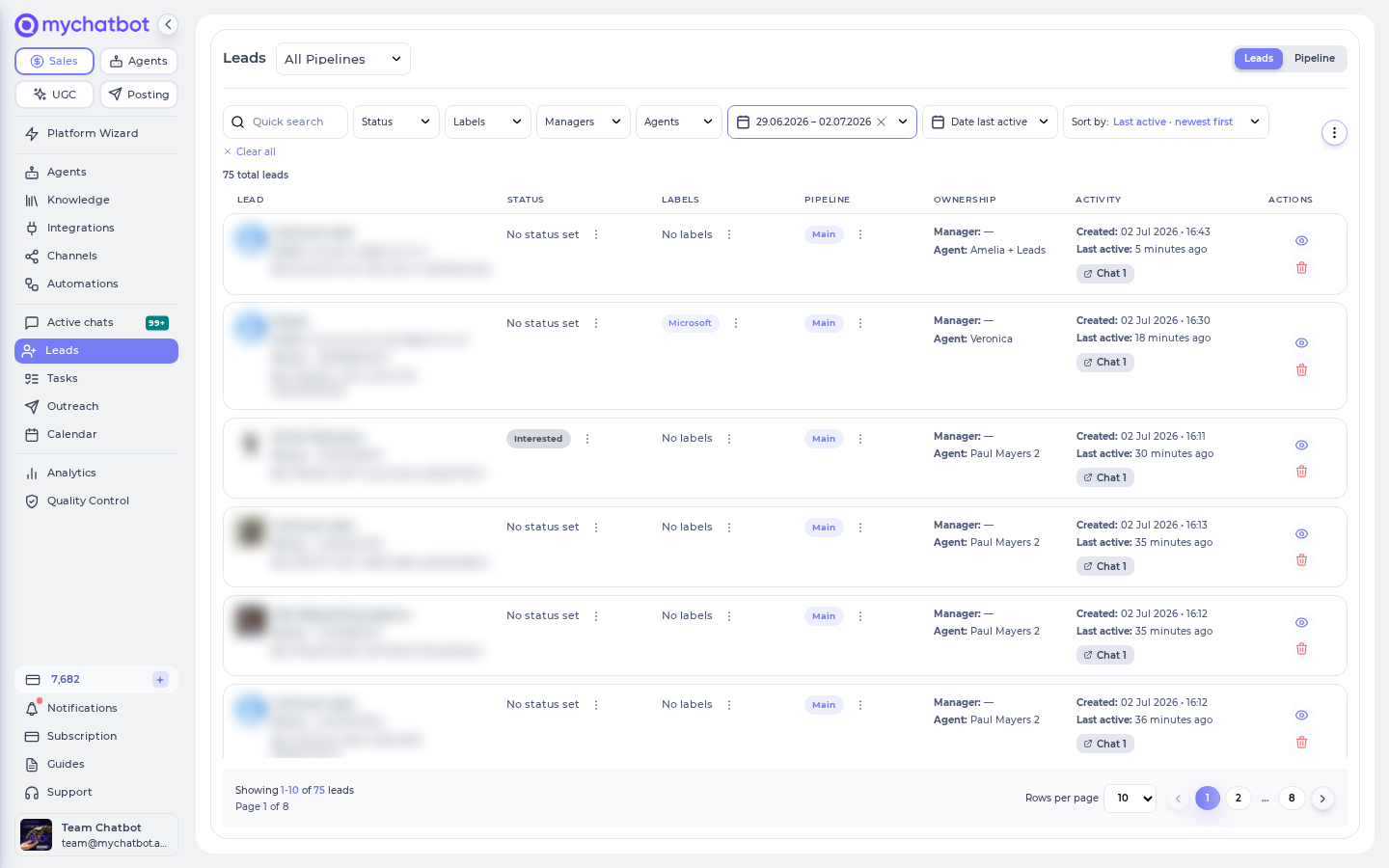
Open Leads in the left sidebar at app.mychatbot.app/leads. The toggle at the top right switches between the Leads table and the Pipeline board; the app remembers your last choice per account.
At a glance
| You need | Where | Result |
|---|---|---|
| Browse and edit leads in bulk-friendly rows | Leads view (table) | Inline edit of Status, Labels, and Pipeline per row |
| A Kanban view of your funnel | Pipeline view (board) | Drag cards between stages; each column is a funnel status |
| Work in one specific pipeline | Pipeline dropdown next to the page title | Board columns and Status filter scope to that pipeline; the default one is marked (default) |
| Add a single lead by hand | ⋮ menu → New lead | "Create external lead" modal |
| Bring in a whole list | ⋮ menu → Import leads | Google Spreadsheet import wizard at /leads/import |
| Change many leads at once | Pipeline view → Select | Bulk toolbar: Status, Pipeline, Manager, Labels |
| Add / rename / reorder funnel stages | Pipeline view → gear icon (Customize columns) | "Funnel statuses" editor |
| Create / rename / delete a pipeline, change the default | Account Settings → Pipelines | "Manage Pipelines" screen (see Managing pipelines) |
Two views, one dataset
- Leads — a paginated table. Best for scanning details, inline edits, and deleting leads.
- Pipeline — a board where each column is a funnel status of the selected pipeline. Best for moving deals through stages and bulk operations.
The current view is kept in the URL (?view=list or ?view=pipeline), so you can bookmark or share either one. There is no export button on this page — to get leads out, page through them with the Sales-Management MCP (see Sales tools by domain) or sync to a CRM. If your account has pipelines, a dropdown next to the title switches between All Pipelines and a single pipeline — that choice is also kept in the URL and remembered between visits.
Where pipelines and stages come from
Funnel statuses (stages) and labels are managed in the agent's configuration under Lead Management (with Manage leads locally and Pipeline Statuses), synced from a connected CRM (a one-way import — see CRM-synced stages), or created right on the pipeline board (see Managing funnel stages). Pipelines themselves — the entries in the header dropdown — are created, renamed, deleted, and given the default flag in Account Settings → Pipelines (see Managing pipelines). See Labels and Statuses for how agents set them during conversations.
The leads table
The table shows "N total leads" above these columns:
| Column | Contents | Inline actions |
|---|---|---|
| Lead | Avatar, name, notes badge ("N notes"), Email, Phone, ID, and Source — the webhook trigger or lead form that created the lead (kept on the lead even after that trigger is renamed or deleted) | — |
| Status | Funnel status chip (colored like its board column) or "No status set" | Pencil icon → pick a status; re-selecting the current one clears it ("Status updated" / "Status cleared") |
| Labels | Label chips or "No labels" | Pencil icon → toggle any existing labels on/off ("Label added" / "Label removed") |
| Pipeline | Pipeline chip or "No pipeline" | Pencil icon → pick a pipeline; re-selecting clears it ("Pipeline set to …" / "Pipeline cleared") |
| Channel | The channel of the lead's first chat, with +N and a tooltip when there are chats on several channels; "No channel" for manual, imported and capture-only leads | — |
| Ownership | Manager (human owner), Agent (AI agent that handles the conversation) and, when one was chosen for the lead, Sales agent — the agent picked to work this lead and the channel it will use ("Sales agent: Sofiia · Instagram") | — |
| Activity | Created, Last active, and links to the lead's conversations (Chat 1, Chat 2, …) or "No chats yet" | — |
| Actions | Eye icon ("Open in chats") jumps to the lead's conversation with the client card open; trash icon deletes the lead | — |
Deleting asks for confirmation: Delete Lead — "Are you sure you want to delete {name}? This action cannot be undone. All data associated with this lead will be permanently removed."
The table deletes any lead — conversations included
The table's trash icon works on every lead, channel-connected or manual. "All data associated with this lead" includes the lead's conversations: deleting a connected lead also permanently removes its chats from the Chats page. If the person later writes to you again on the channel, they arrive as a brand-new lead with no history.
This is intentionally stronger than Remove lead in the record panel and on board cards, which works only for manual leads (see The lead record panel). The table view is the only place to delete a channel-connected lead.
When there are more leads than fit one page, pagination appears: Rows per page (10 / 20 / 50, default 10) with Previous page / Next page.
The lead record panel
Following a lead link from elsewhere in the app (for example a task's linked contact) lands on the Leads page with the lead's full record open. The panel shows:
| Section | What you can edit |
|---|---|
| Personal Info | Full name |
| Work Info | Email, phone, company |
| Assignments | Manager, Sales agent, Channel, Status, Labels, Pipeline |
| Notes | Add a note (title + content), read and delete existing notes |
- Back to leads returns to the list; Remove lead appears only for manually created leads (leads without a linked channel conversation) — on the board, attempting it on a connected lead shows "Only manual leads can be removed" ("Lead removed" on success). The panel and board deliberately refuse to touch connected leads; the table's trash icon has no such guard and deletes any lead together with its chat history (see the warning above).
- If a lead has no chats yet and you have outreach-capable channels connected, the panel offers first-touch actions: Message via Personal WhatsApp, Message via Telegram account, Call via Ringostat (phone required), Send email via Gmail (email required). Replies are routed to the agent shown on the button.
- Saving a phone number that already belongs to another contact opens Phone number already in use — "This phone number already belongs to {name} ({phone}). Merge these contacts into one?" Confirming with Merge combines the two records ("Contacts merged successfully"). Duplicate emails are rejected with "A client with this email already exists". The same conflict dialog (Email already in use) appears for emails when the platform can identify the other lead.
- Merge leads (in the panel header) merges this lead with any other: search by name, phone or email, then choose which record stays — "Choose which lead stays. The other one is deleted after its data moves over." Chats, notes, tasks, documents and orders move to the survivor; its empty fields (name, company, manager, pipeline, status) are filled from the other lead; labels are combined; a second phone or email is kept under Additional contacts on the record. The merge cannot be undone.
Pipeline board
Each visible funnel status is a column, plus a permanent No status column where leads without a stage land. Column headers show a live lead count; long columns load in pages with a Load more (N remaining) button.
Cards show the lead's name, email/phone, a notes badge, the channel it came from (or "No channel" for manual/imported leads — such cards also get a distinct green-blue background, the only visual marker of a lead that has never chatted), an Active badge when the lead was active in the last 20 hours (otherwise the last-active date), labels, and Manager / Agent / Channel rows (plus a Sales agent row when one was chosen for the lead). Open on a card jumps to the lead's conversation in Chats.
Moving leads:
- Drag a card to another column → "Moved to {status}". Dropping on No status clears the stage.
- Dragging a card into a different pipeline whose stage list doesn't contain the card's current status asks: Create "{status}" in {pipeline}? → Create & move adds the stage there and moves the card.
Board empty state: "No leads match your filters yet. Try adjusting them or add new contacts."
Managing funnel stages (Customize columns)
Click the gear icon at the top right of the board to open the Funnel statuses editor ("Use the arrows to reorder, update colours, hide rarely used stages, or delete empty ones."):
| Control | Effect |
|---|---|
| Up / down arrows | Reorder columns |
| Color palette | Recolor a column (also recolors its status chips in the table) |
| Eye icon | Hide / show a column — at least one must stay visible ("Keep at least one column visible") |
| Pencil icon | Rename the stage |
| Trash icon | Delete an empty stage — blocked with "Move or close leads in this stage before deleting it" otherwise |
| Add new funnel status | Type a name (e.g. "Demo scheduled") and click Add |
| Done | Close the editor |
The No status column can't be removed: "Always visible – leads without a stage land here."
Stage scope
When a specific pipeline is selected in the header dropdown, new stages are created in that pipeline and the board shows only its stages. With multiple pipelines and All Pipelines selected, stage names display as "Stage (Pipeline name)".
CRM-synced stages (one-way import, no write-back)
Sync statuses (on your CRM's card under Integrations) copies the CRM's stage list into MyChatBot: it creates any stage you don't have yet in the agent's assigned pipeline ("Statuses will be synced to the agent's assigned pipeline.") and changes nothing in the CRM. Nothing on the Leads page writes back either:
| You do this on the Leads page | What the external CRM sees |
|---|---|
| Drag a card to another stage, edit Status inline, or bulk-change statuses | Nothing — only MyChatBot's lead record changes; the deal in the CRM does not move. The CRM deal's stage changes only through the integration itself (for example when the agent updates the deal during a conversation), and a stage arriving from the CRM side can later overwrite the status you set here |
| Rename or delete a stage in the Funnel statuses editor | Nothing — but sync matches stages by name, so the next Sync statuses run re-creates the stage under its original CRM name (a renamed stage effectively comes back as a duplicate) |
| Recolor, reorder, or hide a stage | Nothing — and these changes survive re-syncs, since sync only adds missing names and never touches existing stages |
In short: synced stages are not locked on this screen, but treat the CRM as the source of truth for its own stage list, and don't expect a board drag to move the deal in the external CRM.
Bulk operations
- Click Select on the board (it turns into Cancel while active).
- Click cards to select them, or use the checkbox in a column header to Select all in column.
- The toolbar shows "N selected" with four dropdowns:
| Dropdown | Options |
|---|---|
| Status | Any funnel status of the selected pipeline, or No status |
| Pipeline | Any pipeline, or No pipeline |
| Manager | Any team member, or Unassigned |
| Labels | Toggle labels, then Apply labels (replaces the selection's labels) |
Picking a status, pipeline, or manager applies immediately ("Updated N leads"; partial failures report "Updated X of Y leads"). Moving a batch to a pipeline that's missing some of the leads' current statuses asks Create {statuses} in {pipeline}? → Create & move first creates the stages, then moves everyone. Apply labels replaces the selection's labels — it does not add to them.
The same toolbar exists in the Leads table (tick the row checkboxes), where it also offers Delete selected (N).
Select all matching, confirmations and limits
- Ticking every row on a page (or every loaded card in a column) shows "N selected on this page. Select all M matching the current filters?" — Select all M switches to filter mode: the operation applies to every lead the current filters match, not just the ones loaded. Unticking individual rows in that mode excludes them.
- Any change to more than one lead, and every filter-mode change, asks for confirmation — Update N leads? / Delete N leads? — with a preview of up to 25 of the affected leads. If the filter matches a different number by the time you confirm, you are asked again ("The filter now matches X leads instead of Y").
- Limits: 1 000 explicitly selected leads, 10 000 leads in filter mode ("Too many leads match. Narrow your filters."). Rapid repeated operations can hit "Too many bulk requests. Please wait and try again."
- With a search term or a Webhook source filter active, only the visible rows can be selected — filter mode is disabled for those two filters.
- Bulk-editable fields are status, pipeline, manager, client type, ad title, labels and custom fields. Name, phone and email cannot be changed in bulk.
Bulk delete removes everything attached to the leads
Delete selected deletes each lead together with its chats, notes, tasks, documents and orders, channel-connected or not, with no undo. It is the bulk form of the table's trash icon, not of the panel's Remove lead.
Managing pipelines
Pipelines themselves — the entries in the Leads header dropdown — are managed in Account Settings → Pipelines at app.mychatbot.app/profile/pipelines. The tab is visible to account admins/owners only ("Create and manage pipelines to organize your leads and funnel statuses.").
| Action | How | Notes |
|---|---|---|
| Create | New Pipeline → Pipeline Name (e.g., "Sales Pipeline, Marketing Funnel") + optional Description → Create | Name is required ("Pipeline name is required") |
| Rename / edit description | Pencil icon (Edit pipeline) | The new name shows immediately in the header dropdown and Pipeline chips |
| Change the default | Star icon (Set as default) on any non-default pipeline | The current default carries a Default badge. The default receives leads whenever nothing picks a pipeline explicitly — "Lead will be created in the default pipeline" in the New lead modal, and it's preselected as Import to pipeline |
| Delete | Trash icon (Delete pipeline) → confirm Are you sure you want to delete "{name}"? | Only offered for non-default pipelines, and only succeeds once the pipeline is empty — see below |
A pipeline can only be deleted when nothing depends on it anymore:
- The default pipeline can't be deleted ("Cannot delete the default pipeline") — make another pipeline the default first.
- All of its funnel stages must be gone — otherwise deletion fails with "Cannot delete pipeline with existing statuses. Please delete or move statuses first." Delete the stages in the Funnel statuses editor; each stage must itself be empty of leads.
- No agent may be assigned to it — otherwise "Cannot delete pipeline assigned to assistants. Please reassign assistants first." Point the agent at another pipeline in its configuration under Lead Management.
Because every stage has to be emptied before it can be removed, leads are never stranded in a stage of a deleted pipeline. Leads that were still in the pipeline without a stage are not deleted — they stay in your list and their Pipeline column simply shows No pipeline.
Pipelines are also created for you
You don't have to create every pipeline by hand: a spreadsheet import with a mapped Pipeline column creates missing pipelines automatically (see Duplicates and unknown values), and every agent is tied to a pipeline in its Lead Management settings — that assignment drives where new conversations land ("Clients are automatically assigned to a pipeline when they interact with an agent").
Filtering, search & sorting
The toolbar above both views:
| Control | Behavior |
|---|---|
| Quick search | Matches names, contact details — and lead IDs. Typing a search clears the date filters so results aren't hidden by a date window |
| Status | Multi-select of funnel statuses (shown with their pipeline name when you have several pipelines); selected values appear as removable chips |
| Labels | Multi-select of labels |
| Managers | Multi-select of team members |
| Agents | Multi-select of AI agents |
| Date created | Calendar range picker with Apply / Close; the chip shows the active range with an × to clear |
| Date last active | Same picker for last activity |
| Sort by | Last active · newest first (default), Last active · oldest first, Created · newest first, Created · oldest first |
| Clear all | Resets every filter and the sort |
Default date window
On a fresh visit the list opens with a Date created filter covering only the last 3 days — older leads are hidden until you clear the chip (or hit Clear all). Opening the page with a search or a lead link bypasses the chip. If you're "missing" leads, check this filter first. Filters persist for the browsing session, so a range you set earlier can still be active later.
Creating a lead manually
⋮ menu → New lead opens the Create external lead modal:
| Section | Fields |
|---|---|
| Personal | Full Name (required), Email, Phone (validated as an international number — "Invalid phone number format") |
| Work | Company, plus a note that will appear on the lead card |
| Additional info | Your account's custom lead fields (shown when any exist) |
| Assignments | Funnel Status (stages of the target pipeline, or "No status"), Labels, Manager, Sales agent, Channel |
Where the lead lands is shown in the modal:
- A pipeline selected in the header → "Lead will be created in the currently viewed pipeline."
- Otherwise → "Lead will be created in the default pipeline."
- If the agent's Lead Management settings disable auto-assignment, the pipeline reads None (Auto-assignment disabled) with the hint: "Automatic pipeline assignment is disabled. You can enable it in the 'Lead Management' section of the Assistant Configuration."
Sales agent and Channel say who will work the lead and where: pick one of your Sales assistants (not the human manager), then one of the channels connected to that agent — Instagram, Messenger, Telegram, Viber, Email, and so on. The channel list stays disabled until an agent is chosen and only lists that agent's connected channels. Both are optional; the choice is stored with the lead, shown on its row and card as "Sales agent: name · channel", and can be changed later in the record panel's Assignments section. Agents on the Agents Platform set the same when they create a lead with client_create (assistant_id and channel).
Manually created leads have no channel yet — use the record panel's outreach buttons (Personal WhatsApp, Telegram account, Ringostat, Gmail) to start the first conversation.
"Lead created" can mean "lead updated"
If the phone or email you enter already belongs to a lead, no second lead is created: the existing record is updated with the status, pipeline, labels, manager, company and custom fields from the form (its name is kept), and the app still reports "Lead created". Leads are matched by normalized phone first, then email — the same rule every channel and import uses. Changing a lead's phone or email to one that belongs to another lead is the one case that stops with a conflict dialog; a CRM sync or import that sends such an email quietly drops the email and saves the rest.
Importing leads from a spreadsheet
⋮ menu → Import leads opens the Import Leads wizard at /leads/import. The source is a Google Spreadsheet: "Connect your Google account to import leads from a spreadsheet. The first row must contain column headers (e.g., Name, Email, Phone)."
CSV files
The wizard also accepts a CSV upload (UTF-8, up to 10 MB) — there is a sample file to download. XLSX is not supported: "Save as CSV (UTF-8) and upload again."
The flow:
- Select Spreadsheet → sign in with Google → pick the file in the Google picker.
- Review the preview ("N rows found", "Preview (first 5 rows)"). You can edit any cell right in the preview — click it, change the value, press Enter ("Cell updated successfully"); edits are written back to the sheet. After editing the sheet elsewhere, use Reload Preview; Change spreadsheet picks a different file.
- Fix phone validation issues (see below).
- Map columns to lead fields — "Unmapped columns will be stored as metadata."
- Decide whether existing leads may be moved (Update status and pipeline for existing leads, off by default — see below), pick the target pipeline, and click Import N Leads. A pipeline must be chosen unless a Pipeline column is mapped — the button reads "Choose a pipeline for these leads" until then; the one you had selected on the Leads page is preselected, otherwise the default pipeline.
Column mapping targets:
| Lead field | Notes |
|---|---|
| Full Name (required) | Can combine several columns — Add column (to concatenate); "Columns will be concatenated with spaces" |
| Phone / Email | At least one must be mapped ("Please map at least Phone or Email column") |
| Company, Manager, Labels, Notes, Ad Title | Optional |
| Pipeline | Optional — when mapped, "Pipeline will be determined from spreadsheet column"; when not, choose one in the Import to pipeline dropdown (default pipeline preselected) |
| Funnel Status | Optional — sets each lead's stage from the sheet |
| Custom fields | Every custom lead field on your account gets its own mapping row |
The wizard auto-detects likely mappings from your header names; anything left as "-- Not mapped --" is kept on the lead as extra metadata ("N unmapped column(s) will be stored as metadata").
Duplicates and unknown values
Rows that match an existing lead update it — no duplicates. Each row is matched against your existing leads by phone number and email (after normalization). When a row matches:
- The existing lead is updated in place: Full Name, Company, Manager, Ad Title, and custom-field values from the sheet are written onto it, and a missing email or phone is filled in (an email/phone the lead already has is never overwritten).
- Its Pipeline, Funnel Status, and Labels are left untouched by default — an import never moves an existing lead to another pipeline or stage and never rewrites its labels. Tick Update status and pipeline for existing leads to change that: rows that name a stage then overwrite the lead's stage, and the lead moves to the pipeline chosen next to the Import button (or to the one its Pipeline column names). Rows without a stage still leave the lead where it is. To restage existing leads without a file, use Bulk operations instead.
- The Notes column is written only for newly created leads, so repeated imports don't stack duplicate notes.
Re-running the same import is therefore safe: matched rows count toward Successfully imported again, but no duplicate leads appear. Rows that match nothing are created as new leads.
Unknown mapped values are created or skipped, per field:
| Mapped field | When the sheet value doesn't exist on your account |
|---|---|
| Pipeline | The pipeline is created automatically (names match case-insensitively) and the lead lands in it |
| Funnel Status | If no stage with that name exists anywhere on the account yet, it's created in the lead's pipeline and appears as a new board column |
| Labels | Comma-separated in one cell; each unknown label is created |
| Manager | Matched against your team members by name; an unknown name is skipped — the lead imports without a manager, with no error |
Imports add, they never clean up
Because unknown pipelines, stages, and labels are auto-created, a typo in the sheet ("Qualifed" instead of "Qualified") silently creates a new stage or label. Check the sheet's values against your existing names before importing — auto-created stages and labels stay on the account even if you delete the imported leads afterwards.
Phone validation runs on the preview before you can import:
| Result | Meaning |
|---|---|
| Valid | Number parses as a valid international number |
| Warnings — "N phone number(s) will be normalized" | "Phone numbers without a '+' prefix will be normalized automatically during import based on detected country patterns." — import proceeds |
| Errors — "N phone number(s) cannot be imported" | Unrecognized format, undeterminable country code, too short, invalid characters, or empty. The import button is disabled ("Fix phone number errors in your spreadsheet to enable import") — fix the highlighted cells, then reload the preview |
During and after the import:
- Progress screen: "Please wait while we import your leads. This may take a few minutes." with Processed / Total counters, the contact currently importing ("Contact X of Y"), and a running list of skipped sheet rows ("N sheet row(s) skipped (invalid values)").
- Import Complete! shows Total processed, Successfully imported, and Failed — failures mean "missing or invalid contact information (phone or email required)". Finish with View Leads or Close.
- If the status can't be refreshed mid-import: "Could not load import status. You can try again, or open Leads — the import may still finish in the background."
Lead fields
| Field | Set by | Shown |
|---|---|---|
| Full Name, Email, Phone, Company | Agent (from conversation), manual entry, or import | Table Lead column, record panel |
| Funnel Status | Agent, inline edit, board drag, bulk ops, import | Status chip / board column |
| Labels | Agent, inline edit, bulk ops, import | Label chips |
| Pipeline | Auto-assignment, inline edit, board drag, bulk ops, import | Pipeline chip / board scope |
| Manager | Inline record edit, bulk ops, import | Ownership column, card |
| Notes | Record panel, "New lead" modal, import (Notes column) | Notes badge + record panel |
| Ad Title | Ad-sourced channels or import | Client card details |
| Custom fields | Client card (+ Add new field: text or dropdown), then fillable in New lead → Additional info and mappable in imports | Client card Additional info |
Deleting a custom field (from the client card) removes it from the account's field list — "Values already saved on existing leads will remain in their metadata," but "Removing it from the account list cannot be undone."
Use cases
- Run a lightweight CRM without connecting one — let agents set statuses/labels mid-conversation, then manage the funnel visually on the Pipeline board.
- Migrate a lead list — import a spreadsheet with pipeline + status columns and land every lead in the right stage, then trigger first contact from the record panel's outreach buttons.
- Re-segment before a campaign — filter by Status + Labels + Manager, switch to Pipeline view, Select → bulk-apply a label, then target that label in Follow-ups.
- Team handoff — filter unowned leads, bulk-assign a Manager, and track their movement by stage.
- Run separate funnels per team or product — create a second pipeline in Account Settings → Pipelines, point an agent at it under Lead Management, and jump between funnels with the header dropdown.
Test it
- Open app.mychatbot.app/leads, clear the Date created chip, and confirm your lead count ("N total leads") looks right.
- ⋮ → New lead → create a test lead with your own phone number. Check the hint says which pipeline it will land in.
- Switch to Pipeline view and drag the test card to another stage — you should see "Moved to {status}", and the change should be reflected in the table view's Status chip.
- Click Select, select two cards, and bulk-apply a label — expect "Updated 2 leads".
- Make a 3-row Google Sheet (Name / Phone / Email), run Import leads, deliberately break one phone number, and confirm the import button disables until you fix it and hit Reload Preview.
- Run the same import a second time — Import Complete! reports the same totals, but "N total leads" doesn't grow and no duplicate rows appear.
- Open the imported lead's record (it has no chats) and verify the outreach buttons for your connected channels appear.
- In Account Settings → Pipelines, click New Pipeline and create a test pipeline — it should appear in the Leads header dropdown immediately. Then delete it (trash icon): with no stages or agents attached, it disappears after the confirmation.
See also
- Find leads — search for new business contacts and add them to a pipeline with their verified email.
- Labels and Statuses — the deep dive on labels and funnel statuses, how agents apply them, and CRM status sync.
- Assistant configuration → Lead Management — where each agent's pipeline assignment and auto-assignment settings live.
- Follow-ups — target status + label combinations with automated sequences and broadcasts.
- Automations — capture leads from forms, webhooks, and Meta Lead Forms straight into this page.
- Task Manager — tasks and reminders linked to your leads.
- Integrations overview — sync leads with an external CRM instead.