
Appearance
Getting inventory in
Every way to load a product catalog into MyChatBot, plus what happens to it once it lands. Use this page when you're wiring up a catalog source and need to know which method to pick in the app, what each one requires, and how your data ends up searchable.
You add inventory entirely from the app — the Knowledge Base. There's no API to call. Whatever method you pick, your products are parsed and indexed so your agent's product search can find them (by keyword, by meaning, and — optionally — by image). The methods differ only in how your catalog reaches MyChatBot.
In the app
Knowledge Base → pick a knowledge base (or add one with +), then Connect a product source under Product Inventory. Most catalog setup — filters, auto-update, and image search — lives here. (One exception: Instagram products is set up under Channels → Instagram, not Knowledge Base — see Instagram products below.) https://app.mychatbot.app/knowledge-base
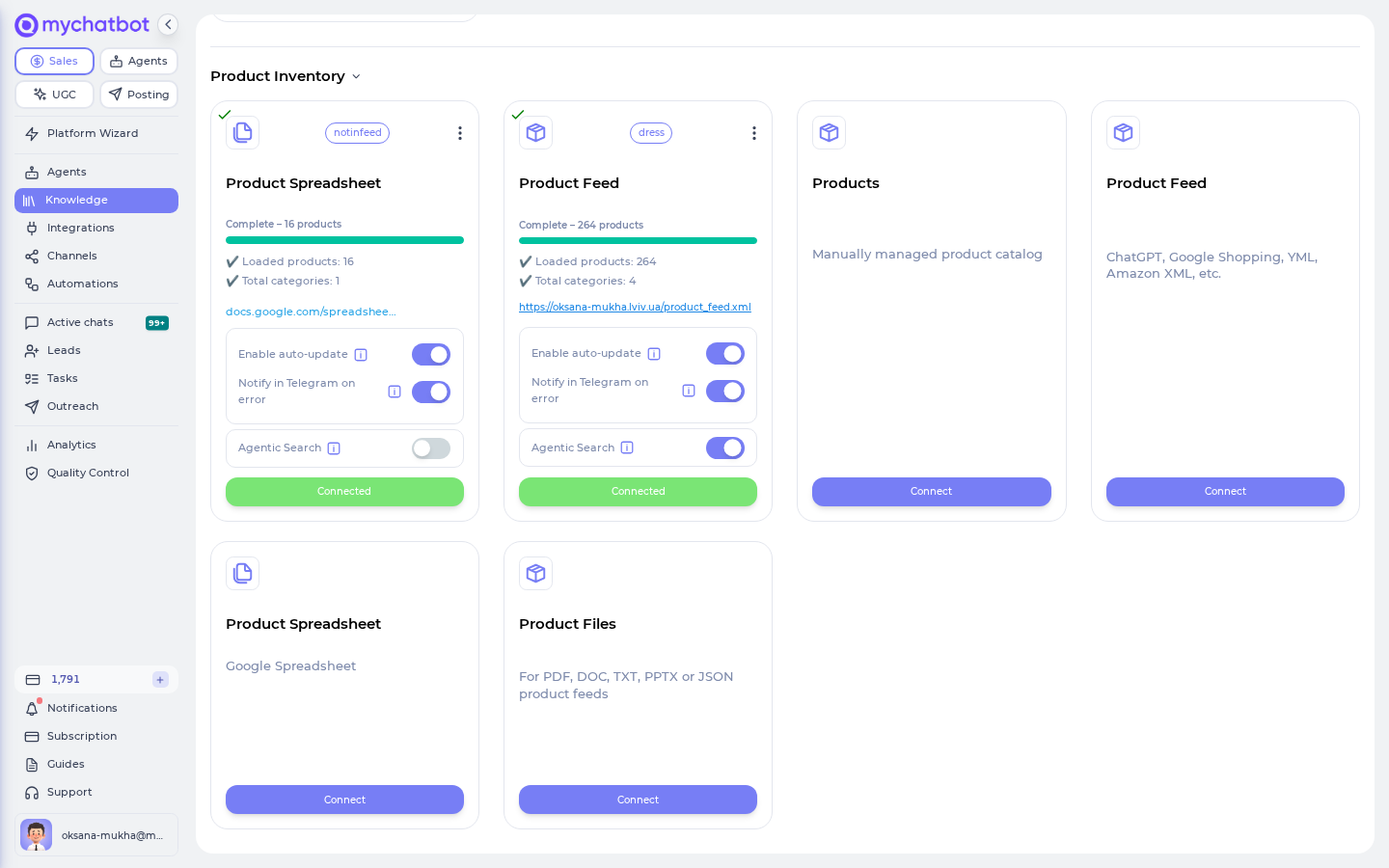
The Knowledge Base page
The page (titled Knowledge in the app) is where all sources live. Page-level nuances worth knowing before you connect anything:
| Nuance | Detail |
|---|---|
| Multiple knowledge bases | The cards across the top switch between knowledge bases. Add one with the + button — up to 10 per account, and adding one requires an active subscription. Names are lowercased, spaces become hyphens, 20 characters max. |
| One knowledge base per assistant | Each sales assistant is linked to one knowledge base — separate knowledge bases are how different assistants sell different catalogs. |
| Two sections per knowledge base | Business Knowledge (FAQ, Business Documents, Business Files, Business Links) and Product Inventory (Products, Product Feed, Product Spreadsheet, Product Files). Both are collapsible; a section starts expanded when it has a connected source. |
| How many of each | Per knowledge base: up to 3 Product Feeds, 5 Product Spreadsheets, 3 Products catalogs, and 3 FAQs. Every other source type allows one connected instance. |
| Card menu (⋮) | Connected cards have a menu (items vary by source): Search filters (when the source has extracted filters), Refresh Data (on-demand re-sync), Refresh URL (a webhook to trigger a refresh externally — see Re-indexing & repairs), Connect AI tools (see Product MCP), and Revoke (delete). |
Cards that disable each other
- Altegio — if an assistant on this knowledge base has the Altegio integration active, all unconnected product cards are blocked, with the note "Connecting product integrations is not available due to active Altegio integration".
- Business Documents — once connected, the legacy Business Information card is disabled.
- While one card's connection is in progress, the other cards are temporarily disabled.
"Incomplete" drafts
A card badged Incomplete is a draft that was created but never finished (for example, "Spreadsheet was never selected"). The app warns it "may affect system behavior" — remove it with Delete incomplete draft on the card.
What becomes searchable products vs background knowledge
Not everything you add lands in product search. Where a source goes decides whether your agent can search and filter it as a product catalog, or only read it as reference when answering. There are three destinations:
| What you add | Where it lands | Product-searchable & filterable? |
|---|---|---|
| Product Feed, Product Spreadsheet, Products / Catalog (added in the app), Instagram products | Searchable product index | Yes — this is what the product-search tools, filters, and image search actually search |
| FAQ, Business Documents, Business Files (uploaded DOC / PDF / …) | Background knowledge | No — the assistant references them when answering, but you can't browse or filter them as products |
| Business Links (your website URLs) | Live website lookup | No — not indexed; fetched live from your site at reply time when a question needs it |
The practical takeaway
Only the first row feeds product search. Everything else is context the assistant reads — useful for answering questions, but invisible to the product-search tools, filters, and image search covered in the rest of these docs. Which mode that first row runs in (a single lookup vs. a step-by-step search agent) is the Agentic Search toggle — see Direct vs agentic search.
Uploaded product files become background knowledge, not a searchable catalog
Uploading product info as files (DOC / PDF / HTML / …) puts it in file/document knowledge: the assistant can read it to answer, but those products don't enter the searchable product index, so product-search filters and image search won't cover them. It's fine for quick tests or doc-shaped catalogs — but for real product search, load your catalog as a Product Feed, Product Spreadsheet, or the in-app Products catalog.
Connecting a hosted store
Running a hosted store? Export its product catalog as a feed URL and add it as a Product Feed — MyChatBot consumes it just like any other feed, and those products land in the searchable index (the first row above). A Shopify store needs no export: paste the store address as the feed URL — see Sell your Shopify store's products in chats.
Cheat sheet
Ways to load a catalog
| Method | Best for | How you connect it | Auto-update | Image search |
|---|---|---|---|---|
| Product Feed (XML / YML / text) | Any store that can publish a feed URL | Paste a public feed URL (XML, YML, or TXT) | Enable auto-update toggle (≈ hourly) | Yes — Index images toggle |
| Product Spreadsheet (Google Sheet) | Inventory maintained in a spreadsheet | Connect Google Drive and pick the sheet | Enable auto-update toggle (≈ hourly) | Yes — Index images toggle (image1…imageN columns) |
| Products (in-app catalog) | Small catalogs you manage by hand in the app | Products card → Create Products Catalog (name + language) | Enable auto-update toggle on the card | No |
| Product Files (upload) | Existing product docs, quick tests | Upload up to 15 files | No | No |
| Instagram products | An Instagram business account's posts & reels | Set up under Channels → Instagram (not here) | Yes, automatic | Yes (frames pulled from reels) |
Which one should I use?
If your platform can emit a feed URL, use the Product Feed — it's the most direct and the most configurable, and it's how you connect a hosted store (export its catalog as a feed URL). Use the Product Spreadsheet when a human maintains the catalog in a sheet, or Products to manage a small catalog directly in the app. Use Product Files only for quick tests or doc-shaped catalogs — it gives you the least control over attributes and filtering.
Connect-dialog settings (Product Feed & Product Spreadsheet)
The Connect Product Feed / Product Spreadsheet dialog carries the same set of settings. Exact labels and defaults:
| Setting | What the app says / does | Default |
|---|---|---|
| Product Feed URL | The public feed address (spreadsheets pick a file instead) | — |
| Feed language | Pick the language closest to your descriptions, so search matches word variations. 19 options: Arabic, Danish, Dutch, English, Finnish, French, German, Greek, Hungarian, Italian, Norwegian, Portuguese, Romanian, Russian, Spanish, Swedish, Tamil, Turkish, Ukrainian | English |
| Feed name (optional) | A short badge shown on the card — how you tell multiple feeds apart (e.g. retailer, used). Only a–z and _, max 20 characters; a few names are reserved for special integrations | empty |
| Ignore feed attributes (optional) | Feed only. Attributes listed here are dropped before indexing — use it to exclude internal noise fields | empty |
| Enable auto-update | "…usually auto-updates every hour now" — periodic re-sync of the source | On |
| Index images | "Include all … images in your index" — builds the image-search index (see Image search) | On |
| Agentic Search | "For complex product discoveries" — step-by-step search instead of a single lookup (see Direct vs agentic search) | Off |
| Notify in Telegram on error | "Receive notifications in the Telegram group if auto-update fails" | On |
Enable auto-update and Notify in Telegram on error stay editable on the connected card afterwards (the feed card also keeps Agentic Search editable); Index images and Feed language are set at connect time — to change them, reconnect the source.
Supported feed formats (auto-detected)
MyChatBot auto-detects your feed's format — there's no format picker in the app. The supported formats include:
| Format | Notes |
|---|---|
| JSON product feed | Fastest to parse |
| ChatGPT commerce feed | OpenAI's commerce feed format |
| Google Shopping | RSS / Atom; the common default |
| YML | Yandex Market XML (<offer> elements) |
| Amazon XML | Amazon product XML |
| Atom | Generic Atom feeds |
| Generic XML | Flexible fallback for other XML shapes |
| 1C JSON | Russia / 1C exports |
| Shopify storefront | Paste the store address (or a /collections/<handle>/products.json URL for one collection); MyChatBot reads the store's public product data with no app or keys, and each product is one entry with its variants inside — see Shopify store |
…plus several store-specific formats. If your feed is a niche format and search looks wrong (for example, every product lands in a single catch-all category), contact MyChatBot support — they can pin the right parser for your catalog.
Load a catalog by method
Product Feed (XML / YML / text)
The most direct method. Supported formats: XML, YML, TXT. The feed must be publicly accessible and return raw content (no HTML wrapper page).
- Knowledge Base → pick (or + create) a knowledge base → Product Feed card → Connect (opens Connect Product Feed).
- Enter the Product Feed URL.
- Pick the Feed language closest to your descriptions (so search matches word variations), and optionally a Feed name and Ignore feed attributes — see Connect-dialog settings.
- Review the toggles: Enable auto-update (on — re-syncs about every hour), Index images (on), Agentic Search (off — turn on for filter/attribute-aware search on large, heterogeneous catalogs), Notify in Telegram on error (on).
- Click Connect to start processing. After it finishes, the app auto-extracts fields (size, price, brand…); open Search filters in the card menu to toggle on the ones you want as filters, and enable range search for numeric fields like price.
A typical YML/<offer> shape:
xml
<yml_catalog>
  <shop>
    <offers>
      <offer id="123">
        <name>Product Name</name>
        <description>Product description</description>
        <price>99.99</price>
        <picture>https://example.com/image1.jpg</picture>
        <brand>Brand Name</brand>
        <size>Medium</size>
      </offer>
    </offers>
  </shop>
</yml_catalog>
Two hard requirements
Every product needs a unique id. Duplicate IDs fail the whole import. And for large feeds, categorise properly (usually via your feed's product_type / category field) — flat catalogs hurt search accuracy at scale.
Group variants with parent_product_id
Apparel and other catalogs that ship one row per size/color should set the optional parent_product_id field on each variant to the shared parent product's id. That links the SKUs so MyChatBot relates them and groups them as variants, instead of cluttering search results with near-duplicate rows. Leave it unset for standalone products.
Product Spreadsheet (Google Sheet)
Connect a Google Spreadsheet directly. The sheet must be native Google Sheets format — an XLSX file merely stored in Drive will not work.
- Knowledge Base → pick a knowledge base → Product Spreadsheet card → Connect.
- Grant Google Drive consent (the consent dialog includes an Allow image search checkbox), pick the account, Pick file → select the sheet.
- Choose the Feed language and review the toggles (Enable auto-update, Index images, Agentic Search, Notify in Telegram on error — see Connect-dialog settings), then click Preview.
- Map Spreadsheet Columns — the app shows your first rows ("Showing first 10 rows for mapping verification") and auto-detects which sheet columns map to the product fields: ID, Product Name, Description, Price, Product Link, Image Link. Fix anything shown as Not mapped — ID and Product Name are required ("Required columns 'id' or 'product' are missing" blocks the connect). Columns detected by aliases get a Rename to '…' suggestion — renaming them in the sheet to the exact suggested names gives the best compatibility.
- Click Confirm & Connect.
Column rules:
- Headers in the first row.
id— unique per product (required).product— product name/title (required).parent_product_id— optional; put the same value (the parent'sid) on every variant row (sizes/colors of one product) to group them as variants instead of near-duplicate rows.- Any additional columns become attributes:
price,size,color,composition,category,description,availability, … (unlimited). - For image search, put image URLs in columns named
image1,image2,image3,image4, and so on.
Once connected, your agent searches this catalog automatically.
TIP
If it isn't a column, the agent can't see it. Add every attribute customers ask about. After connecting, you'll get a summary like 119 products, 1 categories.
Products (in-app catalog)
A "manually managed product catalog" — no feed or sheet required; you maintain the products inside the app. Up to 3 per knowledge base.
- Knowledge Base → Products card → Connect.
- In Create Products Catalog, set a Catalog name and Language → Create.
- Add and edit products on the catalog's own page — the card's green Connected button reopens it anytime.
The connected card keeps two toggles editable — Enable auto-update and Agentic Search — and its menu offers Refresh Data, Connect AI tools, and Revoke. Once indexing completes it shows Loaded products and Total categories. These products land in the searchable product index exactly like a feed's, so the search tools, filters, and the Agentic Search toggle all apply (there's no image-indexing option here).
Product Files (upload)
The quickest setup, with the least control. Knowledge Base → find the Product Files integration → Connect → select files.
- Up to 15 files, max 7 MB each (per the Upload Files dialog).
- Formats: DOC, DOCX, XLS, XLSX, CSV, PDF, PPT, PPTX, JSON, HTML, TXT.
- Text and product info are extracted and indexed automatically, then searchable by text.
Limitations
No control over how products are indexed, and no configurable attribute filters. Uploaded files are read as background/reference knowledge rather than added to the searchable product index (see What becomes searchable products vs background knowledge), so the product-search tools, filters, and image search won't cover them. Great for testing search or doc-shaped catalogs; use a feed or sheet for anything you'll run in production.
Instagram products
Turn an Instagram business account into a searchable product catalog. Each post and reel becomes a product — its caption supplies the title and description, and its images (plus frames pulled from reels) are indexed for image search too. It auto-updates as the account posts.
Set this up under Channels → Instagram — not the Knowledge Base page
This is the common confusion: Instagram products is configured under Channels → Instagram (app.mychatbot.app/channels → your agent → Instagram) — not under Knowledge Base like the other product sources.
- Connect the Instagram channel for your agent — see Connect Instagram.
- Turn on Instagram products, choose a feed language (English, Russian, or Ukrainian), and name it.
- It indexes existing posts and reels as products and refreshes automatically.
Once indexed, you search it exactly like any other product source — semantic search, filters, and image search all apply, and the Agentic Search toggle (Direct vs agentic search) works here too.
What Instagram products can't do
- Ingest is time-boxed — very long reels can be capped (only part of a long video is pulled in).
- It needs a connected Instagram channel to pull from.
- Languages are English, Russian, or Ukrainian only.
- Posts are modeled as generic products — there's no price, SKU, or variant unless that detail is written in the caption.
How indexing works
The pipeline
Once you connect a source, every method runs the same path behind the scenes:
- Fetch & parse — MyChatBot pulls your feed and reads its products.
- Exclude noise — any attributes you've marked to ignore are dropped before indexing.
- Build categories — your category hierarchy and per-category attributes are recorded.
- Index for search — each product is indexed for both keyword and meaning-based (semantic) search, along with its filterable fields.
- Image indexing (optional) — when image search is on, product images are analyzed.
Processing runs in the background and can take up to an hour for large feeds. The integration card shows live progress statuses while it runs:
| Card status | What's happening |
|---|---|
| Waiting for feed… / Feed starting… | Queued; the import is about to begin |
| Checking for changes… | Comparing the source against the last import |
| Pre-processing feed (≈ N min) | Large feeds get a pre-processing pass, with a time estimate |
| Parsing… N products | Reading products out of the source |
| Generating embeddings for N products | Building the meaning-based (semantic) index |
| Indexed X/Y (+ N images) | Writing the index — the image count appears when Index images is on |
| Complete – N products | Done. The card then shows Loaded products: N and Total categories: N |
If an import fails, the card is highlighted with an error state — and if Notify in Telegram on error is on, an auto-update failure also pings your Telegram group.
Categories, and what "no categories" means
Categories drive search structure — results are grouped and ranked per category. If a feed has no category information, every product falls into a single catch-all category. That works, but it disables per-category ranking, so a large uncategorised catalog searches worse. (If a big catalog that should have categories collapses into one, that's usually a sign the wrong parser fired — see the format note above.)
Image indexing
When image search is on, MyChatBot analyzes the product's images (up to a limit tuned by MyChatBot). It builds fast visual fingerprints for near-duplicate matching and — when deeper visual matching is enabled for your account — adds AI-based visual recognition for better recall. These power image search (a shopper uploads a photo → finds the matching product). The AI visual matching adds semantic recall but is a little slower; fingerprint-only is faster but more collision-prone. See Image search for the matching pipeline.
Length limits
Two size limits shape what's searchable:
- Descriptions — very long product descriptions are trimmed to a length limit (tuned by MyChatBot) before indexing. Front-load the important detail; anything past the limit isn't indexed.
- Searchable attributes — all your non-code attributes are combined into one searchable block that filters glob over, and it has a per-product size cap. Keep attribute values concise so the important ones all fit.
Code-like attributes are handled separately
Attributes that look like codes (vendor code, SKU, product code, model number) are kept out of the fuzzy attribute search on purpose. For exact code lookups, the agent matches them directly (exact-code matching is on by default) or fetches the product by ID. See Filters, attributes & params.
Unrecognised attributes are display-only, not filterable
Attributes nested in an unusual way in your feed — e.g. a price or vendor field the parser didn't expect — can still show on the product card, but they were never indexed as a filterable field, so filters on them silently return nothing. If a field you expect to filter on isn't narrowing results, it likely wasn't indexed as a filter. When that happens, the integration needs a fresh index — see Re-indexing & repairs.
Re-indexing & repairs
Normal updates are incremental
- Enable auto-update (per-integration toggle) re-syncs the source periodically — the app's own hint: "usually auto-updates every hour now".
- Refresh Data (card menu ⋮) re-runs the source on demand; the menu shows Refreshing… while it works.
- Refresh URL (card menu ⋮) gives you a per-integration webhook — "Use this URL to trigger a data refresh from external services or automation tools." The dialog shows the URL and an Example cURL request (a simple POST), each with a copy button. Anyone with the URL can trigger a refresh, so treat it as a secret.
All of these re-parse the source and update only what changed — they do not rebuild the index from scratch. That's the right behaviour for day-to-day catalog changes.
A from-scratch reindex isn't a self-serve knob
There's no toggle in the app that forces a full from-scratch rebuild. You need one in one main case: an older integration whose attribute filters return nothing because it was indexed before the current search fields existed (see the tip below). When that happens you have two options:
- Delete and re-add the integration (Revoke in the card menu, then reconnect). A fresh integration indexes from scratch with the current pipeline, rebuilding all the searchable and filterable fields. (Re-creating it changes the integration, so re-check any agent that references it.)
- Contact MyChatBot support on Telegram: https://t.me/MyChatBot_Support_bot. Support can force a rebuild for you. Include your account id, integration id, and a one-line symptom — e.g. "attribute filters return empty on integration 4821."
Why old integrations' filters go empty
Attribute filters glob over each product's searchable-attributes block. Integrations indexed before that block existed don't have one, so attribute filters silently return nothing. Search auto-falls-back once per request to the per-category typed fields, so many filtered queries still return something (see Filters, attributes & params) — but that masks the gap rather than fixing it. The permanent fix is a from-scratch reindex via the delete-and-re-add or support path above.
Ghost results from an old catalog
Deleting and re-creating an integration can occasionally leave a stale index behind, so search may return products from a catalog you've already removed. A stale index has to be wiped by MyChatBot — contact support on Telegram (https://t.me/MyChatBot_Support_bot) with the account id and integration id.
Best practices
Do
- Give every product a genuinely unique
id. - Categorise large catalogs (usually via your feed's
product_typefield). - Include every attribute customers ask about — sizes, price, stock, images.
- Pick the language closest to your descriptions (so search matches word variations).
- Exclude internal noise attributes that pollute search.
- Let MyChatBot auto-detect the format; only ask support to pin a parser when a niche feed is genuinely misdetected.
- Repair an old integration whose filters return empty (or a stuck import) by deleting and re-adding it, or by asking support for a from-scratch reindex.
Don't
- Don't ship duplicate IDs — they fail the entire import.
- Don't leave a large catalog uncategorised (it collapses into one catch-all category).
- Don't expect Refresh Data, the Refresh URL, or auto-update to rebuild a broken index from scratch — they're incremental updates; use delete-and-re-add or support.
- Don't bury key facts past the description length limit.
- Don't upload an XLSX-in-Drive as a "Google Sheet" — convert to native Sheets first.
Test it
- Kick off the feed — connect the integration (or run Refresh Data from its card menu), then watch the card's progress statuses until it reports Complete – N products (or a failure).
- Check the summary — total products and categories should match your catalog. A single catch-all category on a catalog that has categories means the wrong parser fired (ask support to pin the right one).
- Run a known-item search — query for a product you know exists and confirm it ranks. If attribute filters return empty on an older integration, it needs a from-scratch reindex: delete and re-add it, or contact support (see Re-indexing & repairs).
- Spot-check filters and images — verify a price/attribute filter narrows results, and (if enabled) that an image query returns the right product.
See Testing search for the regression-test pattern (query → expected products).
See also
- How product search works — the retrieval pipeline end to end
- Search tools reference — what your agent can do with the catalog
- Filters, attributes & params — filters, attributes, and operators
- Image search — searching your catalog by photo
- Product (commerce) MCP — the card menu's Connect AI tools: query a catalog from Claude Code / Cursor
- Testing search — validate ingestion and ranking
- Search troubleshooting & best practices — empty filters, stale indexes, stuck imports