
Appearance
Core concepts & glossary
The vocabulary you need before diving in. MyChatBot has two big surfaces — the Sales Platform (assistants that work your inbox and CRM) and the Agents Platform (routines that orchestrate repeatable work through agents) — that share accounts, knowledge, and connectors. This page maps the pieces to what you actually click in the app; the deep pages are linked from each term.
How it fits together
- An account owns everything below. It's the workspace you log into at app.mychatbot.app.
- On the Agents Platform, a routine is the durable unit for repeatable or autonomous work. Its steps use agents, models, skills, connectors, and knowledge; a schedule or supported trigger starts it. Use conversations and the lobby for one-off work, inspection, approvals, and debugging.
- The Sales Platform remains the runtime for customer chats, channels, clients, CRM state, orders, and native follow-ups. Agents routines provide higher-level orchestration around those processes through Sales tools.
- Inventory you load through an integration becomes searchable product data that an agent can look up with product search.
- MCP endpoints let Claude Code or Codex act as the configuration and prototyping plane: configure the Agents Platform, operate the Sales Platform, search product catalogs, or use UGC tools. MCP servers can also be attached to agents as runtime connectors. Start with the routine-first operating model.
In the app
Everything on the Agents Platform lives under Agents in the left nav (app.mychatbot.app/agents). New to it? Open Agents → How it works (/agents/how-it-works).
Glossary
| Term | What it is | Where it lives in the app |
|---|---|---|
| Account | Your top-level workspace. Every agent, integration, connector, and knowledge source belongs to one account. | app.mychatbot.app |
| Agent | A configured worker used for conversation turns or routine leaf steps: a starting template plus your customizations (instructions, tools, connectors, knowledge, skills, model). | Concepts · Build an agent |
| Template | A ready-made agent kind that comes pre-set with a model, instructions, tools, and skills — e.g. a general assistant, a personal assistant, or a skill builder. Pick one as your starting point. | Concepts |
| Blank agent | Start from scratch instead of a template. In the app you create one, pick its model, and write its instructions yourself. | Build an agent |
| Customizations | The changes you layer on top of a template. Anything you leave blank inherits the template's default; clearing a field resets it to the default. | Concepts |
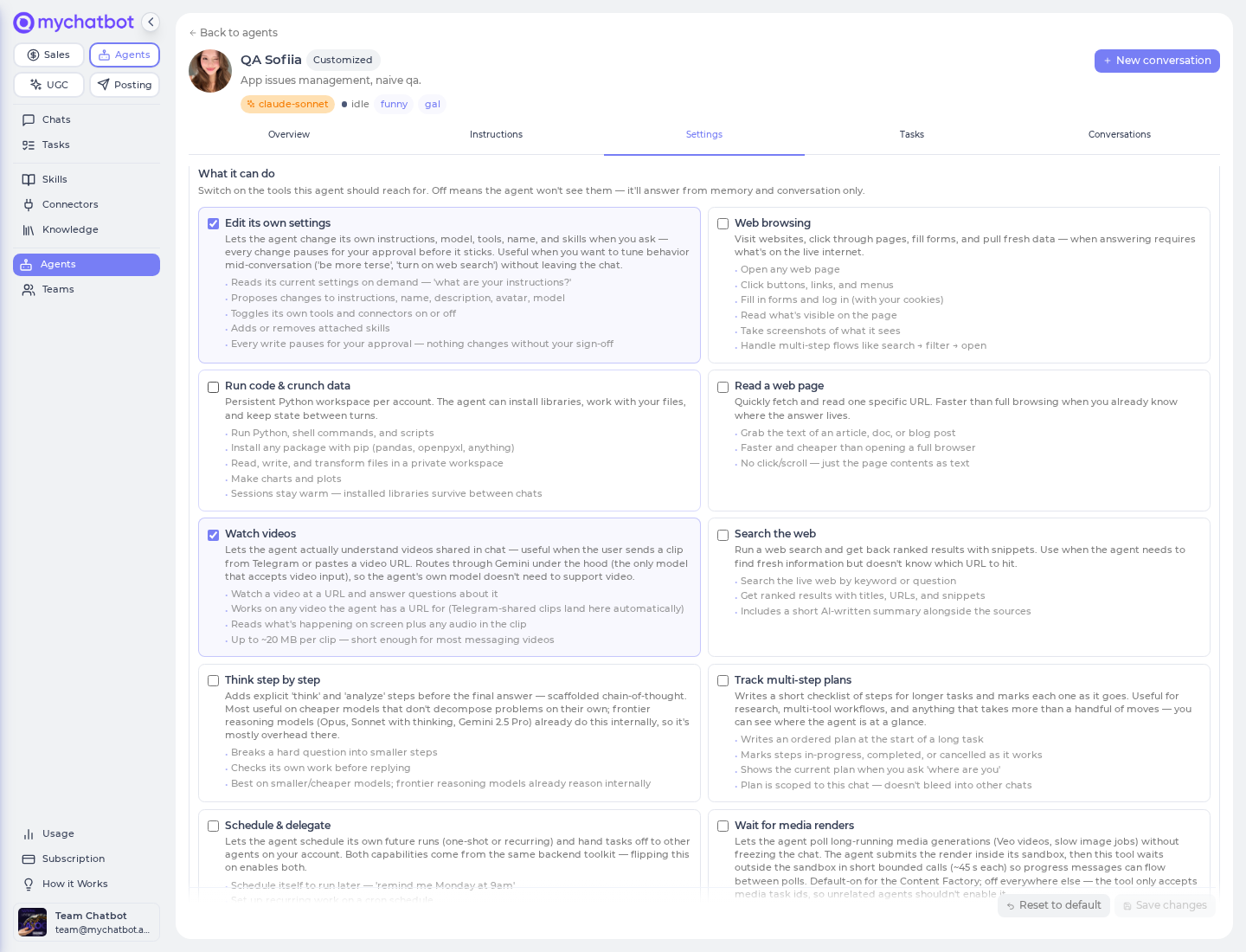
| Tool toggle | On/off switches for what an agent is allowed to reach for — Web browsing, Run code & crunch data, Search the web, Sales Platform tools, Business knowledge, and more. Off means the agent won't even see the tool. | Tools & toggles |
| Connector | A third-party integration an agent can act through. Three flavors: external app connectors (HubSpot, Gmail, Slack, Notion, and more — authorized once per account), Sales Platform connectors (slices of your own account's sales data), and custom connectors (your own MCP server). | Custom connectors · Connect apps |
| Model & reasoning | Each template ships with a default model (GPT-5, Claude Opus, Gemini, Grok, …) that you can change on any agent. Some models let you set how hard they think (reasoning effort). | Models & reasoning |
| Knowledge base | What an agent can look things up in: business-knowledge sources (Open Web, Google Drive / Notion / Slack, your Products — enabled by the Business knowledge toggle) and Sales Platform sources (FAQ, product catalog, product feed, spreadsheet). | Knowledge bases |
| Memory | Each conversation keeps its own history, plus long-term memories saved automatically from conversations — organized by category, with the essentials (corrections, brand, key preferences) kept in mind on every reply and the rest recalled when a task needs them. Review or delete any memory on the Knowledge page. | Memory |
| Skill | A reusable, packaged capability. Platform skills ship with the product; your skills are ones you create (with the built-in skill builder). | Skills |
| Schedule / task | A recurring, timed activation for a routine or agent. | Tasks, crons & schedules |
| Routine | The central durable YAML workflow for repeatable or autonomous work. Run it once, over a bounded collection, on a schedule, or from a supported trigger; its leaf steps execute through configured agents. Start from a built-in routine or have Claude/Codex author and preview a custom one through the Agents MCP. | Operating model · Routines · Build with Claude or Codex |
| Lobby / Chief of Staff | The Agents-Platform front door: one message box where the Chief of Staff triages your request and hands it to the right agent in the same thread. | The lobby |
| Channel | Where a bot talks to people. An Agents Platform agent can connect a Telegram bot directly for owner/operator conversations. Website Widget, WhatsApp, Instagram, calls, and the other customer channels belong to a Sales Platform assistant. | Channels overview · Connect Telegram to an agent |
| Conversation | A chat thread for ad-hoc work, routine progress and results, inspection, approvals, and debugging. An Agents Platform Telegram chat can appear here; customer website and messaging-channel chats remain on the Sales Platform. | Memory · Operating model |
| Assistant | The Sales Platform sales bot (distinct from an Agents-Platform agent). Agents reach the Sales Platform through the Sales Platform tools toggle or the Sales-Management MCP. | Custom connectors |
| Integration | Here: a data source you connect to feed inventory in — a product feed, spreadsheet, file upload, or Instagram integration all populate your searchable catalog. (Not to be confused with the Sales Platform's Integrations section for CRMs — see Integrations overview.) | Getting inventory in |
| Product search | Search over your catalog — it blends meaning-based and keyword matching, supports filters, categories, and image matching. MyChatBot tunes relevance for you; contact support to adjust it for your catalog. | How search works |
| MCP | Model Context Protocol endpoints for external clients: Agents MCP (configure and test the Agents Platform), Product MCP (search one catalog), Sales-Management MCP (operate account-scoped sales resources), and UGC MCP (content, ads, and analytics). | MCP & connectors · Product MCP |
Building a repeatable system, step by step
For a one-off conversation, creating an agent may be enough. For repeatable work, build the smallest system that supports one routine:
- Create it. New agent → pick a template (or start blank) and choose a model.
- Give it instructions. Open the agent → Instructions tab.
- Decide what it can do. Open Settings → What it can do and flip on the tools it needs. Off is the safe default.
- Connect apps & knowledge. Add connectors and knowledge sources so it can act on and look up your data.
- Author the routine. Have Claude or Codex write and validate the canonical YAML.
- Preview, check, then stage. Preview the workflow graph, perform a narrow live check, and create the schedule or supported trigger disabled before enabling it separately.
In the app
Start a new agent at app.mychatbot.app/agents/new. Every agent then has its own Overview · Instructions · Settings · Tasks · Conversations tabs. Tools, model, identity, connectors, and skills all live under Settings.
Connectors: connect once, enable per agent
External app connectors are authorized once per account in the connector catalog. After that, each agent gets its own switch — an agent only sees a connector when it's both authorized on the account and turned on for that agent.
In the app
Browse and authorize apps at app.mychatbot.app/agents/connectors (Connectors in the Agents nav). Then enable the ones you want under an agent's Settings → Connectors. Hosting your own tool? Add a Custom connector with its MCP URL.
Channels: choose the platform first
Customer conversations through the website widget, WhatsApp, Instagram, calls, and other business channels belong to a Sales Platform assistant. An Agents Platform agent has a separate direct Telegram connection intended for the account owner or team. Compare the two paths in the Channels overview before connecting anything.
See also
- Quick start: build your first agent — put these together in ~10 minutes.
- Agents Platform operating model — the routine-first architecture and platform boundary.
- Agents platform: concepts — the agent model in depth.
- The lobby — the Chief of Staff front door where work starts.
- Build routines with Claude or Codex — author, validate, preview, and activate a reusable workflow.
- Channels overview — choose between customer-facing Sales channels and an Agents Platform Telegram bot.
- How product search works — the search pipeline end to end.
- Cheat sheets — every quick-reference in one place.