
Appearance
Tasks & schedules
Three related things live under the Tasks area of the agents workspace:
- Task cards — reusable, ready-to-run prompts. Click one to run it (or edit it); the agent starts a fresh conversation with that prompt.
- Schedules — recurring activations. A schedule can fire a routine or an agent unattended on a repeating cadence.
- Routines — the central durable workflows for repeatable or autonomous work, with live step progress. They get their own pages: Routines and Custom routines.
For a production business process, prefer a routine schedule: Claude or Codex authors and previews the workflow, then stages its schedule disabled for review. A conversational agent schedule remains useful for a simple recurring prompt or reminder that does not need structured control flow, batch state, or explicit recovery.
In the app
Open the Tasks entry in the agents sidebar to see everything across every agent: app.mychatbot.app/agents/tasks. Use the All / Saved / Ready to run / Scheduled view toggle, the search box, and the per-agent filter pills to narrow it down (routines appear on the All view). To manage one agent's schedules, tasks, and routines, open that agent and go to its Tasks tab.
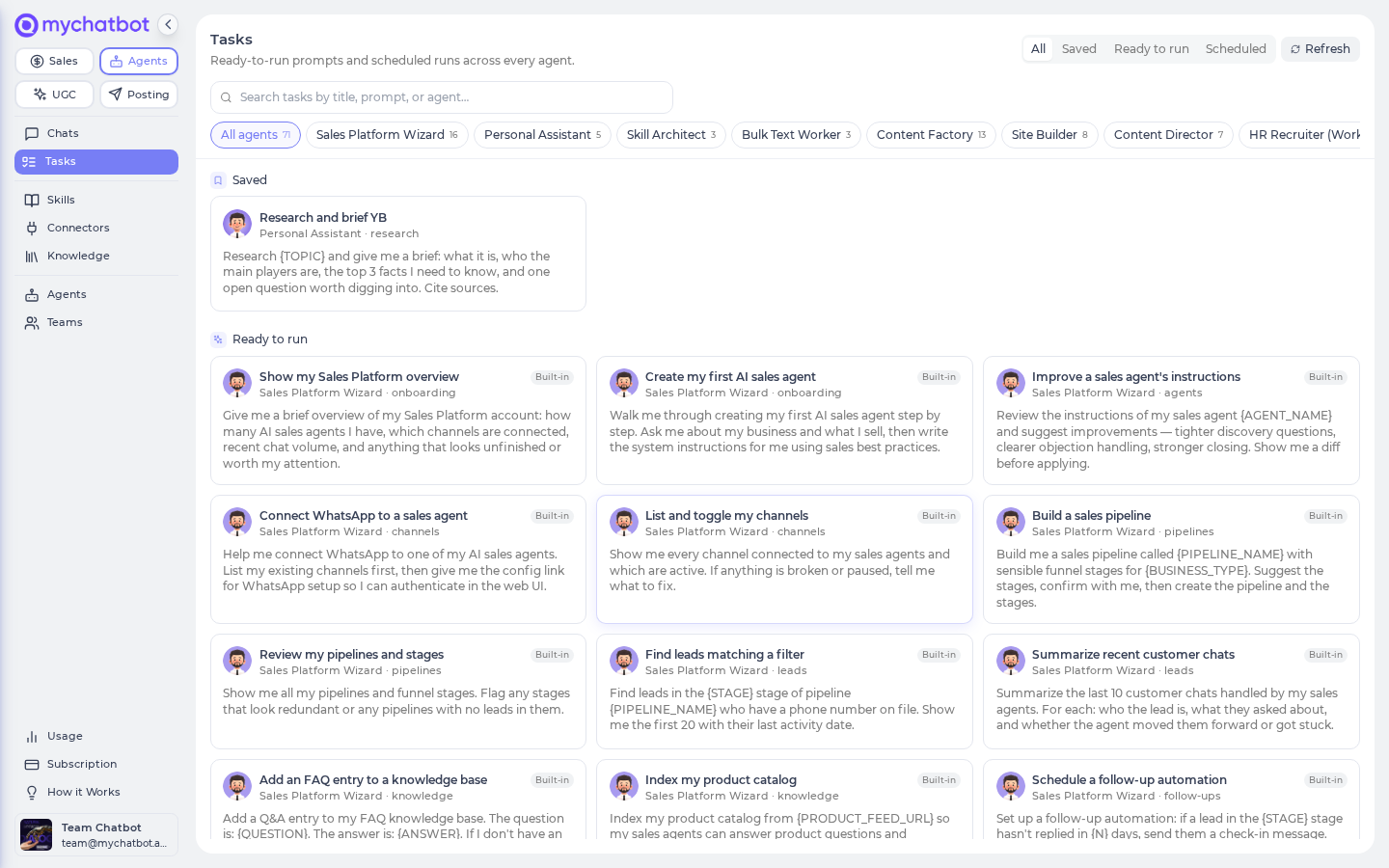
Task cards (templates)
A task card is a saved prompt you (or your team) can run in one click instead of retyping it. There are two kinds:
| Card | Where it comes from | What you can do |
|---|---|---|
| Built-in | Ships with the agent | Preview, Execute, or Duplicate it into your own editable copy |
| Saved by you | You created it | Preview, Execute, Edit, or Delete |
- Execute opens a new conversation with the prompt pre-filled in the composer (it is not auto-sent) — read it, tweak it, then send.
- New task (on an agent's Tasks tab) opens an editor where you write a title, an optional category, and the prompt body.
- From any of your own chat messages you can choose Save as task to turn it into a reusable card.
In the app
Create or edit task cards on an agent's Tasks tab (app.mychatbot.app/agents/<agent> → Tasks). Click + New task, or click an existing card to open it.
How schedules get created
Building with Claude or Codex
The account-scoped Agents MCP can create a routine cron schedule after the routine is ready and previewed. Every schedule created through MCP is staged disabled. Review its routine, cron, timezone, message, and preview history before separately approving the enable operation.
For a routine, follow Build routines with Claude or Codex: the Agents MCP creates its cron schedule disabled, and enablement is a separate approved operation after validation, preview, and a narrow live check.
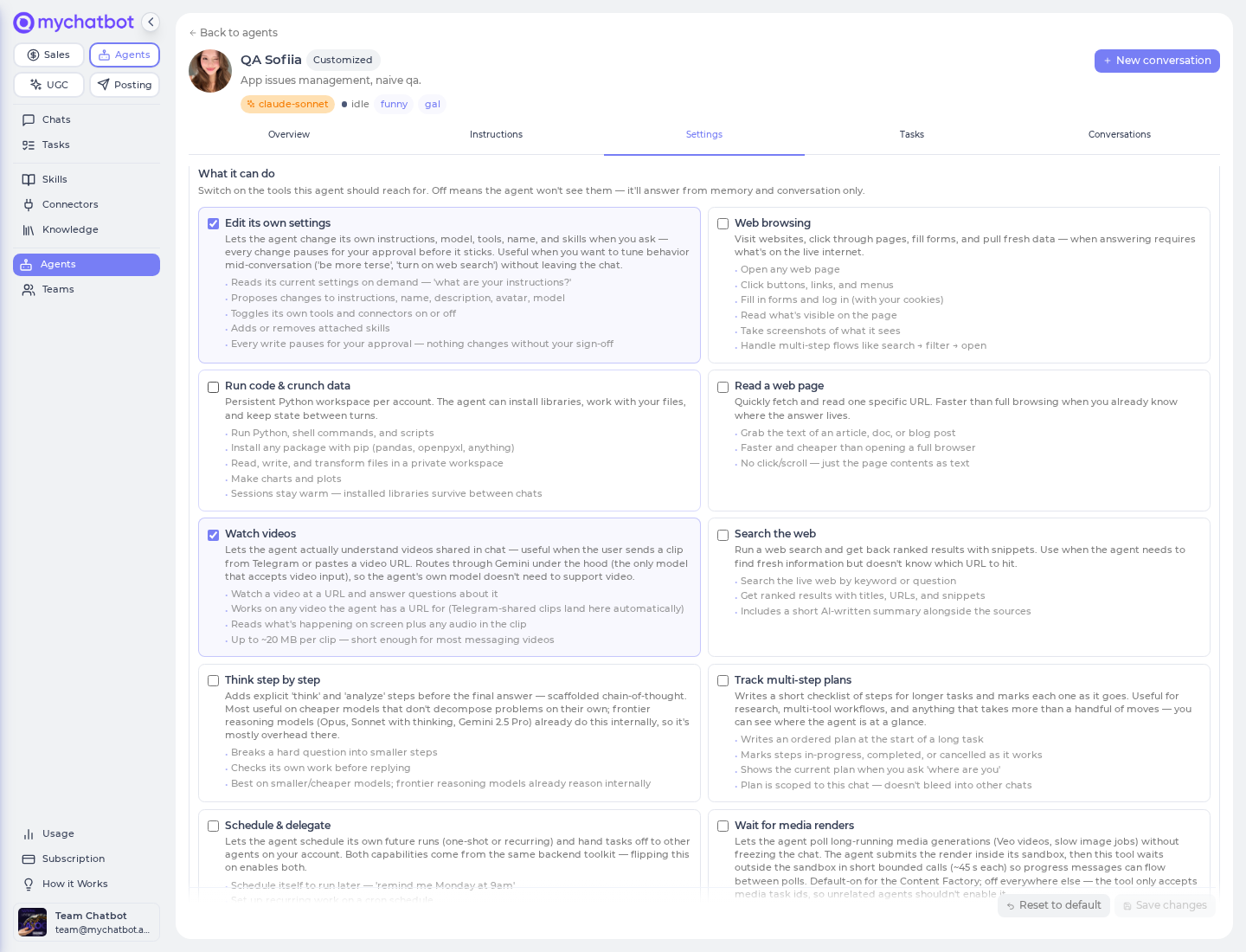
For a simple conversational agent schedule, you don't fill out a cron form—you ask the agent. Turn on the agent's Schedule & delegate capability, then tell it what you want in plain language, right in the chat:
"Every day at 9am, summarize yesterday's new leads and draft a follow-up for each."
"Remind me Monday at 9am to review the pipeline."
The agent sets up the recurring (or one-shot) run itself and pins it to the current conversation. It can check the current time before it works out a clock time, and every schedule it creates reports back how far away the run is, so a reminder that would land at the wrong hour (or next year) gets caught and redone.
In the app
Enable this on the agent's Settings tab: toggle Schedule & delegate on. It lets the agent schedule its own future runs and hand tasks off to other agents on your account (both come from the same toggle).
| You say to the agent | What it sets up |
|---|---|
| "remind me Monday at 9am to…" | A one-shot run at that time |
| "pause 15 minutes, then carry on" / "follow up in 1.5 hours" | A one-shot run that many minutes from now, timed by the platform's clock, not the agent's guess |
| "every day at 8am, do X" | A recurring schedule |
"hand this off to <another agent>" | Delegates the task; the result comes back as a new chat thread |
| "list / cancel my schedules" | The agent manages its own schedules for you |
Managing schedules
On an agent's Tasks tab, each schedule shows as a card with its name, its cadence and timezone, when it next runs, the instruction it sends each time, and which conversation it posts into — plus inline controls.
| Control | What it does |
|---|---|
| Pause / Resume | Stop the schedule firing without deleting it; resuming recomputes the next run time |
| Delete | Remove the schedule — click once to arm, again to confirm |
| Click the card | Open the instruction editor to rewrite the message the run sends each time |
In the app
Edit a schedule's instruction on the agent's Tasks tab — click the schedule card and rewrite the message. The cadence, timezone, and name stay as set; you're only changing what the run tells the agent to do. From the cross-agent Tasks page you can also click a schedule tile → Edit to land in the same editor, or Open conversation to jump to where its runs post.
The cross-agent Tasks page lists only enabled schedules — "what's running or will run" across the account. A paused schedule still appears on that agent's own Tasks tab, where you can re-enable or delete it.
Cadence & timezone
You describe the cadence in plain language and the agent translates it — you rarely need to think about cron at all. Each schedule then shows its cadence as a short cron expression on its card, evaluated in the schedule's timezone (UTC unless another zone was set).
Common cadences you'll see on cards:
text
0 9 * * *         # 09:00 every day
0 9 * * MON       # 09:00 every Monday
*/15 * * * *      # every 15 minutes
0 0 1 * *         # 00:00 on the 1st of each month
30 6 * * 1-5      # 06:30 Monday–Friday
Timezones are standard IANA names, e.g. UTC, America/New_York, Europe/Kyiv.
Give each schedule a distinct name
A schedule's name must be unique within your account — you can't reuse one. (Two different accounts can each have a "Weekly digest"; you just can't have two.)
Which model a scheduled run uses
A schedule does not carry its own model. Every run — interactive or scheduled — uses the agent's current model, chosen in the agent's Settings. Change the model there and the next scheduled run picks it up automatically; a run already in progress keeps the old one.
In the app
Set the model on the agent's Settings tab → Model dropdown. Pick a display name from the model picker (GPT-5, Claude Opus, Claude Sonnet, Gemini, Grok, GLM, …), or leave it on the agent's (default). Whatever you pick here is what scheduled runs use too.
Changing the model can turn off deep reasoning
Some models run with extra "reasoning effort." Switching the agent to a model that doesn't use it turns that off on the next run — the setting doesn't carry across a model change. If a schedule depends on careful, multi-step reasoning, keep the agent on a reasoning-capable model. See Models & reasoning.
Gotchas & best practices
A just-finished scheduled run may briefly look missing or out of order
Right after a scheduled run completes, it can occasionally sort to the wrong place in the conversation, or seem to be missing. Just refresh — MyChatBot repairs the run's timestamp automatically and it settles into the right spot.
Don't stack two schedules on one conversation
Point each schedule at its own conversation. Two schedules firing into the same conversation can overlap and clobber each other's run history — leaving a run stuck "running" and over-counting usage. One schedule per conversation.
- Set the model before you schedule, and re-check reasoning after any model change (see the warning above).
- Write the instruction so it stands on its own. The run still has the conversation's history for context, but each scheduled turn should be a complete, self-contained request.
- Size the cadence to the work. Leave comfortable headroom so a run finishes before the next one is due. (MyChatBot already prevents a recurring schedule from re-firing while a run is still going, but headroom keeps things tidy.)
- Pause instead of recreating. While you iterate, pause a schedule rather than deleting and rebuilding it.
- A run that gets stuck well past its expected time surfaces on the agent as idle (last run incomplete) — that's your cue the last fire didn't finish.
Try it
- For a repeatable process, ask Claude or Codex to build and validate a small read-only routine, then run its bounded preview.
- Ask it to stage a weekday cron schedule disabled with an explicit IANA timezone.
- Review the routine target, message, cadence, model cost, and live effects before separately approving enablement.
- After it fires, open the routine conversation and inspect the run and per-step results.
- Turn the schedule off while iterating; delete it only when you no longer need its history or configuration.
See also
- Agents Platform operating model — why routines are the production orchestration unit
- Routines — the central durable workflow type
- Build routines with Claude or Codex — build, validate, preview and stage a multi-step job
- Custom routines — lifecycle and safety boundaries
- Models & reasoning
- Tools & toggles
- Memory
- Build an agent
- Troubleshooting