
Appearance
Routines
A routine is the central durable workflow for repeatable and autonomous work on the Agents Platform. It can be a short sequence or a bounded workflow that uses parallel branches, loops, conditions, routers, and foreach to process hundreds of records. Configured agents and models execute its leaf steps; skills, connectors, knowledge, schedules, and supported triggers enable the surrounding business process.
Built-in routines are ready to run. For a process of your own, have Claude or Codex author the same canonical YAML accepted by the app and runtime. Every routine provides live progress and per-step results. A run never pauses to ask you anything — see Approvals.
Use an agent conversation for a one-off investigation or follow-up. Use a routine when the work must execute consistently again—on another item, on a schedule, or after a supported event. See the routine-first operating model.
In the app
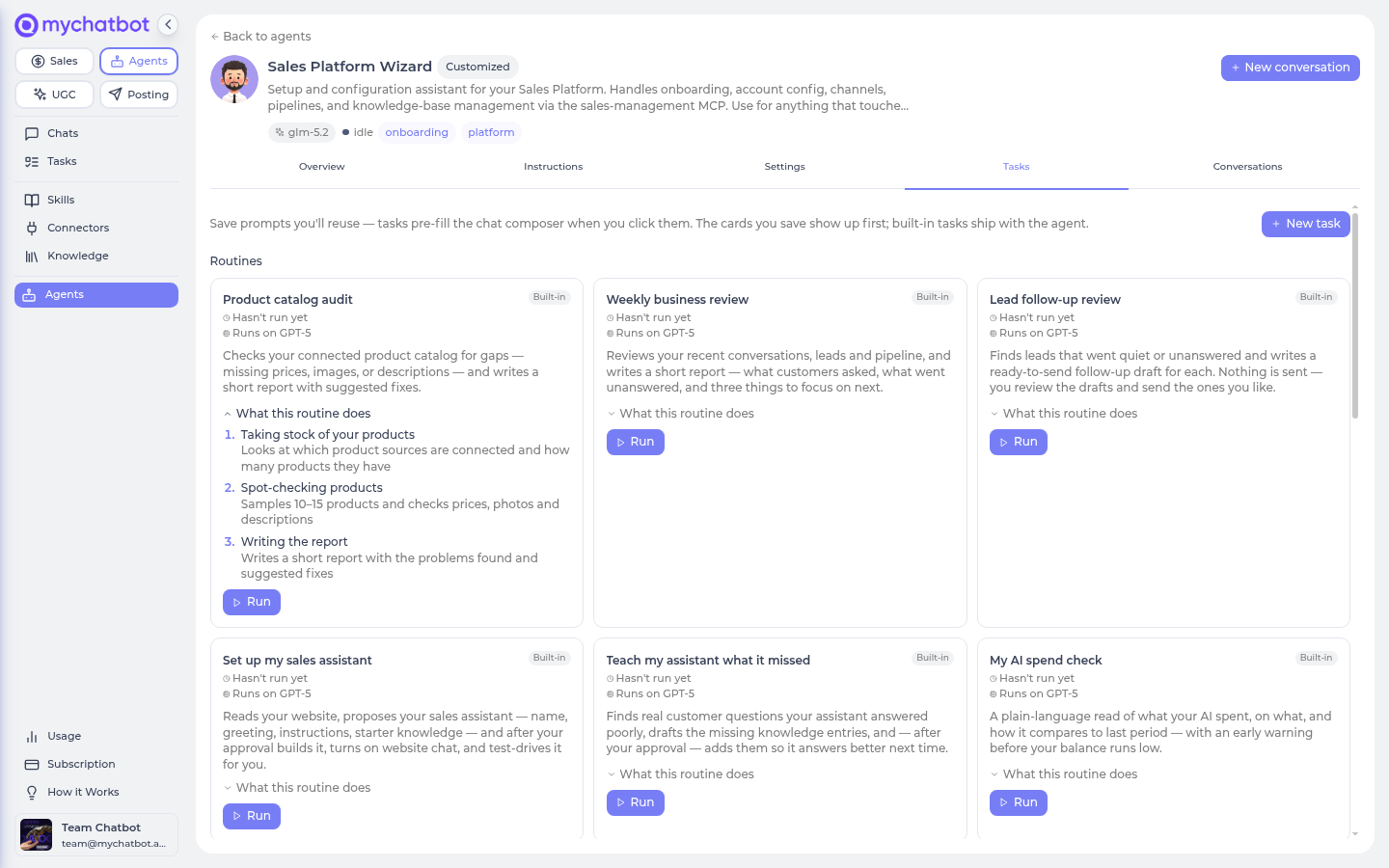
Routines appear in four places, all showing the same routines:
- the Routines section of an agent's Tasks tab (
app.mychatbot.app/agents/<agent>→ Tasks); - the Routines tab on the lobby hero (
app.mychatbot.app/agents/chats); - the cross-agent Tasks page (on the All view, each card labeled with the agent that runs it);
- the task picker inside the chat composer, under a Routines group.
Cheat sheet
| Thing | What it is |
|---|---|
| Routine | A durable multi-step workflow. Run a built-in one or use Claude/Codex to author custom YAML for repeatable, scheduled, event-driven, or batch work. |
| Steps | The stages the routine walks through, in order. Expand What this routine does on the card to preview them before running. |
| Runs on | The card discloses which model(s) each routine executes on — Runs on GPT-5, or Runs on GPT-5 mini + Claude Sonnet for a routine whose steps span more than one specialist. |
| Routine conversation | Each routine keeps its own conversation — every run and report lands in the same thread, so past runs are easy to find. |
| Progress | While a routine runs you see each step tick off live — including steps that run at the same time — and can expand a finished step to read its result. |
| No pauses | A run never stops to ask permission. Use Stop, or disable the routine, to intervene. |
| Stop | Stopping is graceful: the routine wraps up the step it's on, then stops — you'll see "Stopping…" while it winds down. |
Routines use your account's real data — the same catalog, chats, leads, and connected sources the agent sees in a normal conversation. Each step of a run draws from your agents balance like a regular run and shows up on the Usage page.
Running a routine
Every routine card shows its name, a Built-in badge (or a Custom badge for routines you create), what it does, the Runs on model line, and when it last ran ("Hasn't run yet" before the first time). Expand What this routine does to preview the numbered step list.
| Button | What it does |
|---|---|
| Run | Opens the routine's own conversation and prefills the start message — you press Run in the thread to actually begin |
| Open | Just opens the conversation — read past reports without starting anything (shown once the routine has a conversation) |
Run prefills — it never fires on its own
Clicking Run on a card takes you into the routine's conversation with the start message already filled in. The run doesn't begin until you send it — so you always get a chance to add context or back out. This matches how task cards work: MyChatBot prefills, you send.
In the routine's conversation the message box reads "Add instructions for the next run…". Type any extra context there (topics to focus on, a competitor to watch) and press Run, or press Run with the box empty for the standard run.
Some routines want a hint from you
Market watch works best when you name the topics or competitors to watch — type them in before pressing Run. The report-style routines (catalog audit, business review, lead follow-up) run fine with no input at all.
Reply vs Run — two buttons in a routine conversation
A routine's conversation has two buttons under the message box, and they do different things:
| Button | What it does |
|---|---|
| Run | Starts the whole routine again from step one. Works with the box empty. |
| Reply | Sends your message as a normal chat with the agent without re-running the routine — good for asking a follow-up about the last report. Needs some text. |
A hint under the box reminds you: "Run starts all the steps again." Use Reply to talk about a finished run; use Run to produce a fresh one.
Watching the steps
While a routine runs, you see its progress: every step with a short label, a spinner on the step that's working, a check when it's done, and a running count ("2 of 5 done").
- Steps that run at the same time are marked "runs together" — two active steps at once is intentional, not a glitch.
- A finished step grows a Show result control — expand it to read what that step produced without waiting for the final report.
- On a large screen, this progress lives in the Activity panel beside the chat, and the thread shows a compact status chip ("Running — step 2 of 5") that opens the panel. On smaller screens the progress list appears right in the thread. See How a run works → Activity.
You can leave and come back
A routine keeps working if you close the tab or reload — reopen the conversation and the live progress picks right back up. The final report lands in the routine's conversation either way.
Recovering interrupted work
Reopening a conversation reconnects to work that is still running. It does not restart a worker that has stopped. Routine recovery provides Resume saved work for eligible interrupted runs, reusing completed checkpoints and retrying unfinished work after an owner decision. New supported routine runs save checkpoints automatically for every account. Older runs do not gain recovery checkpoints retroactively.
Recovery is separate from Run, which starts from the beginning. Unfinished external actions may repeat during recovery, so read the guide before retrying.
Approvals
Routines never pause for approval
A routine that starts runs every step to the end. There is no approval card, no review pause, and no switch that turns one on — the mechanism was removed, not disabled.
approval, approval_message, requires_iteration_review and requires_output_review are still accepted so existing YAML keeps loading and saving, but none of them stops a run. If a routine of yours was written around a gate, treat that step as fully live and re-read its prompt.
So an owner-authored step does whatever its task says, including effects that reach real people — messages, calls, outreach, publication, deletion, live record changes. Writing the step is the authorization; there is no second checkpoint before a customer is contacted. Scope each prompt to exactly the action you want, and rehearse with a dry run (tools switched off) before you attach a schedule or trigger.
(Router requires_user_input is unrelated and still works: it supplies a branch choice the workflow needs, not permission to act.)
If a routine is doing something you did not intend, the lever is Stop (below), or disabling the routine so its schedules and triggers stop firing.
To check what a routine would do without it happening, use a dry run: the routine walks its steps with tools switched off, so you see the intended actions without anything leaving the building. That is the rehearsal that used to be an approval click, and it is worth doing before you attach a schedule to anything that writes or messages.
Stopping a run
Use the stop button in the composer while a routine is running. Stopping is graceful: the routine finishes the step it's currently on, then stops — the button shows "Stopping…" until it lands, which can take a few minutes on a heavy step. Steps that never ran don't bill.
Starting a routine automatically
You don't have to press Run yourself. A routine can start on a clock — a schedule runs it every morning or every Monday — or the moment something happens outside: a trigger fires it when an outside service calls a secret link (a new form submission), or when something happens in a supported external connected app — a Stripe payment, a new Gmail email, a moved Trello card (see App-event triggers). Either way the run uses the same steps, progress, and current runtime review-gate state described on this page.
Native Sales Platform events do not start an Agents routine today. To react to new Sales chats, replies, lead-stage changes, or orders, run a scheduled routine that reads bounded, paginated changes and tracks a cursor or high-water mark. See Feedback loops today.
For a routine you've created, wire both up through Claude or Codex and the Agents MCP (the schedule or trigger is created disabled, then enabled separately) or in its Automations panel (open the routine's Edit button → Automations). Turning the routine off pauses its schedules and triggers; deleting it removes them.
Delivering results to Telegram
By default a routine's report lands in its own conversation thread — you read it in the app. If the account has a Telegram bot connected to an agent, a routine can also send its result straight to a Telegram chat: tell it to in a step's prompt.
Last step: send a short summary of the findings to Vitaliy in Telegram.
Three tools appear automatically on agents whose account has a connected bot:
| Tool | What it does |
|---|---|
list_telegram_channels | Which bots this account has connected, and their status |
list_telegram_channel_users | Who the bot can write to — everyone who has ever messaged it, with names and last-active times |
send_telegram_message | Send a message as the bot to one of those chats |
Worth knowing:
- A bot can only message people who have written to it first — that's a Telegram rule, not ours. If the person the reports should reach has never opened the bot chat, have them send it one message (even just
/start). - Repeats are deduplicated. A periodic routine passes a
dedup_keywith the send, so a retried run never delivers the same report twice. - Flood protection. Sends to any one chat are capped per hour, so a misconfigured routine can't page you every minute.
- Sending is explicit. Nothing is delivered unless a step says to send it — and the message is exactly what the step wrote, with no added prefixes.
Answering the bot — and controlling the routine from the chat
When you reply in that Telegram chat, you're simply talking to the agent — same model, same tools, no special commands. Ask it about the report, or tell it what to do about the routine itself: agents with Schedule & delegate can list your routines, read what one does, switch a custom routine on or off, and pause or resume its schedules — so "pause that daily report until Monday" works right from Telegram.
The routines today
More than a dozen routines ship today, each with a home agent best equipped to execute its default steps. New ones keep being added—the list in the app is always current. Some carry an authored approval boundary left over from when gates existed; it no longer pauses anything, so treat every routine below as running start to finish.
| Routine | Runs on | What it does |
|---|---|---|
| Product catalog audit | Sales Platform Wizard | Checks your connected product catalog for gaps — missing prices, images, or descriptions — and writes a short report with suggested fixes |
| Weekly business review | Sales Platform Wizard | Reviews your recent conversations, leads and pipeline, and writes a short report — what customers asked, what went unanswered, and three things to focus on next |
| Lead follow-up review | Sales Platform Wizard | Finds leads that went quiet or unanswered and drafts a ready-to-send follow-up for each — nothing is sent; you review and send the ones you like |
| Set up my sales assistant | Sales Platform Wizard | Reads your website, proposes a sales assistant (name, greeting, instructions, starter knowledge), then builds it, turns on website chat, and test-drives it |
| Teach my assistant what it missed | Sales Platform Wizard | Finds questions your assistant answered poorly, drafts the missing knowledge, then adds it |
| My AI spend check | Sales Platform Wizard | A plain-language read of what your AI spent, on what, and how it compares to last period — with an early low-balance warning |
| Outreach campaign report | Sales Platform Wizard | Shows which follow-up campaigns get replies, which stalled, and the three changes worth making. Nothing is modified or sent |
| Market watch | Personal Assistant | Scans the web for fresh news on the topics and competitors you name, reads the best sources, and writes a short brief with links |
| Morning briefing | Chief of Staff | One coffee-length note each morning: what happened on your account yesterday, what's new in your market, and the one thing worth doing today |
| Sort my recent chats | Bulk Text Worker | Tags your recent conversations hot / warm / cold / needs-attention with a one-line reason each. Nothing is changed or sent |
| Content pipeline | Content Director | Turns one request into a small content package—copy plus imagery—and publishes it — the publication step runs unattended like the rest |
| Weekly content plan | Content Director | A 7-day posting plan for your brand — format, topic, hook and a paste-ready caption per day |
| Fresh ad creatives | Content Factory | Turns one product into three distinct ad image variants with matching captions; the image spend happens without a confirmation step |
| Spotlight page for a product | Site Builder | Picks a product worth pushing, writes the pitch, creates a hero image, and publishes it, unattended like the rest |
| Website check-up | Site Builder | Reads your website like a first-time customer and reports what's confusing, broken, or costing you sales — with the top three fixes |
| Product photo makeover | PROM Cart Designer | Finds the Prom.ua photos costing you clicks and creates/uploads the replacements without a confirmation step |
| Candidate pipeline review | HR Recruiter (Work.ua) | Shows which candidates went quiet or are waiting on you and drafts a follow-up for each. Nothing is sent |
Library agents bring their own routines
Product photo makeover and Candidate pipeline review belong to library agents (PROM Cart Designer, HR Recruiter). Their routines only appear once you've added that agent to your team from the library.
Three routines up close
Product catalog audit — a plain report (no approval)
- Taking stock of your products — looks at which product sources are connected and how many products they have.
- Spot-checking products — samples 10–15 products and checks prices, photos and descriptions.
- Writing the report — a short report with the problems found and suggested fixes.
It only reads — nothing is changed — so it runs straight through with no approval gate.
Lead follow-up review — drafts only
- Reviewing your leads — looks through your leads and chats for ones that went quiet or unanswered.
- Writing follow-up drafts — a ready-to-send draft for each lead; nothing is sent without you.
- Putting the list together — a prioritized list: each lead, why they're flagged, and the draft.
Drafts only — you stay in control
This routine never messages anyone. You copy and send the drafts you like from your own channels.
Content pipeline — parallel steps and publication
- Writing the brief — expands your message into a clear brief: audience, tone, and exactly what to produce.
- Writing the copy — writes the copy pieces · runs together with the next step.
- Creating the images — creates one or two images for the brief · runs together with the copy step.
- Putting the draft together — combines the copy and images into one page draft, ready to review.
- Publishing the page — puts the draft on a live page. This happens without asking.
This routine shows off parallel work: the copy and image steps run together (you'll see two spinners) before the draft is assembled. Note that the final step publishes to a live page with no confirmation — dry-run it first if you want to see the draft before it goes up.
Try it
- Open the Sales Platform Wizard → Tasks tab → Routines, and expand What this routine does on Weekly business review to preview the steps.
- Press Run — you land in the routine's conversation with the start message prefilled. Press Run again to start it, then watch the progress.
- While it works, expand a finished step's Show result; when it's done, read the report in the thread.
- Inspect Content pipeline on the Content Director to see its parallel copy/image work and authored publication boundary. Run it only if the current review-gate behavior and publication effect are acceptable for your account.
- Start any routine and press stop mid-run — note the "Stopping…" state and how the run ends at the end of the current step.
See also
- Routine recovery — saved progress, retry decisions and limits
- Agents Platform operating model — why routines are central and how production orchestration reaches Sales
- Build routines with Claude or Codex — recommended custom-routine authoring, preview and activation flow
- Custom routines — custom-routine lifecycle and safety boundaries
- Routine YAML reference — executable schema and worked examples Claude or Codex reads
- Triggers — start a routine automatically when something happens
- Tasks & schedules — the other two task types: saved prompts and timed runs
- Usage & billing — how routine steps show up in Usage
- How a run works — what happens inside each step, and the Activity panel
- Your team & the agent library — the agents routine steps can execute through