
Appearance
Connectors cheat sheet
Connectors let an agent read or write outside its built-in tools. There are three families: areas of your own Sales Platform, external apps (HubSpot, Gmail, Slack, Notion, Stripe, and two dozen more CRMs and productivity tools), and custom MCP servers you host yourself. Reach for this page when you're wiring an agent up to your data and actions.
Everything here happens in two places:
- The Connectors page — where you authorize a tool once for your whole account.
- An agent's Settings → Connectors — where you turn an authorized tool on for that specific agent.
There's also a shortcut that skips both: when a task needs an app that isn't connected, the agent offers to connect it right in the chat.
In the app
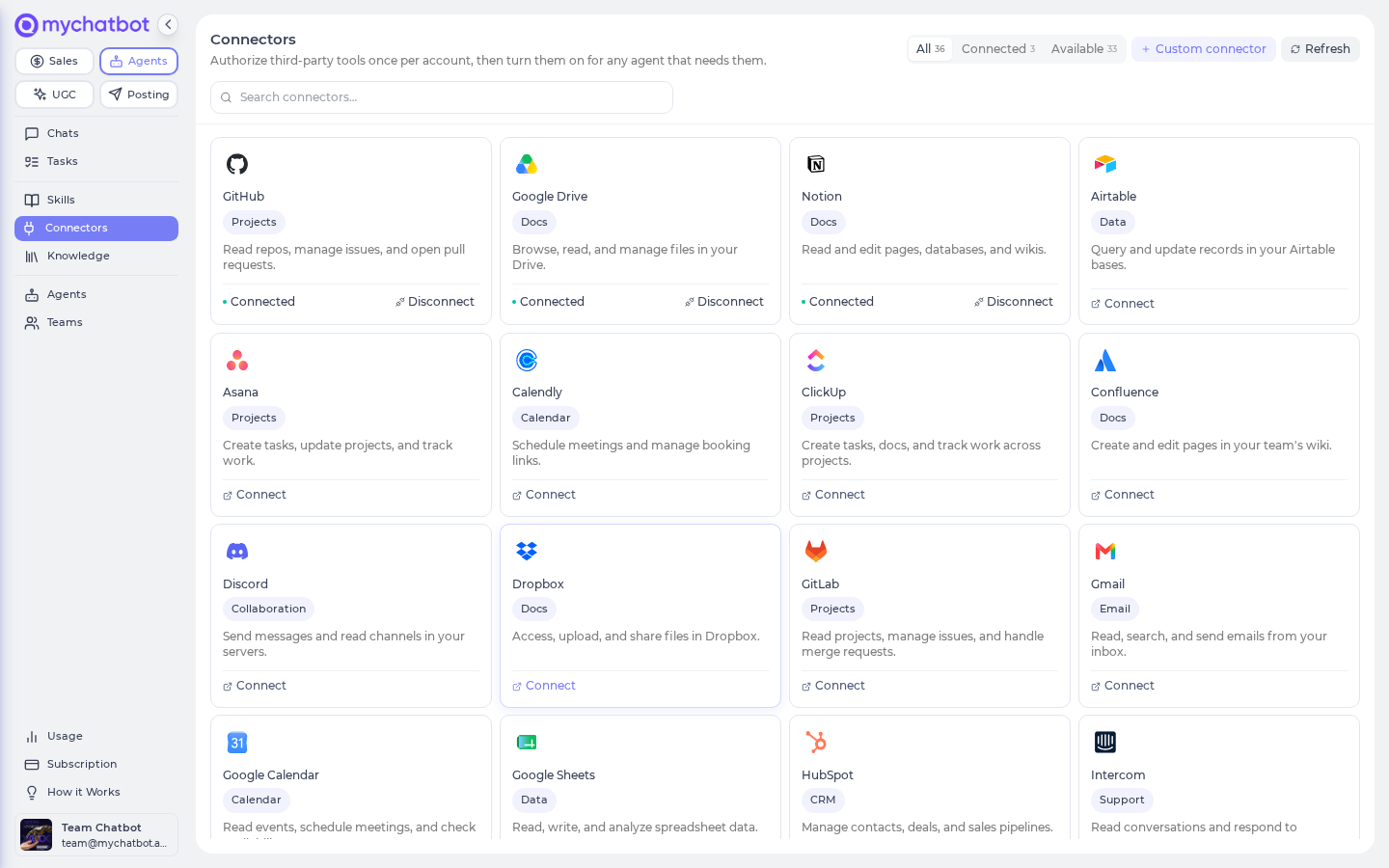
Manage account connectors at Agents → Connectors — app.mychatbot.app/agents/connectors. Turn them on per agent at Agents → your agent → Settings → Connectors.
The three connector families
| Family | Where you connect it | Sign-in | What the agent gets |
|---|---|---|---|
| From your Sales Platform | Connectors page → From your sales platform section | None — one click | One area of your own Sales Platform (leads, chats, orders, …) |
| External apps | Connectors page → a provider card, or right from a chat | One-time sign-in (Stripe instead takes a pasted API key) | The app's tools, scoped to your account (powered by our connector service) |
| Custom | Connectors page → Custom connector | You supply the URL + headers | Your own MCP server, called exactly as you configured it |
A card must read Connected before an agent can use it
Turning a connector on inside an agent does nothing until that connector is Connected on the Connectors page. A card that shows Connect (not yet authorized) or Reconnect (authorization expired) is skipped at run time — the agent simply won't see those tools.
From your Sales Platform
The From your sales platform section on the Connectors page hands an agent one slice of your own MyChatBot account — no sign-in required, just click Connect. Each connector maps to an area of the Sales Platform, so you can give an agent, say, lead management without also giving it billing.
Sales Platform tools ≠ Sales Platform integrations
These connectors live on the Agents Platform — they let an agent read and act on your Sales Platform data. That's different from the Sales Platform's own Integrations (CRMs, calendars, knowledge bases), which are add-ons for your customer-facing sales assistant. Same account, two different surfaces — the Sales Platform itself has no "Connectors" section.
| Connector | What the agent can do |
|---|---|
| Assistants | Create and configure AI assistants, their instructions, and test chats |
| Clients, Leads & Pipelines | Search and manage leads, labels, and your sales pipeline stages |
| Conversations | Review chat history and conversations across your channels |
| Channels | Connect and manage WhatsApp, Telegram, and web chat channels |
| Outreach & Follow-ups | Run follow-up campaigns and one-off calls and messages |
| Knowledge Base | Manage FAQ entries and product feeds the assistant answers from |
| Integrations | Review the account's CRM and external-service integrations |
| Account & Usage | Account overview, subscription details, and usage analytics |
| Orders | Look up orders and order analytics |
| Calendar | Manage native calendar bookings and availability |
| Automations | Configure how Meta (Facebook/Instagram) Lead Gen forms route leads to your assistants |
| Testing & evals | Save conversations as test scenarios, replay them against current or candidate instructions, and score answer stability |
Tools in each connector
Turn a connector on and the agent can call any of the tools below. When you use a connector from Claude Code / Cursor (via the Connect AI tools dialog), these are exactly the tools the MCP server exposes for that ?domain=.
Full parameter documentation
This section lists tool names only. Every tool's parameters — types, required/optional, defaults, and validation rules — are documented in the Sales tools reference.
Assistants — create/configure bots, skills & test chats (20 tools)
list_assistants— list active assistants (id, name, status, language, model)get_assistant— full assistant detail (instructions, welcome, integrations, follow-ups, skills)assistant_create— create a new blank assistantassistant_clone— make an independent full copy (channels excluded)assistant_update— update name, welcome, language, style, status, modelassistant_update_instructions— update the system prompt (moderated)assistant_list_skills/assistant_create_skill/assistant_update_skill/assistant_delete_skill— manage the assistant's skillsassistant_get_config_link— link to the assistant's config pageget_assistant_available_tools— list the functions an assistant currently hastest_chat_start/test_chat_send/test_chat_get_history/test_chat_end— run a synchronous test chat and inspect its tool calls (test-chat traffic is free)assistant_toggle_contact_details/assistant_toggle_client_context/assistant_update_client_context_schema/assistant_toggle_strip_kb_history— toolkit toggles
Clients, Leads & Pipelines — leads, labels & pipeline stages (32 tools)
list_clients/scan_clients/get_client— search, exhaustively scan, and read leadsclient_create/client_update/client_delete— manage leadsclient_list_notes/client_get_note/client_create_note/client_update_note/client_delete_note— client notesclient_list_tasks/client_create_task/client_update_task/client_delete_task— client tasksclient_list_attachments/client_get_attachment— read a client's filesclient_create_attachment/client_update_attachment/client_delete_attachment— manage attachment records for already-hosted filesexport_clients— export leads to a CSV/JSON filelist_labels/label_create/label_delete— labels (tags)list_pipelines/get_pipeline/pipeline_create/pipeline_update/pipeline_delete— pipelinesfunnel_status_create/funnel_status_delete— pipeline stages
Conversations — read chat & call history (4 tools)
list_chats— recent chats by last-active (client, channel, unread, operator-needed), with a last-active date window for filtering and pagingget_chat— one chat's detail (metadata, follow-up state, channel)get_chat_messages— a chat's messages; for Calls chats this is the call transcriptexport_chats— immutable-cursor export for exhaustive conversation analysis
Channels — connect & manage channels (8 tools)
list_channels— connected channels + status (credentials stripped)channel_toggle— turn a channel on or offchannel_get_config_link— link to a channel's config page (for auth setup)create_calls_channel_sdk— create a Web SDK voice Calls channel + get the embed snippetcreate_website_widget— create a website chat-bubble widget + get the embed snippetconnect_telegram— validate a BotFather token, connect the bot, and register its webhookdelete_channel— disconnect one channel while keeping conversationsdelete_assistant— permanently remove an assistant (guarded when conversations exist)
Outreach & Follow-ups — campaigns, calls & one-off messages (10 tools)
list_follow_ups/get_follow_up— follow-up automations (campaigns)follow_up_create/follow_up_update/follow_up_delete— manage follow-upsimmediate_outreach_create/immediate_outreach_update_status/immediate_outreach_preview_audience— one-time outreach campaigns (with audience preview)outbound_call— place a single outbound voice call to a leadsend_one_off_message— perform one non-Callsoutbound action; note thatRingostat,UniTalk, andBinotelinitiate telephony calls
Use Build and operate outreach with Claude or Codex for the complete inspect, draft, audience-preview, approval, lifecycle, and handoff flow.
Knowledge Base — websites, FAQs & product feeds (12 tools)
create_faq_knowledge_base— create an FAQ knowledge base (optionally seeded)learn_website— crawl and write stored website-derived knowledge for one assistantadd_website_knowledge— add a website as a live search/read sourcelist_faq_knowledge_base_entries/update_faq_knowledge_base_entries/delete_faq_knowledge_base— manage FAQ entriescreate_product_feed_integration— index a product feed URL (JSON/XML/Google Shopping/YML)create_products_integration— create a manually-managed product cataloglist_products/update_products/delete_products_integration— manage a product catalogdelete_product_feed_integration— delete a feed-backed catalog and its index
Integrations — review CRM & external integrations (3 tools)
list_integrations— account integrations (CRMs, KBs, MCPs, automations)get_integration— one integration's detail (sensitive fields stripped)get_integration_config_link— link to an integration's config page
Account & Usage — account, subscription & usage (4 tools)
get_account_summary— counts of assistants, clients, chats, integrations, follow-ups, pipelines, ordersget_subscription_info— current plan: tokens left, plan name, expiryget_token_usage— token usage (optionally by assistant / date range)get_usage_summary— combined tokens + order/chat/client counts for a date range
Orders — orders, order-taking & analytics (6 tools)
list_orders— orders (filter by date, client, status, source, ref)get_order— one order's full detailget_order_stats— totals, revenue, breakdown by channel and statusdelete_test_orders— remove test ordersenable_order_taking/disable_order_taking— configure whether one assistant can record orders
Calendar — bookings & availability (5 tools)
list_events— calendar events (filter by date, status, staff, service)get_event— one event's detailget_event_stats— totals + breakdown by status and stafflist_calendar_staff— staff configured for bookinglist_calendar_services— services configured for booking
Automations — Lead Forms routing & diagnosis (4 tools)
list_lead_forms— connected Facebook pages and each page's Meta Lead Gen forms, with mapping statusget_lead_forms_automation— the full per-form config, plus a diagnosis of why a form's leads aren't reaching anyoneset_lead_form_mapping— create or update one form's mapping (capture-and-outreach or capture-only)remove_lead_form_mapping— disable one form's mapping (its leads are still captured into Contacts)
Writes are a two-step confirm: without confirm: true the tools apply nothing and return a before/after preview to review. Connecting the Facebook page itself stays in the app — see Automations → Lead Forms.
Testing & evals — scenarios, replay & stability scoring (7 tools)
eval_scenario_save— save a replayable test scenario (from a real chat, the test chat, or inline messages; upserts by name)eval_scenario_list/eval_scenario_get/eval_scenario_delete— manage saved scenarioseval_run_start— replay a scenario (or a chat, or inline turns) against an assistant;instruction_overridetests candidate instructions,runs+judge: similarityscores stabilityeval_run_get— poll a run's progress; per-turn transcripts, tool calls, and similarity metricseval_run_cancel— stop a queued or running run (best effort)
Eval turns are free (test-chat class, never billed as customer messages); runs are async, one at a time per account. The full workflow is in Testing & evals.
One big toggle vs. individual areas
In an agent's Settings → What it can do there's a single Sales Platform tools toggle. Turning it on gives the agent the whole Sales Platform surface at once (plus a doc search over channels, integrations, and knowledge bases). The Connectors section below it lets you attach the same platform one area at a time.
The two are mutually exclusive: when Sales Platform tools is on, the individual area connectors are greyed out ("Already covered by Sales Platform tools above"). Turn the big toggle off if you want to pick areas à la carte.
Use a Sales Platform area from Claude Code, Codex, or Cursor
Any Sales Platform area is also reachable as an MCP server, so Claude Code, Codex, Cursor, or another compatible client can configure it externally. On the Connectors page, click the small i (Connect AI tools) on a From your sales platform card to open a dialog with the server address and access-key controls.
The server address looks like this (the dialog fills in your account and the area you picked):
https://api.mychatbot.app/api/mcp/sales-management?account_id={ACCOUNT_ID}&domain={AREA}Add just the Clients, Leads & Pipelines connector to Claude Code (each connector is a ?domain= — this one is sales_clients):
bash
claude mcp add sales-leads \
  "https://api.mychatbot.app/api/mcp/sales-management?account_id=ACC123&domain=sales_clients" \
  --transport http \
  --header "Authorization: Bearer mcp_YOUR_ACCESS_KEY"
Or in Codex's ~/.codex/config.toml:
toml
[mcp_servers.sales-leads]
url = "https://api.mychatbot.app/api/mcp/sales-management?account_id=ACC123&domain=sales_clients"
http_headers = { Authorization = "Bearer mcp_YOUR_ACCESS_KEY" }
default_tools_approval_mode = "writes"
Or in Cursor's mcp.json:
json
{
  "mcpServers": {
    "sales-leads": {
      "url": "https://api.mychatbot.app/api/mcp/sales-management?account_id=ACC123&domain=sales_clients",
      "headers": {
        "Authorization": "Bearer mcp_YOUR_ACCESS_KEY"
      }
    }
  }
}
Drop the &domain= part to get every area on one server.
Keep the MCP access key secret
The account id in the address selects the account but does not authorize the request. Every external call also needs the Authorization: Bearer mcp_… access key shown by Connect AI tools. The full key is displayed only when it is created; store it like an API key and revoke it if it leaks.
External app connectors
External connectors bridge 29 third-party apps: CRMs (HubSpot, Pipedrive), email and marketing (Gmail, Mailchimp), docs and files (Notion, Google Docs, Google Drive, Dropbox, OneDrive, Confluence), calendars (Google Calendar, Calendly), spreadsheets (Google Sheets, Airtable), team chat (Slack, Discord, Microsoft Teams), project trackers (Linear, Jira, Asana, Trello, ClickUp, Monday, GitHub, GitLab), support desks (Intercom, Zendesk), payments (Stripe), and social (LinkedIn). The exact cards you see are whatever your account's Connectors catalog offers (external app connectors are powered by our connector service behind the scenes) — the full per-category table is on the External app connectors page.
To connect one:
- On the Connectors page, click the app's card.
- You're taken to the provider to sign in and approve access. Stripe is the exception — instead of a sign-in it asks you to paste a Stripe secret key (from Developers → API keys in Stripe; a restricted key with just the permissions you need works too, and is safer).
- You land back on the Connectors page and the card flips to Connected, pinned to the top of the grid.
To stop using it, click Disconnect on the card. Agents that relied on it lose access until you reconnect.
Connected apps can also start work
Beyond giving agents tools, a connected app can fire app-event triggers — "when a payment comes in on Stripe, run my order-logging routine." 57 events across 21 apps.
Don't see the app you need?
Use the Request a connector card at the end of the grid to tell us which integration to add.
Connect apps from chat
You don't have to visit the Connectors page at all. When a task needs an app you haven't connected — you ask for an email digest and Gmail isn't connected — the agent shows a "Connectors that could help" panel right in the chat: each suggested app with its logo, a one-line description, and a Connect button (apps you've already connected show a check mark instead).
From there:
- Click Connect. The app's own sign-in opens in a popup — your chat stays put. (For Stripe, a paste-your-API-key prompt opens instead.)
- Approve access. The card flips to connected, and the app is switched on for the agent you're chatting with at the same time — no separate settings trip.
- Click Continue. The agent picks the task back up and can use the app immediately.
The panel's Browse all link takes you to the full Connectors page if you'd rather look around. And everything stays account-wide as usual: an app connected from chat is the same connection you'd have made from the Connectors page, available to any agent you toggle it on for.
Ask for suggestions outright
You can also just say "what apps could you connect to help with this?" — the agent replies with connect cards for whatever fits the task.
Custom MCP servers
If you host your own MCP server, register it directly — no catalog entry, no sign-in. Open Connectors → Custom connector (app.mychatbot.app/agents/connectors/custom) and fill in the form:
| Field | What to enter |
|---|---|
| Name | Shown on the connector card (e.g. My Warehouse MCP) |
| Description | Optional — what the connector does |
| Logo URL | Optional — falls back to a default icon if blank or unreachable |
| MCP server URL | Your endpoint; must start with http:// or https:// |
| Transport | Streamable HTTP (use this if unsure) or Server-Sent Events (SSE) |
| Custom headers | Sent on every request — typically an auth token like Authorization: Bearer …; header names must be unique |
| Acknowledgement | You must tick "I understand custom connectors can introduce risks" to submit |
Click Add connector. It appears as its own card on the Connectors page and, from then on, as a toggle inside every agent's Settings → Connectors.
No credential refresh, no address guard
Custom connectors don't rotate credentials for you — if your server changes its token, edit the connector's headers or add it again. MyChatBot also sends requests to exactly the URL you enter, with no safety filtering, so never point a custom connector at an internal or private address you don't control. That's what the acknowledgement checkbox is confirming.
Turn a connector on for an agent
Authorizing a connector on the Connectors page makes it available; it doesn't attach it to anything yet. To let a specific agent use it:
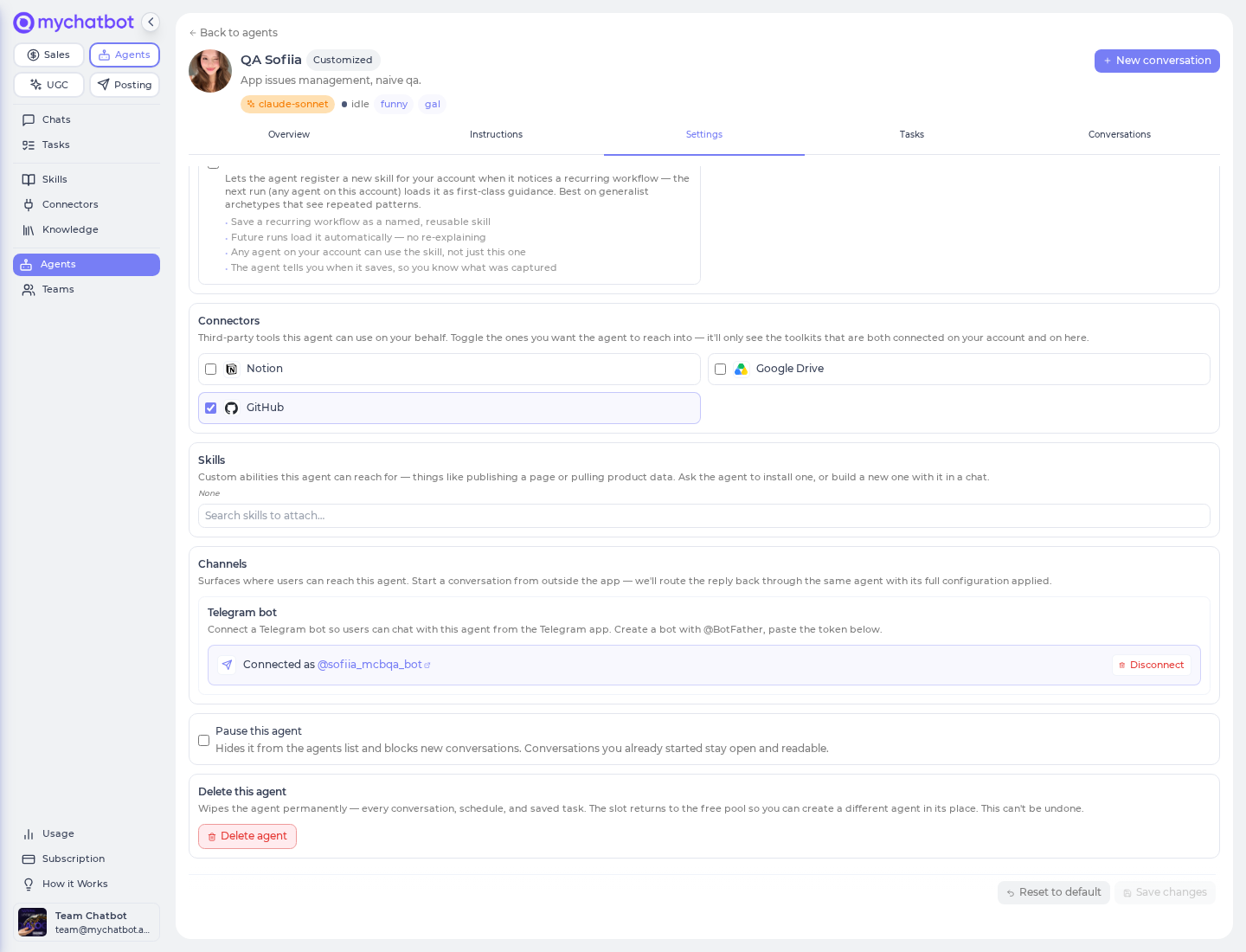
- Open the agent, go to the Settings tab, and find the Connectors section.
- Toggle on each connector you want this agent to reach into, then Save.
The Connectors section only lists toolkits your account has Connected — so if something's missing, connect it on the Connectors page first (the section links you there).
A toggle is not a connection
An agent toggle only takes effect if the matching card is Connected on your account. If it's toggled on but shows Not connected / Needs reconnect, the agent silently skips it. Confirm the card status before relying on the connector in a task or schedule.
Switching how something's connected
Connected cards pin to the top of the grid. A connector can be connected only one way at a time — there's no merge. To change it (say, swap a custom server for an official app of the same name), Disconnect the existing one first, then connect the other.
Best practices
Do
- Prefer the narrowest Sales Platform area that covers the task (e.g. Leads) over the whole Sales Platform tools toggle when the agent only needs part of the surface.
- Confirm each card reads Connected before you count on it in a task or schedule — the agent toggle alone isn't enough.
- Keep it to a handful of connectors per agent. Each one is opened fresh at the start of a run, so more connectors means a slightly slower first response.
- Put custom-connector secrets in the connector's Custom headers, not in the agent's instructions.
Don't
- Don't assume toggling a connector on an agent connected anything — authorize it on the Connectors page first.
- Don't point a custom connector at an internal or loopback address; there's no safety guard on the URL.
- Don't treat Sales Platform tools (the single toggle) and the individual From your sales platform connectors as interchangeable — one is the whole platform, the others are slices.
- Don't put a Sales Platform MCP access key in the URL or share it publicly. The account id selects scope; only the Bearer key authorizes the request.
Test it
- Connect the connector on the Connectors page (sign-in for an external app, one click for a Sales Platform area, the form for a custom server). Confirm the card reads Connected and pins to the top.
- Open the agent, go to Settings → Connectors, toggle the connector on, and Save.
- Ask the agent to do something that needs exactly one of that connector's abilities (e.g. "list my open leads" for Leads).
- If nothing happens, check the card status first — Not connected / Needs reconnect means the run skipped it. For a custom server, re-check the URL, transport, and headers.
See also
- Tools & toggles — the What it can do capabilities, including Sales Platform tools
- App-event triggers — let a connected app start a routine when something happens in it
- MCP & connectors — how agents reach external tools at run time
- Knowledge bases — the FAQ, catalog, and feed sources behind KnowledgeBase
- Build an agent — where settings, tools, and connectors come together
- Troubleshooting — "connector connected but no tools" and other run-time skips