
Appearance
The lobby: where work starts
The lobby is the front door to the Agents Platform — the screen you land on at app.mychatbot.app/agents/chats. Instead of picking an agent first, you just say what you need in one big message box, and the Chief of Staff takes it from there — answering simple things itself and handing the rest to the right specialist, all in the same conversation.
The lobby is the front door for ad-hoc conversation work, not the durable definition of an autonomous business process. When work must repeat, inspect the result here and use Claude or Codex to promote it into a routine.
In the app
The lobby is the bare /agents/chats view — it doesn't auto-open your last chat, because it's the starting point. Your past conversations are listed alongside it ("All chats" on mobile); New chat in the header always brings you back here.
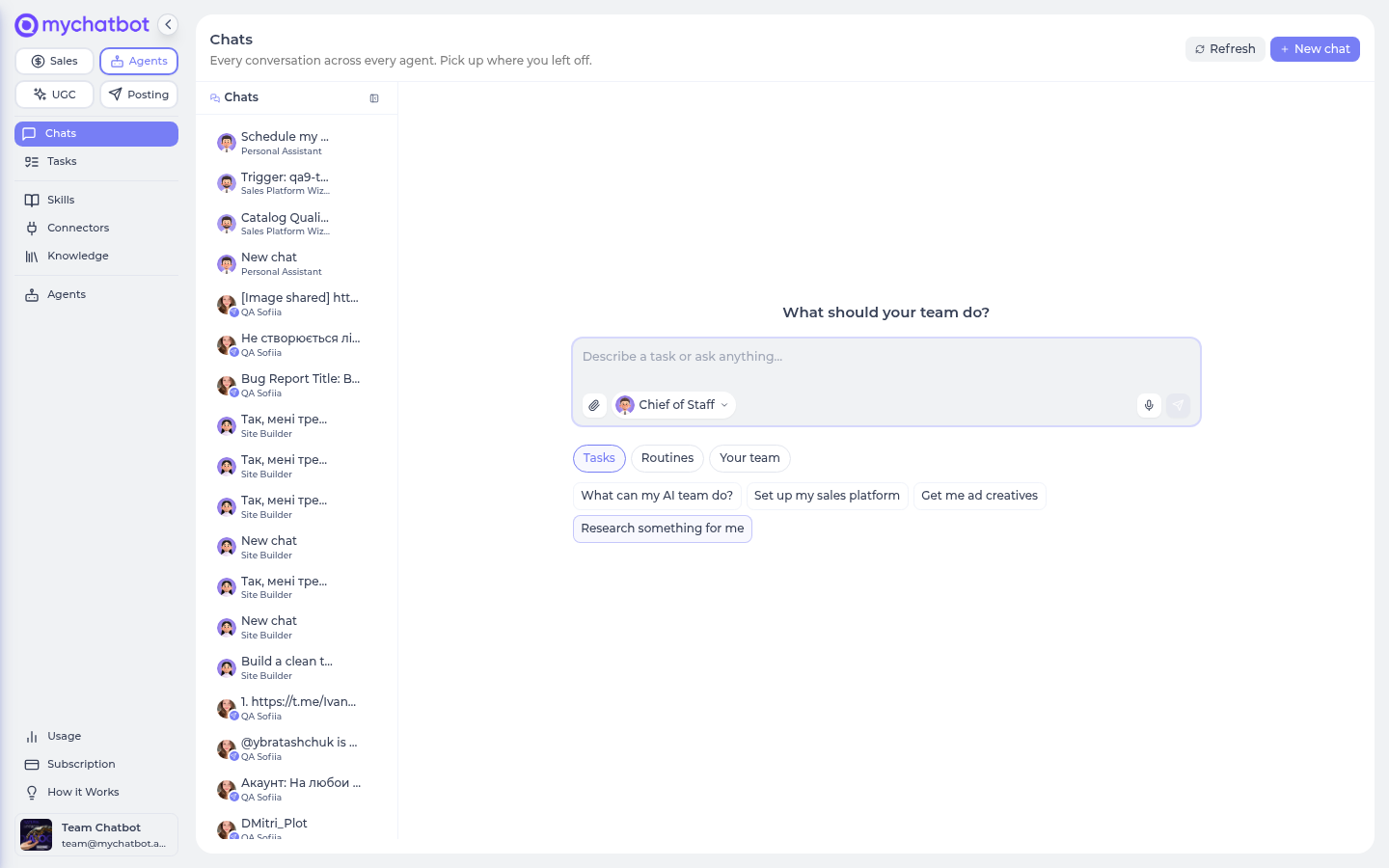
The hero: one box for everything
At the top sits a single large message box under the heading "What should your team do?" with the placeholder "Describe a task or ask anything…". Type your request and press Send (Enter sends; Shift+Enter makes a new line).
| On the hero box | What it does |
|---|---|
| Attach files (paperclip) | Attach images or documents to your request — the same attachments the in-chat composer accepts. You can send attachments with no text. |
| Dictate (microphone) | Speak instead of type — your words are transcribed and added to the box. It follows the language you speak. The mic only appears if your browser can record. |
| Choose an agent (the pill) | Point this message at a specific agent instead of the Chief of Staff (see below). |
| Send | Starts the conversation and takes you into the thread. |
Whatever you send starts a new conversation and drops you into it, where the reply streams back.
The Chief of Staff front door
By default your message goes to the Chief of Staff — a light, fast triage agent whose job is to route work, not to do all of it.
- For a quick question, it just answers.
- For real work, it hands the conversation to the right specialist — the Sales Platform Wizard for sales setup, the Content Director for a campaign, the Personal Assistant for research, and so on — and tells you, in one short line, who's taking over and why.
- The handoff stays in the same thread. You don't juggle chats or repeat yourself; the specialist picks up where the Chief of Staff left off and answers your next message. The conversation header updates to show who you're talking to now.
You can skip the front door
If you already know who should handle something, use the Choose an agent pill under the box to point your message straight at that agent. The pill lists your team, the library, and your custom agents — the same groups as the roster.
The tabs: Tasks, Routines, Your team
Under the hero are up to three tabs. Each only appears when it has something to show, and they always reflect the currently selected agent.
Tasks
The selected agent's ready-to-run task cards (previously called "quick starts") appear here as chips. Click one and it prefills the hero box with that task's prompt — read it, tweak it, then send. It never auto-sends. If an agent has many tasks, a "Show N more" expander reveals the rest.
Routines
The selected agent's routines—built-in or custom durable workflows—as expandable cards. Everyone else's sit one click away behind an "Other agents' routines" expander, each card labeled with the agent it belongs to — so nothing is ever hidden, but the agent you picked always leads. Expand a card to read its full description, the Runs on model line, and its steps; press Run to open the routine's conversation with the start message prefilled. Custom routines also carry an Edit button right on the card — one click into the YAML editor, no trip through Settings. For a custom workflow, open an Agent's Tasks tab and build it with Claude or Codex through the Agents MCP; the + New routine button remains available for a quick in-app draft.
Your team
A quick grouped picker of your agents, shown as pills in the same groups as the roster:
- Your AI team — your always-on main team
- Your custom agents — the ones you've built
- Agent library — specialists you've added from the library
Click a pill to point the message box at that agent; the view jumps back to Tasks so you can see that agent's task chips.
If your balance is empty
If you send a request but your agents balance can't cover it, the lobby keeps your draft and any attached files, and shows a top-up prompt instead of losing your message — top up and send again. See Usage & billing.
Try it
- Open app.mychatbot.app/agents/chats and type a real request into the hero — e.g. "help me set up a sales assistant for my coffee shop". Send it.
- Watch the Chief of Staff answer or hand off to a specialist, and note the conversation header change to whoever took over — all in the same thread.
- Back on the lobby, open the Choose an agent pill and pick the Content Director. Watch the Tasks and Routines tabs swap to that agent's.
- Click a Tasks chip and confirm it prefills (doesn't send) the hero box.
See also
- Agents Platform operating model — when to use a conversation and when to promote work into a routine
- Agents: concepts — the mental model behind the roster
- Your team & the agent library — who your agents are and how to add more
- Routines — durable workflows on the Routines tab
- Tasks & schedules — task cards and scheduled runs
- How a run works — what happens after you press Send