
Appearance
Agents troubleshooting & best practices
Things that can look wrong when you run MyChatBot agents in production — an "empty" chat, a "silent" run, reasoning that seems to switch itself off — and what's really going on. Most items below are platform safety nets that are already active: read them so a run that seems to vanish doesn't look like data loss. A few need your action (changing models, starting a fresh chat).
Where this lives
Everything here is under Agents in the left nav → app.mychatbot.app/agents. Open any agent to chat with it, change its Settings, or check its live status.
Cheat sheet
| What you see | What's actually happening | What to do | Handled by |
|---|---|---|---|
| A scheduled run clearly ran, but is missing from the chat / sorted far in the past | Background runs can briefly get the wrong start time, so they sort to the wrong spot | Nothing — the platform repairs the timestamp automatically; refresh the chat | Platform (automatic) |
| Two messages sent at once → one reply seems to vanish | Two runs on the same conversation can collide and overwrite each other | Nothing — the agent detects the overlap and asks the second message to wait | Platform (automatic) |
| A scheduled task fires 2–3× / seems stuck / billed twice | A one-shot schedule could re-trigger during its own run window | Nothing — one-shot schedules now switch themselves off the moment they start | Platform (automatic) |
| A "pause N minutes" or a one-time follow-up never fired, or the agent says it was created switched off / set for next year | A scheduled run used to switch off the follow-ups it had just created for itself, and the agent had to guess the time of day | Nothing — one-time schedules now switch off only when they fire, and the platform works out "in N minutes" itself. Ask the agent to list its schedules to check what's pending | Platform (automatic) |
| Right after you turn reasoning off mid-chat, the next run errors on "context too long" | Flipping a toggle changes what replays through the conversation and can tip a long chat over the model's limit | Nothing (it auto-recovers) — but prefer a fresh chat over toggling deep in a long thread | Platform (automatic) |
| You changed the model and reasoning turned off | Reasoning effort belongs to the model you pick, not the chat — some models reason, some don't | Pick a reasoning-capable model in Settings → Identity → Model | You |
| The web browser tool re-logs in or "forgets" the page between turns | Sign-ins persist across turns, but the open page/tab/scroll resets each turn | Nothing — the agent re-opens the signed-in page and skips login if it's already in | Platform (automatic) |
| An agent shows idle even though a run seemed to be going | A run got interrupted and never reported "done" | Check live status and completed actions before restarting; see routine recovery | You decide whether to retry |
| A knowledge source (Drive, Notion, Slack, Products, Web) is down but the agent keeps answering | Connected knowledge is intentionally "fail-open" — one source being down never takes the agent down | If answers lost your data, check the Business knowledge toggle and the source on the Knowledge page | Platform (by design) |
Check status before assuming data loss
When an agent "looks stuck" or a chat "looks empty," read its live status first. On the Agents list each card shows a green running badge or a grey idle badge, and inside a conversation the header shows a live running dot. That tells you whether it's an in-flight run, a stuck run, or genuinely idle — before you assume anything was lost.
A scheduled run seems to vanish from the chat
What you see: a scheduled task clearly executed (you got the effect, or a reply lands in another thread), but the run is missing from the chat or sorted far in the past.
Why: background (scheduler-triggered) runs can briefly be recorded with the wrong start time, so — because the chat sorts by start time — the run lands in the wrong position and appears to vanish. Interactive runs you trigger yourself are always stamped correctly.
What to do: nothing. The platform automatically corrects the timestamp right after the run finishes and re-sorts it into place. Refresh the conversation and the run will be where it belongs.
Find it under Tasks
To confirm a schedule actually fired, open the agent's Tasks tab (https://app.mychatbot.app/agents/<agent>?tab=tasks) or the account-wide Tasks page. The resulting run lands in the conversation the schedule is attached to.
Two messages at once, one reply seems lost
What you see: someone fires two messages back-to-back at the same agent (for example a Telegram bot); the agent replies to both, but afterward only one run seems to be saved.
Why: two runs started at the same instant on one conversation can overwrite each other's history — last one wins — so the first run's record can be lost even though both replied.
What to do: nothing. The agent now detects when a run is already in flight for that conversation and asks the second message to wait instead of starting a second run on top of it, so nothing gets clobbered.
Test it
Send two messages within a second or two to the same chat. The agent should answer the first and ask you to wait on the second, rather than processing both at once.
Turning reasoning off mid-chat can overflow the context
What you see: you turn reasoning (or another tool toggle) off partway through a long chat, and the very next run errors with "context too long" — or the agent recovers after a slightly slower turn.
Why: the agent already trims bulky tool results automatically, which covers the everyday "lots of little tool calls" case. But flipping a toggle mid-chat changes the shape of the history that replays, and a borderline conversation can tip over the model's limit when:
- a single tool result is enormous (a scraped long web page, a connector returning hundreds of rows),
- the model's context window is on the smaller side (for example Claude Opus's standard window),
- the conversation was already close to the ceiling.
What to do: usually nothing — when a run overflows, the platform makes one aggressive pass to compress the history and retries on the same model, so it self-heals. But it costs an extra turn, so avoid triggering it.
Toggling reasoning mid-chat isn't free
Turning reasoning off doesn't just change behavior going forward — it changes what replays, which can push a long, tool-heavy chat over the limit on the next run. If you're deep in a long session, start a fresh conversation (New conversation) instead of flipping reasoning off in the middle of the thread.
Changing the model turned reasoning off
What you see: you switch an agent (or conversation) to a different model and it stops "thinking" — the step-by-step reasoning is gone.
Why: reasoning effort is a property of the model itself, not something the conversation carries across a model change. Some models in the picker always reason hard (Claude Opus, Gemini Pro, and the models whose names call out reasoning, like Gemini 3.5 Flash (High) or GLM-5.2); others use their provider's plain default, which may not reason. Switch from a reasoning model to one that doesn't and the thinking simply stops — there's no carry-over.
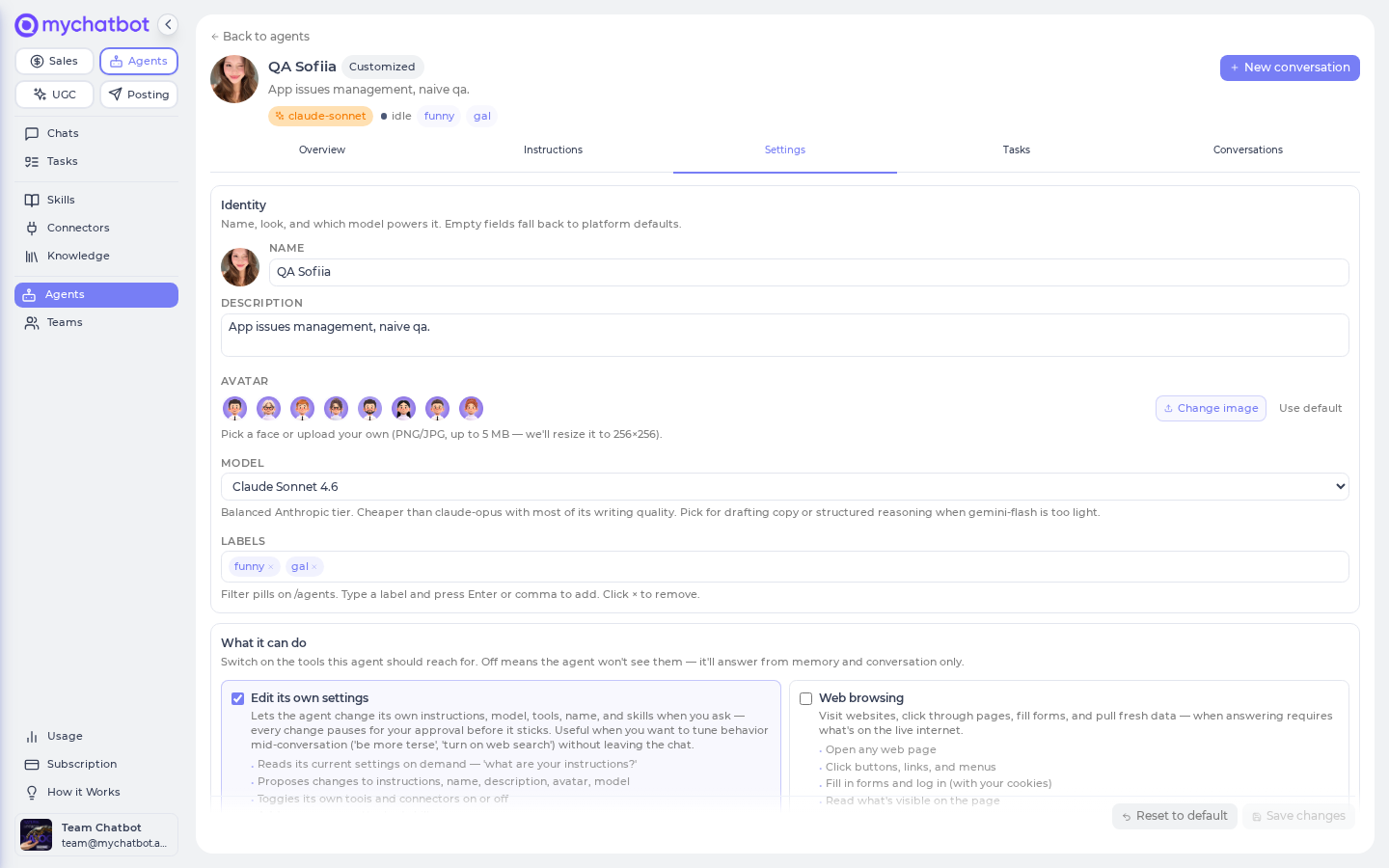
What to do: when you change models and want reasoning to stay on, pick a reasoning-capable model. Change it under Settings → Identity → Model, then Save.
Model is a per-agent default
The model is a default you can change on any agent, under Settings → Identity → Model (https://app.mychatbot.app/agents/<agent>?tab=settings). See Models & reasoning for which models reason and how effort is baked into each one.
The browser tool re-logs in or forgets the page
What you see: across turns, the Web browsing tool appears to "forget" the page, or re-runs a login you already completed earlier in the conversation.
Why: the agent browses in a private, per-account cloud browser. Your sign-ins (cookies and site logins) are saved between turns — so it stays logged in. But the open page does not persist: the current URL, tabs, and scroll position reset each turn. So the agent has to re-navigate to the page every turn; it just shouldn't have to sign in again.
What to do: nothing. When Web browsing is on, the agent is taught to re-open the signed-in page and screenshot it first — if it lands on the logged-in view (inbox, dashboard, profile), it skips login and continues; it only signs in again if it actually sees a login screen (an expired session or a 2FA prompt).
Sign-in persists, the open page doesn't
Don't expect the agent to "resume where the tab was." Expect it to be logged in but starting from a blank navigation each turn. If it genuinely gets logged out, it re-authenticates on its own; if it re-authenticates every single turn on a site that should stay logged in, that usually means the site itself is expiring the session.
An agent shows "idle" even though a run seemed to be going
What you see: an agent reads idle on the Agents list even though you thought a run was still working (or one was interrupted).
Why: a run started but never reported "done" — usually because it was interrupted (a crash, or a cancelled duplicate run). After a while the platform stops treating it as live and shows the agent as idle again.
What to do: check the agent's live status. On the Agents list, each card shows a green running badge while a run is active and a grey idle badge otherwise; you can filter the list to Running to see only active agents. Inside a conversation, the header shows a live running dot.
Reopen the conversation to reconnect if work is still running. Before starting a fresh run, inspect the results and any connected service that may already have received an action. Sending the request again starts new work and can repeat it. For routines, recovery offers an explicit Resume saved work action when a compatible checkpoint exists. New supported routine runs save checkpoints for every account. Old chat history alone cannot make a run recoverable.
Runs paused on your approval look different
A normal agent run waiting on an action confirmation isn't idle — it's paused. Those surface on the Approvals view (https://app.mychatbot.app/agents/approvals). Routines do not pause on their YAML approval fields. The recovery acknowledgement is a decision to retry interrupted work, not an approval pause inside a running routine.
A knowledge source is down but the agent keeps answering
What you see: a connected knowledge source (your website, Drive, Notion, Slack, OneDrive, product data, or web lookups) is misconfigured or down, yet the agent still answers — just without that source.
Why (by design): connected business knowledge is intentionally fail-open. A source being unavailable must never take the whole agent down, and one broken source never affects the others — so the agent quietly continues with whatever it can still reach.
Silent by design — check the toggle and the source, not the prompt
Because this is intentional, a broken knowledge source shows no error in the chat — the agent just answers without it. If an agent seems to "forget" your product catalog or your docs, don't rewrite the prompt first. Confirm Business knowledge is turned on for that agent (Settings), then check the source itself on the Knowledge page. Sources are read live at answer time, never from a stale copy.
Why some tool steps show a friendly label
What you see: while a run works, the chat sometimes shows a short, present-tense label of what the agent is doing (for example "Summarizing HN frontpage" or "Publishing landing page"), and other times a step just shows the raw tool name.
Why: those friendly labels are a display nicety on MyChatBot's own built-in tools (browsing, screenshots, running a saved skill, fetching an image). Steps that go through external app connectors or your own MCP endpoints don't carry a label, so they show the plain tool name instead.
What to do: nothing — this is cosmetic and fully automatic. There's nothing to configure, and it never affects whether a tool call succeeds.
Best practices (do / don't)
- Do read an agent's live status (running vs idle badge, the running dot in a conversation) before assuming a run failed.
- Do pick a reasoning-capable model in Settings → Identity → Model when you change models and want reasoning to stay on.
- Do treat missing knowledge as a toggle/source problem — check Business knowledge and the Knowledge page — not a prompt problem.
- Don't fire a second message into a conversation that's still mid-run; let the first reply land first.
- Don't flip reasoning off deep inside a long, tool-heavy chat — start a New conversation instead.
- Don't panic when a scheduled run appears in the wrong place; the platform re-sorts it on its own — refresh.
Keep scheduled prompts idempotent
Fire-once safety is automatic, but write scheduled prompts so a re-run (or a manual re-run) can't do harm twice — tell the agent to check whether the work is already done. Create and edit schedules on the agent's Tasks tab (https://app.mychatbot.app/agents/<agent>?tab=tasks); each schedule has a name, a cron cadence, a timezone, and the prompt the agent receives. A good, safe prompt:
Summarize leads created in the last 24 hours. If a digest for today already exists, do nothing.
A schedule runs on the agent's model, not a chat's model
A scheduled run uses the agent's model (its Settings → Identity → Model default), not whatever model you happened to pick in one conversation. To change what a schedule runs on, change the agent's model there — and remember a model change won't carry reasoning effort with it (see Changing the model turned reasoning off).
See also
- Routine recovery — eligibility, saved progress and uncertain external actions
- Tools & toggles
- Models & reasoning
- Tasks & schedules
- Routines
- Telegram channel
- Knowledge bases
- Memory
- Build an agent