
Appearance
Routine YAML reference
Looking for the shortest path to the right construct? Start with the routine workflow map. This page remains the complete canonical YAML contract for the app editor and external authoring agents.
A custom routine is the saved, durable workflow for a repeatable process. Its leaf steps run through configured Agents. The recommended way to build one is Claude Code or Codex through the account-scoped Agents MCP. The coding agent reads this contract and the account's effective Agent/skill/connector/knowledge inventory, writes this YAML, validates it, checks the saved routine's explicit dependencies, and can run a bounded tool-free preview.
The built-in YAML editor exposes that same document for inspection, small manual corrections, and troubleshooting. There is no separate external-agent workflow format: the YAML Claude or Codex saves, the YAML the editor displays, and the spec AgentOS runs are the same thing.
Claude or Codex reads this page too
You do not need to memorize YAML, cron expressions, CEL, or prompt tokens. The MCP's get_routine_authoring_context returns this page's machine-readable URL so the coding agent can use the complete contract instead of guessing from examples. Follow Build routines with Claude or Codex for the step-by-step path.
Opening the editor
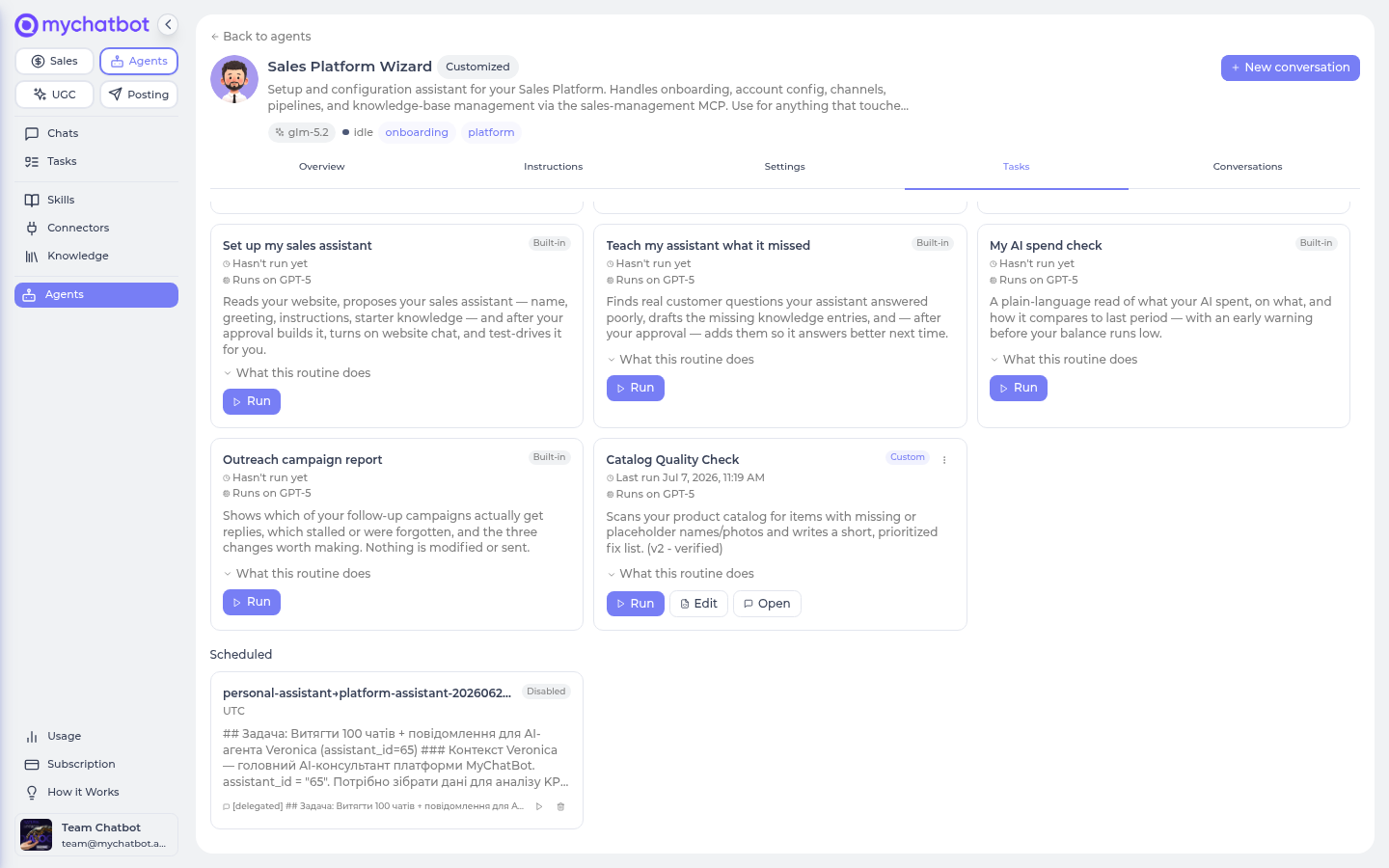
The editor is a real YAML text editor (syntax highlighting, inline errors) that lives on an agent's Tasks tab.
| To… | Do this |
|---|---|
| Edit an existing custom routine | Click the Edit button on the routine's card. It loads the routine's current spec as YAML. (On the global Tasks page and the lobby, where there's no per-agent editor, the same thing lives in the card's ⋮ "Manage routine" menu → Edit as text.) |
| Create one from scratch | On an agent's Tasks tab, click + New routine. It seeds a starter template already homed on that agent — overwrite the fields and Save. |
| Author externally | On an Agent's Tasks tab, click Connect Claude or Codex, copy the MCP setup, then ask the client to read get_routine_authoring_context and get_account_authoring_inventory before drafting and call get_routine_readiness after saving. |
The context response includes this page's machine-readable Markdown URL: https://docs.mychatbot.app/agents/routine-yaml-reference.md. Read it before drafting instead of relying only on the compact node summary returned by the tool. The connection dialog also provides a copyable starter prompt that makes Claude or Codex follow this sequence automatically.
The account inventory and readiness report are configuration checks, not live connector tests. An active connector is configured, but the external provider is not contacted; ready: true means the routine has no known explicit configuration blocker, not that data access or side effects were verified.
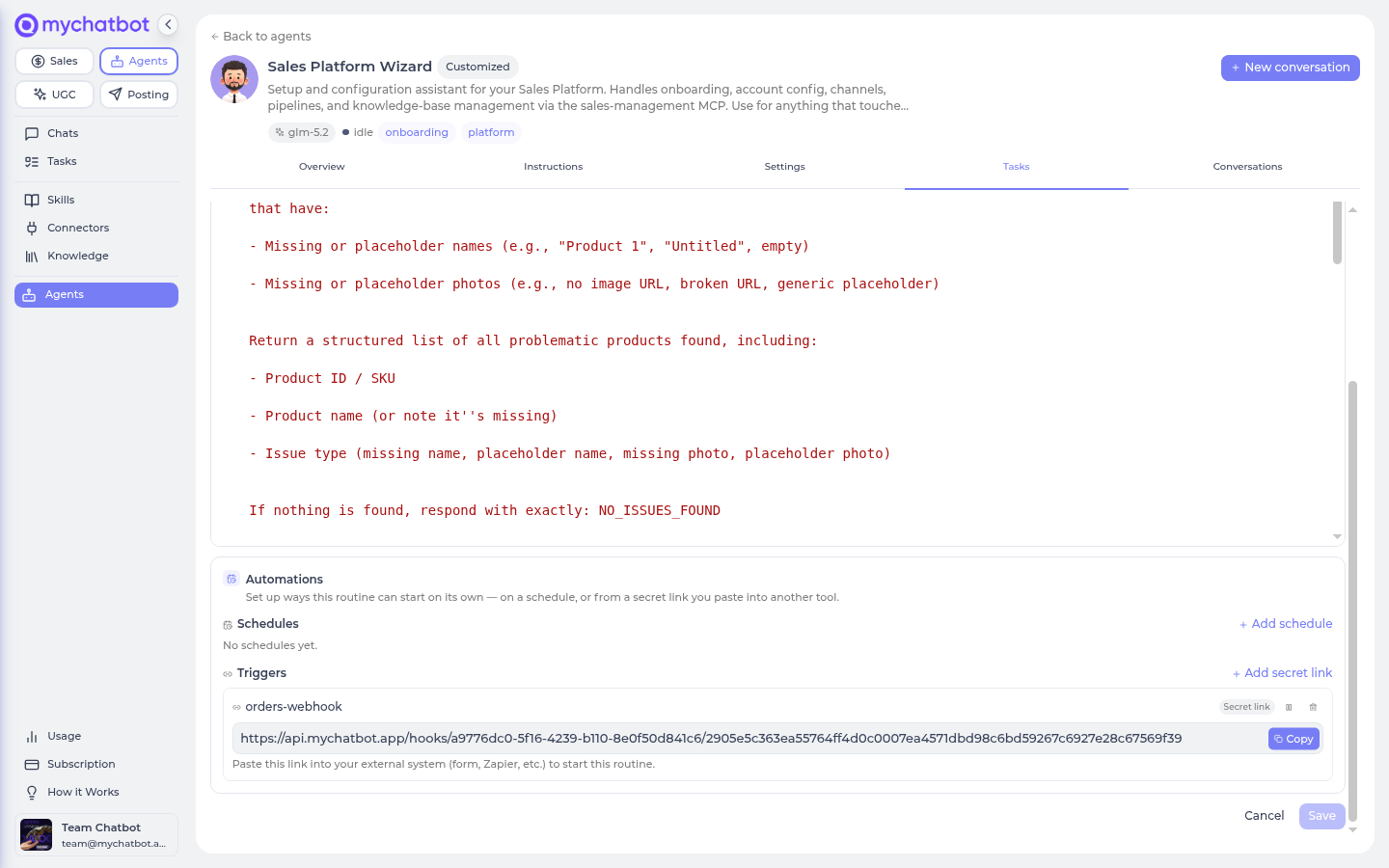
The editor scrolls top to bottom: your YAML first, then the Automations panel (schedules + triggers — see Scheduling and Triggering), and the Save and Cancel buttons at the very bottom, after the Automations section — so a long routine and its automations read as one page.
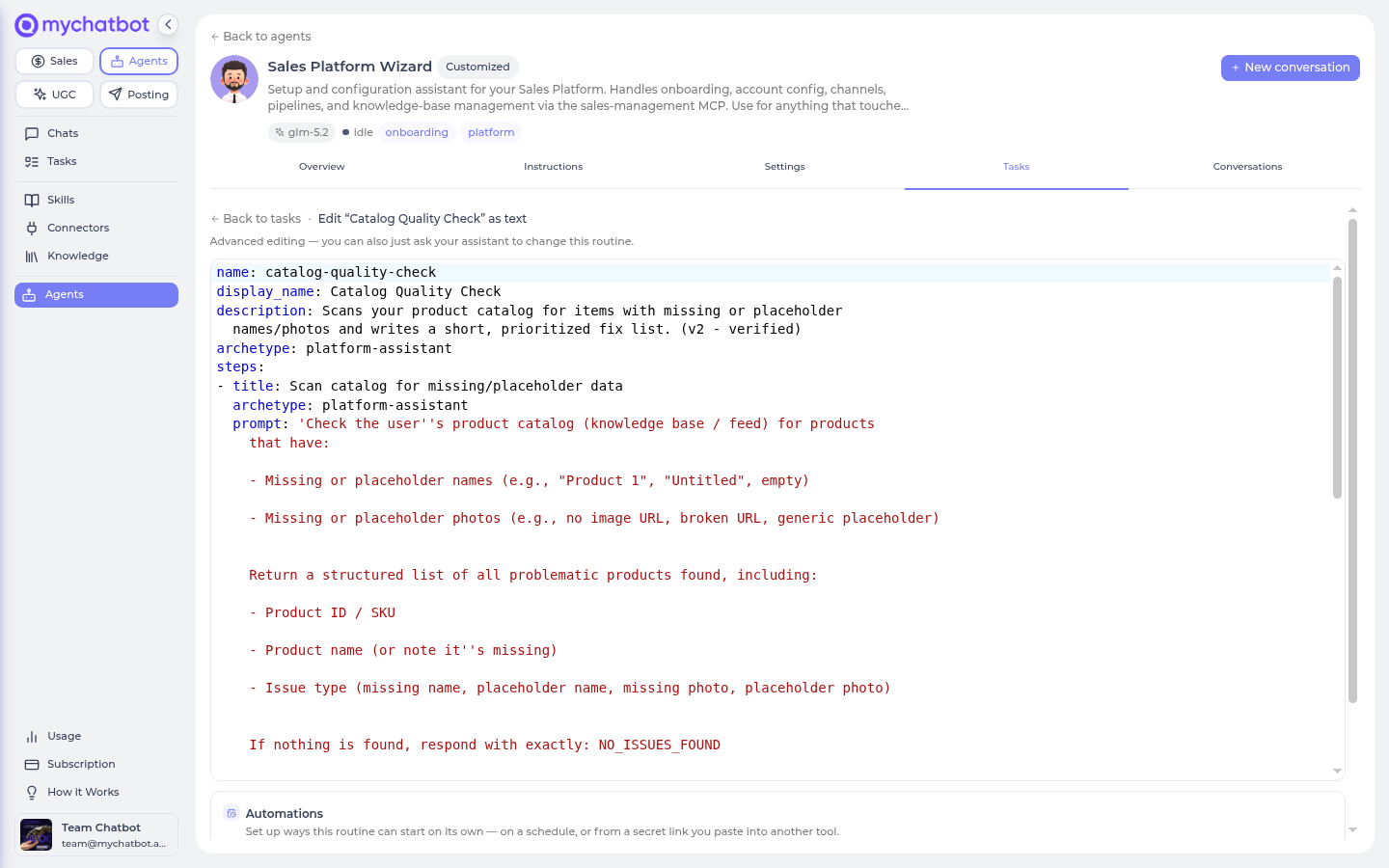
When you press Save, MyChatBot validates the spec:
- Valid → the routine is saved (or created) and the card refreshes.
- Invalid → a red "This routine has problems:" box lists every problem at once, and the editor stays open with your text intact so you can fix them and Save again. Nothing is saved until it's valid.
Only your own routines
The Edit button appears only on custom (account-owned) routines. Built-in routines that ship with an agent have no Edit button — that's how you know they're read-only; you can't rewrite their steps. The editor header even reminds you: "Advanced editing — you can also just ask your assistant to change this routine."
Your first routine
Here is a complete, valid one-step routine. Every line is explained below.
yaml
name: daily-standup-notes
display_name: Daily standup notes
description: Summarize what happened on the account yesterday in three bullets.
archetype: personal-assistant
steps:
  - title: Write the summary
    prompt: |
      Summarize what happened on my account yesterday in exactly three
      short bullets: what customers asked, what went unanswered, and the
one thing worth doing today. If I named a focus area, weight it: {input}| Field | What it is |
|---|---|
name | A slug — lowercase letters, digits, and hyphens (daily-standup-notes). It's the routine's id, unique within your account. Can't collide with a built-in routine's name. |
display_name | The friendly name shown on the card. Optional — if you leave it out, it's derived from name. |
description | One or two sentences, in your own words, describing what the routine does. Required. |
archetype | The routine's home agent — which agent owns it and whose Tasks tab it appears on. Name it by slug (personal-assistant) or by display name (Personal Assistant). |
steps | The list of top-level steps. With no type, they run top to bottom exactly as before. 1 to 8 top-level steps. |
steps[].title | A short label for the step, shown in the live progress list. Required. |
steps[].prompt | What the step should do, written like an instruction you'd type into that agent's chat. Required. |
The run flow: press Run on the card, and MyChatBot starts the routine in its own conversation. Step 1's prompt runs on the home agent, its result lands in the thread, and — since there's only one step — the routine finishes. Each step is a full, billed agent run and shows up on your Usage page.
Two tokens you can drop into any prompt
{input}— the run message (whatever you type in the Run box, or the routine'srun_messagedefault, or a schedule's message). Empty if you didn't give one.{previous}— the previous step's output. On step 1 it's empty (there's no previous step). See the next section.
Multiple steps: passing data with {previous}
Steps run in order, and each one can read the one before it through {previous}. That's how you chain work: gather in step 1, transform in step 2, report in step 3.
yaml
name: competitor-price-check
display_name: Weekly competitor price check
description: Pull our prices, compare them against competitors, and flag where we're beaten.
archetype: platform-assistant
run_message: Focus on our three best-selling products.
steps:
  - title: Collect our prices
    archetype: platform-assistant
    prompt: |
      List our current products and prices from the connected catalog.
      Focus on: {input}
  - title: Compare with competitors
    archetype: personal-assistant
    prompt: |
      Here are our prices:
      {previous}

      Search the web for the same products at our main competitors and
      build a short table: product, our price, their price, and the gap.
Two things worth calling out:
run_messageis an optional default for{input}. If someone runs this routine without typing anything,{input}becomes "Focus on our three best-selling products." — so a scheduled or triggered run still has direction.- Each step can run on a different agent. Step 1 runs on the Sales Platform Wizard (
platform-assistant, good with your catalog); step 2 runs on the Personal Assistant (personal-assistant, good at web research). A step's ownarchetypeoverrides the routine-level one; omit it and the step falls back to the home agent. Each step bills on its own agent's model — see Usage & billing.
Home agent vs. step agent
The top-level archetype is the routine's home — where the routine lives in the app, and the default agent for any step that doesn't name its own. Each step's archetype is who actually runs that step. If you omit the top-level one entirely, it defaults to step 1's agent.
You can name an agent by its slug or its display name — use whichever you know. The visible agents on a typical account:
| Slug | Display name |
|---|---|
personal-assistant | Personal Assistant |
platform-assistant | Sales Platform Wizard |
assistant | Chief of Staff |
bulk-text-worker | Bulk Text Worker |
content-director | Content Director |
content-factory | Content Factory |
site-builder | Site Builder |
Any agent you've added from the library or built yourself can run a step too. If you name an agent your account can't see, Save tells you which agents are available.
Composing steps: sequence, parallel, loop, condition and router
The ordinary step above is still the default. You may write type: agent explicitly, but MyChatBot leaves it out again when it regenerates the YAML:
yaml
steps:
  - type: agent                 # optional; this is the normal step
    title: Research the account
    archetype: personal-assistant
    prompt: Research {input} and return the important facts.
For control flow, put a type on a step and nest more steps under it. Nested Agent steps are not a separate, restricted kind of worker: each one is the same account Agent you can chat with, with its configured models, skills, Business Knowledge, connectors and MCP tools.
Sequence and parallel
sequence groups ordered work. parallel starts static sibling branches at the same time and waits for all of them before the routine continues.
yaml
steps:
  - type: parallel
    title: Research from two sides
    steps:
      - title: Check our CRM history
        archetype: platform-assistant
        prompt: Review our account and CRM history for {input}.
      - title: Check public information
        archetype: personal-assistant
        prompt: Research public information about {input}.

  - type: sequence
    title: Turn research into a recommendation
    steps:
      - title: Compare the findings
        archetype: personal-assistant
        prompt: Compare the parallel research results in {previous}.
      - title: Write the recommendation
        archetype: bulk-text-worker
        prompt: Turn {previous} into a concise recommendation.
Use parallel when the number of branches is known when you write the routine. Use foreach when the number of items comes from data at run time.
Loop
loop repeats its nested steps until its CEL end_condition becomes true or max_iterations is reached.
yaml
steps:
  - type: loop
    title: Improve until ready
    max_iterations: 4
    end_condition: last_step_content.contains("READY")
    forward_iteration_output: true
    steps:
      - title: Review and improve
        archetype: bulk-text-worker
        prompt: |
          Improve {previous}. End with READY when no material issue remains.
The default is 3 iterations; the hard maximum is 100. Set forward_iteration_output: true when the next iteration should receive the last one's result. requires_iteration_review and iteration_review_message are still accepted for older specs, but nothing pauses between iterations — bound the work with max_iterations and end_condition instead.
Condition
condition runs steps when its boolean or CEL evaluator is true, and optional else_steps otherwise.
yaml
steps:
  - type: condition
    title: Decide whether to follow up
    evaluator: previous_step_content.contains("FOLLOW_UP")
    steps:
      - title: Draft the follow-up
        archetype: platform-assistant
        prompt: Draft the follow-up requested in {previous}.
    else_steps:
      - title: Record no action
        archetype: personal-assistant
        prompt: Summarize why no follow-up is needed from {previous}.
Router
router chooses one or more named choices. A CEL selector returns the title of the choice to run:
yaml
steps:
  - type: router
    title: Route the request
    selector: 'input.contains("invoice") ? "Billing" : "General"'
    choices:
      - title: Billing
        archetype: platform-assistant
        prompt: Handle this billing request: {input}
      - title: General
        archetype: personal-assistant
        prompt: Handle this request: {input}
Instead of a selector, set requires_user_input: true to pause and let the user pick a route. Optional fields are user_input_message, allow_multiple_selections, requires_output_review, and output_review_message. Choice titles must be unique (case-insensitive). Route selection and output review use the same in-thread routine card and continuation path as approval. Accepting reviewed output keeps it; Try another re-opens routing. A Router cannot combine its own initial approval with either user selection or output review; put the Router inside an approved sequence when you need two separate decisions. Save validates CEL syntax before the routine is stored.
Nesting
These nodes can contain each other: for example, a router may choose a sequence, and that sequence may contain a parallel block or a loop. Nesting is capped at 8 levels and the whole routine at 64 authored nodes.
approval is accepted on sequence, parallel, loop, condition, router and foreach as well as on an Agent step, so older specs keep validating. It has no effect anywhere: no composite pauses, and nested Agents run straight through.
Routines never pause for approval
A routine that starts runs every step to the end. There is no approval card, no review pause, and no switch that turns one on — the mechanism was removed, not disabled.
approval, approval_message, requires_iteration_review and requires_output_review are still accepted so existing YAML keeps loading and saving, but none of them stops a run. If a routine of yours was written around a gate, treat that step as fully live and re-read its prompt.
So an owner-authored step does whatever its task says, including effects that reach real people — messages, calls, outreach, publication, deletion, live record changes. Writing the step is the authorization; there is no second checkpoint before a customer is contacted. Scope each prompt to exactly the action you want, and rehearse with a dry run (tools switched off) before you attach a schedule or trigger.
(Router requires_user_input is unrelated and still works: it supplies a branch choice the workflow needs, not permission to act.)
Processing a list with foreach
foreach is the dynamic batch step. It takes a list discovered at run time and runs the same nested steps once per item, with bounded concurrency. This is the right shape for hundreds of clients, products, tickets, files, or records.
The source can be a literal YAML list, {input}, or a previous Agent's JSON-array result. The source Agent can obtain that list through any tools it already has; there is no special typed client source or separate read-only batch Agent. Literal values must be JSON-compatible. YAML timestamps, sets, and non-finite numbers are rejected on Save rather than failing during the batch.
yaml
name: update-quiet-clients
display_name: Update quiet clients
description: Find quiet clients and update each record after one batch approval.
archetype: platform-assistant
steps:
  - title: Find quiet clients
    archetype: platform-assistant
    prompt: |
      Use the connected CRM tools to find clients with no activity in 30 days.
      Return only a JSON array. Each element must contain the client id and the
      fields needed for an update.

  - type: foreach
    title: Update every quiet client
    items: "{previous}"
    as: client
    max_concurrency: 10
    approval:
      message: Review the client list above. Approve all of these CRM updates.
    steps:
      - title: Update one client
        archetype: platform-assistant
        prompt: |
          Use the connected CRM/MCP tools to update this client: {client}
Inside the nested prompts you can use:
{item}— the current value as compact JSON;- the name from
as—{client}in the example; {index}— the zero-based position in the list;{input}— the routine's original run message;{previous}— the previous nested step's output for this same item.
The current item is inserted as data after the other prompt tokens are rendered, so text inside a record that literally contains {input} or {item} stays literal. The as value must be an identifier and cannot be input, previous, or index, because those names already have meanings.
Batch writes
Each item uses a fresh ordinary Agent workflow, so it can call the same existing write-capable MCP tools as that Agent. foreach does not define verbs such as update_client in YAML and does not replace your tools with a typed operator registry.
A foreach over records that writes will write to every one of them, with no pause before the batch or between items. That makes the item list the thing to get right: have the step that produces it filter precisely, keep max_concurrency low enough to watch the first run, and dry-run before scheduling.
Per-item pause points are rejected on Save: no child approval, loop iteration review, router user input, or router output review may sit inside foreach. Nested foreach is also rejected; flatten the source into one list so the item and concurrency limits cannot multiply recursively.
If a particular connector tool independently requires its own per-call approval, it cannot pause inside an item either—the item is recorded as failed. Use that connector's batch-capable tool or put the separately approved action outside foreach. The ordinary sales-management client tools do not currently add a second tool-level gate.
Concurrency, results and failure boundary
max_concurrency defaults to 10 and may be 1–100. That 100 ceiling applies to effective Agent fan-out: item workers multiplied by the widest nested parallel (or multi-choice Router) body. Save tells you the lower worker maximum when a body is wider than one Agent, and parallel sibling batches share the same routine-wide ceiling. A resolved list may contain at most 10,000 items. Results are returned in the original item order even when work finishes out of order. One failed item is recorded as a failure while the other items continue; the aggregate includes total, succeeded, failed, and one result row per item. The next top-level step can inspect that JSON through {previous}.
Cancellation stops the active workers and prevents more items from starting. The batch itself is not retried automatically.
Each Agent leaf is still one ordinary billed Agent run per item. A batch of 500 items with one Agent leaf can therefore make 500 model runs; concurrency changes elapsed time, not total work. The normal agents-budget check happens before the outer routine and does not interrupt a batch between records. Test a small sample first and keep each item reply concise. Item rows and outputs are stored in the ordinary routine run, so treat 10,000 as a safety ceiling rather than a recommended verbose batch size; use the connected MCP system for durable record results when appropriate.
A routine batch is not a transaction or distributed job queue
foreach is intended for routine-scale batches, including hundreds of same-level operations. It does not promise atomic rollback or exactly-once delivery. If a process dies after an external write but before its result is recorded, rerunning may repeat that write. Prefer idempotent tools, include stable record ids, review partial failures, and rerun only the failed items. If you need days-long durable execution or exactly-once effects, use a dedicated job system rather than a routine.
Picking the model a step runs on
By default, each step runs on its agent's usual model — the one that agent was set up with. You don't have to think about it. But when you want a specific model — a heavier one for a tricky reasoning step, a cheaper and faster one for a bulk step — pin it with model.
model works at two levels:
- Routine-level
modelsets the default for every step. - Step-level
modeloverrides it for that one step.
yaml
name: research-and-summarize
description: Research a topic in depth, then write a tight summary.
archetype: personal-assistant
model: claude-sonnet             # every step runs on Claude Sonnet by default
steps:
  - title: Research
    prompt: Research {input} thoroughly and gather the key facts.
  - title: Summarize
    model: gemini-flash          # …but run the quick summary on a cheaper, faster model
    prompt: |
      Summarize the research below into five bullets:
      {previous}
How a step's model is chosen — first match wins:
- the step's own
model, if it has one; - otherwise the routine's
model; - otherwise the model that agent is set up with — change an agent's model on its own page and its unpinned routine steps follow;
- otherwise that agent's built-in default.
So reach for model only when a step should differ from the agent running it.
You don't have to remember aliases: start typing on a model: line and the editor offers the catalog as a dropdown — grouped like the agent model picker, with a short description of each model beside the list. Pick one and the alias is filled in for you.
Two rules the editor enforces on Save:
- It must be a real model from the catalog. Name it by its alias — e.g.
claude-sonnet,gpt-5, orgemini-flash. A misspelled or unknown name is rejected, and the error lists valid ones. - It must be able to use tools. Routine steps call tools — search, browsing, your connected data — so a model that can't reliably use tools is rejected (it might claim it did something without actually doing it). The general-purpose models are all fine; the ones aimed only at reading images or bulk text aren't.
The card shows what it really runs on
The routine card's "Runs on …" line reflects the model each step actually uses — so when you pin one, that's what shows, not the agent's default.
Billing follows the model you pick
A heavier model costs more per step; a lighter one costs less. Each step bills on whatever model it runs on — see Usage & billing.
Routines run unattended
There is no approval pause. A routine that starts runs every step to the end. Nothing stops mid-run to ask you anything.
That means a step does whatever its prompt says, including actions that reach real people — sending messages, placing calls, starting outreach, publishing pages, writing knowledge entries. Writing the step is the authorization. There is no second checkpoint between you saving the YAML and a customer receiving a message.
Scope every step to exactly what you want done
Because nothing pauses, the prompt is the whole safety boundary. Two habits matter:
- Say precisely what the step may do, not just what you want achieved. "Send the follow-up below to this one lead" behaves; "handle the follow-ups" invites improvisation.
- Rehearse before you schedule. A dry run walks the whole routine with its tools switched off, so you see what each step would do without anything leaving the building. That is the real substitute for an approval click.
A step is told that you authored it and to execute it as written — and equally, to take no action the task does not describe. So an over-broad prompt is the thing to watch, not a missing gate.
approval and the review flags still parse — they just do nothing
Older routines carry approval:, approval_message:, requires_iteration_review: and requires_output_review:. These are still accepted so existing YAML keeps loading and saving, but none of them pauses a run. If you have a routine that once relied on a gate, treat that step as fully live and re-read its prompt with that in mind.
yaml
  - title: Send the follow-ups
    archetype: platform-assistant
    approval: true          # accepted, but does NOT pause — this step will send
    prompt: |
      Send the follow-up below to this one lead through the channel where we
      last spoke, and report what was sent.
If you want a routine not to act, the controls are: don't schedule it, disable it, or don't write the action into the step.
Early exits: stop when there's nothing to do
Sometimes a routine should bail out gracefully — "no quiet leads this week, so there's nothing to follow up on." That's early_exit. You give it a sentinel (a distinctive token) and a friendly message:
yaml
steps:
  - title: Find quiet leads
    archetype: platform-assistant
    prompt: |
      List my leads that went quiet in the last 14 days, one per line.
      If there are none at all, reply with exactly NO_LEADS and nothing else.
  - title: Draft a follow-up for each
    archetype: bulk-text-worker
    early_exit:
      sentinel: NO_LEADS
      message: No quiet leads this week — nothing to follow up on.
    prompt: |
      Here are the quiet leads:
      {previous}

      Write a short, friendly follow-up for each, under 400 characters.
How it works: early_exit is checked against the previous step's output, before this step runs. So the pattern is always two steps:
- The step that might find nothing is told to emit the sentinel (here, step 1 answers
NO_LEADSwhen there are no quiet leads). - The next step carries the
early_exit. If the previous step's output contains the sentinel, the routine stops early and shows your message — step 2 (and everything after) never runs, and never bills.
early_exit can't sit on the first step
The sentinel is matched against the previous step's output, and step 1 has no previous step. Put the early_exit on the step after the one that emits the sentinel. Save will reject it on step 1.
Scheduling it
A routine doesn't have to wait for you to press Run. Add an optional top-level schedules: block and it runs on a clock. Each entry is a standard 5-field cron expression plus an optional timezone and run message:
yaml
schedules:
  - cron: "0 9 * * 1"           # every Monday at 09:00
    timezone: Europe/Kyiv
run_message: Look at leads from the last 14 days.| Key | What it is |
|---|---|
cron | A 5-field cron expression: minute hour day month weekday. Quote it — the leading digits and * aren't valid unquoted YAML. |
timezone | An IANA timezone name (UTC, Europe/Kyiv, America/New_York). Optional; defaults to UTC. |
run_message | What {input} becomes for scheduled runs. Optional; falls back to the routine's own run_message. |
Common cron cadences:
text
0 9 * * *         # 09:00 every day
0 9 * * 1         # 09:00 every Monday
*/30 * * * *      # every 30 minutes
0 8 1 * *         # 08:00 on the 1st of each month
30 6 * * 1-5      # 06:30 Monday–Friday
Schedules are reconciled when you Save. Adding an entry creates a schedule; editing one (change the cron or timezone) updates it; removing an entry deletes that schedule. Deleting a schedule is safe — nothing outside MyChatBot depends on it. You can have up to 5 schedules per routine.
No schedule yet? The editor shows you the shape
When a routine has no schedules, the editor drops in a commented-out example so you can see the exact syntax — uncomment it, edit the cron, and Save.
The same schedules also appear in the Automations panel below the editor, and you can create them there or by asking your assistant. See Tasks & schedules for how scheduled runs behave.
Triggering it
A trigger starts your routine when something happens — an outside service calling a secret link (a form submission), or an event in a connected app like a Stripe payment or a new Gmail email (app-event triggers) — rather than on a clock.
In the YAML, triggers are view-only. Any that exist appear as a read-only comment so you can see, at a glance, what starts this routine:
text
# ── Triggers (view-only — add or remove in the Automations panel) ──
# new-lead-form → https://api.mychatbot.app/hooks/<id>/<secret>
You add and remove triggers in the Automations panel below the editor (not in the YAML), for two reasons:
- The link carries a secret. A trigger's URL is effectively a password — anyone who has it can fire your routine. It lives in the panel with a Copy button (viewable there any time), where it doesn't belong pasted into an editable text field you might share.
- Deleting it breaks whatever calls it. An outside form or tool is posting to that URL. Removing a trigger should be a deliberate action in the panel, not a side effect of tidying up your YAML.
To wire one up, ask Claude to stage the trigger disabled through the Agents MCP, or open the Automations panel → Triggers → Add secret link. For a webhook, copy the URL from the panel and paste it into the outside tool; Claude does not receive the tokened URL. Full details—app events, queuing, duplicate handling and limits—are on the Triggers page.
A complete worked example
Here's a realistic weekly lead-nurture routine that uses everything above: five steps across three agents, an early exit when there's nothing to do, a single approval gate on the one step that messages customers, and a weekly schedule. This is the capstone — every line is valid and commented.
yaml
# ── Weekly lead nurture ──────────────────────────────────────────────
name: weekly-lead-nurture
display_name: Weekly lead nurture
description: Find leads that went quiet, draft a follow-up for each, send after I approve, then log a summary.
archetype: personal-assistant          # home agent — where this routine lives
run_message: Look at leads from the last 14 days.

steps:
  # 1 · Gather the leads (read-only). Told to emit a sentinel when there's
  #     nothing to do, so step 2 can bail out cleanly.
  - title: Find quiet leads
    archetype: platform-assistant
    prompt: |
      Look through my leads and chats for people who went quiet or were
      never answered in this window: {input}
      List each one with a note on where the conversation stalled.
      If there are no quiet leads at all, reply with exactly NO_LEADS
      and nothing else.

  # 2 · Stop early if step 1 found nothing — checked against step 1's output.
  - title: Draft a follow-up for each
    archetype: bulk-text-worker
    early_exit:
      sentinel: NO_LEADS
      message: No quiet leads this week — nothing to follow up on.
    prompt: |
      Here are the quiet leads:
      {previous}

      Write a short, friendly follow-up for each lead, matched to where
      their conversation left off. Keep each under 400 characters.

  # 3 · Review the drafts (read-only) before anyone approves sending.
  - title: Sanity-check the drafts
    archetype: personal-assistant
    prompt: |
      Review these drafts:
      {previous}

      Flag anything off-tone, duplicated, or missing a clear next step,
      then produce the cleaned-up final list, ready to send.

  # 4 · The ONLY step that touches the outside world — behind a gate.
  - title: Send the approved follow-ups
    archetype: platform-assistant
    approval:
      message: Review the follow-ups above. Approve to send them, or reject to stop.
    prompt: |
      Send each approved follow-up to its lead through the channel where
      we last spoke, and confirm what was sent to whom.

  # 5 · Log what happened (read-only).
  - title: Write a short summary
    archetype: personal-assistant
    prompt: |
      Based on what was sent:
      {previous}

      Write a two-line summary for my records: how many follow-ups went
      out, and anything that needs a human touch next week.

schedules:
  - cron: "0 9 * * 1"                   # every Monday at 09:00
    timezone: Europe/Kyiv
    run_message: Look at leads from the last 14 days.
Read it top to bottom: it collects leads, exits early if there are none, drafts and sanity-checks (both read-only, so they run unattended safely), pauses for your approval before the one step that actually messages people, then logs a summary — and it does all of this every Monday at 9am on its own.
Field reference
Top-level
| Field | Type | Required | Default | Notes |
|---|---|---|---|---|
name | string (slug) | Yes | — | ^[a-z0-9][a-z0-9-]*$, ≤ 64 chars. Unique per account; can't be a built-in routine's name. |
display_name | string | No | derived from name | ≤ 80 chars. |
description | string | Yes | — | ≤ 300 chars. One or two sentences. |
archetype | string | No | step 1's agent | The home agent — slug or display name of a visible agent. |
model | string | No | each step's agent default | Pins the model every step runs on. A catalog alias (e.g. claude-sonnet, gpt-5, gemini-flash); must be able to use tools. A step's own model overrides it. See Picking the model. |
run_message | string | No | — | Default value for {input} when a run gives none. ≤ 2000 chars. |
steps | list | Yes | — | 1 to 8 top-level steps. A step with no type is an Agent; typed steps add control flow. |
schedules | list | No | — | Up to 5 entries; reconciled on Save (see Scheduling). |
Agent step (no type, or type: agent)
| Field | Type | Required | Default | Notes |
|---|---|---|---|---|
title | string | Yes | — | ≤ 80 chars. Shown in the live progress list. |
prompt | string | Yes | — | ≤ 4000 chars. Supports {input} and {previous}. |
archetype | string | No | the routine's home agent | The agent that runs this step — slug or display name. |
model | string | No | routine model, else the step agent's default | Pins the model this step runs on. A catalog alias (e.g. claude-sonnet, gpt-5); must be able to use tools. Overrides the routine-level model. See Picking the model. |
approval | true / false / { message } | No | false | Accepted so older specs keep loading; never pauses a run. message ≤ 500 chars. |
early_exit | { sentinel, message } | No | — | Stops the routine if the previous step's output contains sentinel. sentinel ≤ 64 chars, message ≤ 500 chars. Not allowed on step 1. |
Composite fields shared by workflow nodes
| Field | Type | Required | Default | Notes |
|---|---|---|---|---|
type | string | Yes | — | sequence, parallel, loop, condition, router, or foreach. |
title | string | Yes | — | ≤ 80 chars. Shown in progress and used as the router choice name; choice titles are unique case-insensitively. |
approval | true / false / { message } | No | false | One gate around the whole node. message ≤ 500 chars. |
steps | list | Usually | — | Nested nodes for sequence, parallel, loop, condition, and foreach. router uses choices; condition may also use else_steps. |
sequence and parallel
| Field | Type | Required | Default | Notes |
|---|---|---|---|---|
steps | list | Yes | — | 1–8 non-empty nested steps. Ordered for sequence; concurrent for parallel. |
loop
| Field | Type | Required | Default | Notes |
|---|---|---|---|---|
steps | list | Yes | — | Body to repeat. |
max_iterations | integer | No | 3 | 1–100. |
end_condition | CEL string | No | — | Stops after an iteration when true. |
forward_iteration_output | boolean | No | false | Feed the last iteration's output into the next one. |
requires_iteration_review | boolean | No | false | Pause to accept the result or run another iteration. Not supported inside foreach or on the same Loop as approval. |
iteration_review_message | string | No | — | Review prompt, ≤ 500 chars. |
condition
| Field | Type | Required | Default | Notes |
|---|---|---|---|---|
evaluator | boolean or CEL string | No | true | Chooses steps when true. CEL is syntax-checked on Save. |
steps | list | Yes | — | True branch. |
else_steps | list | No | — | False branch. |
router
| Field | Type | Required | Default | Notes |
|---|---|---|---|---|
selector | CEL string | Conditional | — | Returns a choice title. Required unless requires_user_input is true. |
choices | list | Yes | — | Named Agent or composite choices. |
requires_user_input | boolean | No | false | Pause so the user chooses. Not supported inside foreach. |
user_input_message | string | No | — | Choice prompt, ≤ 500 chars. |
allow_multiple_selections | boolean | No | false | Let the user select more than one choice. |
requires_output_review | boolean | No | false | Pause to accept output or choose another route. Not supported inside foreach or on the same Router as approval. |
output_review_message | string | No | — | Review prompt, ≤ 500 chars. |
foreach
| Field | Type | Required | Default | Notes |
|---|---|---|---|---|
items | YAML list or string | Yes | — | Literal values, {input}, or JSON-array output such as {previous}. Maximum 10,000 resolved items. |
as | identifier | No | item | Optional prompt alias, e.g. client → {client}. |
max_concurrency | integer | No | 10 | 1–100 item workers; workers × nested parallel width must also be ≤ 100 Agent runs. |
steps | list | Yes | — | Agent/control-flow nodes run once per item. No nested foreach or per-item pause points. |
Schedule entry
| Field | Type | Required | Default | Notes |
|---|---|---|---|---|
cron | string | Yes | — | 5-field cron: minute hour day month weekday. Quote it. |
timezone | string | No | UTC | IANA name, e.g. Europe/Kyiv. |
run_message | string | No | routine's run_message | What {input} becomes for this schedule's runs. |
name | string | No | auto-generated | Optional label for the schedule, unique within the routine (≤ 128 chars). Handy if you keep several — otherwise leave it out. |
Caps
| Limit | Value |
|---|---|
| Top-level or sibling steps | 8 |
| Total authored workflow nodes | 64 |
| Workflow nesting depth | 8 |
| Loop iterations | 100 maximum |
| Foreach items | 10,000 maximum |
| Foreach concurrency | 100 maximum (10 default) |
| Custom routines per account | 10 |
| Schedules per routine | 5 |
| Prompt length | 4000 characters |
| Whole-spec size | 64 KB |
Reserved / auto-computed fields
tag— each step gets an internaltag, derived from itstitle, used to track the step. It's computed for you; if you include one it's ignored. You never need to set it.- Any unknown key — at the top level or on a step — is a validation error, so a typo (
prompts:instead ofprompt:) is caught on Save rather than silently ignored.
When Save finds problems
Validation reports every problem at once, so you can fix them in one pass rather than one-Save-per-error. Typical messages:
text
This routine has problems:
- 'description' is required (one or two sentences).
- steps[2]: archetype 'growth-hacker' is not available on this account …
- steps[1]: 'early_exit' is not allowed on the first step …
- too many steps: 9 > 8 …
The editor keeps your text exactly as you left it while you fix them.
Tips & FAQ
Why did my step refuse to send / publish / message anyone? Check the written task and the tool result. Adding approval will not help — it does not pause a run or grant anything. A step acts only when its task explicitly asks for that action and the Agent stays inside it, so the usual cause is a prompt that implies the send rather than instructing it. See Routines run unattended.
Can foreach update client or connector records, or is it read-only? It can update them. Each item uses the named ordinary Agent and that Agent's existing MCP/connectors. There is no batch approval to add — the owner-authored task itself authorizes its explicit updates. The YAML does not need a special client source or typed write operator.
What happens when one item fails? Other items continue. The aggregate result marks that item failed and retains the original order, so you can inspect or feed the failures into a later step. The batch is not automatically retried and is not transactional; use stable ids and idempotent write tools when possible.
How large should a foreach batch be? Hundreds of items are the intended use case. The hard cap is 10,000 items with at most 100 active at once, but tool/API rate limits and model cost usually call for a lower max_concurrency. For days-long jobs or exactly-once effects, use a dedicated job system.
Can I edit a routine while a run is paused at an approval gate? Yes — you can Save changes any time. But a run that's already in flight (including one paused on an approval card) keeps the version of the spec it started with. Your edits take effect on the next run.
Where does the routine "live"? On its home agent — the top-level archetype. That's whose Tasks tab shows the card. Change archetype and Save to move the routine to a different agent. (Each step still runs on its own step-level agent regardless.)
Do I have to use slugs for agents? No — a display name works too (Sales Platform Wizard, Personal Assistant), and it's case-insensitive. Slugs are just the canonical form. If you name an agent your account can't see, Save lists the ones you can.
I edited schedules in the YAML and in the Automations panel — which wins? The last Save wins. The schedules: block and the Automations panel (and the assistant) all edit the same schedules. If you change them in two places around the same time, whichever you Save last is the final state — so pick one surface per editing session to avoid surprising yourself.
Can I add a trigger by typing it into the YAML? No — triggers are view-only in the YAML. Add and remove them in the Automations panel, because the link is a secret and deleting one breaks whatever outside tool is calling it. See Triggers.
See also
- Build routines with Claude or Codex — recommended authoring, preview and activation flow
- Custom routines — lifecycle and safety boundaries for the same YAML
- Routines — how running, progress, approvals, and stopping work
- Triggers — start a routine when something happens outside
- Tasks & schedules — how scheduled runs behave
- Your team & the agent library — the agents a step can run on
- Custom agents — build an agent to run a routine's steps
- Usage & billing — how each step bills