
Appearance
Your team & the agent library
Your workspace has a roster of agents, shown at app.mychatbot.app/agents. It's organised into three groups — the agents you've built, your always-on AI team, and a library of specialists you can add when you need them. This page explains the three groups, and how adding and removing library agents works.
In the app
The header of the Agents list has a New agent button, a search box, and an All / Pinned / Running filter. The subtitle sums it up: "Chat with your team, add specialists from the library, or build your own agent."
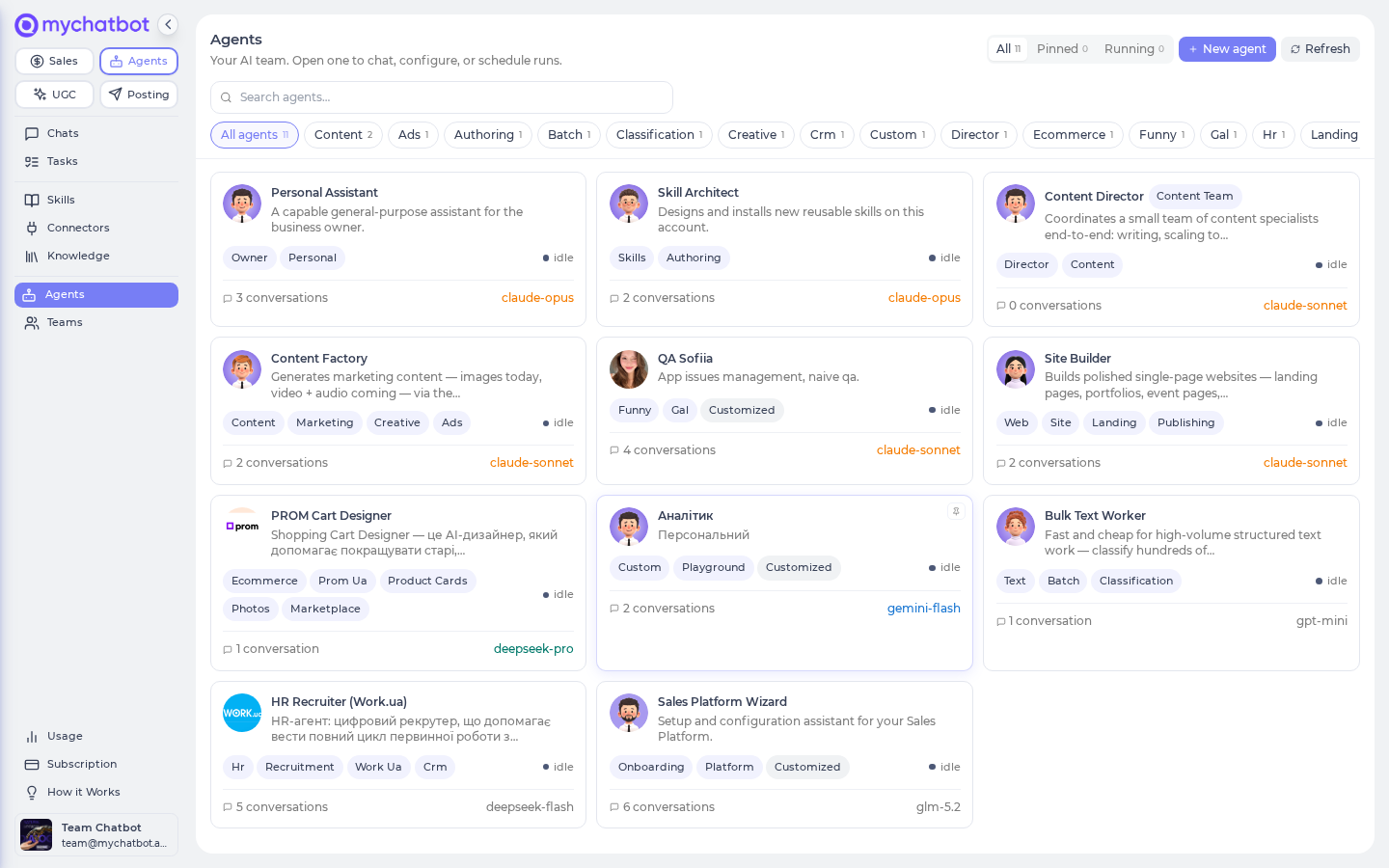
The three groups
The roster shows these sections, in order:
| Section | What's in it |
|---|---|
| Your custom agents | Agents you built yourself, from scratch. Empty until you create one. |
| Your AI team | Your always-on main team — the general-purpose agents plus the shipped specialists. These are here from day one. |
| Agent library | Ready-made specialists you can add to your team when you need them, and remove anytime — your conversations are kept either way. |
Your AI team (ships with every workspace)
These come with your workspace and are ready to use immediately:
| Agent | Default model | Built for |
|---|---|---|
| Chief of Staff | Gemini Flash | The lobby front door — triages your request and hands it to the right specialist |
| Sales Platform Wizard | GPT-5 | Setting up and operating your Sales Platform — assistants, channels, pipelines, leads |
| Personal Assistant | Claude Opus | Open-ended knowledge work — browsing, research, code, and building your own skills and custom routines |
| Bulk Text Worker | GPT-5 mini | High-volume, low-cost text — classify, extract, normalize, tag |
| Content Factory | Claude Sonnet | Marketing media — images today (video + audio coming) |
| Site Builder | Claude Sonnet | Single-page sites published to a live *.page.mychatbot.app address |
| Content Director | Claude Sonnet | Coordinates a Content Team (text at scale, images & media, live pages) behind a single chat |
Agent library (add when you need them)
Specialists that stay out of your way until you add them. Today the library includes:
| Agent | Default model | Built for |
|---|---|---|
| HR Recruiter (Work.ua) | DeepSeek | Recruiting over Work.ua plus your Sales Platform CRM |
| PROM Cart Designer | DeepSeek | Enhancing Prom.ua product photos |
The library grows over time, so the list in the app is the current one.
Specialists are just pre-tuned agents
Nothing about the built-in agents is special under the hood — each is an ordinary agent with a tuned model, prompt, tools, and skills. Two library agents (HR Recruiter, PROM Cart Designer) started as one customer's custom agent and were promoted into the shared library. Everything on the concepts page — customizing, resetting, pausing — works the same on all of them.
Adding a library agent to your team
A library agent shows an Add to team button on its card. Click it ("Adding…" while it works) and the agent joins Your AI team — its card gains an On your team marker, and any routines it brings become available.
Adding an agent starts it from the platform defaults; nothing else on your account changes.
Removing a library agent
You remove a library agent from its own page, not the roster: open the agent → Settings → Remove from team. It confirms, then takes the agent off your team.
Removing keeps your conversations
Removing a library agent hides it from your roster but keeps every conversation you had with it. Add it back later from the library and its history comes right back. (This is different from deleting a custom agent, which is permanent — see Custom agents.)
Finding your way around the roster
| Control | What it does |
|---|---|
| New agent (header) | Build a custom agent from scratch. |
| All / Pinned / Running | Filter every section at once — all agents, just the ones you've pinned, or just the ones with a run in flight. |
| Search + label pills | Search agents by name, or filter by label (All agents plus the labels your agents carry). |
| Pin (on a card) | Pin an agent to the top so it's always first. |
Each agent card shows its avatar and name, a short description of its job, its model, a running / idle status dot, how many conversations you've had with it, and a Customized badge if you've changed its settings.
No more "Teams" tab
Multi-agent work now flows through the lobby's Chief of Staff and its same-thread handoff, so there's no separate Teams tab. Coordinating agents (like the Content Director's Content Team) still exist and still behave like one agent in a single chat — see Best practices → Delegation & teams.
See also
- Agents: concepts — customizing, resetting, and pausing any agent
- The lobby — the front door that routes work across your team
- Build an agent — the end-to-end setup flow
- Custom agents — build your own from scratch
- Routines — durable workflows whose leaf steps use these agents