
Appearance
Triggers
A trigger starts a routine (or a single agent) for you when something happens — not on a clock, but on an event. Where a schedule runs a job every morning whether or not there's anything new, a trigger fires the moment there is something new: a form submission, an external Stripe payment, a ping from an outside tool you use.
Native Sales Platform events are not trigger sources today
A new Sales chat, customer reply, lead-stage change, or Sales order does not start an Agents routine. Use a scheduled polling routine that reads bounded, paginated Sales changes and tracks a cursor or high-water mark. Supported external connector events and secret webhooks remain available as described below.
That "something" comes in two flavors:
- A secret web link (often called a webhook in other tools): when you create the trigger, MyChatBot gives you a unique link, and any service that calls that link fires your trigger. This page covers the mechanics.
- An app event: something happens in an app you've connected — a payment lands in Stripe, an email arrives in Gmail, a card moves on a Trello board. There are 57 events across 21 apps to react to — see App-event triggers for the full catalog.
Both kinds share everything below — the conversations, the queueing, the limits — they differ only in where the event comes from.
In the app
A trigger belongs to the routine it starts — there's no separate Triggers page. Manage a routine's triggers in two places, whichever you prefer:
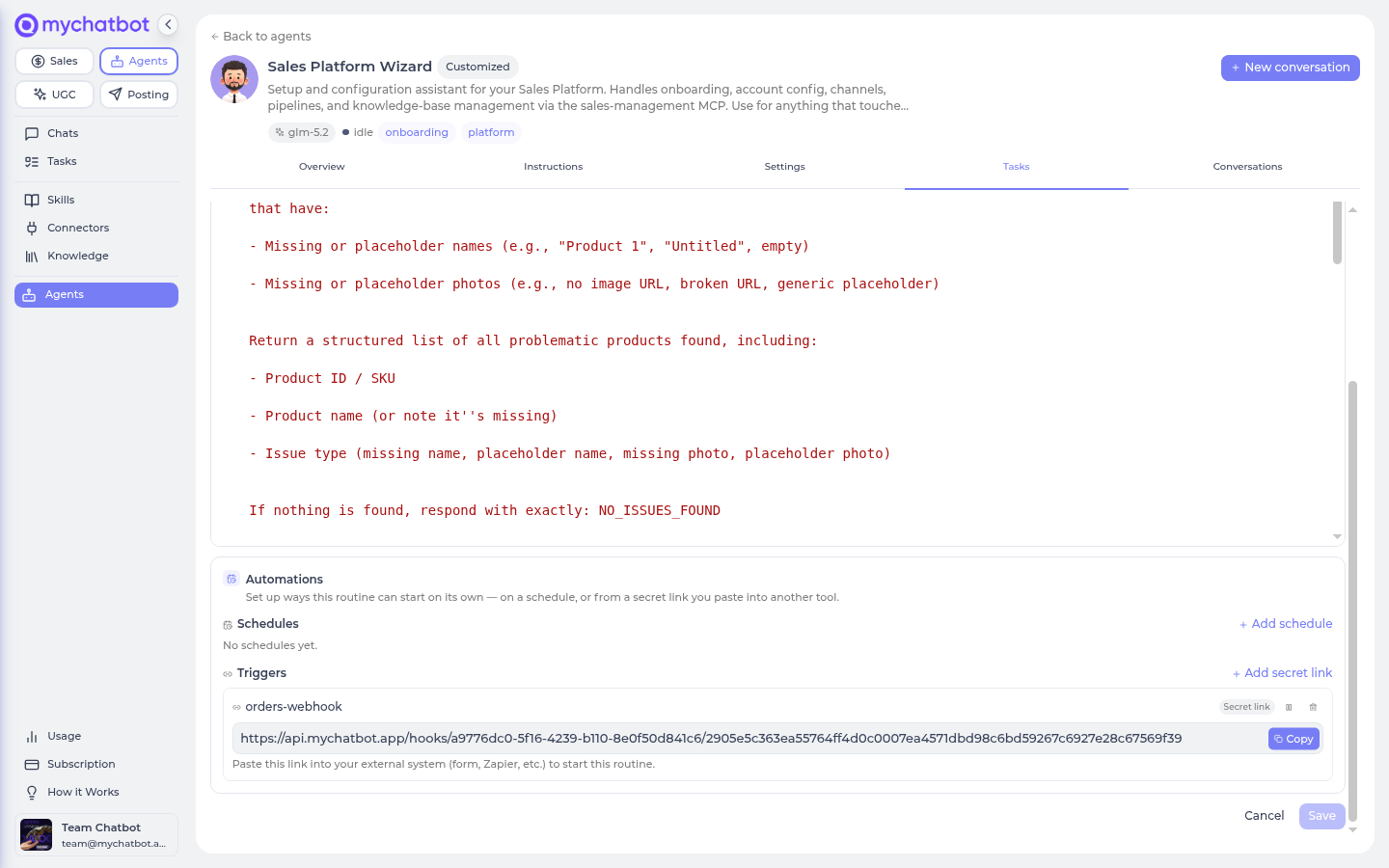
- The Automations panel on the routine's editor. Open a custom routine's Edit button → scroll to Automations → Triggers, where you can + Add trigger (a secret link or an app event), copy a link any time, see how many times each trigger has fired, turn one on or off, or delete it. (See the Routine YAML reference.)
- By chatting with your Personal Assistant — say "what triggers do I have?" or "add a trigger to my … routine" and it does the same thing.
Each trigger keeps its own conversation in your chats, and every fire shows up on the Usage page like any other run.
Cheat sheet
| Thing | What it is |
|---|---|
| Trigger | "When X happens, run Y." X is a secret webhook call or a supported event from an external connected app; Y is one routine or agent. Native Sales Platform events are not X today. |
| Secret link | The unique link you get when the trigger is created. Any service that calls it fires the trigger. It's viewable and copyable any time in the routine's Automations panel — but it's still a secret, so treat it like a password. |
| App event | The other event source: something happening in a connected app — a Stripe payment, a new Gmail email, a Slack message. No link to paste; MyChatBot watches the app. Full catalog: App-event triggers. |
| Trigger conversation | Every trigger keeps its own conversation — each fire runs there, so all its results live in one thread (named after the trigger). |
| Waiting in line | If an event arrives while the trigger's previous run is still working, it waits its turn — up to 3 events can wait at a time. |
| Duplicates | If the exact same event arrives twice, the copy is ignored — no double runs. |
| Limits | Up to 10 triggers per account; each fires at most 12 times an hour. |
| Self-protection | A trigger that keeps failing turns itself off — ask the assistant to turn it back on once the cause is fixed. |
Creating a trigger
Building with Claude or Codex
The account-scoped Agents MCP can create webhook or curated app-event triggers. Every MCP-created trigger is staged disabled; an app-event trigger does not create its upstream event subscription until you separately review and approve enabling it.
For complex systems, Claude or Codex through the Agents MCP is the normal setup path: it creates the same resource but stages it off for review. In MyChatBot itself, there are also two ways to add a trigger to a routine.
In the Automations panel
Open the routine you want to start (its Edit button on the card), scroll to the Automations section, and under Triggers click + Add trigger. A picker opens with two kinds of start:
- Custom webhook — no app needed — the first card. Pick it, optionally give the trigger a name, and click Add trigger. MyChatBot creates it and immediately shows its secret link in a read-only field with a Copy button. Paste that link into your outside service — most form builders, online stores, and payment tools have a setting like "send submissions to a URL" or "notify a webhook". The link stays visible in the panel, so you can copy it again whenever you need it.
- A connected app — pick an app (Stripe, Gmail, GitHub…), then the event to watch. There's no link to paste; MyChatBot watches the app for you. Full list: App-event triggers.
By chatting
Like custom routines, triggers can also be created by describing them. Open a chat with your Personal Assistant and say what should happen:
Create a trigger: when this link is called, run my New lead follow-up routine.
The assistant sets it up and replies with the trigger's secret link. Paste that link into the outside service. From then on, every time that service calls the link, your routine runs.
Chat is also how you create app-event triggers — there's no link involved, you just name the moment:
When a payment comes in on Stripe, run my order-logging routine.
If the app is connected, the in-app chat path can create the live trigger right away; if it isn't, the agent offers to connect it in the chat first.
The link is re-viewable — but still a secret
Unlike a one-time password, the trigger's link stays available: open the routine's Automations panel any time to see and re-copy it. That means you won't lose it — but it's still a secret (anyone who has it can fire your routine), so only paste it into services you trust.
A few useful details you can mention while creating one:
- What to run — any built-in routine, any custom routine you've made, or a single agent ("have my Personal Assistant summarize it"). A trigger can't start a whole team.
- What the run should do — the instructions the run receives each time. Whatever the outside service sends along with the call (the form fields, the order details) is handed to the run, so the routine can actually read and use it.
- Only some events — you can ask for a filter, e.g. "only when the subject contains 'invoice'". Events that don't match are quietly skipped, and skipped events don't cost anything.
A worked example: follow up on every form submission
Say you collect leads with an online form, and you've built a custom New lead follow-up routine that reads a lead and drafts an outreach message for your approval.
- Tell your Personal Assistant: "Create a trigger: when this link is called, run my New lead follow-up routine. The link will receive form submissions — name, email, and message."
- The assistant confirms the trigger and gives you the secret link. Copy it.
- In your form builder, find the "send submissions to a URL / webhook" setting and paste the link.
- Submit a test entry in your form. Within moments, a conversation named after your trigger appears in your chats — open it and watch the routine work through the submission, ending (if your routine has an approval gate) with a draft waiting for your approve or reject.
From here it's hands-off: every real submission fires the routine, every result lands in that same conversation, and nothing is sent to a lead without your approval — the routine's own safety rules apply exactly as they do when you run it by hand.
What happens when a trigger fires
- It runs in its own conversation. Each trigger gets a dedicated thread (named after the trigger) the moment it's created — every fire runs there, so the history of everything the trigger has done stays in one place in your chats.
- The run knows why it started. Every triggered run begins with a note naming the trigger and when it fired, plus the data the event carried.
- Busy? Events wait their turn. One run at a time per trigger. If events arrive while a run is working, they queue up — up to 3 can wait; beyond that, the oldest waiting event is dropped. An event that can't get its turn within a day is dropped too.
- Duplicates are ignored. If the outside service sends the exact same event twice (retries are common), the copy is recognized and skipped.
- Runs bill normally. Each fire draws from your agents balance like any run, and appears on the Usage page. If your balance runs out, events wait instead of failing — for up to a day — and run once you top up.
Limits and self-protection
| Rule | The number |
|---|---|
| Triggers per account | 10 |
| Fires per trigger, per hour | 12 — extra events wait for the next hour |
| Events waiting in line per trigger | 3 — beyond that, oldest is dropped |
| How long an event will wait | 1 day, then it's dropped |
| Repeated failures | After several failed fires in a row, the trigger turns itself off |
A trigger that turned itself off stays off until you ask the assistant to turn it back on — so a misconfigured routine or a flood of bad events can't quietly burn through your balance.
Treat the secret link like a password
Anyone who has the link can fire your trigger — that's the whole mechanism, and it's why the link is long and random. Only paste it into services you trust, and don't post it anywhere public. If you think it leaked, delete the trigger (in the Automations panel or by asking the assistant) and create a new one to get a fresh link.
Managing triggers
In the routine's Automations panel (its Edit button → Automations → Triggers) each trigger has controls right there: a pause/resume button to turn it off or back on, a copy button for its link, and a delete button.
Each trigger also shows its fire history at a glance — how many times it has fired and when it last did ("Fired 2 times · last fired 1d ago", or "Not fired yet"). Expand Recent activity to see the individual events with a status (fired, skipped as a duplicate, or waiting), and on a fired event click View run to open exactly what that run produced — no digging through your chats.
You can also do all of it in chat with your Personal Assistant — handy phrases:
| You say | What happens |
|---|---|
| "What triggers do I have?" | Lists them all — name, what each one runs, whether it's on, and when it last fired |
| "Pause my new-lead trigger." | Turns it off without deleting it — events that arrive while it's off are not kept |
| "Turn my new-lead trigger back on." | Re-enables it (and gives it a clean slate if it had turned itself off) |
| "Delete the new-lead trigger." | Removes it for good, along with anything still waiting in its queue |
| "What has my new-lead trigger done lately?" | Shows its recent activity — what fired, what was skipped as a duplicate, what's waiting |
Turning the routine off — or deleting it — takes its triggers with it
A trigger only fires while its routine is on. Turn the routine off and its triggers (and schedules) quietly pause — events that arrive are cleanly skipped, not errored, and firing resumes when you turn it back on. Delete the routine and its triggers and schedules are removed along with it, so no orphaned link keeps accepting events for a routine that's gone.
App-event triggers
The second kind of trigger reacts to events in apps you've connected — "when a new email arrives in Gmail, run my inbox-triage routine", "when a payment comes in on Stripe, do X." No link to paste anywhere: MyChatBot watches the connected app and fires the trigger when the event happens.
The essentials:
- the app must be connected on your account first — if it isn't, the agent offers to connect it right in the chat;
- there are 57 events across 21 apps — Gmail, Google Calendar, Google Sheets, Slack, GitHub, Notion, Stripe, HubSpot, Pipedrive, ClickUp, Jira, Linear, Asana, Trello, Zendesk, and more;
- some events are instant, others are checked periodically (expect up to ~15 minutes of delay) — the catalog marks which is which;
- everything else on this page — the trigger conversation, queueing, duplicates, limits, self-protection — applies unchanged.
The full event catalog, setup walkthrough, and worked examples live on App-event triggers.
FAQ
I lost the secret link — where do I find it again? Open the routine's Automations panel (its Edit button → Automations → Triggers). Each trigger's link is shown there with a Copy button, so you can grab it again any time. If you'd rather rotate it — say you think it leaked — delete the trigger and add a new one for a fresh link.
My trigger stopped firing. Why? Ask the assistant "what has my trigger done lately?" The usual causes: it turned itself off after repeated failures (ask to turn it back on once the cause is fixed), it hit its hourly limit (events wait for the next hour), or your balance ran out (events wait up to a day and run after you top up).
The service called the link twice — will my routine run twice? Not if the two calls carried the exact same data — the copy is ignored. Two different events (two different form submissions) each get their own run, one after another.
Where do I see what a trigger did? In its own conversation — look for the thread named after your trigger in your chats. Costs appear on the Usage page, same as any run.
Can a trigger start a team, or another trigger? No. A trigger starts one routine or one agent. And runs started by a trigger can't create new triggers — that's deliberate, so automations can't multiply on their own.
Try it
- Ask your Personal Assistant: "Create a trigger: when this link is called, run my Weekly business review routine." Copy the secret link from the reply.
- Fire it yourself — the link works from anywhere, even a browser tool or a one-line script that posts to it.
- Find the trigger's conversation in your chats and watch the routine run.
- Ask "what triggers do I have?" and then "what has it done lately?"
- Finish with "delete that trigger" — and note that the old link goes dead.
See also
- Agents Platform operating model — supported activation paths and the current Sales feedback-loop boundary
- App-event triggers — the full catalog of connected-app events a trigger can react to
- Routines — the multi-step jobs a trigger can start
- Build routines with Claude or Codex — build, validate and preview the routine before staging its trigger
- Custom routines — lifecycle and safety boundaries
- Routine YAML reference — write that routine as YAML, and see how triggers appear in the editor
- Tasks & schedules — timed runs, for jobs that should happen on a clock instead of on an event
- Usage & billing — how triggered runs bill