
Appearance
Custom routines
The routine is the central durable entity for repeatable work. When you want a multi-step process of your own—from a weekly competitor check to processing hundreds of client records—use Claude Code or Codex through the account-scoped Agents MCP. The coding agent inspects the account and current YAML contract, assembles the supporting configuration, validates the routine, and helps you preview it before MyChatBot runs it. The saved custom routine sits alongside the built-in ones with a Custom badge and uses the same runtime.
Start here
Open any Agent's Tasks tab and choose Connect Claude or Codex. Copy the setup for your client and follow Build and test a routine with Claude or Codex. That is the recommended authoring path; the app's YAML editor remains useful for inspection and small corrections.
Inspect or repair the YAML in the app
Every custom routine is a small YAML document you can also edit directly in a built-in text editor — click the Edit button on a custom routine's card. For the full schema, field-by-field reference, and worked multi-step examples, see Routine YAML reference.
How you create one with Claude or Codex
The per-account Agents MCP uses the same routine records, validator and runtime as the app—not a second workflow format. A reliable authoring session follows this order:
- The coding agent calls
get_routine_authoring_context, reads the linked Markdown YAML reference, and callsget_account_authoring_inventory. - It inspects relevant existing routines, Agents and skills before proposing a change. Prefer reuse over duplicate configuration.
- With separate approval, it creates or changes only the missing supporting Agent, skill, connector or Business Knowledge configuration.
- It calls
validate_routineuntil the full spec is valid, then shows you the complete canonical YAML and expected effects. - After you approve the save, it calls
get_routine_readinessand resolves every blocker. - With another approval, it runs a bounded, billed, tool-free preview and polls the result.
- It stages a schedule or trigger disabled. Enabling is a final separate decision after review and a narrow live check in MyChatBot.
The app's Connect Claude or Codex dialog includes a copyable starter prompt that enforces this sequence. See the Claude routine guide for the complete walkthrough and examples.
Inventory and readiness inspect MyChatBot configuration without probing live external systems. ready: true is not proof that a connector vendor is reachable, data exists, or a write will be safe. It means the routine's explicit configuration references have no known blocker; the readiness response states its remaining limitations.
The preview runs the real workflow graph and uses your Agents balance, but AgentOS removes every tool, skill, connector and Business Knowledge source and disables account-memory reads and writes before its steps run. It is saved in ordinary routine history and can only simulate what a live run would read or change. A preview is limited to a statically bounded maximum of 25 Agent calls; replace a dynamic foreach source with a small literal sample for this check. The MCP can create schedules and triggers only in a disabled state; enabling is a separate approved action. It does not expose an immediate live-routine run. See MCP & connectors for the exact boundary and setup snippets.
State effects explicitly
Tell Claude or Codex which external reads and writes are allowed, representative volume, and what must remain draft-only. It can record an approval gate, but see the rollout warning below before treating that field as a live safety boundary.
What a custom routine can be
| Property | The limit |
|---|---|
| Top-level steps | 1 to 8. Keep the original straight-line form, or nest sequences, parallel branches, loops, conditions and routers. |
| List processing | A foreach step can run the same work for hundreds of records with bounded concurrency. |
| No approval gates | Routines run start to finish without pausing. approval is still accepted in YAML for older specs but never stops a run — scope each step's prompt, and dry-run before scheduling. |
| Early exit | A step can bail out early with a friendly note (e.g. "No product data connected yet") instead of pushing on with nothing to work with |
| How many | Up to 10 custom routines per account |
Each step is handled by one of your Agents. Claude maps the work to effective Agents from the account inventory—a text specialist for writing, the Sales Platform Wizard for catalog and lead work, and so on—and each step can build on what the previous step produced.
Those are your ordinary account Agents, not special read-only batch workers. They keep their configured Business Knowledge, connectors and MCP tools. That means a foreach item can update a client or another connected record when its authored task explicitly requests that action. See Processing a list with foreach for the YAML and the failure/retry boundary.
Routines never pause for approval
A routine that starts runs every step to the end. There is no approval card, no review pause, and no switch that turns one on — the mechanism was removed, not disabled.
approval, approval_message, requires_iteration_review and requires_output_review are still accepted so existing YAML keeps loading and saving, but none of them stops a run. If a routine of yours was written around a gate, treat that step as fully live and re-read its prompt.
So an owner-authored step does whatever its task says, including effects that reach real people — messages, calls, outreach, publication, deletion, live record changes. Writing the step is the authorization; there is no second checkpoint before a customer is contacted. Scope each prompt to exactly the action you want, and rehearse with a dry run (tools switched off) before you attach a schedule or trigger.
(Router requires_user_input is unrelated and still works: it supplies a branch choice the workflow needs, not permission to act.)
Managing a custom routine
A custom routine's card has an Edit button and a ⋮ "Manage routine" menu. (Built-in routines have neither — that's how you tell them apart: they're view-only.)
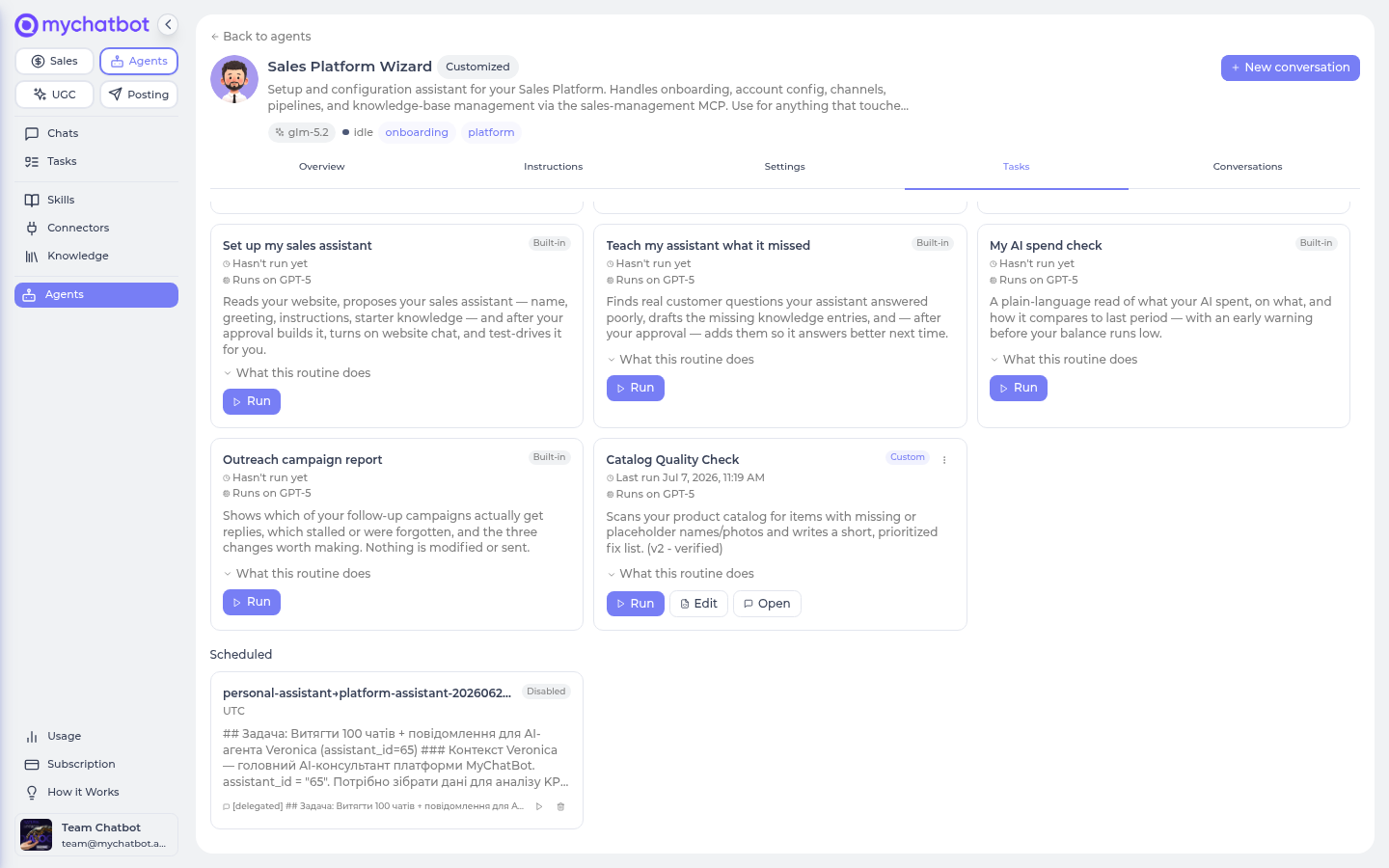
| Control | What it does |
|---|---|
| Edit (button) | Opens the routine in the built-in YAML editor — change any field as text, add approval gates, and manage its schedules and triggers in the Automations panel below the editor. Save validates before it takes. Full guide: Routine YAML reference. |
| Turn on / Turn off (⋮ menu) | Pause a routine without deleting it. A turned-off routine shows a Turned off badge and its Run button is disabled — and its schedules and triggers quietly pause too, until you turn it back on. |
| Edit with assistant (⋮ menu) | Opens a chat with your Personal Assistant, prefilled with "Update my routine … : [describe what should change]" — you edit by describing the change, same as you created it. |
| Delete (⋮ menu) | Removes the routine. Your conversation with it stays in your chats; only the routine definition goes — along with any schedules and triggers attached to it. |
On the global Tasks page and the lobby
There's no per-agent view-swap there, so a custom routine's Edit as text lives inside the ⋮ menu (it opens the same YAML editor in a dialog). On an agent's own Tasks tab it's the visible Edit button instead.
If a routine shows an error
If the assistant's recipe has a problem (a step that references something that doesn't exist, for instance), the card shows the error in red and its Run button is disabled until it's fixed. Use Edit with assistant and describe the fix, or open Edit and correct the YAML directly.
Running, watching, approving
Once created, a custom routine behaves exactly like a built-in one: press Run (which prefills the start message — you send to begin), watch the steps tick off live in the Activity panel, read per-step results, approve any gated step in the conversation, and stop gracefully. Each step draws from your agents balance and shows up on the Usage page. Everything on the Routines page applies.
Starting it automatically
A custom routine doesn't have to wait for you to press Run. Put it on a schedule to run on a clock, or attach a trigger so it starts the moment something happens — a form submission hitting a secret link, or an event in a connected app like a Stripe payment or a new Gmail email (app-event triggers).
You can manage them from either surface, and they stay in sync:
- The Automations panel on the routine's editor (its Edit button → Automations) — Add schedule, or + Add trigger to pick a custom webhook or an app event right there. A new webhook trigger shows its copyable secret link immediately.
- Through Claude and the Agents MCP — Claude can create a schedule or trigger only in the disabled state. It shows you the staged target and cadence/event, then asks separately before enabling it.
You can also write a schedule straight into the YAML — see the schedules: block in the YAML reference. (Triggers are managed in the panel, not the YAML, because the link is a secret — the YAML just shows them as a read-only comment.)
Try it
- Open an Agent's Tasks tab, click Connect Claude or Codex, and connect your chosen client with the generated setup.
- Ask the coding agent for a small read-only routine, including the desired outcome and a representative run message.
- Let it inspect the authoring context and account inventory, then review the complete canonical YAML returned by validation.
- Approve the save and inspect
get_routine_readiness. - Separately approve a billed tool-free preview and check the workflow output.
- Open the routine's Custom card in MyChatBot for a narrow live read. Add no external effect until that path is understood.
- Ask it to stage a disabled schedule, review it, and approve enabling only when the routine is ready to run unattended.
See also
- Agents Platform operating model — why the routine is central and how supporting primitives fit
- Build routines with Claude or Codex — recommended end-to-end authoring, preview and activation workflow
- Routine YAML reference — the executable schema and worked examples Claude or Codex reads
- Routines — how running, progress, approvals and stopping work (all the same here)
- Triggers — start your routine automatically when something happens
- Your team & the agent library — the agents a routine's steps can run on
- Tasks & schedules — saved prompts and timed runs
- Usage & billing — how routine steps bill