
Appearance
Tools & toggles cheat sheet
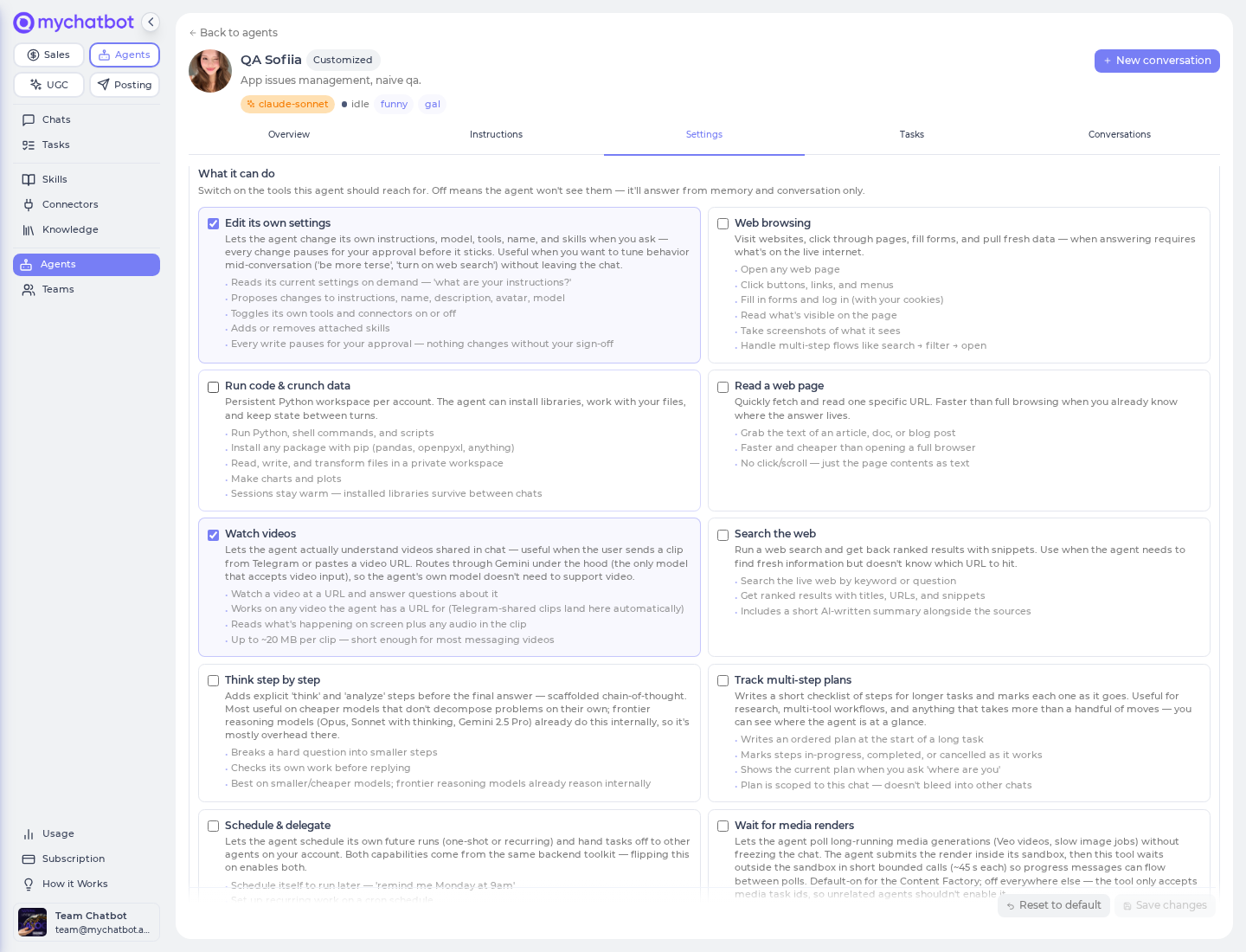
Every agent's abilities come from a set of tool toggles — one on/off switch per capability. You'll find them on each agent's Settings tab, under the What it can do section. This page is the definitive toggle → capability reference: what each switch unlocks, what ships on by default per agent type, and how to change them. Reach for it whenever you're deciding which tools an agent needs, or figuring out why a tool never shows up.
In the app
Open any agent, then go to the Settings tab → What it can do. Direct link: https://app.mychatbot.app/agents/<agent>?tab=settings
Cheat sheet
Toggle → what it unlocks
There are 13 tool toggles. Each card is a single switch — flip it on and the agent gains that whole capability; flip it off and the agent never sees it and answers from memory and the conversation only.
| Toggle (as shown in the app) | What the agent can do | When to use |
|---|---|---|
| Edit its own settings | Read its current setup and propose changes to its instructions, name, avatar, model, tools, and skills — mid-conversation, when you ask. Every change pauses for your approval. | You want to tune behavior in chat ("be more terse", "turn on web search") without leaving the conversation. |
| Web browsing | Open web pages, click buttons and links, fill in forms, log in with your saved cookies, and screenshot what it sees. Handles multi-step flows (search → filter → open). | The agent needs to drive a live site, not just read one URL. |
| Run code & crunch data | Run Python and shell commands in a private, persistent workspace: install any package, read/write/transform your files, make charts. Installed libraries survive between chats. | Data wrangling, file conversion, calculations, anything scripty. |
| Read a web page | Quickly fetch and read one specific URL as text — no clicking or scrolling. Faster and cheaper than full browsing. | You already know the exact page that holds the answer. |
| Watch videos | Understand a video the user shares (a Telegram clip or a pasted URL) and answer questions about what's on screen and in the audio. Short clips (~20 MB). | Users send video and expect the agent to actually watch it. |
| Search the web | Run a live web search and get ranked results with titles, URLs, and snippets, plus a short written summary. | The agent needs fresh info but doesn't know which URL to hit. |
| Think step by step | Add explicit reasoning steps before the final answer and check its own work. | Mostly for smaller/cheaper models — frontier reasoning models (Claude Opus, Claude Sonnet with thinking, Gemini Pro) already do this internally. |
| Track multi-step plans | Write an ordered checklist at the start of a long task and mark each step in-progress / done / cancelled as it works. The plan stays scoped to that chat. | Research and multi-tool workflows where you want to see progress at a glance. |
| Schedule & delegate | Schedule its own future runs (one-shot or recurring), hand tasks off to other agents on your account, and see, pause, or resume your routines and their schedules. Results land in a new chat thread. | Reminders, recurring jobs, and passing work to a specialist agent. |
| Wait for media renders | Wait for long-running media generations (video and slow image jobs) without freezing the chat, polling in short bounded windows so progress keeps flowing. | Agents that generate video/images. Accepts media jobs only — not a generic timer. |
| Sales Platform tools | Reach into your Sales Platform: create and edit assistants, clients, and pipelines; connect channels (WhatsApp, Telegram, Instagram, …); and look up how a feature works in the docs. | You want this agent to also set up or run your Sales Platform. See the paired toggle. |
| Business knowledge | Look things up, at answer time, in the sources you've connected for your business — your website, brand docs, FAQs, Drive folders, product data. Always live, never a stale copy. | The agent should ground answers in your own content. Connect sources first (see below). |
| Save reusable skills | Notice a recurring workflow and save it as a named, reusable skill. Future runs — any agent on your account — load it automatically. | Generalist agents that see repeated patterns worth capturing. |
Connectors are a separate list
Third-party apps (HubSpot, Gmail, Notion, Slack, …) and your own MCP endpoints are not in the 13 toggles above — they live in the Connectors section, just below the tools, on the same Settings tab. See MCP & connectors.
Telegram channel tools attach on their own
When the account has a connected Telegram bot, the messaging tools (list channels, list who the bot can reach, send a message) attach automatically — there is no toggle for them, and they go away if the bot is disconnected. See Routines → Delivering results to Telegram.
Defaults per agent type
Each built-in agent type ships with a sensible set of tools already on. When you turn a switch on or off, only that switch changes — everything else keeps the agent's default, and you can always Reset to default from the save bar.
| Agent type | Model | Tools on by default |
|---|---|---|
| Sales Platform Wizard | GPT-5 | Read a web page · Think step by step · Sales Platform tools |
| Personal Assistant | Claude Opus | Run code · Web browsing · Read a web page · Search the web · Schedule & delegate · Track plans · Save skills · Watch videos · Edit its own settings |
| Skill Architect | Claude Opus | Run code · Web browsing · Search the web · Schedule & delegate · Track plans · Save skills · Edit its own settings |
| Bulk Text Worker | GPT-5 mini | Run code · Read a web page · Schedule & delegate · Track plans |
| Content Factory | Claude Sonnet | Run code · Web browsing · Read a web page · Search the web · Schedule & delegate · Wait for media renders |
| Site Builder | Claude Sonnet | Run code · Web browsing · Read a web page · Search the web · Schedule & delegate · Track plans |
| Content Director | Claude Sonnet | (none — it coordinates its team members instead) |
| HR Recruiter · Work.ua | DeepSeek | Track plans · Web browsing · Read a web page · Run code · Think step by step · Schedule & delegate · Watch videos · Search the web · Save skills · Sales Platform tools · Wait for media renders |
| PROM Cart Designer | DeepSeek | Web browsing · Read a web page · Run code · Think step by step · Schedule & delegate · Watch videos · Search the web · Business knowledge · Wait for media renders |
| Custom agents (you create) | Claude Sonnet (you pick) | Think step by step · Read a web page |
Custom agents are the blank canvas
Create one from Agents → New agent (https://app.mychatbot.app/agents/new). They ship light on purpose and let you choose the model. The model is a default you can change on any agent, not a fixed pin — swap it any time under Settings → Identity → Model.
The Sales Platform toggle
Sales Platform tools is a paired switch: turning it on gives the agent both the ability to change things in your Sales Platform (create assistants, manage channels, run pipelines) and the ability to look up how a feature works in the docs. Pairing them means the agent can never change something it can't first understand.
It only attaches on Sales-Platform-capable agents
The toggle appears on every agent, but it only actually wires up tools on agents built to reach the Sales Platform — today that's the Sales Platform Wizard and the HR Recruiter · Work.ua. On any other agent you can flip it on and it will save, but no Sales Platform tools attach. If you need an agent to reach into the Sales Platform, use one of those two.
Sales Platform tools vs. the individual Sales connectors
The Connectors section also offers individual Sales Platform connectors that cover the same ground. To avoid duplicate tools, the app locks the two against each other: if you've turned on any individual Sales connector, the Sales Platform tools switch is disabled with the hint "Turn off the individual Sales Platform connectors below to enable this." Pick one source or the other.
A closer look at the cross-cutting toggles
A few toggles change what an agent can do to itself, your account, or the future — worth understanding before you flip them.
Edit its own settings — lets the agent read its own configuration and propose changes to it. Every write is held for your approval: no self-configuration change (instructions, name, avatar, model, tools, skills) is applied without your sign-off. On by default only for the two Claude Opus agents (Personal Assistant, Skill Architect).
Save reusable skills — best on generalist agents. Once a recurring workflow is saved as a named skill, future runs load it automatically, and any agent on the account can use it. See Skills.
Schedule & delegate — one switch covers scheduling the agent's own future runs (one-shot or recurring), handing a task off to another agent on the account, and routine control: listing your routines, reading what one does, switching a custom routine on or off, and pausing or resuming its cron schedules — handy when a routine's Telegram report prompts a "pause that" reply. Delegated and scheduled results land in a new chat thread. See Tasks & schedules and Routines.
Business knowledge — turns each source you've connected into a live lookup the agent can use the moment an answer needs it. Sources can include the live web, connected services (Google Drive today; Notion, Slack as you connect them), a specific page the agent already has the URL for, and your product data. Answers are always live, never a stale copy, and the lookup is resilient — if one source is down, the agent keeps working with the rest. Manage sources under Agents → Knowledge (
https://app.mychatbot.app/agents/knowledge). See Knowledge bases.
Changing toggles
In the app
- Open the agent → Settings tab → What it can do.
- Click the switch on the cards you want to change.
- Click Save changes in the save bar.
You only change the switches you touch — every other tool keeps the agent's type default, so a one-switch edit is a complete, safe change. To go back to how the agent shipped, click Reset to default (it clears your account's customization and reverts to the built-in defaults). Because the app only shows real switches, there's nothing to mistype — you can't create an invalid toggle.
Gotchas & edge cases
Wait for media renders is not a generic timer
It only waits on media generation jobs (video and slow image renders). It's on by default for the Content Factory and off everywhere else, so unrelated agents can't misuse it.
Think step by step earns its keep on cheaper models
Explicit reasoning steps help most on smaller/cheaper models. Frontier reasoning models (Claude Opus, Claude Sonnet with thinking, Gemini Pro) already reason internally, so turning it on there is usually just overhead.
Read a web page vs. Web browsing are different jobs
Read a web page is a single fast fetch of a URL you already have — no clicks, no logins. Web browsing drives a real, persistent browser session (click, fill forms, log in with saved cookies, screenshot). Give an agent Web browsing only when it truly needs to drive the page.
Edit its own settings always pauses for approval
Even with it on, no self-configuration change is applied without your sign-off. Don't expect the agent to silently rewrite its own model or tools.
Best practices
Do
- Start from the type's defaults and change as little as possible — one or two switches is a complete edit.
- Turn a default-on tool off when an agent doesn't need it; fewer tools means a leaner, cheaper, more focused agent.
- Put Sales Platform tools only on agents built for it (Sales Platform Wizard, HR Recruiter).
Don't
- Don't enable Sales Platform tools on a general agent and expect it to work — it quietly attaches nothing there.
- Don't confuse the tools switches with the Connectors section — third-party apps and your own MCP endpoints belong in Connectors.
- Don't re-flip switches you didn't mean to change; unchanged switches already inherit the defaults, and Reset to default is one click away if you want to start over.
Test it
- In an agent's Settings tab, turn one tool off and click Save changes.
- Reopen the agent and confirm only that tool changed — every other switch is still at its type default.
- Click Reset to default and confirm the agent returns to how it shipped.
- For Sales Platform tools: turn it on for a general agent (e.g. Personal Assistant), run the agent, and confirm no sales tools appear (no-op). Then compare with the Sales Platform Wizard, where the tools are present.