
Appearance
Agents: concepts
The Agents Platform is routine first. A routine owns repeatable or autonomous work; agents and models execute its leaf steps, while skills, connectors, and knowledge give those steps the capabilities they need. Conversations and the lobby remain useful for ad-hoc work, prototyping, inspection, approvals, and debugging.
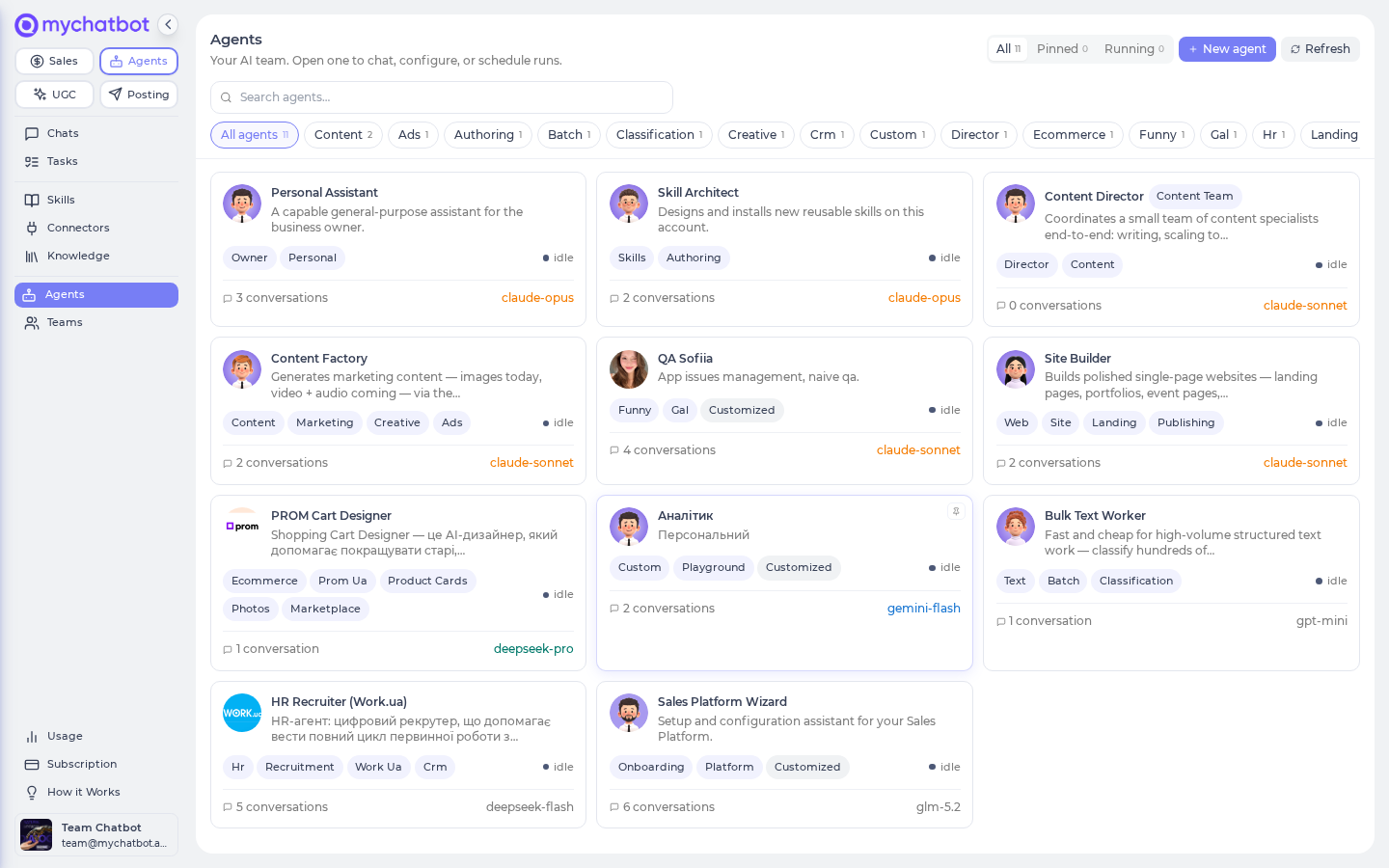
Your workspace also ships with a curated set of built-in agents, each tuned for part of the business. You can customize any of them or build a blank custom agent. Read the operating model first when designing a production process.
In the app
Everything here lives under Agents in the left nav → https://app.mychatbot.app/agents. Use the lobby (/agents/chats) for conversation work and the Tasks page for routines and automation. The roster (/agents) lists every agent available to execute work.
Cheat sheet
| Term | What it means |
|---|---|
| Built-in agent | A ready-made agent MyChatBot ships, tuned for a job — it comes with a default model, prompt, tools, and skills. You can't rename the built-in kind, but you can fully customize your copy of it. |
| Customization | The changes you make to an agent. Only the fields you touch change; everything else stays at the built-in default. Scoped to your account and marked with a Customized badge. |
| Reset to default | One button that clears all your customizations and reverts the agent to how it ships. |
| Custom agent | A blank-canvas agent you build from scratch. You get up to 10. See Custom agents. |
| Chief of Staff | The lobby front door — a light triage agent that answers quick questions itself and hands the rest to a specialist, in the same thread. |
| Coordinating agent | An agent that runs a team of specialists behind a single chat, instead of doing the work alone (e.g. Content Director). |
| Routine | The durable orchestration unit for repeatable work. It can sequence, branch, loop, fan out, schedule, or react to supported events, while configured agents execute its leaf steps. See Routines. |
| Trigger | "When X happens, run Y" — starts a routine or agent from a secret web link or a supported external connected-app event. Native Sales Platform changes do not fire Agents triggers today; use a scheduled polling routine for those. See Triggers. |
Agents that ship in your workspace
Your AI team comes with the workspace: the lobby front door plus a set of general-purpose and specialist agents. A separate agent library holds specialists you add only when you need them, and you can build up to 10 custom agents of your own.
| Agent | Default model | Built for |
|---|---|---|
| Chief of Staff | Gemini Flash | The lobby front door — triages your request and routes it to the right agent |
| Sales Platform Wizard | GPT-5 | Sales Platform setup & operation — the main sales-side agent |
| Personal Assistant | Claude Opus | General knowledge work — browsing, code, research, and building your own skills and custom routines |
| Bulk Text Worker | GPT-5 mini | High-volume, low-cost text — classify, extract, normalize, tag |
| Content Factory | Claude Sonnet | Marketing media — product photos, video ads, reels & music, with a full creative studio of ready-made formats |
| Site Builder | Claude Sonnet | Single-page sites published to a live *.page.mychatbot.app address |
| Content Director | Claude Sonnet | Coordinates a Content Team of three creative specialists (text at scale, images & media, live pages) behind one chat |
The agent library adds specialists like HR Recruiter (Work.ua) and PROM Cart Designer once you add them to your team — see Your team & the agent library for the full, current roster and how adding/removing works.
Specialists are just pre-tuned agents
Nothing about the built-in agents is special under the hood — each is an ordinary agent with a tuned model, prompt, tools, and skills. Two library agents (HR Recruiter, PROM Cart Designer) started as one customer's custom agent and were promoted into the shared library. Everything below — customizing, resetting, pausing — works the same on all of them.
Customizing an agent
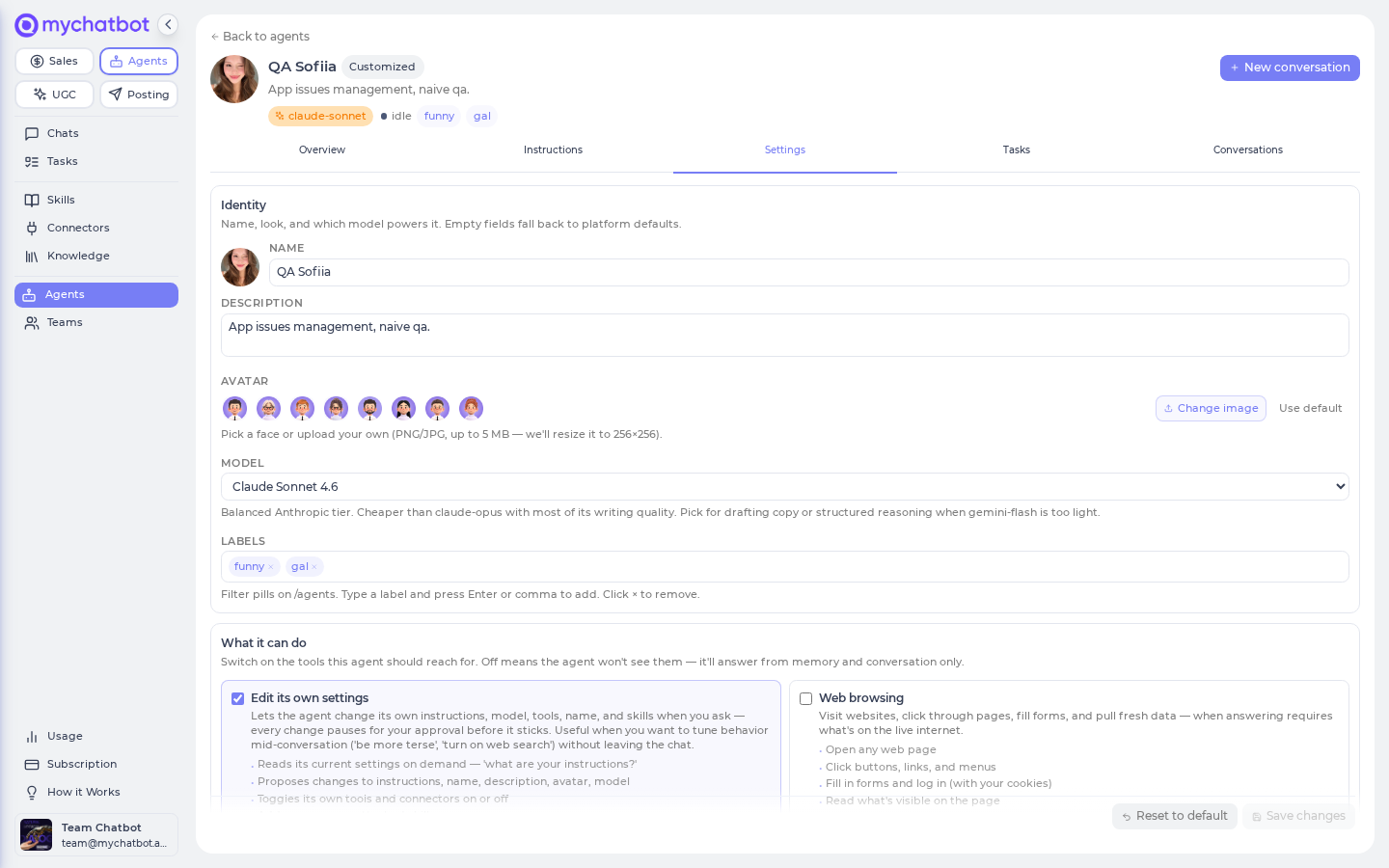
Open an agent, then go to the Settings tab (https://app.mychatbot.app/agents → pick an agent → Settings). Anything you change here layers on top of the built-in defaults and applies only to your account. Leave a field empty and it falls back to the platform default.
| In the app | What it controls | Default when left empty |
|---|---|---|
| Settings → Identity → Name / Description / Avatar | How the agent is labeled in your list | The built-in name and look |
| Settings → Identity → Model | Which model powers it | The built-in default (shown as "· default") |
| Settings → Identity → Labels | Filter pills on your agents list | none |
| Instructions tab | What it focuses on, what to avoid, how it responds — layers on top of its built-in expertise | The built-in prompt |
| Settings → What it can do | Which tools the agent can reach for (on/off toggles) | The built-in toolset |
| Settings → Connectors | Which of your connected apps it can use | The built-in connectors |
| Settings → Skills | Custom abilities attached to it | The built-in skills |
How your changes combine:
- Tool and connector toggles are independent — turning one off doesn't touch the others. Off means the agent won't see that tool at all; it answers from memory and the conversation only.
- The Instructions you write replace the built-in prompt for your copy of the agent.
- The Skills and Labels lists show exactly what's attached; you edit them directly. If you remove the built-in entries there, they're gone for your agent — so re-add any you still want.
Hit Save and a Customized badge appears on the agent.
Your changes take effect on the very next message
Customizations aren't baked in — they're read fresh on every run. Change a setting, save, and the next message already uses it. Your changes never affect other accounts running the same built-in agent.
You can also let the agent edit itself
If the Self-edit tool is on, you can just tell the agent in chat to change its own instructions, model, tools, name, or skills ("be more terse", "turn on web search"). Every self-change pauses for your approval before it sticks.
The model is a default, not a lock
Every agent ships with a default model (marked "· default" in the picker), but you can move any agent to a different model from Settings → Identity → Model. Cheaper model for a high-volume job, a frontier model for hard reasoning — it's a per-agent choice. Custom agents also let you pick the model right when you create them.
Reset to default
The Reset to default button on the Settings tab clears every customization and reverts the agent to how it ships. If you haven't customized anything, there's nothing to reset (the button is a no-op — "running on platform defaults").
Toggles reset one at a time; lists reset as a whole
Turning one tool off leaves your other tools alone. But the Skills and Labels lists are edited as a single list — if you clear one and add a single entry, you've dropped everything the agent had by default. Include the ones you still want.
Custom agents (build your own)
When no built-in agent fits, build one from scratch — a blank-canvas agent that's yours alone, with a name, model, and instructions you choose. You get up to 10. The full flow (creating, deleting vs. resetting, graduating into the library) is on its own page: Custom agents.
Coordinating agents (teams)
Some agents coordinate a team of specialists behind a single chat rather than doing the work alone. The shipped example is Content Director, which runs a Content Team of three creative specialists: Bulk Text Worker (variants, captions, hooks at scale), Content Factory (images and other media), and Site Builder (landing pages published live).
To you, a coordinating agent behaves like one agent:
- one avatar, one chat thread;
- it routes each request to the right specialist and returns a single synthesized reply;
- replies are attributed to whichever member produced them, so you get "the team" without juggling separate chats.
Tools, skills, and connectors are configured per member, not on the coordinator: open any member to flip its toggles, and those changes apply wherever that member is used. The coordinator's own instructions act as its "how to delegate" playbook.
The lobby is the main conversation surface
Day to day, ad-hoc multi-agent work flows through the lobby: the Chief of Staff takes your request and hands it to the right specialist in the same thread. Repeatable orchestration belongs in a routine. Coordinating agents like Content Director still exist for jobs that need one tightly-orchestrated answer from several specialists at once — see Best practices → Delegation & teams.
Custom agents can't be team members
Custom agents are standalone by design; a coordinating agent's team is made of built-in specialists only.
Best practices
Do
- Start from the built-in agent whose model and defaults already fit the job — a specialist (Content Factory, Site Builder, Bulk Text Worker…) before a general-purpose one — and customize only what you must.
- Keep customizations light — a small set of changes is easier to reason about and survives future updates to the built-in defaults.
- To move an agent onto a specific or cheaper model, just change it in Settings → Identity → Model — no need to create a custom agent for that.
- When editing the Skills or Labels list, re-add everything you want to keep.
Don't
- Don't clear the Skills list down to one skill and assume the built-in ones are still attached — the list is what's attached.
- Don't build a custom agent just to switch models — the model picker is on every agent's Settings tab.
- Don't try to delete a built-in agent. To stop using one, pause it (Settings → Pause this agent) — that hides it and blocks new conversations while keeping existing ones readable. Only custom agents can be deleted.
Test it
- Open an agent and make a change on the Settings or Instructions tab (change the instructions, or toggle a tool on). Save, and confirm the Customized badge appears.
- Send a message and verify the new behavior — the extra tool is available, or the new prompt voice shows up.
- Click Reset to default and confirm every field reverts to how the agent ships and the Customized badge clears.
- For a custom agent: create one with a specific model, run it once, and confirm the reply comes from the model you picked.
- Change Settings → Identity → Model on a built-in agent, run once, and confirm the run is served by the new model — the model is a default you can move, not a lock.
See also
- The lobby — the Chief of Staff front door where work starts
- Your team & the agent library — the roster, and adding/removing library agents
- Build an agent — the end-to-end setup flow
- Custom agents — build your own from scratch
- Tools & toggles — what each tool in "What it can do" lets the agent do
- Models & reasoning — picking a model and reasoning effort
- Skills — built-in vs. your own skills and attaching them
- Tasks, crons & schedules — scheduled runs per conversation
- Routines — built-in and custom multi-step workflows agents run for you
- Build routines with Claude or Codex — configure, validate, preview, and stage your own workflow through the Agents MCP
- Memory — conversation and long-term memory
- MCP & connectors — configure the Agents Platform or connect Product, Sales-Management, and UGC tools
- Usage & billing — the two buckets your spend draws from, reading the Balance card, and why agents stop