
Appearance
Knowledge bases for agents
Give an agent the facts it needs to answer well. There are two switches on each agent, and they solve different problems:
- Business knowledge — turns on live sources the agent searches at the moment an answer needs them (the open web, connected apps like Google Drive / Notion / Slack / OneDrive, and your product/FAQ knowledge bases). Always live, never a stale copy.
- Sales Platform tools — lets the agent create and manage your Sales Platform setup (assistants, channels, pipelines, FAQs, catalogs, feeds) and look up how a MyChatBot feature works from the product docs.
Use these when an agent should ground its replies in your website, brand docs, product data, or Sales Platform knowledge instead of guessing.
Both are ordinary agent toggles — see Tools & toggles.
In the app
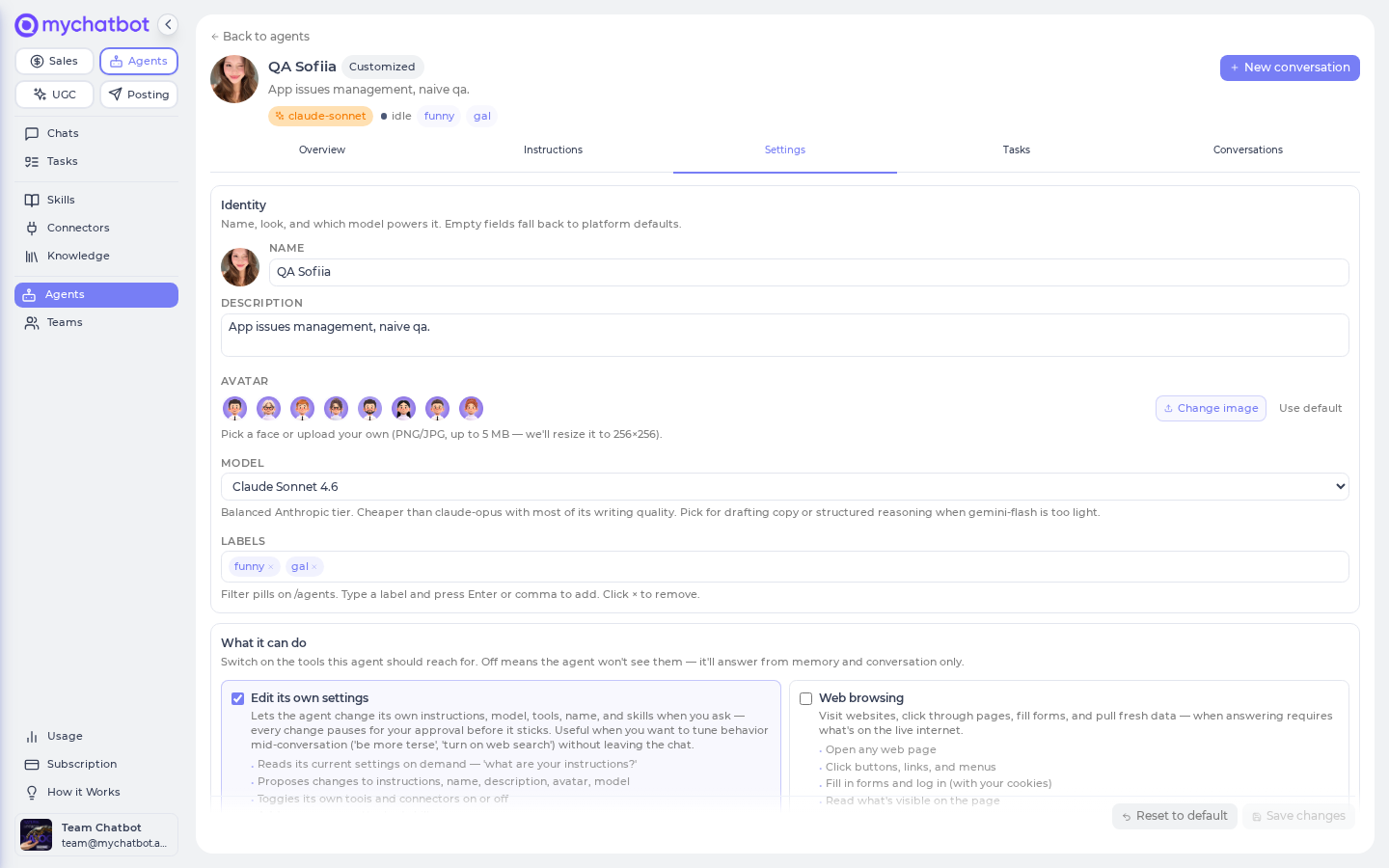
Both switches live on the agent's Settings tab: open the agent at app.mychatbot.app/agents → pick the agent → Settings → flip Business knowledge and/or Sales Platform tools.
Cheat sheet
Two ways to give an agent knowledge
| Toggle (on the agent's Settings tab) | What the agent can do | Default |
|---|---|---|
| Business knowledge | Search each source you've connected (open web, Google Drive / Notion / Slack / OneDrive, Gmail, Google Calendar, and your product/FAQ knowledge bases) at answer time | Off — flip on per agent |
| Sales Platform tools | Create/edit assistants, clients and pipelines, connect channels, manage FAQs and catalogs, and look up how a feature works in the MyChatBot docs | On for the Sales Platform Wizard, off elsewhere |
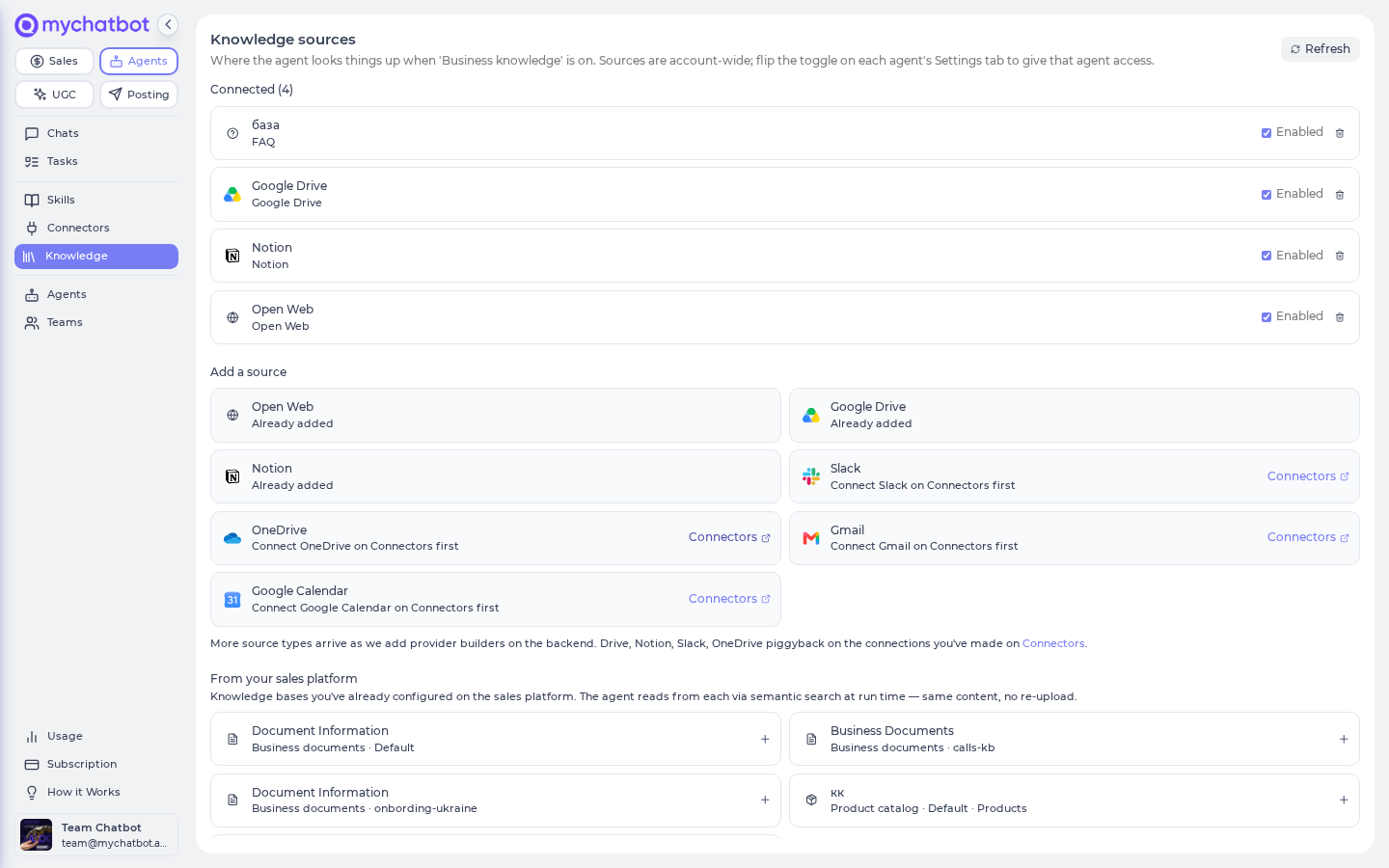
Business-knowledge sources are managed once per account on the Knowledge sources page at app.mychatbot.app/agents/knowledge. Sources are account-wide; the toggle on each agent decides which agents may use them.
Business-knowledge source types
| Source | The agent can… | Needs connecting first? |
|---|---|---|
| Open Web | Search the live web and read a page when it knows the URL | No — always available |
| Google Drive | Search (and, when allowed, update) your Drive files | Yes — authorize it on Connectors |
| Notion | Search (and update) your Notion pages | Yes — authorize it on Connectors |
| Slack | Search (and update) your Slack messages | Yes — authorize it on Connectors |
| OneDrive | Search (and update) your OneDrive files | Yes — authorize it on Connectors |
| Gmail / Google Calendar | Read mail / calendar context | Yes — authorize it on Connectors |
| Product & FAQ knowledge bases | Semantic search over your FAQ, catalog, feed, or spreadsheet | Set up the knowledge base first (see below) |
The connected-app sources (Drive, Notion, Slack, OneDrive, Gmail, Calendar) are external app connectors — powered behind the scenes by our connector service. Each one only appears in the Add a source picker once you've authorized it. See MCP & connectors.
Live, never stale
Every source is queried at answer time — there's no cached copy of your content to go out of date. Edit the doc, sheet, or feed and the next answer reflects it (subject to each source's own sync, e.g. a spreadsheet's periodic refresh).
Sales-platform knowledge-base types
All of these show up in the From your sales platform list on the Knowledge sources page and read back the same way — semantic search at run time. Pick whichever matches your store.
| Knowledge base | Holds | How to create it |
|---|---|---|
| FAQ | Recurring question/answer pairs | Ask an agent with Sales Platform tools on, or build it in the Knowledge base UI |
| Product catalog | Manually entered products (SKU, price, specs, variants) | Ask an agent with Sales Platform tools on, or build it in the Knowledge base UI |
| Product feed | A live inventory snapshot (JSON / XML / Google Shopping) | Ask an agent to connect the feed URL, or add it in the Knowledge base UI |
| Product spreadsheet | Rows of products/attributes from a Google Sheet | Knowledge base UI only — Google Spreadsheet integration |
In the app
Create and edit these on the Knowledge base page at app.mychatbot.app/knowledge-base. An account holds up to 10 knowledge bases (add one with the + button — an active subscription is required), and each knowledge base can hold up to 3 product feeds, 5 product spreadsheets, 3 in-app product catalogs, and 3 FAQs. Page-level nuances live in Getting inventory in.
Spreadsheets can only be set up in the UI
An agent can create an FAQ, a catalog, or a feed for you when Sales Platform tools is on — but it has no way to add a Google-Sheet-backed knowledge base. Set that up yourself on the Knowledge base page (Google Spreadsheet integration). Once it exists, it reads back like any other product knowledge base. See Google Spreadsheet integration.
Deleting an FAQ base removes the whole thing
You can add, edit, and remove individual FAQ entries on the Knowledge base page. But asking an agent to "delete the FAQ" removes the entire knowledge base, not a single entry — remove single entries yourself in the UI.
How retrieval actually works
Attaching a knowledge source does not paste your content into every prompt. Instead, when Business knowledge is on, the agent is handed one search tool per source you've enabled, and it decides — question by question — whether to search each one. An off-topic message never drags your docs in; a "do you have X in stock?" message triggers a catalog search.
The agent is also told, in plain terms, what each source is for — for example, "use the catalog for availability and price, use the FAQ for policies" — so it reaches for the right one. That's why a clear, distinct source name matters: it's the label the agent reads when it picks where to look.
| What you might expect | What actually happens |
|---|---|
| Your docs get stuffed into every message | The agent gets a search tool per source and only searches when a turn needs it |
| The agent always reads everything you attached | It picks the source that fits the question (guided by each source's name and type) |
| A big knowledge base slows every reply | Off-topic turns skip the search entirely — you pay nothing for a source you don't use |
| A stale export drifts out of date | Every source is queried live at answer time; edit the doc, sheet, or feed and the next answer reflects it |
| One broken source breaks the agent | A source that's down is skipped, not fatal — the agent answers with whatever's left |
To turn it on: flip the agent's Business knowledge capability on the Settings tab, then choose which sources it may use on the Knowledge sources page. See Enable business knowledge for the step-by-step, How the agent decides what to search for the turn-by-turn logic, and A broken source is silent, not fatal for the fail-open behavior.
Why per-source, not one big dump
Giving the agent a separate search for each source (instead of one merged blob) lets it aim a focused query at exactly the right place — better answers, and no cost on turns that don't need a lookup.
Knowledge vs. a connector (read vs. act)
A knowledge source and a connector can point at the same app — the difference is what you want the agent to do with it.
| Knowledge source | Connector | |
|---|---|---|
| Verb | Read — look things up, ground answers | Act — do things in an external app |
| Access | Search / lookup only | Full read and write |
| Use it to… | Answer questions using your content (docs, FAQ, catalog, Drive files) | Change something in a tool (create a deal, send a mail, update a record) |
| Turn it on | Business knowledge → add the source | Connectors → authorize, then enable per agent |
Same app, two intents: Google Drive as a knowledge source lets the agent read your files to answer a question; Google Drive as a connector lets the agent act on Drive (create, move, edit files). Pick by intent.
Rule of thumb
If you want the agent to answer questions using something → attach it as knowledge. If you want the agent to change something in a tool → enable the connector.
For the act side, see Connectors cheat sheet and MCP & connectors.
Enable business knowledge
Flip Business knowledge on for the agent, then add sources on the Knowledge sources page. On the next run the agent gains a search for each source and decides — turn by turn — when to look something up. Nothing is injected into the prompt automatically, so an agent that doesn't need a source pays nothing for it.
Add a source
- Open Knowledge sources at app.mychatbot.app/agents/knowledge.
- Under Add a source, pick a type — Open Web, Google Drive, Notion, Slack, OneDrive, Gmail, or Google Calendar.
- Open Web — nothing to connect; it's always available.
- Google Drive / Notion / Slack / OneDrive / Gmail / Calendar — if the card says "Connect … on Connectors first", authorize it on the Connectors page, then come back. See MCP & connectors.
- Product & FAQ knowledge bases — these appear in the separate From your sales platform section once they exist (see below).
- Give the source a clear, distinct name — this is what the agent sees when it chooses which source to search.
- Make sure the source's checkbox is enabled.
- Confirm the agent's Business knowledge toggle is on (Settings tab). On the next run the agent can search that source.
text
Turn Business knowledge on for this agent, then answer questions about
our shipping policy from the connected sources.
Attach an FAQ or product catalog the agent can search
This is how you satisfy both "give my agent an FAQ" and "attach a product catalog it can search". Create the knowledge base once, then attach it as a source — and any agent can search it, not just the Sales Platform assistant.
- Create the knowledge base first if it doesn't exist — an FAQ, catalog, or feed (ask an agent with Sales Platform tools on, or build it on the Knowledge base page), or a spreadsheet (Knowledge base UI only). See Create sales-platform knowledge bases.
- On Knowledge sources, scroll to From your sales platform. This list shows only your knowledge-base integrations (FAQ, catalog, feed, spreadsheet) — website/CMS links are filtered out.
- Click the knowledge base to add it as a source. Its type drives the agent's guidance: an FAQ gives FAQ guidance, a catalog gives product-lookup guidance, and so on.
- Confirm Business knowledge is on for the agent. On the next run the agent can search that knowledge base.
The guidance the agent gets adapts to the knowledge-base type:
| Knowledge base | What the agent uses it for |
|---|---|
| FAQ | Answers to recurring customer questions |
| Product catalog | Look up SKUs, prices, specs, variants, similar products |
| Product feed | Up-to-date stock, pricing, attributes (same search surface as a catalog) |
| Product spreadsheet | Look up rows, prices, attributes (same search surface as a catalog) |
| Business documents | Shipping / returns / warranty / compliance answers |
Confirm it attached
After adding a source, trigger one run and watch the agent's reply. A correctly attached knowledge base shows the agent running a search. If it never searches, the source is disabled, Business knowledge is off, or you attached a website/CMS link rather than a knowledge base.
Create sales-platform knowledge bases
This is the write path. Turn Sales Platform tools on for the agent and just ask it — it will create, list, update, and delete knowledge bases for you. (You can also do all of this by hand on the Knowledge base page.)
text
Create an FAQ knowledge base for our returns policy with these entries:
- "How long do I have to return an item?" → "30 days from delivery."
- "Who pays return shipping?" → "We do, for defective items."
text
Create a product catalog and add our top SKUs with prices and specs.text
Connect our product feed at https://shop.example.com/feed.xml as a
product-feed knowledge base and index it.
Spreadsheets are the exception
There's no way to have an agent create a Google-Sheet-backed knowledge base. Set one up on the Knowledge base page (Google Spreadsheet integration), then attach it as a source like any other. See Google Spreadsheet integration.
Once a knowledge base exists, surface it to any agent by adding it from the From your sales platform list on the Knowledge sources page — see above.
Combining multiple sources, incl. your Sales Platform
One agent can hold several sources at once — Open Web + Google Drive + Notion + your product catalog, all attached together. The agent searches whichever one fits each question, so a policy question hits the FAQ and a stock question hits the catalog, with no routing on your part.
Your Sales-Platform knowledge works as agent knowledge, too. The product and FAQ knowledge you built for the Sales Platform — FAQ, product catalog, product feed, product spreadsheet, and business documents — can each be attached to an Agents-Platform agent from the From your sales platform list. A support agent then looks up your live catalog and FAQ exactly the way the sales assistant does.
That's the read side. The Sales-Platform connector is the act side — it lets an agent operate the platform (manage leads, channels, pipelines). Knowledge = look things up in your catalog/FAQ; connector = run the platform. (See Knowledge vs. a connector.)
Build once, reuse everywhere
Build a product or FAQ knowledge base once on the Sales Platform and reuse it across both platforms — the sales assistant and any agent you attach it to search the same live data. For how that product search actually finds and ranks results, see How product search works.
How the agent decides what to search
Retrieval is on demand, not automatic. The agent chooses when to search and writes a focused query, so lookups only fire on turns that actually need them.
- Business knowledge — the agent searches the matching source (web page, Drive folder, Notion, Slack, OneDrive, or a product/FAQ knowledge base).
- Sales Platform tools — the agent reads and edits your Sales Platform data (assistants, catalogs, FAQs, channels, pipelines).
- Feature docs — for "how does this feature work" questions, the agent searches the MyChatBot product documentation at docs.mychatbot.app. This comes bundled with Sales Platform tools, and because the agent writes a clean search query (e.g. "how does the WhatsApp channel work" rather than the raw chat message) it gets much better answers.
Why on demand instead of always-on
If knowledge were force-fed into every message, every turn would get slower and more expensive — even a plain "create an assistant" request. Searching only when a turn needs it keeps the agent fast and cheap.
A broken source is silent, not fatal
Business knowledge is fail-open. If a source can't be reached — an expired connection, a revoked permission, or the app being down — the agent skips just that source and keeps answering with whatever's left. It may simply say it couldn't find the information.
If an agent seems to "forget" a source
A source outage will not crash the run. If an agent that used to answer from a connected source suddenly can't, check that source's connection health on the Connectors page rather than assuming the toggle is off. Other sources on the account are unaffected.
What the agent has learned
The Knowledge sources page also shows everything your agents have remembered about your account from past conversations, plus the corrections you've saved — grouped by category (About your business, Brand & style, Preferences, How-tos, Corrections, People & projects, Know-how, Time-limited). Review any entry and delete anything stale or wrong. See Memory for how memories are saved, recalled, and tidied.
Best practices
Do
- Turn Business knowledge on for generalist agents that answer customer questions; leave it off on agents that only run Sales Platform operations.
- Prefer attaching a product/FAQ knowledge base over pasting catalog data into an agent's instructions — it stays live and searchable.
- Give each source a clear, distinct name — that's how the agent picks the right one.
- Use FAQ for canned Q&A and catalog / feed / spreadsheet for product lookups — they steer the agent differently.
Don't
- Don't add a connected-app source (Drive, Notion, Slack, OneDrive) without authorizing it on Connectors first — the source won't work.
- Don't ask an agent to "create a product spreadsheet" — there's no way to; set spreadsheets up on the Knowledge base page.
- Don't expect the feature docs search to answer questions about your business — it searches MyChatBot's product documentation, not your data.
- Don't assume silence means "no data" — a failed source fails open (see above).
Test it
- Turn on Business knowledge, add one Open Web source, and ask a question only the web can answer. Confirm the agent runs a search instead of guessing.
- Create an FAQ knowledge base, add it from From your sales platform, then ask the FAQ question on a different agent — confirm it retrieves the answer.
- Create a product catalog, attach it as a source, and ask for a SKU/price lookup — confirm the agent searches it.
- Temporarily revoke a connected-app source (e.g. Drive) and re-ask — confirm the agent still responds (fail-open) instead of erroring.