
Appearance
Connect Telegram through E-Chat
Connect your MyChatBot agent to Telegram via E-Chat.tech, a third-party service that runs a Telegram phone number over an API — no BotFather bot required. Once connected, your agent receives and replies to Telegram messages automatically. This is the Telegram sibling of the E-Chat Viber channel.
Which Telegram channel?
MyChatBot has three ways to reach customers on Telegram. Pick the one that matches how you want to run the line.
| Channel | What it is | Best for |
|---|---|---|
| Telegram | A dedicated bot created with @BotFather | A brand-new bot with its own @username |
| Telegram Account | Your own personal Telegram account, linked as a device (QR code) | Answering the conversations already in your real inbox |
| E-Chat Telegram | A Telegram number run through the E-Chat gateway (API key + webhook) | Running a number-based Telegram line without BotFather, alongside E-Chat Viber |
This page covers E-Chat Telegram. Use it when you want a number-based Telegram line through E-Chat rather than a BotFather bot or a linked personal account.
At a glance
| You need | Where | Result |
|---|---|---|
| E-Chat.tech account + a Telegram number added as API | e-chat.tech | Telegram number provisioned for API use |
| API token + Phone | MyChatBot → Channels → your agent → E-Chat Telegram → Save changes | Credentials saved |
| The MyChatBot webhook URL pasted into E-Chat | E-Chat dashboard → your number's Settings → webhook | Inbound messages routed to MyChatBot |
| The bot switched on | Connect agent toggle | Agent starts replying |
Connect in 4 steps
- Register on E-Chat and add your Telegram number using the API integration.
- Copy the number's API KEY from the E-Chat numbers table.
- In MyChatBot, paste the API token and Phone into the E-Chat Telegram channel and Save changes.
- Back in E-Chat, paste the MyChatBot webhook URL into your number's settings, then turn on Connect agent.
In the app
Everything on the MyChatBot side lives under Channels → your agent → E-Chat Telegram. App URL: https://app.mychatbot.app/channels
Prerequisites
- An active E-Chat.tech account
- A Telegram number added in E-Chat with the API integration
- The number's API KEY from the E-Chat numbers table
Set up your number in E-Chat
1. Register and add a Telegram number
- Open e-chat.tech/profile/registration and complete registration.
- In the E-Chat header, click Connect Telegram Number.
- In the dialog, open the Telegram tab. Under Choose integration, select API.
- Enter the phone number in international format, then click Add number.
2. Copy the API KEY
- In your E-Chat dashboard, open the NUMBERS TELEGRAM section.
- In the row for your number, copy the API KEY — you'll paste it into MyChatBot next.
- Note the value in the Number column (digits, no
+). That's the same number you'll enter as Phone in MyChatBot.
TIP
The API KEY is shown right in the numbers table — you don't need to open the gear Settings just to read it.
Connect the channel in MyChatBot
- Open the Channels page and select the agent you want to connect.
- Find E-Chat Telegram in the channels list.
- Fill in the form:
- API token — the API KEY from the E-Chat numbers table (minimum 10 characters)
- Phone — the same digits shown in the E-Chat Number column, in international format (e.g.,
+1 212 555 0123)
- Click Save changes.
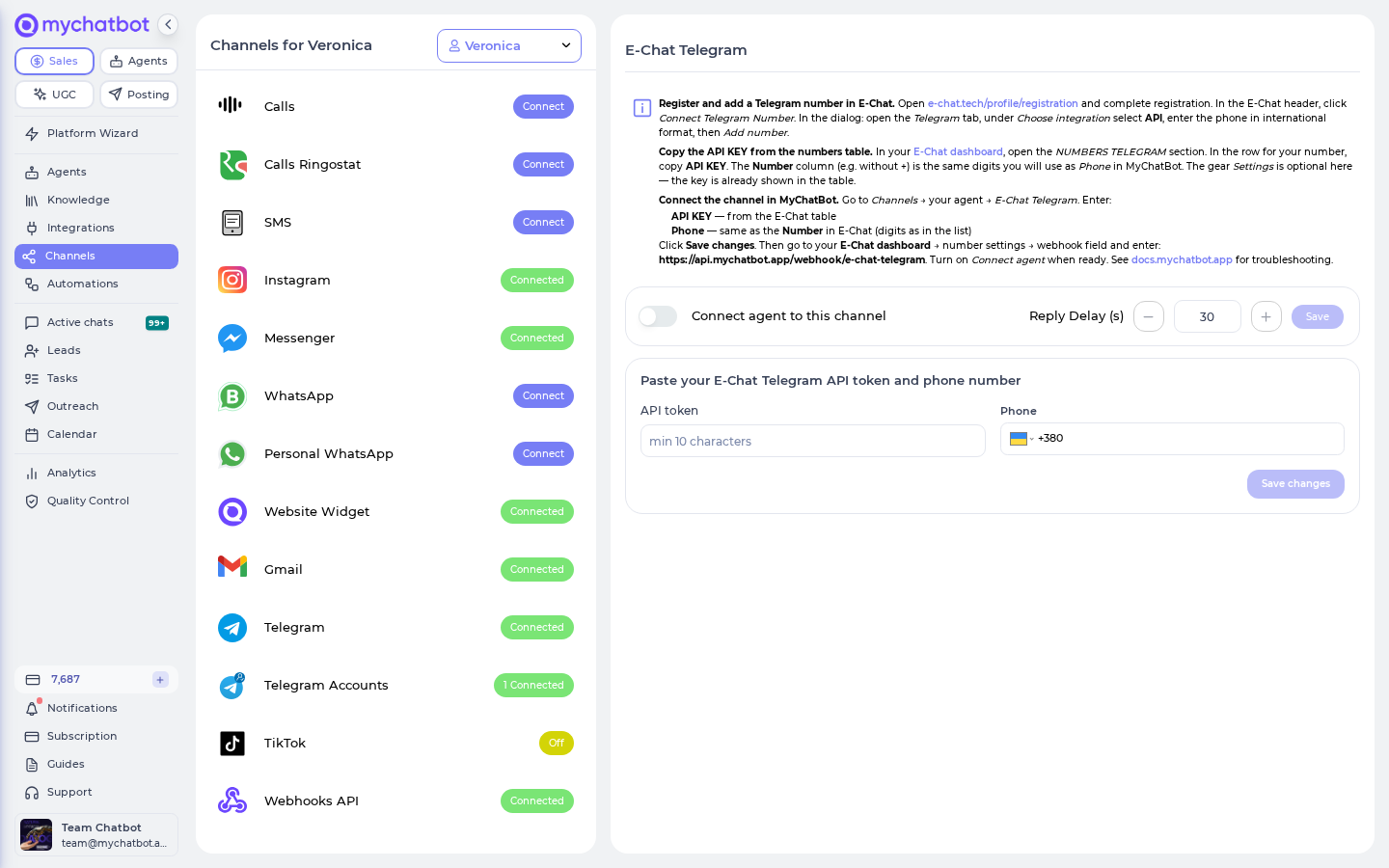
Point E-Chat at MyChatBot (required)
After saving, go back to your E-Chat dashboard → your number's Settings → the webhook field, and enter:
https://api.mychatbot.app/webhook/e-chat-telegramThis tells E-Chat where to deliver incoming Telegram messages. Then return to MyChatBot and turn on Connect agent when you're ready to go live.
The webhook is manual — don't skip it
Unlike some other channels, MyChatBot does not configure this webhook for you. If you don't paste https://api.mychatbot.app/webhook/e-chat-telegram into your number's settings in E-Chat, no messages will ever reach your agent. This is the single most common reason an E-Chat Telegram connection looks "silent."
Channel configuration options
| Setting | What it does | When to use |
|---|---|---|
| Connect agent | Turns the agent on or off for this number (available once the API token and phone are saved) | Pause Telegram replies without disconnecting the number |
| Reply Delay (s) | Waits this many seconds before sending, so rapid-fire messages are answered together | Reduce fragmented back-and-forth replies |
| Revoke | Disconnects the number and clears the saved API token and phone | Rotating the key or retiring the number |
Fields lock after connecting
Once saved, the API token and Phone are read-only. To change either, click Revoke first, then enter the new values and Save changes again.
Good to know
"The client can't be reached on Telegram yet"
Sends can fail if the recipient hasn't started a chat with your number, or if the number isn't fully linked on the E-Chat side. Make sure the Telegram number is active in E-Chat and that the customer has messaged you first.
Billing
E-Chat Telegram bills the same as every text channel: each agent reply counts as one message at your account's per-message rate. There's no separate per-minute charge — that applies only to voice calls.
- Third-party dependency. This channel runs on top of your E-Chat account and a linked Telegram number, so it's subject to E-Chat's own limits and availability.
- Starts off. A newly connected channel stays off until you turn on Connect agent — nothing goes live before that.
See also
- E-Chat Viber — the same gateway for Viber
- Telegram — connect a BotFather bot instead
- Telegram Account — connect your personal Telegram account