
Appearance
Calls (AI voice)
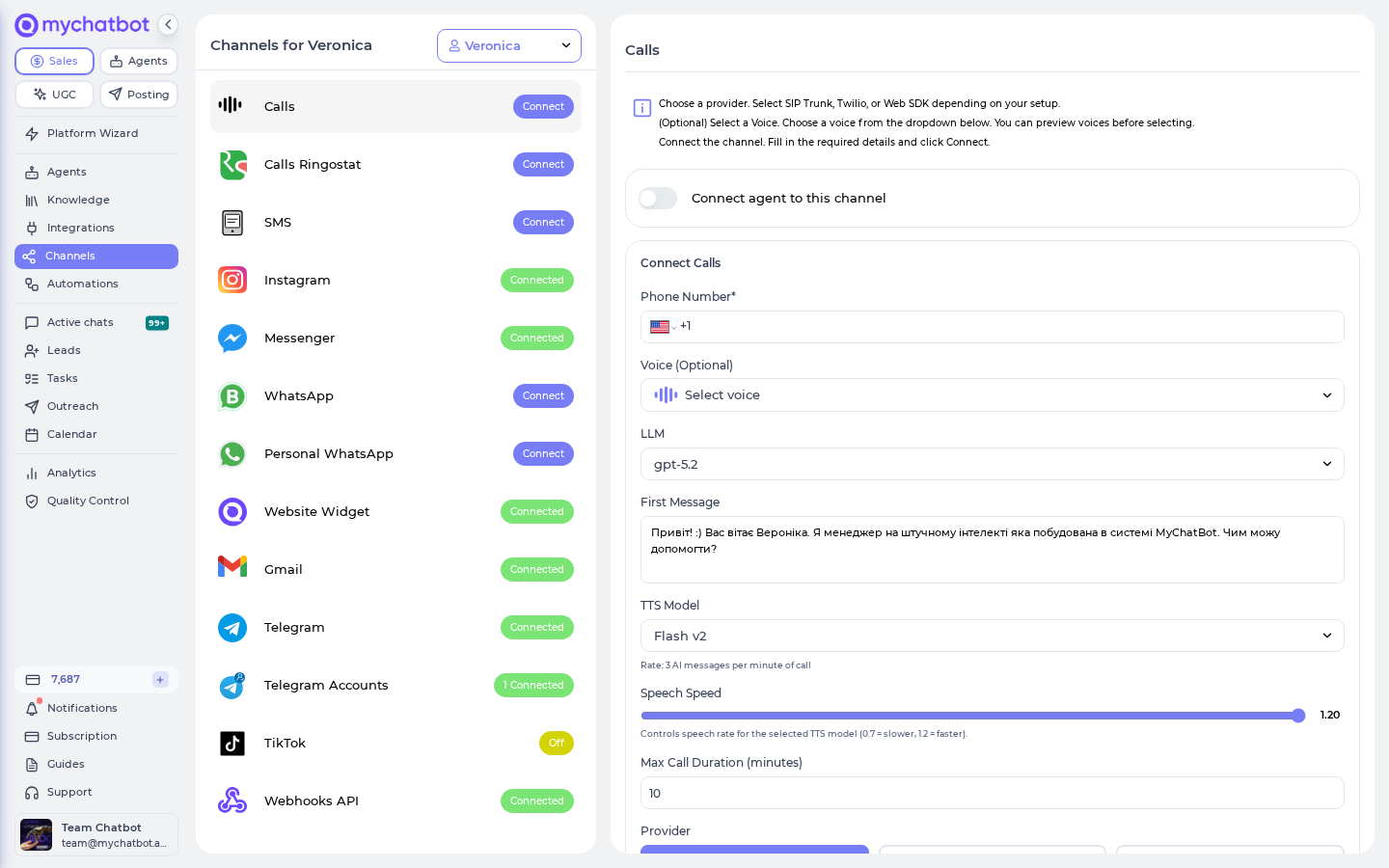
Give your agent a voice. The Calls channel puts an AI voice agent on the phone — it answers inbound calls and places outbound ones, speaks in a voice you choose, and turns every call into a normal conversation in the client's chat, complete with a transcript and a playable recording. There's also a browser-based Web SDK option that lets visitors talk to the agent right on your website, no phone number required.
Use it for AI reception, qualifying leads by phone, appointment confirmations, follow-up call-backs, or a "Talk to us" voice button on your site.
At a glance
| You need | Where | Result |
|---|---|---|
| An agent to connect | Channels → your agent → Calls | Agent selected for voice |
| A way to connect | Provider: SIP Trunk, Twilio Account, or Web SDK | Telephony (or in-browser) transport chosen |
| A voice + settings | The Calls panel | Voice, speed, first message, max duration set |
| The channel switched on | Connect agent to this channel toggle | Agent starts answering / can be dialed |
Connect in 4 steps:
- Open Channels and select your agent, then open the Calls channel.
- Choose a Provider — SIP Trunk, Twilio Account, or Web SDK.
- Pick a Voice (preview first), then fill in the required fields and click Connect phone number (or Create SDK Agent for Web SDK).
- Turn on Connect agent to this channel.
In the app
Everything on this page lives under Channels → your agent → Calls. App URL: https://app.mychatbot.app/channels
Choose a provider
The Provider dropdown decides how calls reach your agent. Pick one:
| Provider | What it is | Best for |
|---|---|---|
| SIP Trunk | Connects your own SIP telephony to the AI voice agent | Businesses that already run a SIP trunk / PBX and want to keep their carrier |
| Twilio Account | Uses a phone number you already own in your Twilio account | Anyone with a Twilio number who wants the fastest phone setup |
| Web SDK | An in-browser "click-to-talk" voice widget on your website — no phone number, no carrier | A "Talk to us" voice button, product-page assistants, demos |
A single connected phone number handles both inbound (a customer dials you and the AI answers) and outbound (the platform dials the customer, used by auto-recall and call campaigns).
Set up the channel
- Go to Channels, select your agent, and open the Calls channel.
- Under Provider, choose SIP Trunk, Twilio Account, or Web SDK.
- Under Voice (Optional), pick a voice — use Play preview / Stop preview to hear it first. The voice you pick also sets the agent's primary spoken language.
- Fill in the required fields for your provider (see below), then click Connect phone number (or Create SDK Agent for Web SDK).
SIP Trunk fields
| Field | Notes |
|---|---|
| Phone Number* | Your number in international format, e.g. +1 212 555 0123. |
| Address* | Hostname or IP where SIP calls are sent, e.g. sip.example.com. Enter the host or IP only — no sip: prefix or full URI. |
| Transport | TCP (default) or TLS. Use TLS for encrypted signaling. |
| SIP Trunk Username (Optional) | For SIP digest authentication. Leave empty to use IP-allowlist (ACL) authentication instead. |
| SIP Trunk Password (Optional) | Paired with the username for digest auth. |
Twilio Account fields
| Field | Notes |
|---|---|
| Phone Number* | The Twilio number to connect, in international format. |
| Twilio Account SID* | Starts with AC…. |
| Twilio Auth Token* | From your Twilio console. |
Web SDK
No phone, SIP, or Twilio fields — pick a voice and settings, then click Create SDK Agent. See Web SDK: voice on your website below.
A phone number can be connected only once
A phone number can only be connected once. If you see "A channel with this phone number is already connected," it's already in use on another Calls channel.
Tune the voice and behavior
These settings are shared by all providers and appear in the same panel.
| Setting | What it does |
|---|---|
| Voice (Optional) | The voice your agent speaks with; preview before choosing. Also sets the primary language. |
| LLM | The model that powers the agent's responses during the call. |
| TTS Model | The text-to-speech model. Picked automatically per language; adding extra languages forces the higher-quality v3 Conversational model. |
| Speech Speed | Speaking rate (0.7 = slower, 1.2 = faster). Default 1.2. |
| First Message | The agent's opening line. Defaults to your agent's welcome message. |
| Max Call Duration (minutes) | Hard cap on call length. Default 10 minutes. |
| Additional languages | Languages the agent can switch to mid-call, with an optional greeting per language, plus Automatic language switching to detect the caller's language. |
| End conversation | Customize how and when the agent wraps up and ends the call. |
Transfer to a human operator (phone only)
Turn on Transfer to human operator to let the agent hand a call off to a person. Set the Operator number, an optional Phone line (internal extension, e.g. 901), and a Transfer Condition describing when to hand off (for example, "the caller explicitly asks for a human or manager"). Not available for Web SDK.
TIP
Additional languages automatically switches the agent to the higher-quality v3 Conversational voice — which bills at the higher rate. See Billing below.
Turn it on
New Calls channels start switched off. Turn on Connect agent to this channel to bind the number to the agent and go live. Toggle it back off any time to pause without disconnecting.
Connecting a provider does not activate calls
Until you turn the channel on, the agent won't answer inbound calls or accept the binding — connecting the provider alone is not enough.
How a call becomes a conversation
When a call ends, MyChatBot writes it into the client's chat thread automatically:
- The full transcript is added to the chat as agent/caller messages.
- The recording becomes playable inside that conversation — you can listen in the browser, seek, and download it.
- The chat is matched to the caller by phone number, so a returning customer lands back in the same thread and the agent already knows who it's talking to.
Everything shows up on the Chats screen just like a text conversation, so your team can review, follow up, or hand off from one place.
TIP
Recordings are fetched live from the voice provider on demand rather than stored by MyChatBot, so they always reflect the source. If a very old call has been purged upstream, its recording may no longer play back.
Auto-recall (retry unanswered calls)
For outbound phone calls, open Edit Settings and turn on Automatically recall if not answered, then set Retry after N minutes. If the client doesn't pick up, the agent tries again — up to 3 attempts, stopping automatically once the client answers or the limit is reached. Auto-recall applies to phone providers only, not the Web SDK.
Call outcomes and funnel statuses
Outbound call outcomes update the client's funnel status automatically:
- A call that produced no conversation — not picked up, or voicemail — sets the client to
NotAnswered. - A call that could not be placed sets
NotAnsweredtoo, except invalid or unreachable numbers, which becomeWrongNumber. - An answered call changes nothing by itself — your agent's instructions decide what status a real conversation earns.
These automatic status changes behave exactly like a manual status change: they arm any published follow-up targeting the new status for that client. That is the backbone of missed-call outreach — see the follow-up recipe for the full chain, including delivering the message through a different agent's Telegram or Viber channel.
With auto-recall on, a repeated miss keeps the status without re-arming the sequence — the client gets the follow-up once, not once per retry.
Keeping the voice agent in sync
The voice agent is built from your agent's instructions and knowledge base at the moment you connect the channel.
- If you change the agent's instructions later, a Sync prompt appears — click Sync Agent to push the latest instructions to the voice agent.
- Knowledge base is a snapshot taken at channel creation. Changing which integrations feed the agent requires recreating the Calls channel to take effect.
TIP
Use Make a test call in the panel to talk to your agent live in the browser and hear the current voice, first message, and behavior before going live — this works for every provider.
Web SDK: voice on your website
The Web SDK provider is the same Calls channel with no phone number. Instead of connecting a carrier, it gives you an Agent ID and an embed you paste into your site so visitors can click a button and talk to your agent in the browser (using their mic and speakers).
To set it up:
- In the Calls channel, set Provider to Web SDK.
- Pick a Voice and tune the shared settings (first message, LLM, speed, max duration, languages).
- Click Create SDK Agent.
- Copy your Agent ID from Connection Details (it looks like
agent_1301kzy0…). - Turn on Connect agent to this channel, then paste the embed below into your site.
Web SDK calls also land as conversations in the client's chat, with transcript and recording, and bill exactly like phone calls (see below). Human-operator transfer, auto-recall, and outbound dialing are phone-only.
The embed
Two tags, anywhere in the page. They add a floating microphone button; a visitor clicks it, grants mic access, and is talking to your agent.
html
<script src="https://storage.googleapis.com/mychatbot-widget-assets/v2/calls.js"></script>
<script>
  MyChatBotCalls.mount({
    agent_id: "YOUR-AGENT-ID",
    name: "Acme Assistant"
  });
</script>
Replace YOUR-AGENT-ID with the Agent ID from Connection Details. Nothing else is required — the control brings its own styles, and during a call it becomes a compact bar showing who is speaking, with mute, end-call, and a button to read the live transcript.
Ask Claude for it
If you set your agent up through the MyChatBot connector in Claude, you can just ask — "give me the embed code for my voice agent" — and Claude returns this snippet with your real Agent ID already filled in.
Options
Everything except agent_id is optional.
| Option | What it does |
|---|---|
agent_id | Required. Your Web SDK Agent ID. |
name | The agent's name, used for the button's label and tooltip. |
color | Accent colour, any CSS colour. Defaults to MyChatBot purple. |
position | "bottom-right" (default) or "bottom-left". |
target | A CSS selector or element to render inside, instead of floating in a corner. |
transcript | "collapsed" (default — a button opens it), "open", or "off" to remove it. |
client_tools | Page functions the agent may call mid-conversation. See below. |
onCallStart | Called once when the call connects. |
onCallEnd | Called once when it ends, with { reason, seconds } — reason is "hangup" (the visitor pressed end) or "remote". |
Each visitor's browser gets its own caller identity automatically, so conversations don't merge into one thread.
Let the agent act on your page
client_tools are functions on your page that the agent can call while it talks — search a catalogue, apply a code, jump to a section. Each tool has a definition the agent reads and a handler you write.
html
<script>
  MyChatBotCalls.mount({
    agent_id: "YOUR-AGENT-ID",
    name: "Acme Assistant",
    client_tools: {
      applyDiscountCode: {
        definition: {
          description: "Apply a promo code to the visitor's cart.",
          parameters: {
            code: { type: "string", description: "The discount code", required: true }
          }
        },
        handler: function ({ code }) {
          // your page's own code
          return "Applied " + code + ".";
        }
      }
    }
  });
</script>
Whatever the handler returns is spoken back into the conversation, so return a short confirmation ("Applied SPRING10, 10% off") rather than nothing.
parameters is a flat map, not a JSON Schema
Each entry is a parameter name mapped to { type, description, required }, where type is "string", "number", or "boolean". Writing it as a JSON Schema — { type: "object", properties: { … } } — is rejected, and the page carries on as if nothing happened: the call still connects, but the agent never receives the tool.
Using npm instead
If your site is a JavaScript build, install @mychatbot/client and drive the call yourself — useful when you want your own button and your own UI rather than the ready-made control.
js
import { MyChatBotCalls, defaultCallerId } from "@mychatbot/client";

const calls = new MyChatBotCalls({ agentId: "YOUR-AGENT-ID" });
await calls.start({ callerId: defaultCallerId() });
defaultCallerId() keeps a stable per-browser identity so each visitor gets their own conversation thread. Client tools work the same way here, passed as clientTools to start().
TIP
For the full storefront setup — a voice agent that searches products and drives the page — follow the Voice storefront guide.
Billing
Calls are billed by duration, converted into your plan's AI messages. The panel shows the exact rate as "Rate: AI messages per minute of call."
| Voice quality | Rate |
|---|---|
| Standard voices | 3 AI messages per minute of call |
| High-quality voices (v3 Conversational / multilingual) | 5 AI messages per minute of call |
- Billing is prorated by the second — there's no per-call minimum, so a 10-second call bills a fraction of a message.
- If you configure Post-Call Functions (actions like writing a lead to your CRM after the call), that adds a small fixed charge per call that actually runs them.
- Web SDK calls bill on the same rates — there's no separate SDK price.
- Adding Additional languages moves the agent to a high-quality voice, so it bills at the 5 messages/minute rate.
Outbound calls require an active agent and balance
Outbound calls are refused if the agent is switched off or the account balance is drained. Top up or re-enable the agent to place calls again.
See also
- Voice storefront guide — the full in-browser voice widget on your website
- Call campaigns — run outbound calling campaigns
- Build an agent