
Appearance
Run outbound call campaigns on imported leads
Upload a list of leads, then let an AI voice agent phone every one of them and hold a real conversation.
- What you'll have — A working phone campaign: your leads land in the CRM, and an AI voice agent calls each one in your own voice, on your own number, and talks to whoever picks up. Flip on auto-recall and no-answers and busy lines get called back for you, and everything the callers say is captured in their chat.
- Who it's for — Sales and outreach teams with a list of prospects to reach by phone — booking demos, qualifying interest, following up on a form fill, or reviving cold leads.
- Time & plan — About 45–60 minutes the first time (most of it is one-time phone-number setup). To run a real campaign you need any paid Sales plan (Standard or above) with a topped-up message balance — voice calling is included on every Sales plan, it's not a separate add-on. An active trial works for the one-lead Try it test only: a trial's small allowance (~30 sales messages) won't cover dialing a real list. You bring your own phone number and voice agent (see Before you start).
Before you start
| Switch this on | Where | Why |
|---|---|---|
| Calls channel | Channels → Calls | The phone line your AI agent dials from |
| A voice agent + phone number | Set up outside MyChatBot, connected in the Calls channel | The voice that actually talks to leads (see below) |
| Your sales assistant | Agents → Agent configuration | The brain, tone, and knowledge behind the call |
| Leads import | Leads → Import Leads | Gets your list into the CRM with valid phone numbers |
| Immediate Outreach campaign | Follow-ups & Outreach → Create Outreach | The thing that fires off the calls |
Before you start — bring your own phone line
The Calls channel doesn't hand you a phone number. You supply one, in one of two ways: a SIP Trunk (from a telephony provider) or a Twilio account. You'll also need a connected voice agent to speak on the calls. This is real setup with an external cost, and it's the longest part of this recipe. Have your provider details handy before step 1.
Steps
1. Connect the Calls channel
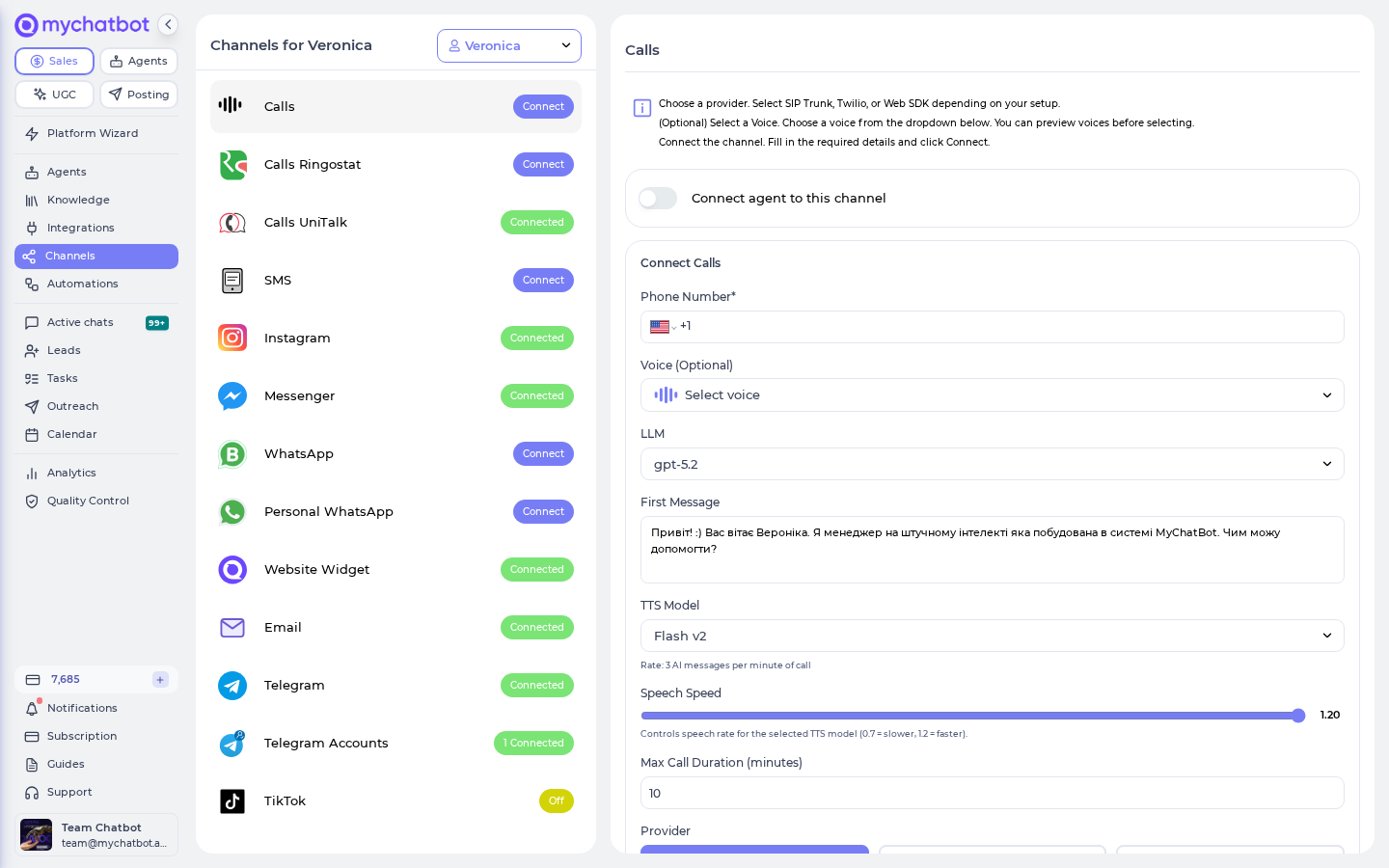
Open Channels in the sidebar (app.mychatbot.app/channels) and choose Calls.
- Provider — pick SIP Trunk or Twilio Account. (Web SDK is only for calls embedded in a web page; skip it for outbound phoning.)
- Phone Number — the number your leads will see when the phone rings.
- Voice (Optional) — choose a voice from the dropdown. Use Play preview to hear each one before you commit.
- Auto-recall — turn on Automatically recall if not answered if you want no-answer and busy leads phoned back (it's off by default). It retries up to 3 attempts. Leave it off and those leads are simply skipped.
- Fill in the remaining provider fields and click Connect.
You only do this once
Once the Calls channel is connected, every future campaign reuses it. You won't touch this screen again unless you change numbers, voices, or the auto-recall setting.
2. Configure the sales assistant
Open the Sales Platform's Agents tab (app.mychatbot.app/configuration) — the page is titled Agent configuration.
This is the assistant that will speak on the calls. Give it:
- A clear role and goal for the call ("You're calling warm leads who filled out our demo form; your job is to book a 20-minute call").
- The tone you want on the phone.
- Any knowledge it needs — pricing, product facts, objection answers.
Keep call instructions tight. On the phone, short and specific beats long and vague.
3. Import your leads
Go to Leads in the sidebar (app.mychatbot.app/leads) and click Import Leads (app.mychatbot.app/leads/import).
- Select a Google Spreadsheet — connect your Google account and pick the sheet. The first row must be column headers (e.g. Name, Phone, Email).
- Map columns to lead fields — match your columns to Full Name, Phone, Email, Company, and the rest. Anything you don't map is still kept as extra info on the lead.
- Check the phone-number validation panel — it flags numbers that can't be called and normalizes ones missing a
+. Fix flagged cells in your sheet, reload the preview, then click Import.
Leads come from Google Sheets
Lead import reads from a Google Spreadsheet — there's no direct CSV or Excel file upload here. If your list is a CSV, drop it into a Google Sheet first, then import that.
A lead needs a real phone number to be called
Every lead needs a valid phone (or email) to import at all. For a call campaign, phone is what matters — leads without one won't be dialed. The import screen tells you exactly how many were skipped and why.
4. Create the outreach campaign
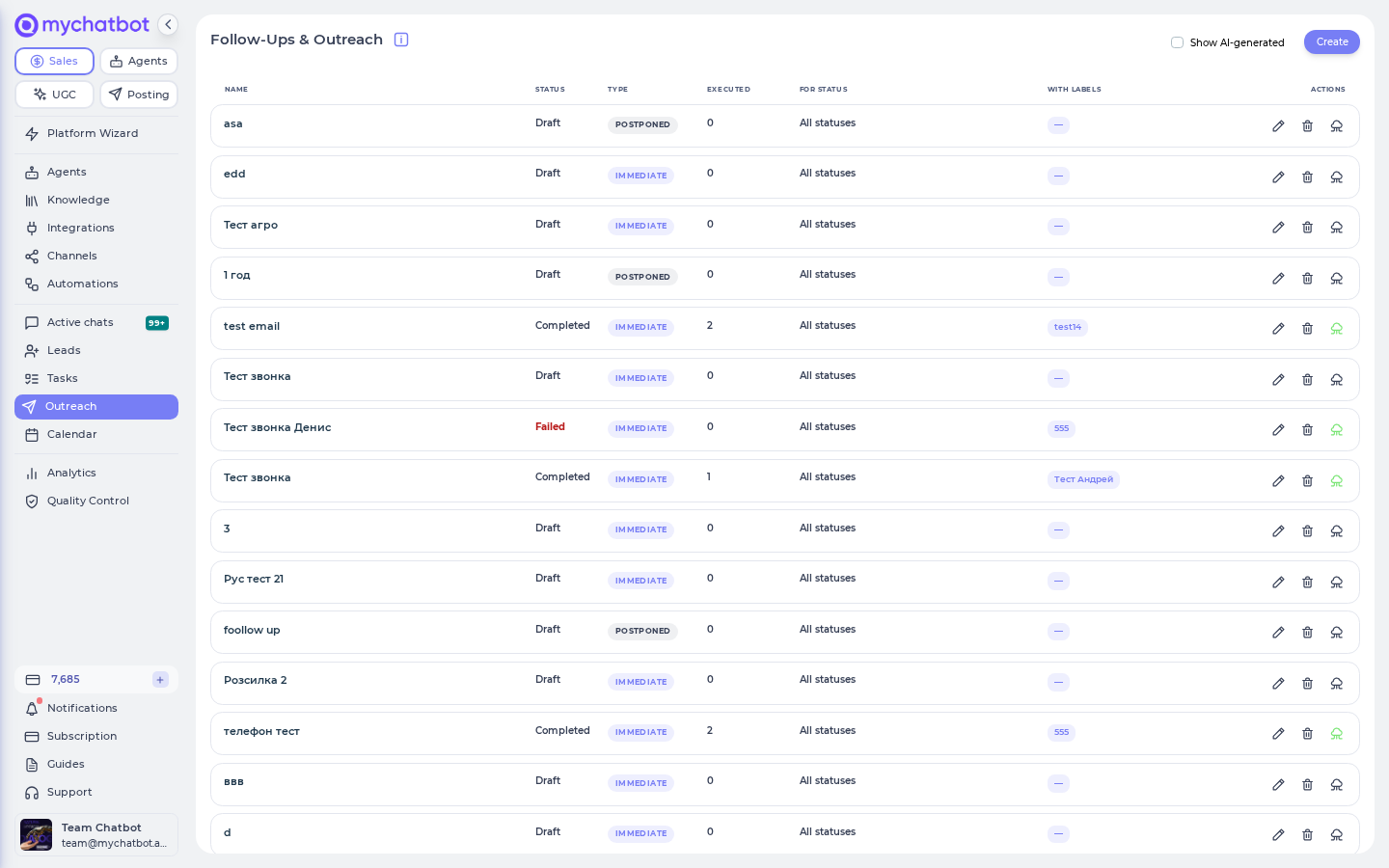
Go to Follow-ups & Outreach in the sidebar (app.mychatbot.app/follow-up) and click Create Outreach.
- Give it a name.
- For Outreach type, choose Immediate outreach — this sends your one-time batch of calls.
Click Continue.
5. Pick who gets called
In Client Targeting:
- Client Source — choose All clients (this includes the leads you just imported, even if they've never chatted).
- Created/Imported — set the From / To date range to today so you target only this fresh batch, not your whole CRM.
- Under Contact details, turn on Has phone number so only callable leads are included.
- Narrow further if you want: Statuses, Labels, Managers, Pipeline, or a custom field filter (for example, call only leads where Location is Texas).
The wizard previews your audience count as you go, so you always know how many people you're about to call.
6. Set the call as the channel
In Outreach Configuration:
- Select Calls as the channel.
- Number of lines — how many calls run at once. Leave it empty to use the channel default (2 lines), or raise it to dial faster. More lines means more phones ringing in parallel.
In Message, choose how the agent opens:
- Agent instruction — describe the outcome, tone, and key talking points, and the agent generates a personal opening for each lead. This is the flexible choice.
- Custom message — write one exact opening line used for everyone. Use
{name}and{context}as placeholders.
7. Schedule and launch
In Schedule:
- Run now starts the campaign in about 3 minutes (a short buffer for processing).
- Schedule for later picks a date and time.
Want each lead called during their local business hours? Add a timezone field to each lead's info (e.g. America/New_York) and point the Call time adjustment per lead setting at that field. This only works with a scheduled date, not "Run now."
Launch it. The campaign page shows live progress as calls go out.
Try it
Before you unleash it on hundreds of people, run a one-lead dry run:
- Import a sheet with a single row — your own phone number.
- Create an Immediate Outreach on the Calls channel targeting that one lead.
- Hit Run now and answer your phone.
You'll hear exactly what your prospects hear. Tweak the assistant's instructions and try again until the opening feels right. A single test call fits comfortably inside a trial's message allowance — but once the opening feels right, move to a paid Sales plan with a topped-up balance before you dial the full list.
Level it up
- Auto call-backs on no-answer. Turn on the Auto-recall toggle in Channels → Calls ("Automatically recall if not answered" — it's off by default). With it on, a lead who doesn't pick up or hits a busy line gets called back automatically, up to 3 attempts, and leads that never answer get marked accordingly in the funnel. Leave the toggle off and no-answer or busy leads aren't retried at all.
- Catch silent leads. A call campaign is a one-time send — it doesn't run a multi-day call sequence on its own. To re-engage someone who goes quiet mid-conversation, add a separate Postponed contextual outreach, which triggers when a client goes silent.
- Handle text-backs. If a lead would rather reply by message than talk, connect that channel too (Telegram, WhatsApp, and so on). The call campaign drives the phone conversation and the call-backs; a connected messaging channel picks up the written reply.
- Send results to your CRM. The agent can update the lead's funnel status and details after each call, so a finished campaign leaves your CRM tidy without manual data entry.
See also
- Leads & CRM — importing, managing, and filtering leads
- Follow-ups & Outreach — outreach types and how campaigns run
- Assistant configuration — shaping your sales assistant's role, tone, and knowledge
- Google Spreadsheet import — getting a CSV list into a sheet first
- Analytics — where campaign costs and message usage show up
Keep an eye on your message balance
Calls draw from the same shared sales-message balance as your text channels, billed by call duration. If that balance hits zero, a background job switches all your assistants off — which would quietly stop a running campaign mid-way. For a big push, top up first and watch the balance on the Analytics page.