
Appearance
Build a personal Telegram assistant
Turn a Telegram DM into your own AI chief of staff — one that researches, writes, runs code, and reads your links and voice notes, right in the chat you already keep open all day.
- What you'll have — Your own Telegram bot wired to MyChatBot's built-in Personal Assistant agent. DM it and it actually does the work: searches the web, browses pages, reads a link or a video, runs a bit of code, and handles a photo or voice note — replying right in the thread. It can also set up background tasks that run on their own and show up in the app. It's your assistant, for you, not a customer-facing sales bot.
- Who it's for — A founder, operator, or busy individual who wants a capable assistant one tap away in Telegram, without opening a dashboard.
- Time & plan — About 10 minutes. You'll need any plan that includes an agents budget — any Sales plan (Standard or above), or the 3-day free trial (a card is required to start it). The assistant runs on your agents balance, billed as you use it.
Ingredients
A short checklist of what you'll switch on. Everything except the bot token is already set up for you.
| What | Where it comes from | Notes |
|---|---|---|
| A Telegram bot token | Telegram's @BotFather | Free; two minutes to make |
| The Personal Assistant agent | Built in to the Agents section | Already exists on your account — you don't create it |
| Telegram channel connection | The agent's Settings → Channels | Where you paste the token |
| Web search, browsing, reading links & videos, running code, scheduling | On by default on the Personal Assistant | Nothing to toggle to get started |
Two different "Telegram" features — pick the right one
This guide uses the agent's Telegram channel: the bot answers you and does tasks. That's different from the Sales Platform Telegram bot (under the sales Channels page), which answers your customers. If you want a personal assistant, stay in the Agents section as described below.
Steps
1. Make sure you have an agents budget
Open app.mychatbot.app/agents. If you can see the Agents section and your agents, you're set. If you're new, pick any plan at checkout to start the 3-day free trial (a card is required) — that's enough to try everything here.
TIP
The assistant is billed from your agents balance, charged as you use it (web searches, browsing, code, and so on). During the free trial that balance is a small starter amount, so a few heavy browsing or code tasks can use it up quickly. That's expected — top up or convert your plan when you're ready to lean on it.
2. Create a bot in Telegram with @BotFather
In the Telegram app, open a chat with @BotFather, send /newbot, and follow the prompts to name your bot. BotFather replies with a token that looks like 123456789:AA…. Copy it. Keep it private — the part after the colon is a secret.
TIP
The number before the colon is public; the rest is like a password. If it ever leaks, come back and reconnect with a fresh token (Step 6 covers that).
3. Open the Personal Assistant agent
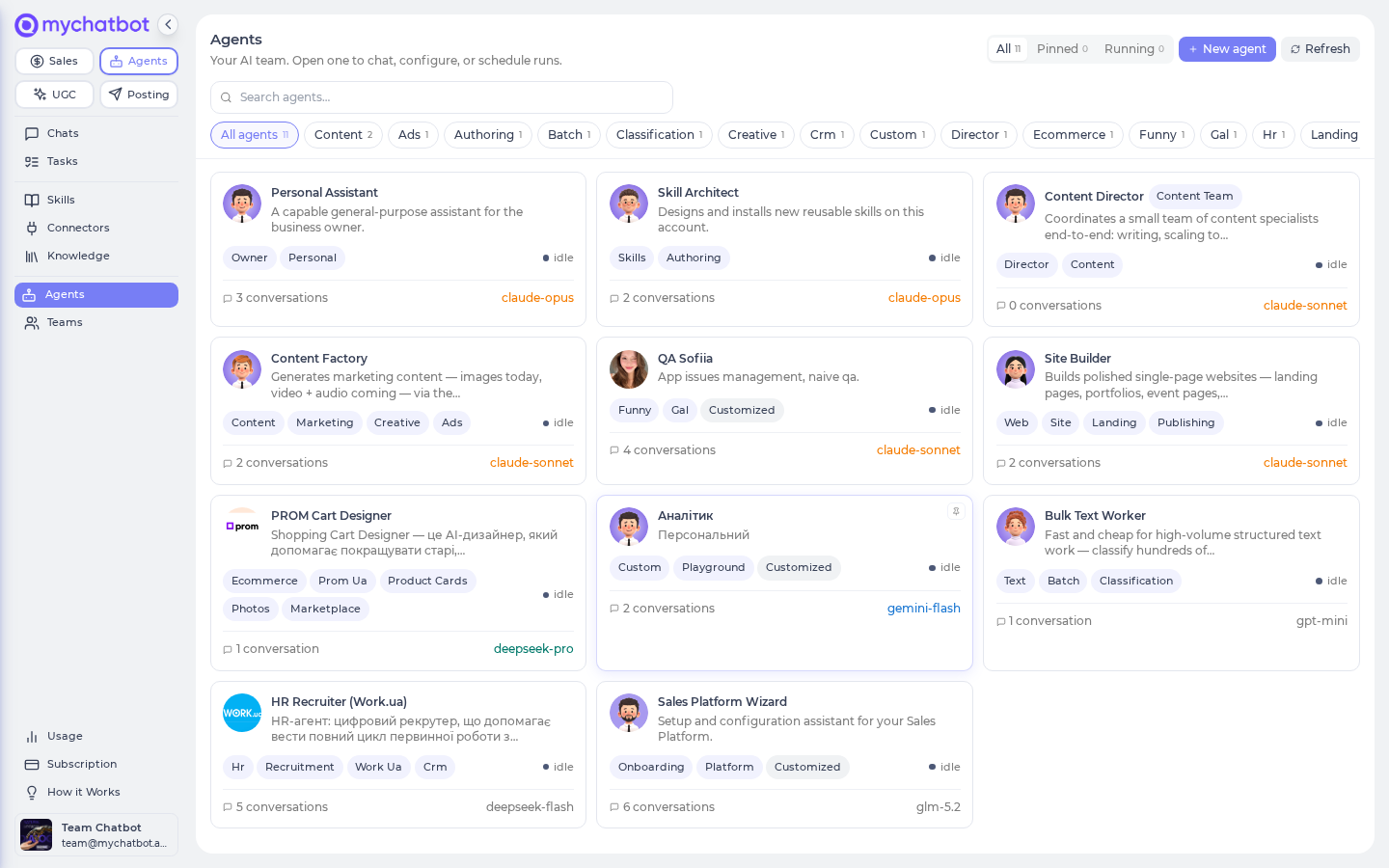
Go to app.mychatbot.app/agents and open the Personal Assistant agent. This is a built-in assistant designed to answer one person and get things done — it already has web search, browsing, link and video reading, code running, and scheduling switched on.
4. Go to Settings → Channels → Telegram
On the agent's page, open the Settings tab, scroll to Channels, and find the Telegram bot section. This is the one channel you connect right here on the agent (the widget, WhatsApp, and calls live in the Sales Platform instead).
5. Paste the token and Connect
Paste your BotFather token into Bot token from @BotFather, then press Connect. MyChatBot checks the token with Telegram right away and points Telegram's messages at your assistant. When it's done, the panel shows Connected as @your_bot with a link to your bot.
A bad token shows an inline error
If the token is wrong or already connected to another agent, you'll see a red message and nothing is saved. Fix the cause and press Connect again. One bot belongs to exactly one agent.
6. (Optional) Disconnect or reconnect
If you ever need to rotate the token or move the bot elsewhere, press Disconnect in this same panel and confirm. Reconnecting with a fresh token also regenerates the bot's security secret, which is the clean fix for most connection hiccups.
Try it
Open a direct message with your new bot in Telegram and try a few things to feel what it can do:
- Research: "Find three recent articles on X and summarize the takeaways."
- Read a link: paste a URL and ask "What's the main argument here?"
- Read a video: paste a video link and ask for the key points.
- Run a quick calculation or script: "Work out the monthly payment on a $20k loan at 7% over 3 years."
- Voice note: record a voice message — it's transcribed automatically, so the assistant reads it as text.
For each of these you'll see a typing indicator, then a reply right in the thread.
You can also ask it to set up a background task — for example "Every Monday, pull my calendar and draft my week." Those run on their own, and the results show up on the agent's Conversations tab in the app rather than pinging you back in Telegram. See Let it work while you're away below.
Send one message at a time
If you fire off a second message while the assistant is still answering the first, it replies "still working — resend when you see my reply." That safeguard protects the in-progress answer. Wait for the reply, then send the next thing.
It remembers the conversation, not your history
The assistant keeps context within a conversation — but it won't spontaneously recall things from past, separate chats. Treat each thread as its own working session. Send /new in Telegram to start a fresh thread when you want a clean slate; the old one stays readable.
Level it up
- Sharpen its personality and defaults. On the agent's Instructions tab, tell it how you like answers (concise, sources cited, your timezone, your name). Small, specific instructions go a long way.
- Give it your tools. Under Settings → Connectors, connect apps like Gmail, Slack, Notion, or Drive so the assistant can act in the tools you already use. These are optional and billed from the same agents balance.
- Let it work while you're away. Ask it to schedule a recurring task ("every Monday, pull my calendar and draft my week"). Scheduled runs show up alongside your chats — see Tasks & schedules.
- Review conversations in the app. Every Telegram thread also appears on the agent's Conversations tab with a Telegram badge. It's read-only there — reply from Telegram to continue.