
Appearance
Build a lead-research / HR-sourcing agent
Hand it a brief — "find 10 candidates for this role" or "research these 20 companies" — and get back a tidy, sourced table you can act on.
- What you'll have — A single-purpose agent that takes a research brief, searches the web, opens real pages, pulls out the fields you asked for, and hands you a structured table. You can have it save a spreadsheet or append the rows straight into your Google Sheet, Airtable, or CRM.
- Who it's for — Recruiters sourcing candidates, founders and SDRs building lead lists, and anyone who spends hours copy-pasting names, titles, and links into a spreadsheet.
- Time & plan — About 15-20 minutes to set up. Works on any plan that includes an agents budget (any Sales, Voice, Agents, or UGC plan — the cheapest are Sales+Agents Standard or Agents Starter). Research runs spend from your agents dollar balance, so you'll want a real (not trial) budget — see the note below.
A 3-day trial is too thin for real sourcing
During the 3-day free trial your agents budget is pinned to $1, no matter which plan you picked. Web browsing bills for the active minutes it spends driving pages, so a multi-lead run can burn through $1 fast. Set this up to learn it on the trial, but convert to a paid plan before you run a real batch. See Usage & billing.
Ingredients
Everything here lives in the Agents Platform — switch to it with the product switcher at the top of the sidebar, or go straight to app.mychatbot.app/agents.
| Switch on | Where | Why |
|---|---|---|
| A custom agent (or the built-in Personal Assistant) | Agents list → New custom agent | The agent that does the research |
| Search the web | Settings → What it can do | Find sources when you don't know the URL |
| Read a web page | Settings → What it can do | Fast read of a page you already have |
| Web browsing | Settings → What it can do | Drive real pages — click, scroll, log in, screenshot |
| Run code & crunch data | Settings → What it can do | Dedupe, tidy, and assemble the results table |
| Track multi-step plans | Settings → What it can do | A visible checklist across a long batch |
| Schedule & delegate (optional) | Settings → What it can do | Run it on a schedule or hand results to another agent |
| A connector (optional) — Google Sheets, Airtable, HubSpot, Pipedrive… | Agents → Connectors | Push the finished rows to a system of record |
Steps
1. Make sure you're on a plan with an agents budget
Any Sales, Voice, Agents, or UGC plan includes one. If your balance is empty, runs can't spend — check the Balance card on the Usage page (app.mychatbot.app/agents/usage) and top up first.
2. Create the agent
You have two ways to start:
- Fastest — use the built-in Personal Assistant. It already ships with Web browsing, Search the web, Read a web page, Run code, Track plans, and Schedule & delegate turned on. Great for a one-off. Open it from the agents list and skip to step 4.
- Recommended — claim a custom agent slot. This gives you a reusable, single-purpose "Lead Researcher" you can name, tune, and schedule. You get up to 10 custom-agent slots per account.
To create one, go to the agents list → New custom agent (app.mychatbot.app/agents/new). Give it a Name (e.g. Lead Researcher or Candidate Sourcer), pick a Model — a strong reasoning model like Claude Opus or GPT-5 handles multi-step research best — and click Create agent.
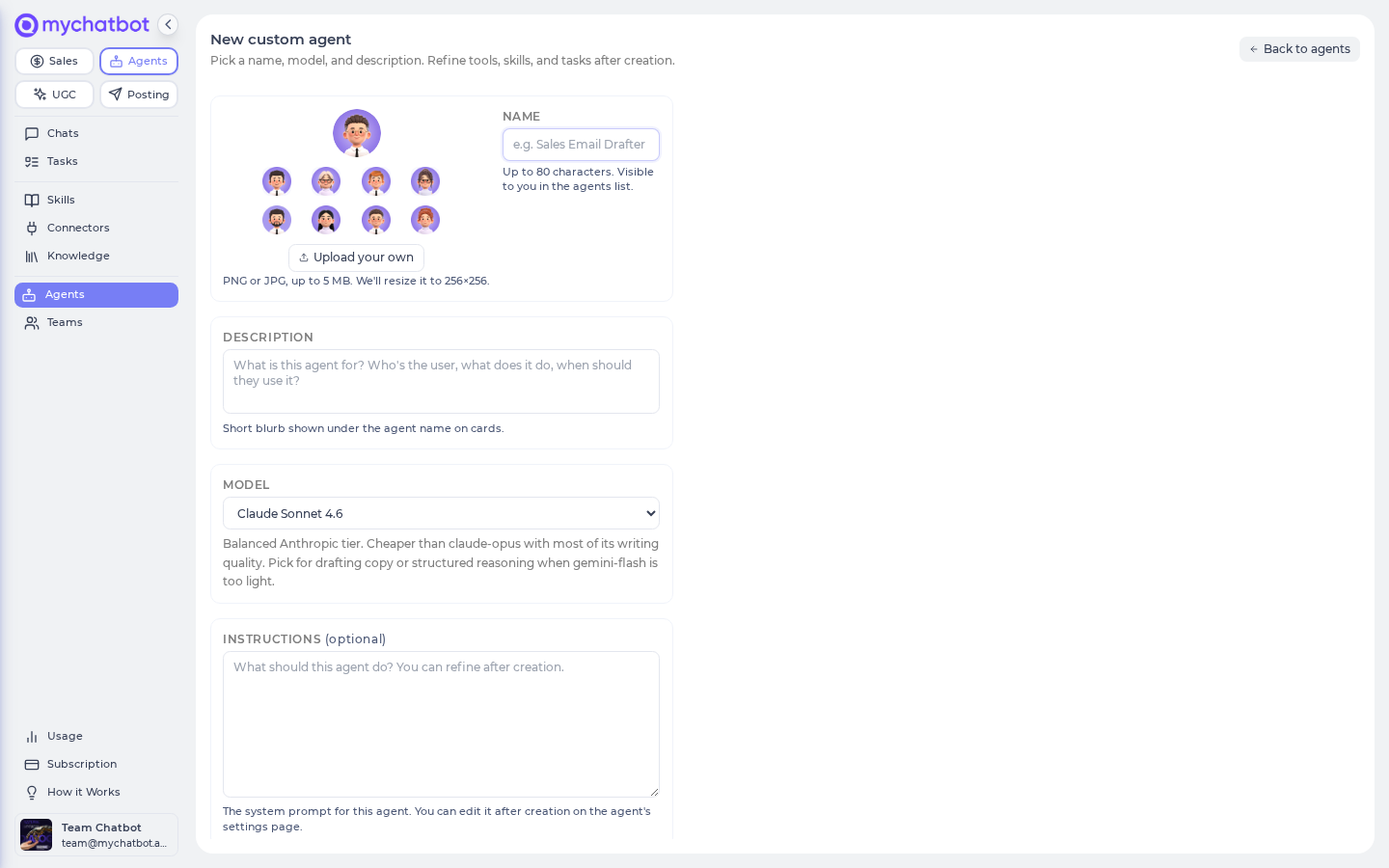
A fresh custom agent starts light
Custom agents ship with only Think step by step and Read a web page on. That's on purpose — you'll turn on the research tools yourself in the next step. (The Personal Assistant already has them on.)
3. Turn on the research tools
Open your agent → Settings tab → What it can do. Flip these on:
- Search the web — to find sources
- Read a web page — for pages you already have the link to
- Web browsing — the real browser that clicks, scrolls, logs in, and screenshots
- Run code & crunch data — to dedupe and build the final table
- Track multi-step plans — so you can watch a long batch tick through
Then click Save changes.
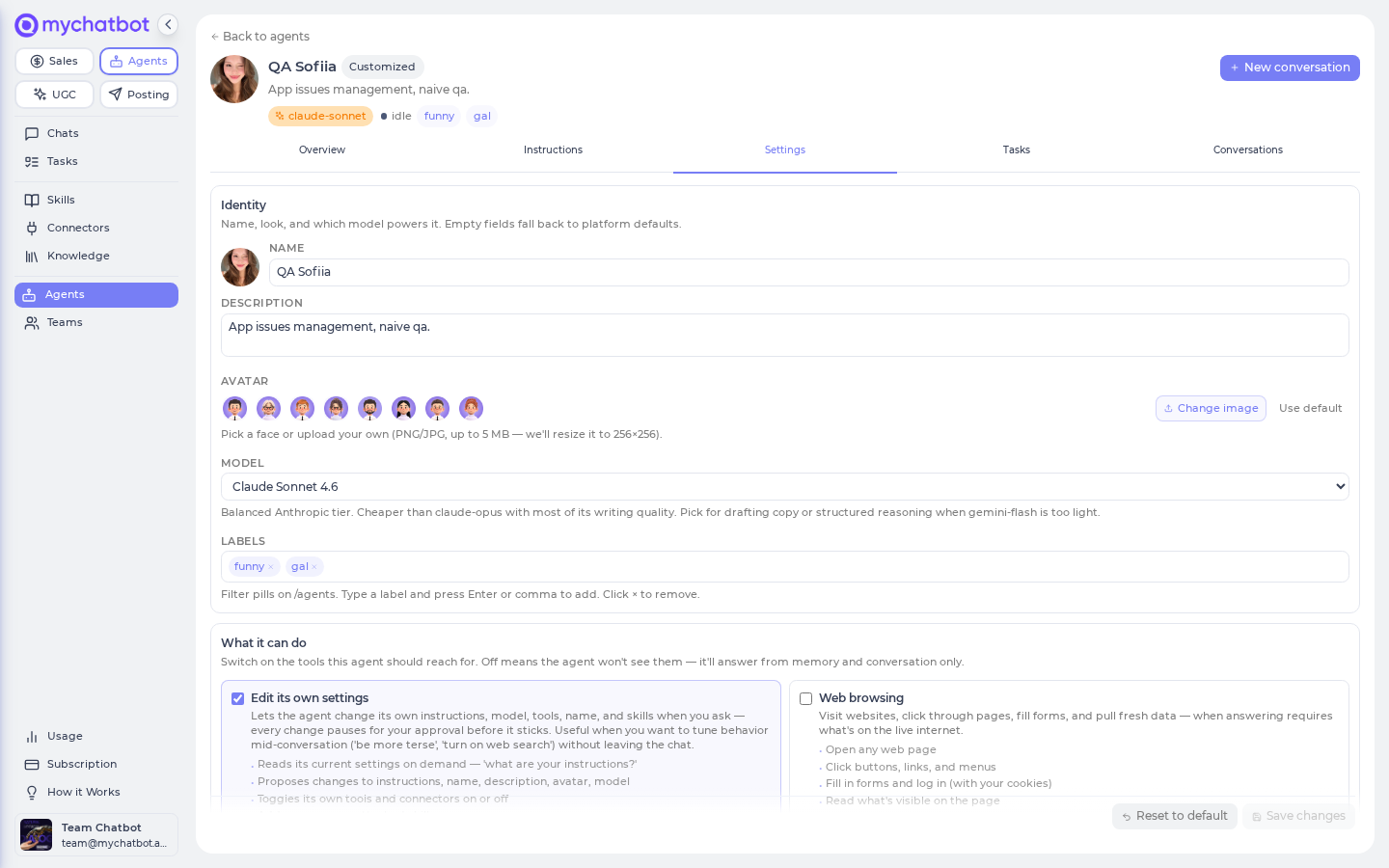
Read a web page vs. Web browsing
Read a web page is one fast fetch of a link you already have. Web browsing drives a live browser — use it when the agent needs to interact (search a directory, filter a job board, log in). Turning on both lets the agent pick the cheaper one when it can.
4. Write the brief
Open the agent's Instructions tab ("How it thinks and talks") and tell it exactly what to collect and how to present it. Be specific about the fields and the output format — that's what turns a wall of text into a clean table. For example:
text
You research leads and candidates. For each result, collect:
name, title, company, location, a one-line "why they fit", and the source URL.
Always include the source URL you found each fact on.
Return results as a Markdown table, one row per person or company.
If a page blocks you or you can't verify a fact, say so in the row rather than guessing.
Click Save. You can refine this any time — small edits, then test.
5. Give it a brief and watch it work
Open the agent and click New conversation. Hand it a real task:
Find 10 marketing managers at B2B SaaS companies in Berlin. For each, give me name, title, company, LinkedIn or company URL, and a one-line reason they fit.
The agent will lay out a plan, search, open pages, and come back with a table. Because you turned on Track multi-step plans, you'll see it tick through each step as it goes.
Some sites push back
The browser is a real browser, but it has no anti-bot magic and each session has a time limit. Heavily protected targets — LinkedIn, some job boards — may show a CAPTCHA or block it. When that happens the agent will tell you rather than invent data. To reach pages behind a login, you'll need to supply your own account and sign in during the run; there's a one-time screenshot-before-login step so the session is saved for next time. Expect the occasional flaky page — it's the nature of the live web, not a bug.
Try it
Start small to see the loop end-to-end. In a New conversation, paste:
Research these 3 companies: Acme, Globex, Initech. For each, find their website, what they sell in one line, headcount if you can find it, and the best contact page. Return a Markdown table with a source URL for every fact.
You'll get a three-row table back in chat. Then ask a follow-up:
Save that as a CSV I can download.
The agent uses Run code & crunch data to write the file and hands you a download link. That's the whole recipe — brief in, sourced table out, file on request.
Test chats count toward usage
Every test message spends from your balance like any run, and your conversation history sticks around so you can reopen past runs. Make your test prompts realistic — you'll learn more from one real brief than from ten "hi"s.
Level it up
Push results to a spreadsheet or CRM. On the Connectors page (app.mychatbot.app/agents/connectors) authorize Google Sheets, Airtable, HubSpot, or Pipedrive once, then turn it on for this agent under Settings → Connectors. Now you can say "append those rows to my Leads sheet" and it writes them out. Connecting a connector is a one-time sign-in, and writing to a CRM is an action the agent takes on your behalf — so enable the connector, not just knowledge. See MCP & connectors.
Run it on a schedule. Turn on Schedule & delegate, then just ask the agent in a conversation to run on a schedule — e.g. "run this every weekday at 9am" — and it sets up the recurring run itself using its scheduler tool. The schedule then shows up on the agent's Tasks tab, where you can edit its instruction, pause or re-enable it, or delete it. Each run posts into a conversation so you can review what it found. See Tasks & schedules.
Reopen the chat to see a long run finish
If a scheduled or long run finishes while you have the chat closed, it may not backfill into an open, idle chat on its own. Reopen the conversation (or ask a quick follow-up) to pull in the finished results.
Save the brief as a reusable task. Turn any good prompt into a one-click task card from its chat message (Save as task), so the next batch is a single click instead of a retype.
Hand results to an outreach agent. With Schedule & delegate on, the researcher can pass its finished list to another agent on your account — for example one that drafts outreach — so sourcing and follow-up run as one pipeline.
See also
- Build an agent — the full happy path for any agent
- Tools & toggles cheat sheet — every switch in detail
- Models & reasoning — picking a model for research
- Tasks, crons & schedules — automate a recurring sweep
- MCP & connectors — push results to Sheets, Airtable, or a CRM
- Knowledge bases for agents — ground the agent on your own data
- Usage & billing — how research runs spend your balance
- Agents troubleshooting — flaky pages, blocked sites, and more