
Appearance
Use MyChatBot as a lightweight CRM
Every conversation becomes a lead, every lead moves across a board you can see, and your team never opens a spreadsheet again.
- What you'll have — A working CRM built right into MyChatBot: leads that appear on their own from every channel, a drag-and-drop pipeline board with your own funnel stages, labels and statuses to segment people, and per-lead notes and tasks. No external CRM to connect, no data to sync — it's all native.
- Who it's for — Small teams, solo founders, and sales-driven businesses who want a real pipeline without paying for (or wrestling with) a separate CRM tool.
- Time & plan — About 15 minutes to set up. Works on any Sales plan (Standard or above) — and on the 3-day trial. Leads, pipelines, labels, tasks, notes, and the shared inbox are all on by default; nothing here is locked behind a higher tier.
Ingredients
Everything below the line is optional — the first two rows are the whole CRM.
| Switch on | Where | Needed for |
|---|---|---|
| Leads (the CRM surface) | Left sidebar → Leads | On by default — the table + pipeline board |
| Active chats (system of record) | Left sidebar → Active chats | On by default — the shared inbox + client card |
| — | — | — |
| A channel (Website Widget, Telegram, WhatsApp…) | Channels | Auto-creating leads from real conversations |
| Task Manager | Integrations → Task Manager | A standalone team task board |
| Orders | Integrations → Order Management → Orders | Taking and tracking orders in-chat |
Steps
1. Make sure you have a plan (or start the trial)
Any Sales plan gives you the full CRM. If you're just trying it out, the 3-day trial works too — it grants Sales access, so leads, pipelines, labels, tasks, and notes are all available immediately.
In the app
Subscription → app.mychatbot.app/subscription
2. (Optional but recommended) Connect a channel so leads create themselves
The magic of using MyChatBot as a CRM is that you don't type leads in by hand — they arrive. Connect a channel and every new conversation automatically becomes a lead and a chat record.
Open Channels and connect whatever your customers use — Website Widget, Telegram, WhatsApp, Instagram, Facebook, Viber, TikTok, email, or SMS. Any one works; you can add more later.
In the app
Channels → app.mychatbot.app
Prefer to start from a list you already have? Skip ahead to step 4 and add leads manually or import them — no channel required.
3. Set up your pipeline and funnel stages
A pipeline is your funnel; its stages are the columns leads move through.
First, create or rename your pipeline in Account Settings → Pipelines. Click New Pipeline, give it a name (like "Sales Pipeline"), and — if you have more than one — mark your main one with the star (Set as default). The default is where new leads land when nothing else picks a pipeline.
Then open Leads, switch the top-right toggle from Leads to Pipeline, and click the gear icon (Customize columns). In the Funnel statuses editor you can:
- Add new funnel status — type a stage name (e.g. "New", "Contacted", "Demo scheduled", "Won") and click Add.
- Reorder stages with the up/down arrows, recolor them, or hide the ones you rarely use.
In the app
Account Settings → Pipelines → app.mychatbot.app/profile/pipelines Leads → Pipeline view → gear icon → app.mychatbot.app/leads
A stage can only be deleted when it's empty
If a column still has leads in it, the trash icon is blocked with "Move or close leads in this stage before deleting it." Move the cards first, then delete.
4. Add leads — by hand or in bulk
You've got three ways to get people onto the board:
- They arrive on their own — anyone who messages a connected channel shows up automatically.
- Add one by hand — in Leads, open the ⋮ menu → New lead, fill in the name (required) plus email/phone, and pick a starting Funnel Status, Labels, and Manager.
- Import a list — ⋮ menu → Import leads opens the wizard. It reads a Google Spreadsheet (the first row must be column headers like Name, Email, Phone). Map your columns and click Import.
In the app
Leads → ⋮ menu → New lead / Import leads → app.mychatbot.app/leads
Importing a CSV
Google Sheets opens CSV files directly — upload your CSV to Google Drive first, then pick that spreadsheet in the wizard.
Imports add, they never clean up
A typo in your sheet (like "Qualifed" instead of "Qualified") silently creates a brand-new stage or label. Check your sheet's values against your existing names before importing.
5. Work a lead from its client card
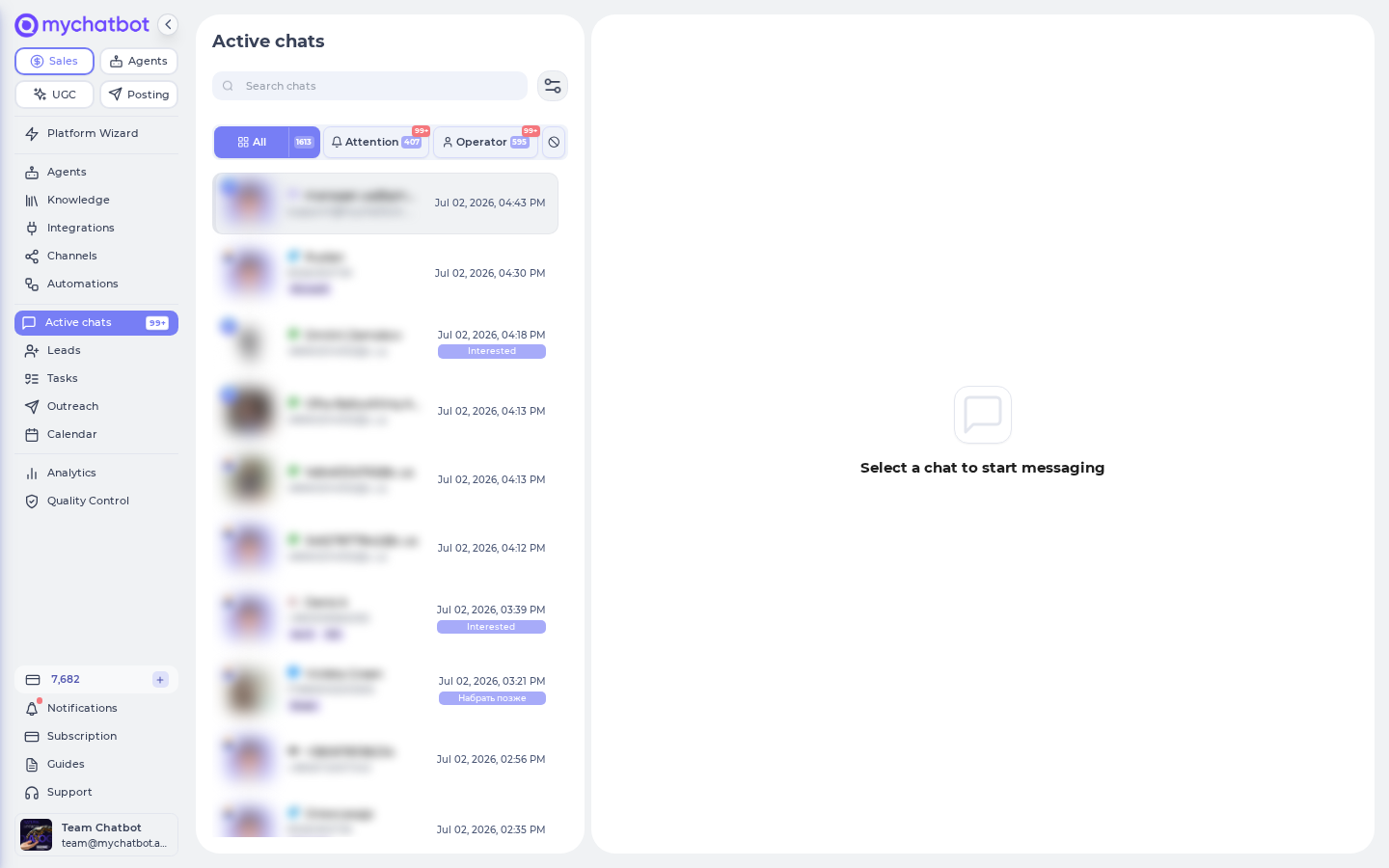
This is where the day-to-day happens. Open Active chats, click any conversation, and use the client card on the right (toggle it with the arrow handle at the right edge). From the card you can:
- Set the Funnel status — moving the lead to a single pipeline stage (a new status replaces the old one).
- Add Labels — free-form tags that stack (e.g.
B2Bandpricing_question). - Assign a Manager — the human who owns this lead.
- Add Notes and Tasks right on the card, so context and follow-ups live with the person.
In the app
Active chats → open a chat → client card (right) → app.mychatbot.app/chats
Labels vs. status
Labels are multi-value — a person can carry several at once. Funnel status is single-value — setting a new one replaces the previous stage.
6. Manage the funnel visually
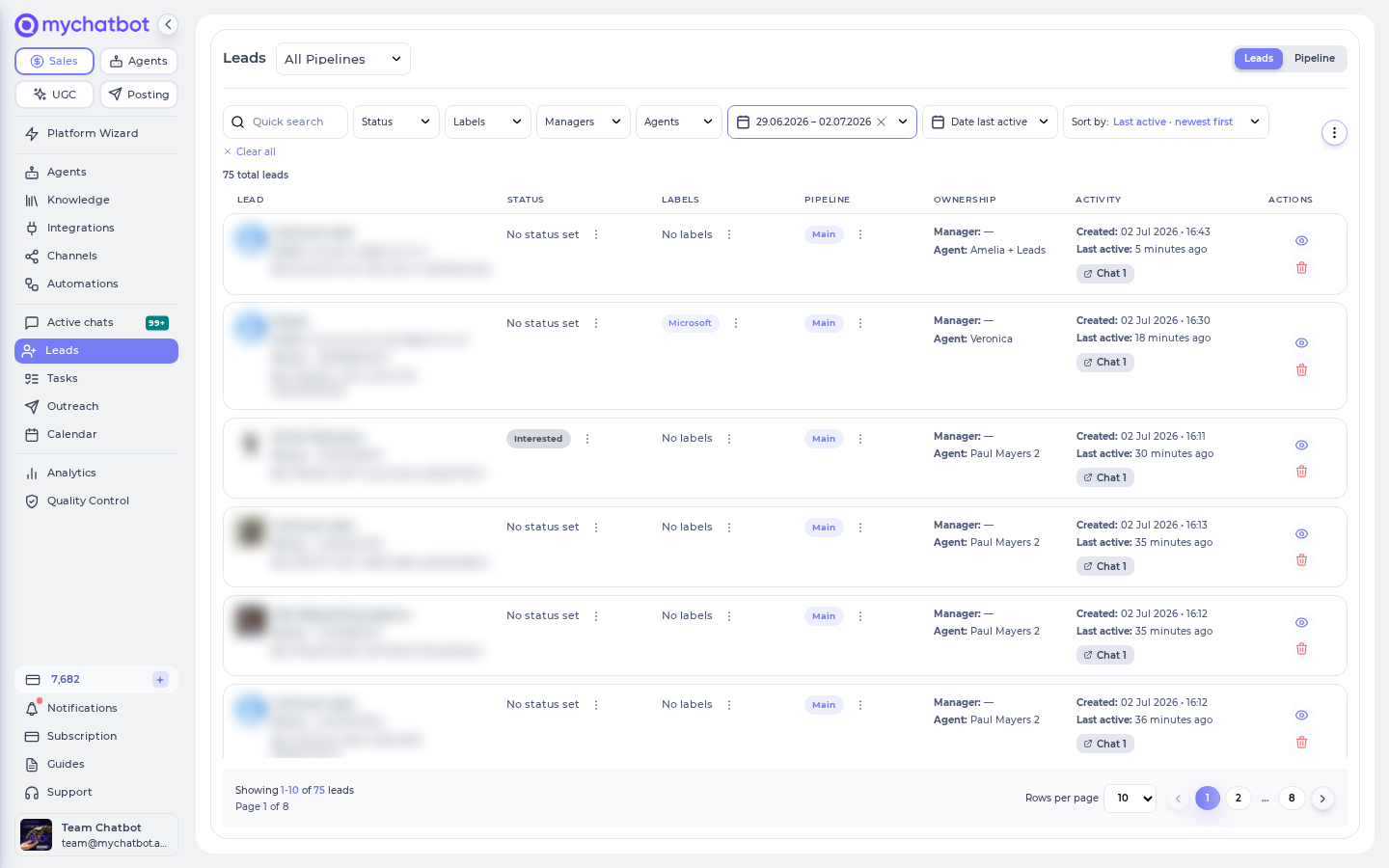
Back on the Pipeline board, drag cards between columns to move deals along — you'll see "Moved to {status}". Need to move a batch? Click Select, tick a few cards (or Select all in column), and use the toolbar to change Status, Pipeline, Manager, or Labels for everyone at once.
To narrow things down, use the filter toolbar above either view: filter by Status, Labels, Managers, Agents, or a date range, then sort.
"Missing" leads? Check the date filter
On a fresh visit, the Leads list opens with a Date created filter covering only the last few days, so older leads look hidden. Clear that chip (or hit Clear all) to see everyone.
Try it
- Open app.mychatbot.app/leads and clear the Date created chip so you can see all your leads.
- ⋮ menu → New lead → create a test lead with your own name and phone number. The modal tells you which pipeline it will land in.
- Switch to Pipeline view and drag your test card to another stage — you'll see "Moved to {status}", and the Status chip updates in the table view too.
- Click the lead's chat, open its client card, add a label and a quick note, then set a status. That's a full CRM record — created in under a minute, no external tool involved.
Level it up
- Let your agent work the pipeline for you. In your agent's instructions, tell it in plain language when to tag people — for example: "When a customer provides contact information, set client status to 'qualified_lead'" or "If a customer mentions bulk ordering, add the 'B2B' label." The agent then applies labels and sets statuses mid-conversation, all on its own. (The labels and statuses must exist first — create them from a client card.)
- Turn on automated follow-ups. In Outreach, click Create and target a specific label + status combination (say,
dropped+B2B) with a scheduled message. Your pipeline now nudges people without anyone lifting a finger. - Add a team task board. Connect Task Manager (Integrations → Task Manager → Connect) to get a standalone Kanban board at Tasks, on top of the per-lead tasks on each client card. Note these are two separate task lists: the Tasks board is team-wide, while the client-card tasks live with each lead.
- Take orders in the chat. Turn on native Orders (Integrations → Order Management → Orders), pick a currency, and click Connect — an Orders tab appears in the sidebar and your assistant can create, update, and cancel orders during conversations. (Orders and Spreadsheet Orders can't both be on for the same assistant — pick one.)
- Mirror stages from an existing CRM. If you already run HubSpot, Kommo, KeyCRM, or similar, you can import its funnel stages with Sync statuses. Just know this is a one-way import — dragging a card on MyChatBot's board won't move the deal back in the external CRM.
Two things to keep in mind
On the Standard and Pro plans, only one assistant stays active at a time (Multipro and above allow several) — this affects the AI side, not your manual CRM editing. And because the AI reply side runs on your shared sales-message balance, if that balance hits zero your assistants pause until you top up — again, your CRM data stays fully editable.
See also
- Leads & Pipelines — the full reference for the table, the board, importing, and managing pipelines.
- Labels and Statuses — how labels and funnel statuses work, and how agents apply them mid-conversation.
- Chats & client analytics — the shared inbox and everything on the client card.
- Orders — native order management inside the chat.
- Task Manager — tasks tied to your leads plus the team task board.
- Follow-ups — automated sequences targeting label + status combinations.
- Integrations overview — sync with an external CRM instead of (or alongside) the built-in one.