
Appearance
Win back cold leads
Take that graveyard of leads who ghosted you months ago, wake them up with a personalized message, and let your assistant chase the ones who stay quiet — hands-free.
- What you'll have — A three-part win-back machine: your old cold list imported into the CRM, a one-time re-engagement message that reaches every one of them, and a follow-up sequence that automatically nudges the leads who don't reply. Every send and every reply threads into one conversation per person, right in your dashboard.
- Who it's for — Sales and account teams sitting on a pile of dead leads: a list from last year's event, prospects who filled a form and vanished, or a CRM export full of contacts nobody ever circled back to.
- Time & plan — Roughly half an hour to an hour to set up, depending on how ready your list is. Works on any Sales plan (Standard or above), or during the 3-day trial. No add-on needed. (Heads up: a trial only gives you ~30 sales messages — plenty to test the flow end to end, not to blast a whole list. See the balance warnings below.)
This is your best salesperson working a list — not a mass-mail tool
Think of it as a great rep who picks up cold leads one by one, sends each a genuinely personal note, and follows up on the quiet ones. There's no bulk-email machinery here (no open/click tracking, no unsubscribe injection). You'll see delivered and failed counts, and real replies come back as conversations your assistant can answer.
Ingredients
| Switch this on | Where | Why |
|---|---|---|
| A sales assistant, enabled | Agents → Agent configuration | The brain and tone behind every message |
| An outbound-capable channel | Channels → Email / SMS / Calls / Personal WhatsApp / Telegram Account / Viber | The one thing that can message a lead who's never chatted (see the warning below) |
| Leads imported | Leads → Import leads | Gets your cold list into the CRM, tagged so you can target it |
| Immediate outreach campaign | Follow-ups & Outreach → Create | The one-time wake-up blast |
| Postponed contextual sequence | Follow-ups & Outreach → Create | The auto-follow-up for leads who stay silent |
Cold leads need a channel that can start the conversation
Your imported leads have no chat history, so only channels that can reach out first will work: Email, SMS, Calls, Personal WhatsApp, Telegram Account, Viber, Ringostat, or UniTalk. A regular Telegram bot, the WhatsApp Business API, Instagram, or the website widget can only reply to someone who messaged first — they can't cold-message. Connect at least one of the outbound channels above before you build the campaign. This is the #1 thing that trips people up.
Steps
1. Get your sales assistant ready
Pick the assistant that will run the campaign (or create one), and make sure it's enabled. Give it a few instructions so its win-back messages sound human, warm, and low-pressure.
Open the Sales Platform's Agents tab — the page is titled Agent configuration — and add guidance to its instructions, for example:
You're re-engaging leads who went quiet a while ago.
- Open warmly and acknowledge it's been a while, without being awkward about it
- Address the person by name when you know it
- Give one clear, low-pressure reason to reply (a new offer, a quick check-in, a question)
- Keep it short — one small ask, not a pitch
Menu path: Agents → your agent → Agent configuration (app.mychatbot.app/configuration)
2. Connect an outbound channel
This is the channel your assistant will use to reach cold leads. Email is the easiest place to start.
- Open Channels in the sidebar and select your assistant.
- Pick an outbound-capable channel — Email (connect your Gmail inbox), SMS, Calls, Personal WhatsApp, Telegram Account, or Viber (also Ringostat and UniTalk).
- Complete the connection steps and grant any permissions it asks for. When you return, the card shows as connected.
Menu path: Channels → your agent → your channel (app.mychatbot.app/channels)
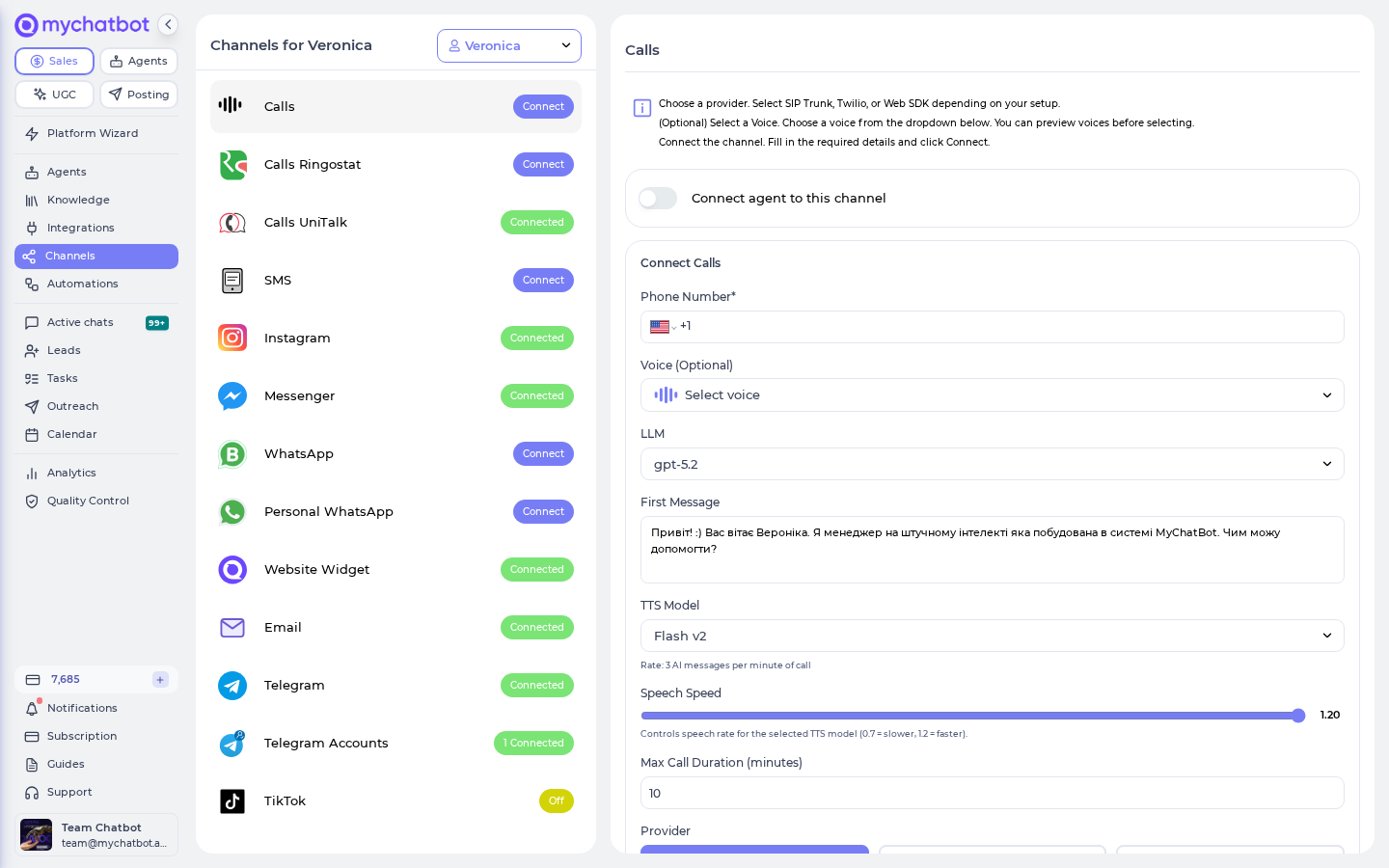
Only these channels can cold-message
If the only channels you have connected are a Telegram bot, WhatsApp Business, Instagram, or the website widget, your campaign will have no channels available to send on. Connect one of the outbound-capable channels first, or the outreach step will have nothing to send with.
3. Import your cold list
Go to Leads in the sidebar and click Import leads.
- Select a Google Spreadsheet — connect your Google account and pick the sheet. The first row must be column headers (e.g. Name, Phone, Email, Company).
- Map columns to lead fields — match your columns to Full Name, Phone, Email, and the rest. Every lead needs a name plus a phone or email. Anything you don't map is still kept as extra info on the lead.
- Tag the whole batch as you import — this is the secret to a clean win-back. Map (or add) a Label like
cold-2024, set a funnel Status, and assign a Pipeline. You'll use these tags to target exactly this group in the next steps. - Check the phone-number validation panel — it flags numbers that can't be reached and adds a missing
+. Fix flagged cells in your sheet, reload the preview, then click Import. Watch the progress and results.
Menu path: Leads → Import leads (app.mychatbot.app/leads/import)
Import reads from Google Sheets, not a file upload
Lead import pulls from a Google Spreadsheet — there's no direct CSV or Excel file upload here. If your cold list is a CSV, drop it into a Google Sheet first, then import that sheet.
Tag now, thank yourself later
The label and status you set during import become your campaign's targeting filter and the segment your follow-up sequence watches. Skip this and you'll be hand-picking leads later. See Labels and statuses for how tags flow through the CRM.
4. Build the wake-up blast
Go to Follow-ups & Outreach in the sidebar and click Create. Give it a name (e.g. "Win back cold-2024"), choose Immediate outreach — the one-time send — and click Continue.
Menu path: Outreach → Create → Immediate outreach (app.mychatbot.app/follow-up)
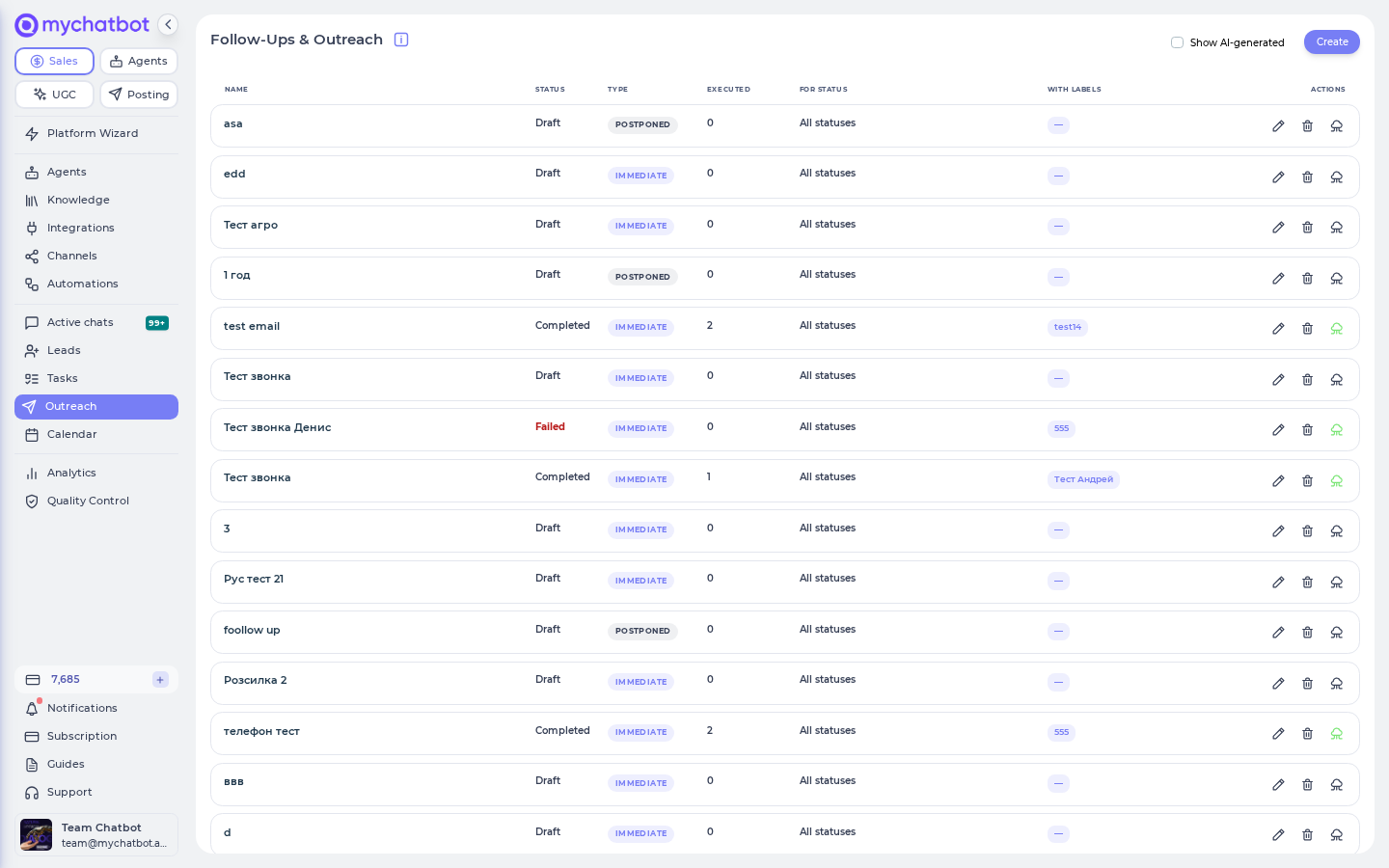
5. Target exactly your cold batch
In the wizard's Client Targeting block:
- Client Source — choose Clients without chats (your imported leads have never chatted), or All clients if some of them once did.
- Created/Imported — set the From / To date range to today so you hit only the batch you just imported, not your whole CRM.
- Narrow with the Label (
cold-2024), Status, or Pipeline you set at import, plus Has email or Has phone number so only reachable leads are included.
The Audience Preview refreshes as you go and shows exactly who'll be contacted. Use the Open links to spot-check a few people before you commit.
Start with one, then widen
Set an Audience limit of 1 (or filter to a single test lead) to preview the message on yourself first. Once it reads right, remove the limit and let it fly.
6. Write the message and send it
In Outreach Configuration, pick your outbound channel (the one you connected in Step 2). Then in Message, choose how it's written:
- Agent instruction — describe the outcome, tone, and talking points, and the assistant writes a personalized message for each lead. Best for a natural win-back.
- Custom message — write the exact text, using
{name}and{context}as placeholders.
In Schedule:
- Run now starts the send in about 3 minutes (a short processing buffer — it's not instant).
- Schedule for later picks a date and time, with an estimated start-to-end window.
- Sending interval — pace the sends so you don't trip spam limits or channel bans. Strongly recommended for anything past a handful.
Click Save to arm it. The status moves through Scheduled → Running → Completed, with live progress and per-lead delivery results.
Watch your sales-message balance before a big blast
Every message (and every call, billed by duration) draws from your shared sales-message balance — the same bucket across all channels. A large win-back blast can drain it, and if it hits zero, a background job switches all your assistants off until you top up (and re-enabling isn't always automatic). Size the audience with the Audience limit and top up before a big run.
7. Auto-chase the leads who stay quiet
The blast wakes them up; this catches the ones who don't reply. Go back to Follow-ups & Outreach → Create, name it, and choose Postponed contextual — a multi-step sequence that fires when a lead goes silent.
- Target the same segment — point it at the status or label you applied at import (
cold-2024), so it watches exactly the leads from your blast. - Add steps — each step waits for a period of silence, then sends on a channel of your choice. For example: a gentle nudge after 2 days of silence, a different angle after 5 days, a final offer after 10. Add reply and delivery-failed branches so the sequence reacts to what actually happens.
- Publish it — a draft never fires. Hit Publish to make it live.
Menu path: Outreach → Create → Postponed contextual (app.mychatbot.app/follow-up)
The sequence fires per lead, on silence — not on a fixed calendar
Each step triggers after a lead has been quiet for the time you set, and only for leads carrying the status or label you targeted. That's why tagging the batch at import (Step 3) matters — it's what gives the sequence a group to watch. If a lead replies, the remaining steps stop for them automatically.
Try it
Run the whole machine on one person — you:
- Import a Google Sheet with a single row: your own name and email (or phone), tagged with a test label.
- Create an Immediate outreach, source Clients without chats, and filter to that one lead. Confirm the Audience Preview shows exactly 1.
- Pick your outbound channel, write a short win-back message, choose Run now, and Save.
- Within ~3 minutes the status hits Completed and the results show your lead as Sent. Check your own inbox or phone.
- Reply — your assistant reads it and answers, and the whole exchange threads into one conversation in your dashboard.
- Now don't reply to a second test send, and add a Postponed contextual sequence targeting the same label. After the silence window you set, watch the follow-up fire on its own.
A single round of tests fits comfortably inside a trial's allowance — but move to a paid Sales plan with a topped-up balance before you wake up the real list.
Level it up
- Enrich before you target. Open a lead and use Additional information to add custom fields (segment, region, last-purchase date), then filter your audience on them — so "win back cold enterprise leads in Texas" is one campaign, not a manual sort.
- Localize the timing. When scheduling for later, store a timezone (like
America/New_York) on each lead and point Call time adjustment per lead at it, so every message or call lands during their business hours, not yours. - Fall back across channels. For a lead with both an email and a phone, list two outbound channels on a step — they're attempted in order, and the first successful send wins. Great for reaching someone who ignores email but answers a text.
- Let the sequence keep working. Because the Postponed contextual sequence watches your
cold-2024segment continuously, any lead who re-enters that state — or a new batch you import with the same label — gets picked up automatically. Import, tag, and it self-serves. - Keep the CRM tidy. Your assistant can update each lead's funnel status as they reply, so a finished win-back leaves you with a clean pipeline of who's back in play — no manual data entry.
See also
- Leads & CRM — importing, tagging, and filtering the cold list
- Google Spreadsheet import — getting a CSV list into a sheet first
- Follow-ups & Outreach — the full reference for immediate blasts and silence-triggered sequences
- Labels and statuses — how tags drive both your audience and your follow-up sequence
- Email channel — connecting an outbound inbox for cold sends
- Assistant configuration — shaping your assistant's win-back tone and knowledge
- Analytics — where campaign costs and message usage show up