
Appearance
Get a weekly ops digest by email
Prefer a scheduled routine for production
This page preserves the lightweight one-agent conversational schedule. For a durable weekly process—especially one that pages through Sales records, separates read and send steps, or needs partial-failure reporting—have Claude or Codex build one routine and stage its schedule disabled. See Build routines with Claude or Codex.
Monday, 9am: a tidy email is already waiting — this week's pipeline movement, the customer chats worth knowing about, and your orders and revenue — written for you while you were still asleep.
- What you'll have — A single agent that, once a week on its own, pulls your latest pipeline changes, skims recent customer conversations, tallies your orders and revenue, and emails you a plain-English summary. No dashboard to open, no report to run — it lands in your inbox.
- Who it's for — A founder or operator who wants a Monday-morning pulse of the business without logging in and clicking around.
- Time & plan — About 20 minutes to set up. Works on any plan that includes an agents budget (any Sales, Voice, Agents, or UGC plan) — the whole routine runs against your agents budget, a monthly dollar wallet, so all you need is a plan with one and some balance in it.
What "finances" means here
The digest reports the numbers MyChatBot already tracks for you — orders, revenue by channel and status, and account activity — not your accounting ledger or a Stripe P&L. There's no external bookkeeping tool in the loop. Think "weekly business pulse," not "closing the books."
Ingredients
Everything lives under Agents in the left nav. You'll switch on two capabilities and one connector — all on a single built-in agent.
| # | You'll switch on | Where | Needed for |
|---|---|---|---|
| 1 | The Personal Assistant agent | Built in to the Agents section | Your one worker — it reads, writes, and sends. You don't create it; it's already there |
| 2 | Sales Platform tools | Personal Assistant → Settings tab → What it can do | Reading your pipeline, recent chats, and order/revenue stats |
| 3 | Schedule & delegate | Personal Assistant → Settings tab → What it can do | Firing the digest once a week on its own |
| 4 | The Gmail connector | Account-wide in Agents → Connectors, then toggled on in the agent's Settings tab → Connectors | Actually emailing you the summary |
One agent does the whole job
You don't need a team for this. The Personal Assistant can read your business data, write the summary, and send the email all by itself — you're just turning on the three things it needs. Keeping it to one agent means one wallet charge per run and nothing to coordinate.
Steps
1. Make sure your agents wallet has balance
Open Agents → app.mychatbot.app/agents. If you can see your agents, you have platform access. A weekly summary that reads your data and writes a real email costs a little every time it runs, and it's charged to your agents budget.
A free trial's budget is too thin for this
During a card-gated free trial the agents budget is pinned to $1 — not enough for a recurring weekly job that thinks and writes each time. Convert to a paid plan (any plan with an agents budget) before you rely on this, so the wallet has room.
2. Connect Gmail for your whole account
Go to Agents → Connectors → app.mychatbot.app/agents/connectors. Click the Gmail card and sign in — this authorizes email once for your whole account. You'll switch it on for this specific agent in a moment.
The card should flip to Connected and pin to the top of the grid.
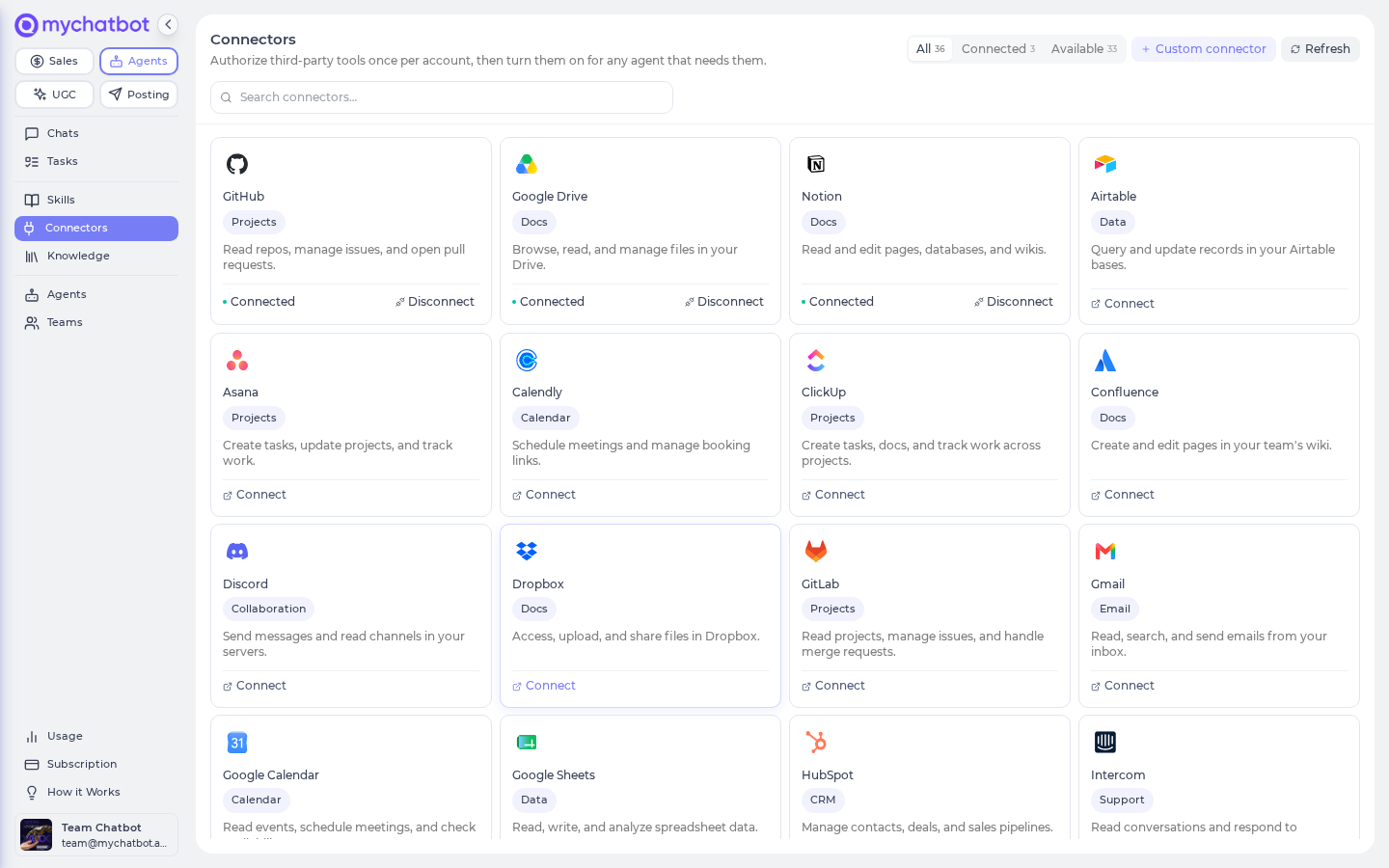
The card must read Connected before the digest can send
If it still says Connect, or reads Reconnect (authorization expired), the email step is silently skipped at run time — the summary gets written but never leaves. Get the card to Connected first.
3. Open the Personal Assistant and its Settings tab
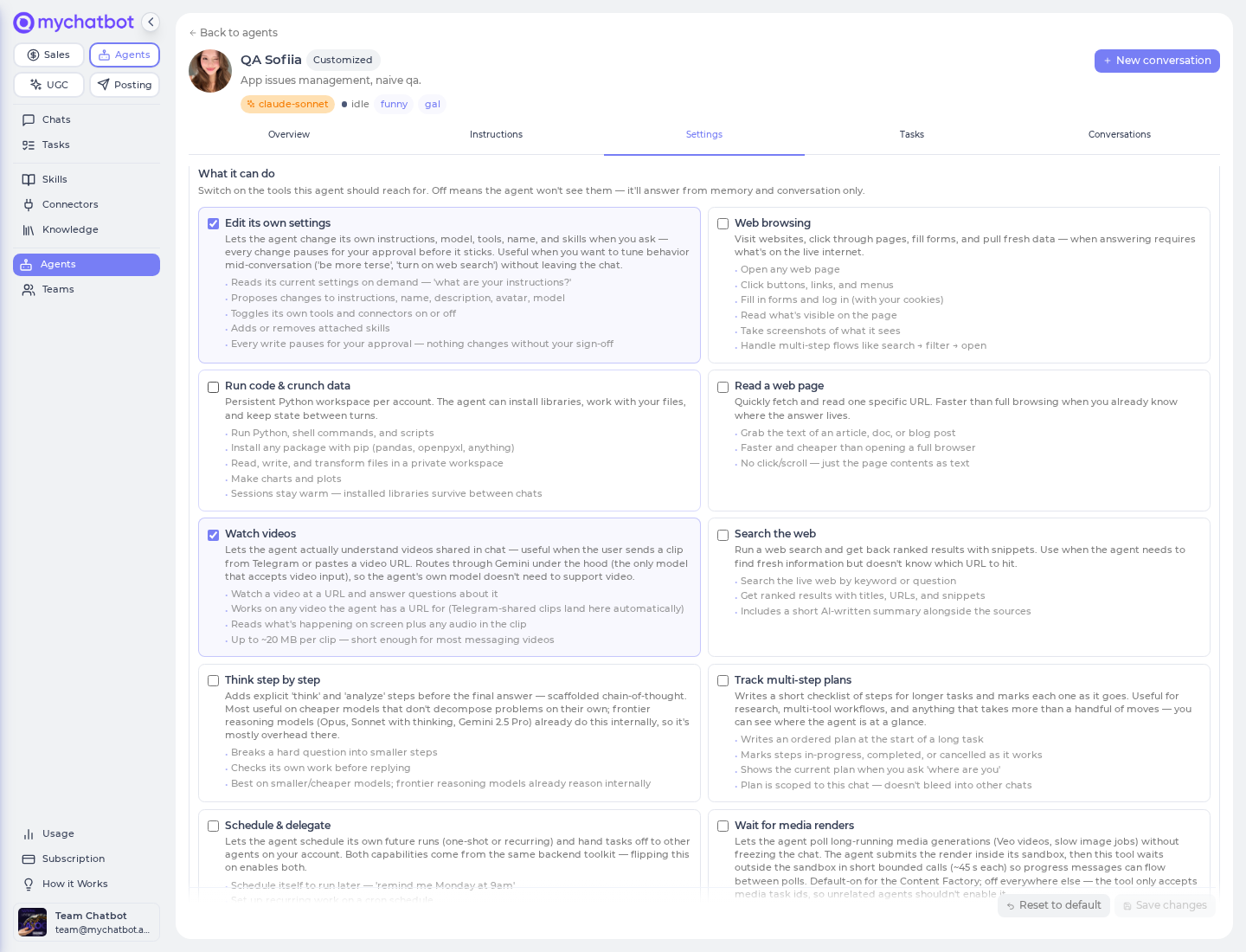
Back on app.mychatbot.app/agents, open the built-in Personal Assistant and go to its Settings tab. Tools, connectors, and skills all live as scrollable sections inside this one tab — there's no separate Connectors tab on the bar, so just scroll to the section you need.
4. Turn on the two capabilities it needs
In the Settings tab's What it can do section, switch on:
- Sales Platform tools — lets it read your pipeline, recent customer chats, and order/revenue stats.
- Schedule & delegate — lets it set up its own weekly run.
Leave the assistant's other defaults (reading links, thinking step by step) as they are, then Save.
Don't also switch on an individual Sales connector
The Connectors section offers separate Sales Platform connectors (Conversations, Orders, Account & Usage, and others) that cover the same ground. The app locks them against Sales Platform tools — the lock is mutual, so it doesn't matter which you reach for first: turn one on and the other greys out with a hint to pick a single source. For this guide, use Sales Platform tools and leave those individual Sales connectors off.
5. Switch Gmail on for this agent
Still in Settings, scroll to the Connectors section and toggle Gmail on for the Personal Assistant, then Save. (This is why Step 2 had to say Connected — the account-wide connection is what this per-agent toggle switches on.)
6. Draft the digest once, as a test
Open a New conversation with the Personal Assistant (the Conversations tab) and ask it to do the whole job once, so you can see it work before you automate it:
"Pull this week's pipeline movement, skim recent customer chats, and total our orders and revenue for the last 7 days. Then write a short summary and email it to me at me@company.com."
Watch it read your pipeline, chats, and order stats, then send the email. Check your inbox — that's exactly what the weekly version will send.
Keep this conversation — the schedule lives in it
Don't archive this chat after testing. In the next step the weekly schedule gets pinned to this conversation, and it needs the conversation to stay put to keep firing. One routine, one conversation.
7. Ask it to schedule itself weekly
There's no cron form to fill in — you describe the cadence in plain language and the agent sets it up. In the same conversation, say:
"Every Monday at 9am (Europe/Berlin), run this and email me the digest."
The agent creates a weekly schedule bound to this chat. From now on it wakes up each Monday, does the read-write-send loop on its own, and drops the summary in your inbox.
8. Confirm the schedule and manage it
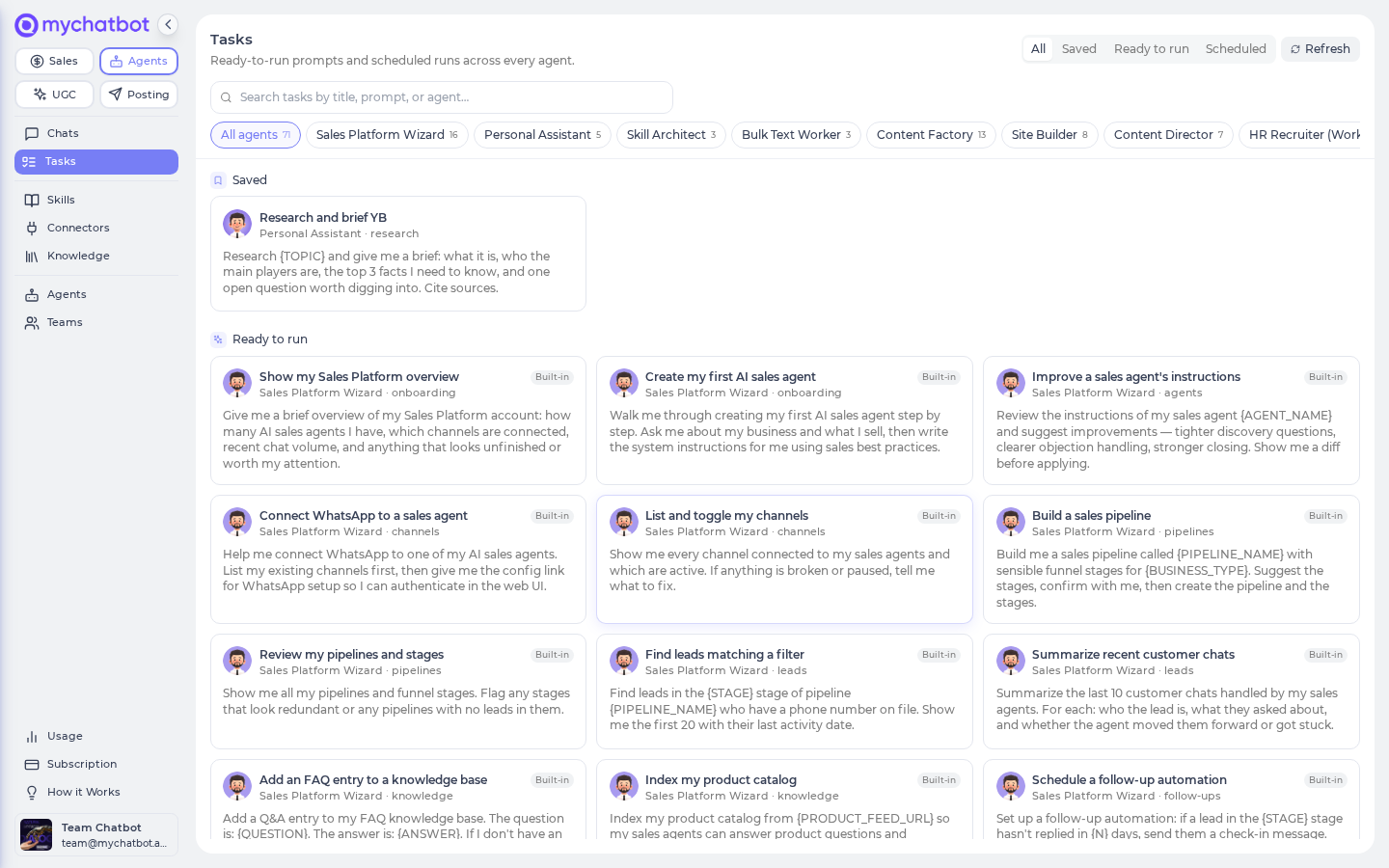
Open the cross-agent Tasks page → app.mychatbot.app/agents/tasks and switch to the Scheduled view. Your weekly digest should appear with its cadence, timezone, and a next-run time. To pause, resume, or reword what it does, open the Personal Assistant → its Tasks tab and edit the schedule there.
Creating vs. managing
Schedules are created in chat (Step 7) and managed on the Tasks tab (here). The Tasks tab lists, enables, disables, and lets you edit an existing schedule's instructions — it doesn't have a "new schedule" form. If you want a second routine, ask the agent for it in a fresh, separately-named conversation.
Try it
Don't wait until Monday to know it works. In the same conversation, ask for a one-shot run a couple of minutes out:
"In 3 minutes, pull the last 7 days of pipeline, chats, and order/revenue stats and email me a one-paragraph summary."
Then confirm three things:
- The agent reads your pipeline, recent chats, and order/revenue numbers (you'll see it work through them).
- It writes a short summary.
- The email arrives in your inbox.
If the summary appears in chat but no email lands, open Agents → Connectors and confirm the Gmail card still reads Connected — a run silently skips email if it isn't.
Level it up
- Sharpen the format. On the agent's Instructions tab, tell it exactly how you want the digest: bullet points over prose, a "top 3 things to act on" line at the top, your timezone, week-over-week deltas. Small, specific instructions go a long way.
- Add a light P&L feel. There's no accounting connector, but Gmail can be pointed at your inbox to scan for invoices and receipts and fold the totals into the digest — or attach a Google Sheets connector so it logs the weekly numbers to a running tab.
- Ground it in your own context. Attach your Business knowledge (product catalog, FAQ, brand docs from your Sales Platform) so the summary can reference what's actually going on, not just raw counts. See Knowledge bases.
- Change the cadence anytime. Want it daily, or every Friday afternoon instead? Just tell the agent in the same conversation, or edit the schedule on the Tasks tab.
Leave the model on its default
The Personal Assistant ships on a capable default model. Switching models can quietly change how carefully it thinks, so for a report you rely on, leave the model as it comes.
See also
Agents Platform operating model — routine-first production orchestration and the Sales boundary
Working with the Sales Platform — how an agent reads your pipelines, chats, orders, and revenue
Tasks & schedules — how schedules are created, edited, paused, and which model they use
Connectors & MCP — connecting Gmail and the other apps an agent can reach
Tools & toggles — what each capability switch does, including Sales Platform tools
Usage & billing — how the agents budget is metered and topped up
Build an agent — where settings, tools, and connectors come together