
Appearance
Produce marketing content with the Content Factory
Type a one-line brief, get finished hero images, ad reels, and background music back — no design tools, no separate signups.
- What you'll have — A conversation where you ask for marketing media in plain words and get back ready-to-use files: product images, short video ads, and background music. Everything is generated inside your workspace and billed transparently against one wallet.
- Who it's for — Founders, marketers, and small teams who need a steady stream of on-brand visuals and short video without hiring a designer or juggling a stack of creative apps.
- Time & plan — About 10 minutes to your first image. Works on any plan that includes an agents budget — the cheapest is MyChatBot Standard. See the plan note before you plan video.
Ingredients
Good news: nothing to install. The Content Factory is a built-in agent that ships with the right tools already switched on. Here's what it uses under the hood — you don't have to touch any of it, but this is what's doing the work.
| Switch on your agent | What it's for | Default |
|---|---|---|
| Content Factory agent | The built-in agent that generates media. Always in your agents list. | Ready to use |
| Run code & crunch data | How it reaches the media generators. | On by default |
| Wait for media renders | Keeps the chat responsive while a video renders (~2 min). | On by default |
| Search the web / Read a web page | So it can look up your brand or a reference before generating. | On by default |
| Schedule & delegate | For recurring or overnight batch renders. | On by default |
You don't set any of this up
The Content Factory comes pre-configured. Everything in the table above is already on. Just open it and start talking.
Steps
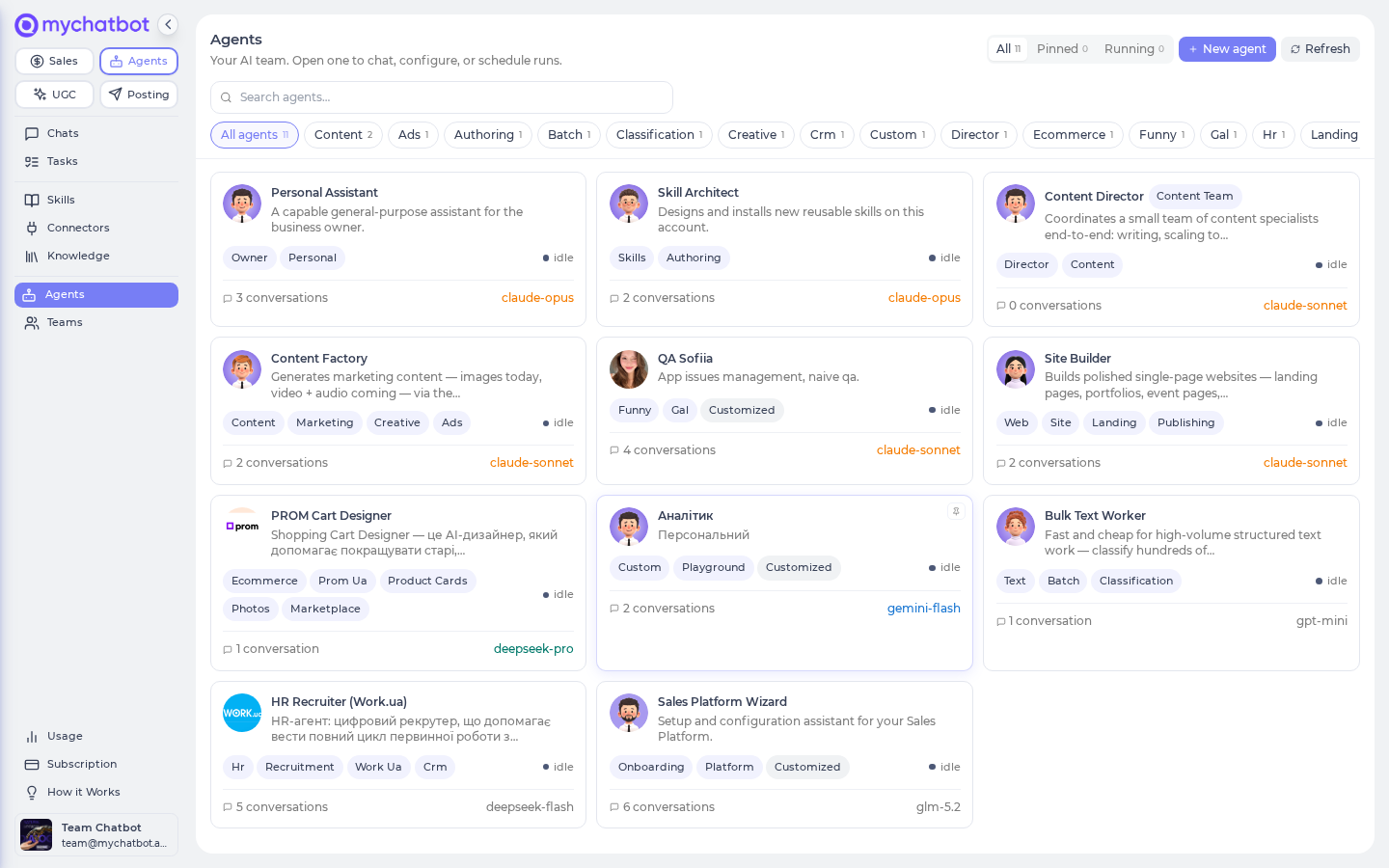
1. Open the Content Factory
Go to Agents (app.mychatbot.app/agents) and pick Content Factory from your agents list. It's a built-in — it's always there, on every account with an agents budget.
2. Give it a brief — or click a quick-start
Start a conversation two ways:
- Type a brief. Be specific about the shot: "3 hero images for my skincare brand — a serum bottle on a marble counter, warm morning light, square 1:1."
- Click a quick-start. The Content Factory ships with ready-made template tasks — hero image, a Meta ad A/B batch, a 9:16 story, a UGC talking-head reel, image-to-video animation, and more. Click one and fill in the blank.
The more specific the brief, the better the result
Say the subject, the setting, the lighting, the mood, and the aspect ratio (1:1 for feed, 9:16 for stories/reels, 16:9 for wide). Vague briefs get generic results.
3. Confirm the cost when it asks
For a single image or a single fast video, the agent just goes ahead — it drops a one-line note like "Generating… ~$0.05" and runs it.
For a higher-quality video or a big batch, it first shows you a cost breakdown and waits. Reply "proceed" to run it, or adjust the ask.
There's no mid-run stop, so read the estimate
Once a run starts, it finishes — the budget check happens before the next run, not in the middle of the current one. If you approve a big batch, the whole batch spends, even if it runs your wallet low. So glance at the estimate before you say "proceed." (You're only ever blocked at the start of a run, never surprised inside one.)
4. Wait for renders (video takes a minute or two)
Images come back in seconds. Video renders take roughly two minutes, and you'll see periodic "still rendering…" lines so you know it's working. When it's done, you get a clean list of result links to download.
If a long video looks stuck, send any message
On longer video jobs the chat can occasionally finish the render on the server but not refresh the result in front of you. If it seems to have gone quiet after a couple of minutes, just send any short message (like "done?") — that pulls the finished result into the chat. The media itself is safe; this is only a display hiccup.
5. Download and check your spend
Grab the result links. Then, any time, open Usage (app.mychatbot.app/agents/usage) to see exactly what each job cost. Media jobs appear as their own line items — a dollar cost with a "—" where the token count would be — rolled into the Content Factory's total.
One wallet, billed at cost
Every generation draws from the same agents dollar balance as your other agent runs. There's no separate creative-tools subscription and no vendor signup. Images are cents; video is dollars. See Usage & billing.
Try it
Open the Content Factory and paste this:
"One hero image: a matte-black wireless speaker on a light oak desk, soft window light from the left, minimalist, lots of negative space, square 1:1."
You'll get a downloadable image back in seconds, for a few cents. That's the whole loop — brief in, file out. Now try changing the surface, the light, or the aspect ratio and run it again.
Editing an existing image? Say so clearly
If you want to keep a photo and change just one thing ("same shot, swap the desk for marble"), spell that out — ask it to edit the image and keep everything else. Faithful image-to-image edits work best when you're explicit; otherwise the agent may regenerate the whole scene from scratch. If an "edit" comes back looking like a brand-new image, tell it to preserve the original and try again.
Level it up
- Use the ready-made creative formats. The Content Factory ships with a full creative studio of media skills: 15 video-ad formats (unboxing, testimonial, rotating hero…), 40 named photo looks, 16 scenes to place your product photo into, before/after creatives for service businesses, a 3-reel content pack with scheduling, and remakes of ads you like. Just ask — "make a video ad for this candle, unboxing style" — and the matching format kicks in.
- Add background music. Ask the Content Factory for a short music track ("upbeat 15-second background track for a product reel") and it generates one. For spoken narration — a voiceover or a person delivering your script on camera — ask for a presenter video instead; see Talking Presenter.
- Animate a still. Feed it one of your product images and ask it to animate into a short clip ("gentle push-in on this bottle, 5 seconds, 9:16"). Great for turning a hero shot into a reel.
- Run a whole campaign with the Content Director. When the ask spans copy and visuals and a landing page — "plan a Black Friday drop: 30 captions, a set of hero images, and ship a landing page" — use the Content Director agent instead. It runs a small team: one member writes the copy, the Content Factory makes the visuals, and a third builds the page. One chat, a full production line. See Working with the Sales Platform and the Agents overview for how Directors coordinate teams.
- Schedule overnight batches. Ask it to generate a fresh set of ad variants on a recurring schedule, so a new batch is waiting for you each morning. See Tasks & schedules. Keep enough balance in the wallet — a scheduled run into an empty wallet just posts a skip note and waits for next time.
A note on plans and cost
The Content Factory works on any plan that includes an agents budget — MyChatBot Standard is the cheapest, and no add-on is required. Media generation is billed straight from your agents wallet at cost, so higher plans just give you a bigger monthly budget, not more features.
The 3-day trial is too small for real video
During a free trial the agents budget is pinned to about $1 — enough for a handful of images, but not even one quality video. To do real video or batch image work, convert to a paid plan first.
See also
- Creative studio: the media skills — the ready-made formats: photo looks, scenes, video ads, reels packs, presenter videos
- Tools & toggles — what "Wait for media renders" and the other switches do
- Usage & billing — how media jobs show up in your spend
- Tasks & schedules — recurring and overnight batch renders
- Agents overview — the built-in agents, including the Content Director team
- How a run works — why a run costs what it costs