
Appearance
Build an Instagram shop seller (with image search)
Turn your Instagram feed into a shop that answers DMs, finds the right post, and can even match a photo a customer sends you.
- What you'll have — An Instagram business account where your AI assistant replies to DMs, treats your posts (and reels) as a searchable catalog, and recommends the right item with its image and link. A customer can describe what they want or send a photo of it, and the assistant finds the closest matching post.
- Who it's for — Shops that sell straight from Instagram: boutiques, makers, resellers, salons, anyone whose "catalog" really lives in their grid.
- Time & plan — About 20-30 minutes to set up, plus indexing time that runs in the background. You need any Sales plan (Standard or above), or an active free trial. No social or UGC plan is required — Instagram DMs and product indexing are a Sales channel. (If you turn on Agentic Search, see the note in Step 4.)
Ingredients
| Turn on | Where | Why |
|---|---|---|
| Connect Instagram channel | Channels → Instagram | Lets your assistant read and reply to DMs |
| Instagram Products | Channels → Instagram | Indexes your posts + reels as a searchable catalog with image search |
| Assistant language | Your assistant | Sets the language the indexer reads your captions in — English, Russian, or Ukrainian |
| Product search tool | Your assistant (automatic) | Bound to your Instagram catalog the moment products are indexed |
| Agentic Search (optional) | Channels → Instagram | Multi-step search for big or tricky catalogs |
| Comment auto-reply / follower check (optional) | Channels → Instagram | Instagram-native selling helpers |
Steps
1. Pick a plan and choose your assistant
Sign in at app.mychatbot.app. If you're new, start a free trial or pick any Sales plan (Standard or above). Then open or create the assistant that will handle Instagram — this is the "voice" your DMs will speak in.
TIP
On Standard and Pro, only one assistant stays active at a time. If you run several, keep the Instagram one as your most recently edited assistant, or move up to Multipro for unlimited active assistants.
2. Connect your Instagram account
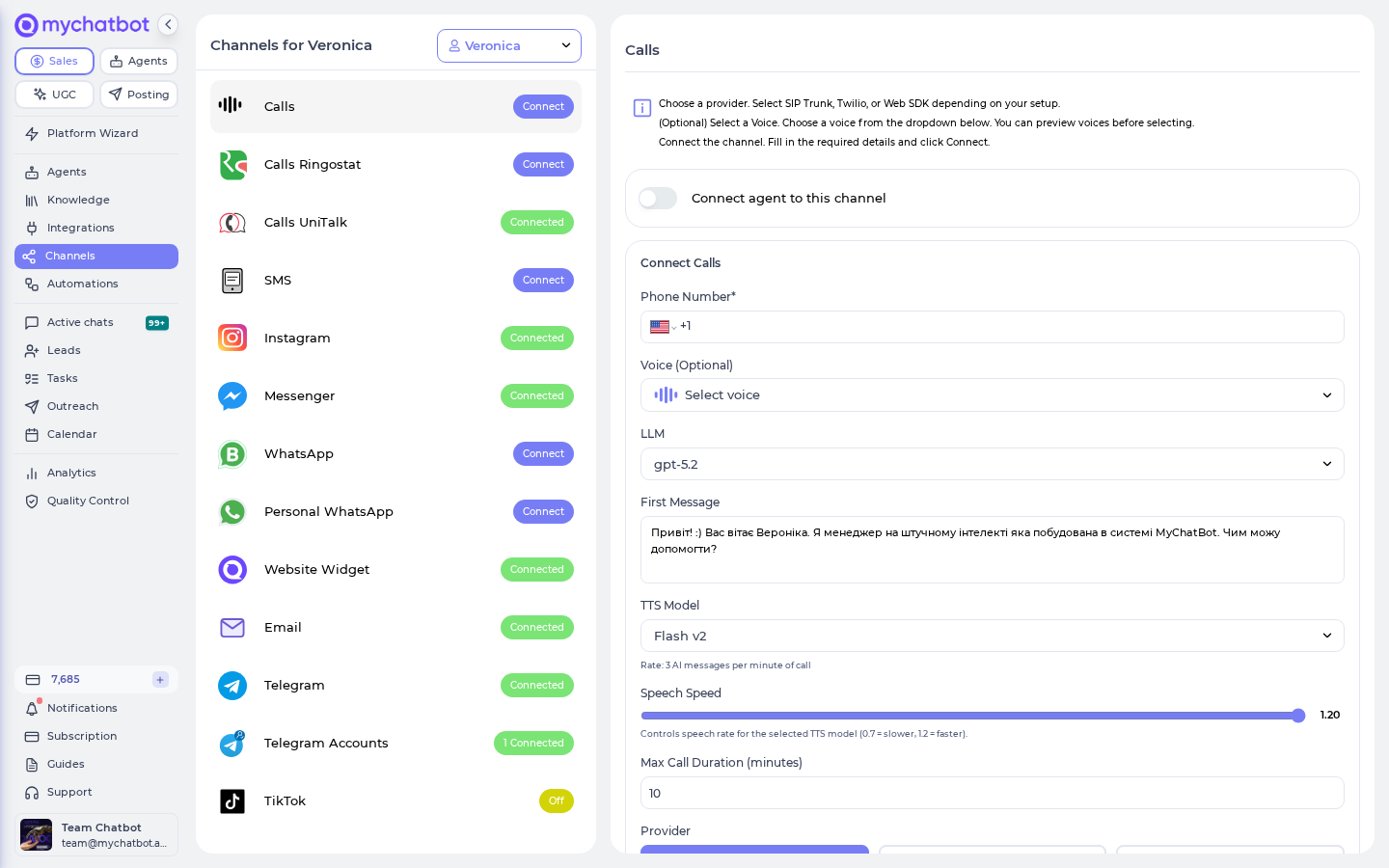
Go to Channels → Instagram (app.mychatbot.app/channels) and click Connect Instagram. You'll be sent to Meta's authorization page. Sign in, pick the Facebook page linked to your shop, allow access, and you'll land back on the dashboard with the channel connected.
A business or creator account is required
You need an Instagram business account linked to a Facebook page. A personal account can't be connected. If your account is personal, switch it to a business (or creator) account in the Instagram app first, then come back and connect.
3. Turn your feed into a catalog
On the same Instagram panel, switch on Instagram Products. This is the magic step: it reads your posts and reels, turns each caption into a product title and description, collects the post images, and even pulls frames from your reels so they're searchable too.
There's no feed-language control on this panel — the indexer reads your captions in your assistant's language automatically (English, Russian, or Ukrainian; Ukrainian captions are handled as Russian). If it's reading them in the wrong language, change the language on your assistant, not here on the Instagram panel.
Indexing runs in the background. You'll see live progress right in the panel ("Indexing completed…" with a count, and how many images were captured) and a Download feed link once it's done. Wait for it to finish before you rely on search.
Feed indexing limits
A few things to know about what gets captured:
- Language: only English, Russian, and Ukrainian are supported. Ukrainian captions are indexed as Russian — search still works well, just know that's how it's handled.
- Posts become simple products. The assistant learns each post's title, description, link, and images. It does not get structured price, size, SKU, or stock unless you write those into the caption. So put the useful details in your captions — price, sizes, "in stock" — and search gets much sharper.
- Big accounts: indexing runs on a time budget (about 20 minutes, with a per-reel cap on frame extraction). Very large feeds or very long reels may be covered only partially.
- Re-indexing: the catalog refreshes itself automatically (roughly hourly). There's no "rebuild now" button — to force a full rebuild, turn Instagram Products off and back on.
4. (Optional) Turn on Agentic Search
Once products are indexed, an Agentic Search toggle appears: "Enable AI-powered multi-step product search agent instead of direct search."
Leave it off for the fastest, simplest lookups — great for most shops. Turn it on when your catalog is large or customer questions are nuanced ("something like the blue one but warmer, under 1000"), and you want the assistant to search step by step instead of in one shot.
TIP
Agentic Search draws on your agents balance (a small USD budget included with your plan). During a free trial that budget is capped at about $1, so heavy agentic use can pause. Plain (non-agentic) search doesn't touch it — so if you're on a trial, start with Agentic Search off.
5. Tell the assistant to sell
Open your assistant's instructions (app.mychatbot.app/agents). The Instagram product-search tool is already wired to your catalog — you don't have to add it. Just make sure your instructions point the assistant at it, for example:
When a customer asks about a product, search the Instagram catalog and reply with the matching post — include the image and the link. If they send a photo, search using that photo to find the closest match.
That's it. When a customer sends a photo in a DM, the assistant automatically uses it as a visual search and finds the closest post.
Try it
DM your connected Instagram account from another account. Try both:
- A text question — "Do you have this in red?" or "Show me your summer dresses." The assistant should reply with matching posts, images, and links.
- A photo — send a picture of an item (or a screenshot). The assistant should find the closest-looking post in your feed.
If replies come back with the right posts and images, your shop seller is live.
Keep an eye on your message balance
Every DM reply your assistant sends draws from your Sales plan's shared sales-message balance — the same bucket used across all your channels, voice included. A busy Instagram shop can burn through it fast. If that balance hits zero, a background job switches all your assistants off across every channel — and they don't turn back on by themselves until you top up or your plan renews. So if your shop suddenly goes quiet, check your balance on the Analytics page first and top up to bring everyone back online.
TIP
Product images are batched into one album by default. If you'd rather send them one at a time, flip on Disable batch image sending on the same panel.
Level it up
- Sell from your comments. On the Instagram panel, set up comment auto-replies — the assistant can answer publicly under a post and slide the details into a DM automatically. Great for "price?" comments.
- Add a keyword responder. Trigger an instant DM when someone comments a magic word (like "PRICE" or "LINK") under a post — perfect for launch posts and reels.
- Gate to followers. Turn on Enable Follower Check so the assistant can confirm whether someone follows you before offering a follower-only deal.
- Sell everywhere at once. The same assistant and catalog can run on Telegram, WhatsApp, and your website widget — connect them from Channels and your Instagram shop instantly becomes a multi-channel shop.
See also
- Instagram channel reference — every toggle on the Instagram panel, explained
- Getting inventory in — how catalogs get indexed for search
- Image search — how photo-to-product matching works
- Search tools — the product-search tool your assistant uses
- Assistant configuration — shaping how your assistant replies
- Automations — comment replies, keyword responders, and follow-ups