
Appearance
Get a daily briefing every morning
Every morning, one short note is already waiting: your day's calendar, the emails that actually need you, and the two or three headlines that matter to your business — built by an agent while you were still asleep.
- What you'll build — A scheduled routine that runs on its own each morning and writes you a compact briefing: today's meetings, urgent or unanswered email, and a few relevant news items. Claude or Codex builds and validates it through the Agents MCP; MyChatBot runs it and keeps each result in the routine's conversation.
- Who it's for — A founder or operator who wants a one-glance start to the day without opening three tabs.
- Time & plan — About 10 minutes. You'll need any plan that includes an agents budget (any Sales, Voice, Agents, or UGC plan), and you'll connect Gmail and Google Calendar so the agent can read them. Each morning's run draws a little from your agents budget.
Connect Claude or Codex first
Open the Personal Assistant's Tasks tab, choose Connect Claude or Codex, and follow Build routines with Claude or Codex if you have not connected the account-scoped Agents MCP yet.
Ingredients
Everything lives under Agents. Claude or Codex inspects the account, initiates OAuth when needed, and stages the schedule only after the routine is ready.
| # | You'll switch on | Where | Needed for |
|---|---|---|---|
| 1 | The Personal Assistant agent | Built in to the Agents section | Your one worker — it reads your apps and writes the briefing. It already exists |
| 2 | Gmail connector | Claude/Codex returns an OAuth consent URL, or use Agents → Connectors | Reading which emails are urgent or unanswered |
| 3 | Google Calendar connector | Claude/Codex returns an OAuth consent URL, or use Agents → Connectors | Reading today's meetings |
| 4 | Web search | On by default on the Personal Assistant | The couple of relevant news items |
| 5 | A daily schedule | Claude/Codex stages it disabled through the Agents MCP | Firing the briefing every morning on its own |
Why no trigger here
A briefing should run on a clock, not react to an event — so this recipe uses a schedule, not a trigger. (The next recipes, payment thank-you and GitHub triage, are the event-driven kind.)
Steps
1. Describe the briefing to Claude or Codex
text
Build a read-only daily morning briefing routine. Include today's calendar,
urgent or unanswered Gmail threads, and two or three sourced news items relevant
to my business. Keep the result concise and store it only in the routine's own
conversation. Run at 07:30 Europe/Kyiv, but leave the schedule disabled.

Inspect my account and the routine docs first. Reuse the Personal Assistant and
existing connectors. Validate and show me the complete canonical YAML before
saving, run readiness, and ask separately before a billed tool-free preview.
The coding agent first reads the authoring contract and account inventory. It should confirm the actual Agent, connector and timezone instead of guessing.
2. Authorize Gmail and Calendar
If either connector is missing, Claude or Codex calls start_connector_authorization and returns a Google consent URL. Open it yourself and approve the required account. Never paste a Google credential into Claude or Codex. Ask it to refresh the inventory after both connections are complete.
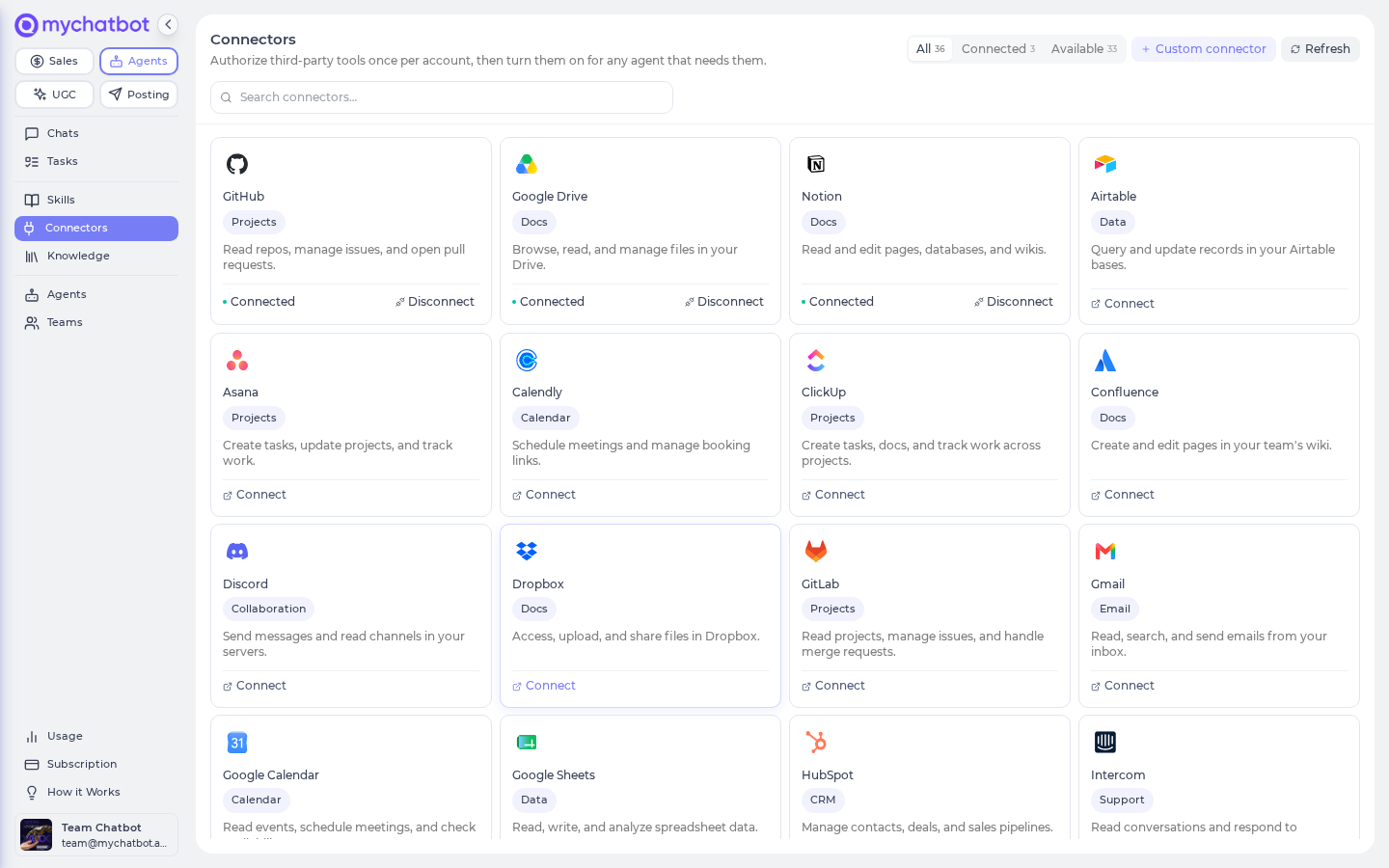
A card must read Connected before the morning run can read it
If Gmail or Calendar shows Connect or Reconnect (sign-in expired) at run time, that source is silently skipped and the briefing comes back thinner. If a section goes missing one morning, check both cards on the Connectors page first.
3. Validate, save and preview
Review the full canonical YAML returned by validate_routine, including the source prompts and final formatting step. Approve the save, then check get_routine_readiness.
A separately approved MCP dry run tests the workflow and format with all tools removed. It does not read Gmail, Calendar, or the web. Open the saved routine in MyChatBot and run one narrow live briefing to verify those reads before automation.
4. Stage and enable the schedule
Ask Claude or Codex to call create_routine_schedule with 30 7 * * * and Europe/Kyiv. The MCP creates it disabled. Review the routine, cron, timezone, run message, observed live output, and expected daily cost; then separately approve set_routine_schedule_enabled.
Where the briefing lands
A scheduled run posts its result into the routine's own conversation in your chats, not back to you over email or Telegram. Open that thread each morning to read the day's note. (Want it pushed somewhere? See Make it yours.)
Sample before you rely on it
The MCP preview proves control flow and output shape; the narrow live run proves the connector reads. Both draw from the Agents balance when they call models. Do not enable the schedule until the live result contains real calendar/email evidence and clearly marks a missing source instead of inventing it.
Confirm and manage the schedule
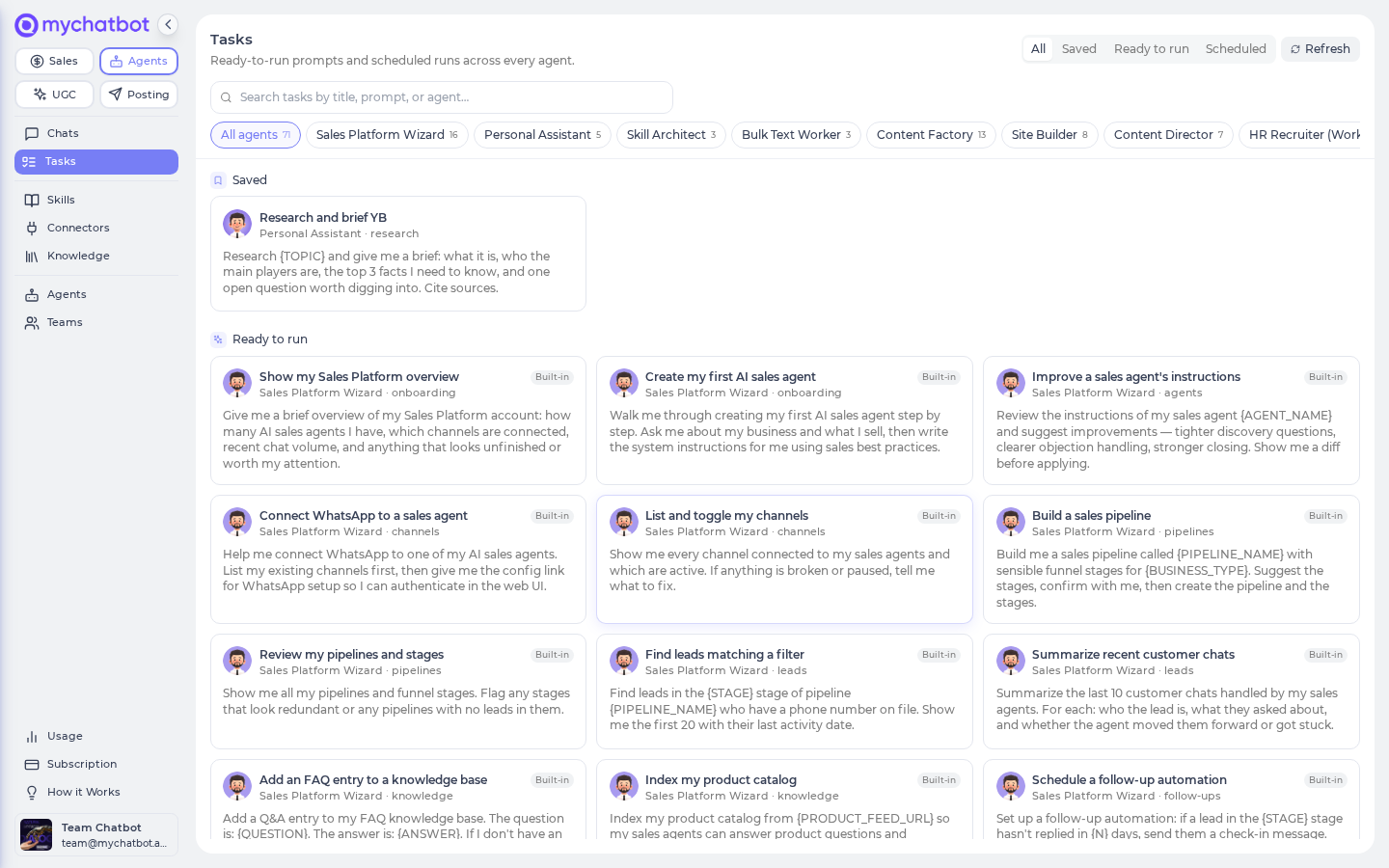
Open the cross-agent Tasks page → app.mychatbot.app/agents/tasks, switch to the Scheduled view, and you'll see the briefing with its cadence, timezone, and next-run time. To pause, resume, change the time, or reword what it includes, use Claude through the Agents MCP or open the Personal Assistant's Tasks tab.
Make it yours
- Trim or expand the sources. "Drop the news, add my unread Slack DMs" — if you connect Slack, the briefing can fold in a channel or your DMs too. It reads whatever apps you've connected.
- Weekdays only. Ask Claude or Codex for Monday to Friday—the schedule becomes
30 7 * * 1-5. Perfect for a work briefing you don't want on weekends. - Have it pushed to you. The safe base version lives in its own conversation. Emailing or DMing is a live external effect. Approval fields currently do not pause by default, so keep delivery disabled until that effect has its own tested authorization design.
- A sharper voice. On the agent's Instructions tab, tell it how you like the briefing — bullets over prose, a "top 3 to act on" line up top, your name and role. Small, specific instructions go a long way.
See also
- Tasks & schedules — how scheduled runs are created, edited, and paused
- Routine YAML reference — the
schedules:block and cron cadences, if you'd rather edit as text - Build routines with Claude or Codex — the complete external-authoring workflow
- Connectors cheat sheet — connecting Gmail, Calendar, and more
- Custom routines — lifecycle and safety boundaries
- Weekly ops digest by email — the same idea for your business numbers, emailed weekly
- Usage & billing — how each morning's run is metered