
Appearance
Build & publish a landing page
Describe the page you want, and minutes later it's live at your own web address — no design tools, no hosting to set up, no deploy button to sweat.
- What you'll have — A polished single-page website (hero, features, pricing, sign-up form, whatever you ask for) built for you in a chat and published to a live
yourname.page.mychatbot.appaddress you can share right away. - Who it's for — Founders launching a product, freelancers who need a portfolio, anyone spinning up an event page, a waitlist, a menu, or a link-in-bio — without opening a website builder or writing a line of markup.
- Time & plan — About 10–15 minutes to your first published page. Works on any plan that includes an agents budget (any Sales, Voice, Agents, or UGC plan) — a base Sales plan like MyChatBot Standard is a common entry point. Whichever plan line you're on, Site Builder lives in the same Agents section: every agents-bearing plan surfaces the same built-in agents list, so you'll find it there. The whole thing runs against your agents budget (a monthly dollar wallet); all you need is a plan with one and some balance in it.
Ingredients
Nothing to install. Site Builder is a built-in agent that ships with every tool it needs already switched on. Here's what's doing the work under the hood — you don't touch any of it.
| Switch on your agent | What it's for | Default |
|---|---|---|
| Site Builder agent | The built-in agent that designs, builds, and publishes your page. Always in your agents list. | Ready to use |
| Run code & crunch data | How it writes the page and hands it to the publisher. | On by default |
| Search the web / Read a web page | So it can reference your brand or a site you like before it builds. | On by default |
| Publish pages | Ships the finished page to a live *.page.mychatbot.app address. | On by default |
| Generate media | Optional hero images made for your page (draws from the same wallet). | On by default |
| Schedule & delegate | For "publish this on launch day" or refreshing a page on a cadence. | On by default |
You don't set any of this up
Site Builder comes pre-configured. Everything in the table above is already on. Just open it and describe your page.
Steps
1. Open Site Builder
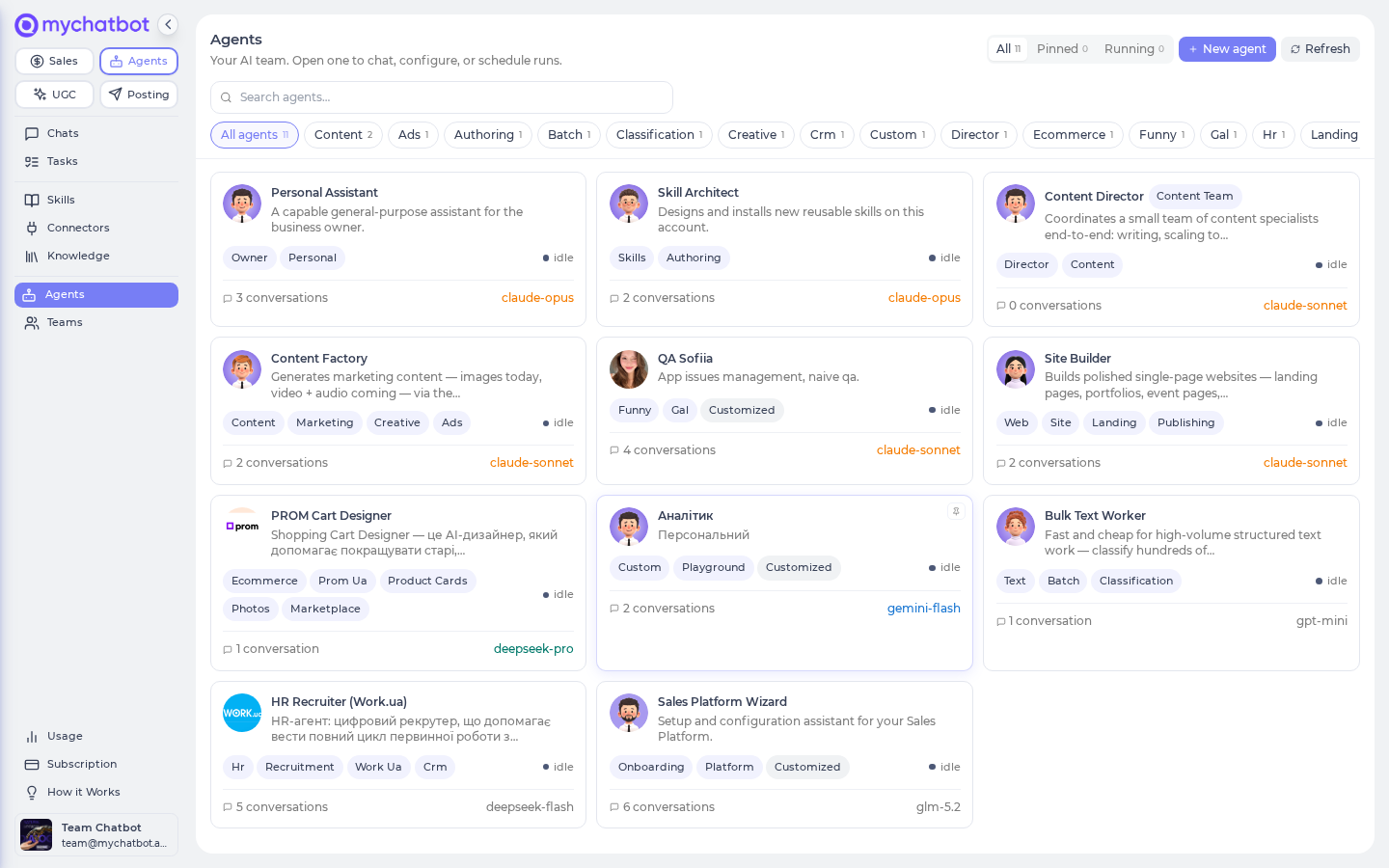
Go to Agents (app.mychatbot.app/agents) and pick Site Builder from your agents list. It's a built-in — it's always there, on every account with an agents budget, no matter which plan line (Sales, Voice, Agents, or UGC) you're on.
2. Describe the page — or click a quick-start
Start two ways:
- Type a brief. Say what the page is for, who it's for, and the vibe: "A landing page for my cold-brew coffee subscription — hero with a tagline, three benefits, a pricing block with two plans, and an email sign-up form. Clean, warm, a little playful."
- Click a quick-start. Site Builder ships with ready-made starting points — product landing page, personal portfolio, event page, coming-soon / waitlist, restaurant menu, local service, app download, link-in-bio. Click one and fill in the blanks.
The more you say, the closer the first draft
Name the sections you want, the tone, the key headline, and your call-to-action. Paste in a URL of a site whose style you like and ask it to "take cues from this" — it can read the page and borrow the feel.
3. Add your images (optional)
Have a logo or product photo? Upload it in the chat and ask Site Builder to use it. Don't have images yet? Just ask — it can generate a hero image for the page.
Generated images spend from your wallet
A generated hero image draws from the same agents dollar balance as the rest of the run — usually a few cents. Uploading your own images is free. If you're watching a tight budget, upload rather than generate.
4. Review the draft, then ask for changes
Site Builder builds the page and shows you what it made. Read it over and just say what to tweak in plain words: "make the hero background darker," "move pricing above the benefits," "the CTA should say Start my free box." It rebuilds and shows you again. Loop until it's right.
It's one long page, and that's on purpose
Site Builder makes one self-contained page — a single scrolling site with sections (hero, features, pricing, contact) rather than separate /about and /pricing addresses. If you want a menu at the top that jumps to sections, ask for "anchor navigation" — the links scroll the visitor down the page. It's the right shape for a landing page, portfolio, or event page.
5. Publish it to a live address
When you're happy, say "publish it." Site Builder asks for a subdomain — the first part of the web address — and pushes the page live at https://<your-subdomain>.page.mychatbot.app. Open the link; it's live immediately.
Pick a subdomain that's still free — and keep it simple
Subdomains are first-come across all of MyChatBot, so a common word may be taken. If it is, you'll be told and can just pick another. Rules: lowercase letters, numbers, and hyphens only; no spaces; no hyphen at the very start or end; up to 63 characters. (Good: luna-coffee, spring-launch-2026. Won't work: Luna Coffee, -launch, my_page.)
6. Share it
That's it — copy the *.page.mychatbot.app link and put it anywhere: your Instagram bio, an email, a QR code on a flyer. There's no separate hosting bill and no deploy step; the page is served for you.
Republishing to the same address? Give it a moment
Published pages cache for about 5 minutes, so a fresh change may take a few minutes to show up (and a hard refresh helps). If an updated image doesn't appear at all, ask Site Builder to publish it under a slightly different image name — freshly named images always show right away.
Try it
Open Site Builder and paste this:
"Build a coming-soon page for an app called Tidepool — a calm, minimalist waitlist page. Big headline 'Your inbox, finally quiet.', one line of subtext, an email sign-up form, and a soft ocean-gradient background. Then publish it to the subdomain tidepool-waitlist."
In a few minutes you'll have a real, shareable page at https://tidepool-waitlist.page.mychatbot.app (or the next free name it suggests). That's the whole loop: describe, review, publish. Now change the headline or the colors and ask it to republish.
Level it up
- Add real hero imagery. Ask for a generated hero or product shot right in the brief — "add a warm, sunlit photo of a coffee bag on a wooden table as the hero background." It makes the image and drops it into the page (a few cents from your wallet).
- Refresh it any time. Come back to the same chat, ask for a change, and republish to the same subdomain — the live page updates in place (give the 5-minute cache a moment to catch up).
- Publish on launch day. Ask Site Builder to hold the page and publish it on a schedule — "publish this next Monday at 9am" — so your announcement goes live exactly when you want. See Tasks & schedules.
- Feed it your real content. Attach your product catalog, FAQ, or brand notes as knowledge and ask Site Builder to pull the copy and pricing straight from it, so the page matches what you actually sell.
- Let a whole crew build it. When a launch needs copy and visuals and the page — "plan a Black Friday drop: captions, hero images, and ship the landing page" — the Content Factory and its Content Director team can hand the page-building leg to Site Builder for you.
A note on plans and cost
Site Builder works on any plan that includes an agents budget — a base Sales plan like MyChatBot Standard is a common entry point, and no add-on is required. Building and publishing a page bills straight from your agents wallet at cost, so higher plans just give you a bigger monthly budget, not more features.
The 3-day trial has a tiny budget
During a free trial the agents budget is pinned to about $1 — plenty to build and publish a simple page, but generating several hero images or iterating heavily can use it up. To work at full pace, convert to a paid plan first.
See also
- Tools & toggles — what "Publish pages" and the other switches do
- Usage & billing — how a build-and-publish run shows up in your spend
- Tasks & schedules — publish on launch day or refresh a page on a cadence
- Knowledge bases — grounding the page copy in your own catalog and brand docs
- Content Factory pipeline — generating the hero imagery and running a full launch
- Agents overview — the built-in agents, including Site Builder