
Appearance
Triage your inbox & draft replies
Open your inbox to a tidy briefing — the urgent stuff already flagged, and a polished reply sitting in Drafts for each email that needs one. Nothing sent without you.
- What you'll have — A focused "Inbox Triage" agent that reads your unread email, tells you in plain language what's urgent, and writes a ready-to-review draft reply for each message that needs one. Drafts land in your Gmail Drafts folder — you skim, tweak, and hit send yourself. You can run it on demand, or put it on a schedule so it sweeps your inbox every morning (or every 15 minutes) on its own.
- Who it's for — Anyone drowning in email: founders, support leads, account managers, freelancers — people who want the sorting and the first-draft writing done for them, but who still want the final word before anything goes out.
- Time & plan — About 15–20 minutes to set up. Works on any plan that includes an agents budget (any Sales, Voice, Agents, or UGC plan — the cheapest are Sales+Agents Standard or Agents Starter). Each inbox sweep spends from your agents dollar balance, so you'll want a real (not trial) budget for continuous polling — see the note below.
Read this first — it's scheduled triage, not instant
Your agent doesn't get pinged the moment an email arrives. Instead it checks your inbox when you ask it to, or on a schedule you set (say every 15 minutes, or 8am daily). So "reads incoming email" really means "polls the inbox on a cadence" — the freshest an email can be triaged is one schedule-tick old. For most inboxes a short interval feels close enough to real-time. Just know that a tighter interval means more sweeps, and each sweep spends from your balance.
Ingredients
Everything here lives in the Agents Platform — switch to it with the product switcher at the top of the sidebar, or go straight to app.mychatbot.app/agents.
| Switch on | Where | Why |
|---|---|---|
| The Gmail connector | Agents → Connectors → sign in once | Lets the agent read your inbox and put drafts in your Drafts folder |
| A custom agent named Inbox Triage | Agents list → New custom agent | Your single-purpose triage worker |
| Gmail (toggled on for this agent) | The agent's Settings tab → Connectors section | An account connector does nothing until you flip it on per agent |
| Think step by step (reasoning) | Settings → What it can do | Sharpens urgency judgement — but only on smaller/cheaper models; it's wasted overhead on frontier reasoning models (see step 4) |
| Schedule & delegate (optional) | Settings → What it can do | Let the agent run itself on a recurring sweep |
Steps
1. Make sure you're on a plan with an agents budget
Any Sales, Voice, Agents, or UGC plan includes one. If your balance is empty, runs can't spend — check the Balance card on the Usage page (app.mychatbot.app/agents/usage) and top up first.
A 3-day trial is too thin for constant polling
During the card-gated free trial your agents budget is pinned to $1, no matter which plan you picked. That's plenty to set this up and watch one sweep work — but a schedule that polls every few minutes all month will burn through $1 quickly. Learn it on the trial, then convert to a paid plan before you turn on continuous polling. See Usage & billing.
2. Connect Gmail — once, for your whole account
Go to Agents → Connectors → app.mychatbot.app/agents/connectors. The page is one sorted grid of connectors — find the Gmail card (it carries an Email category pill; use the search box or the Available filter if you don't spot it right away), click Connect, and sign in with Google. It's a one-time, managed sign-in — you don't register your own Google app or paste any keys.
When it's done, the card flips to Connected and pins to the top of the grid.
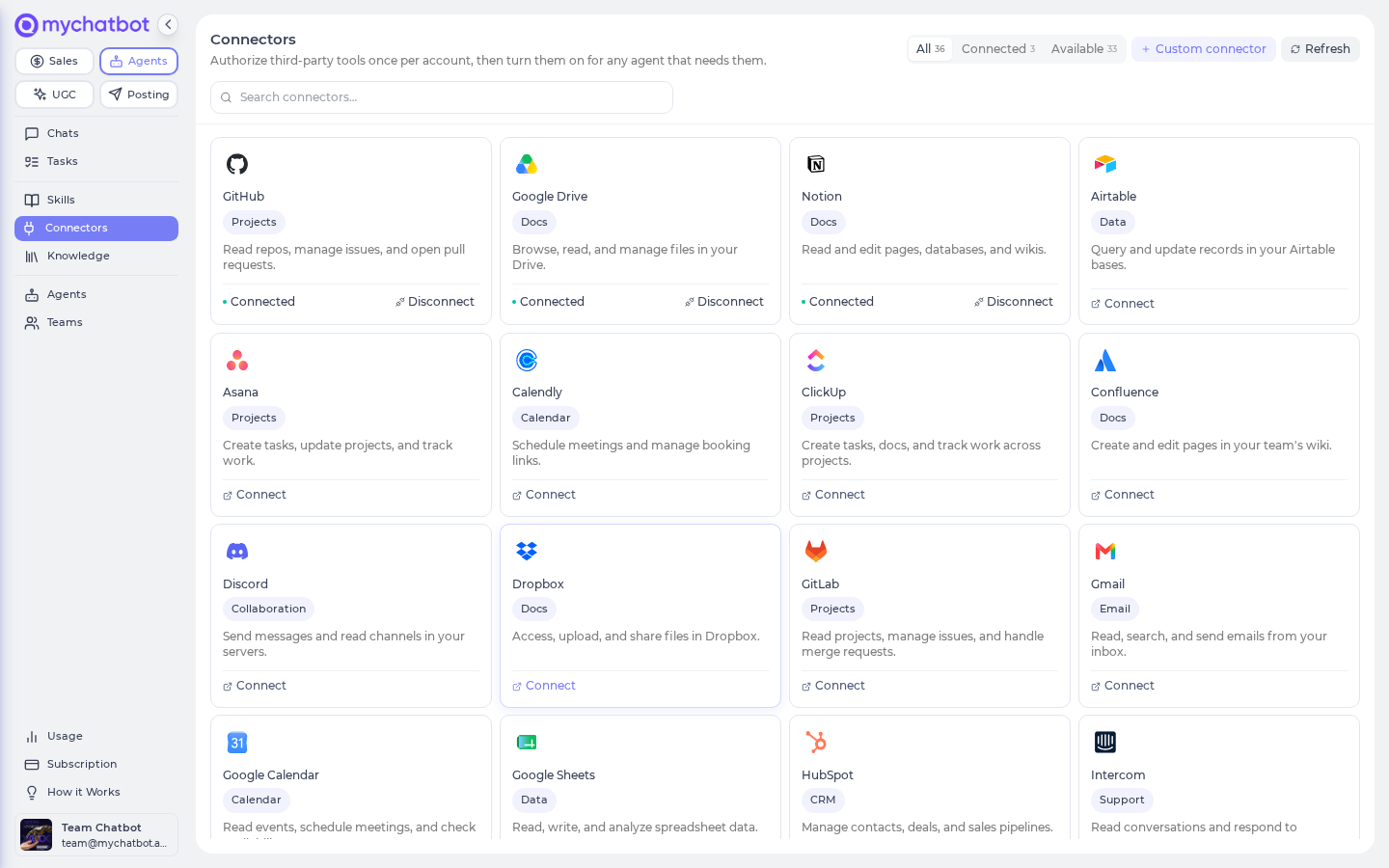
The Gmail toggle won't appear on the agent until this card says Connected
The per-agent switch in the next step only shows up once Gmail is Connected here on the account. If a card reads Connect (never authorized) or Reconnect (authorization expired), the agent silently skips it at run time.
3. Create your Inbox Triage agent
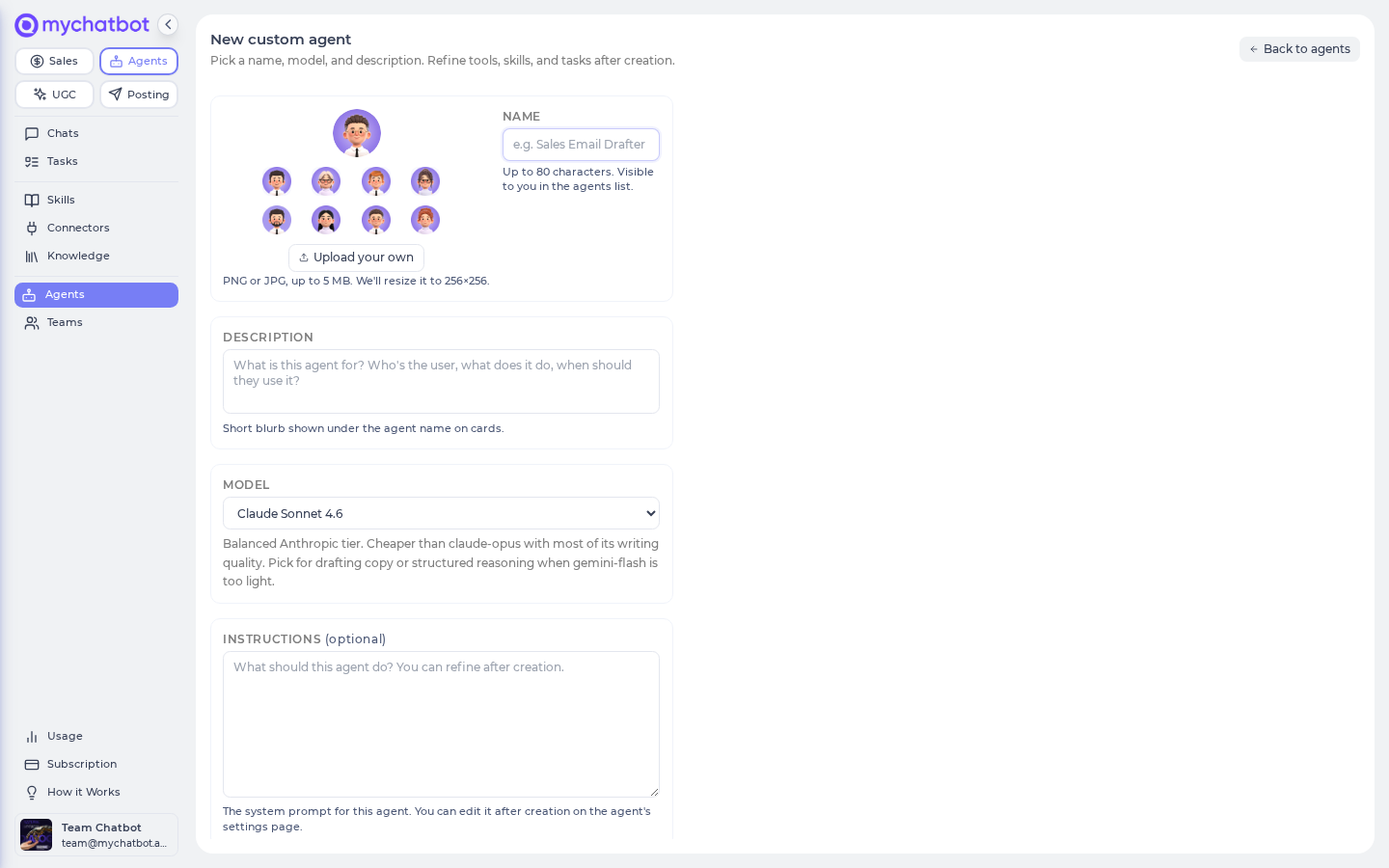
Go to the agents list → New custom agent (app.mychatbot.app/agents/new). Give it a Name — Inbox Triage — and pick a Model. A strong reasoning model (like Claude Opus or GPT-5) makes better urgency calls and writes cleaner replies. Click Create agent.
You get up to 10 custom-agent slots per account, so it's fine to dedicate one entirely to email.
4. Turn on Gmail for this agent
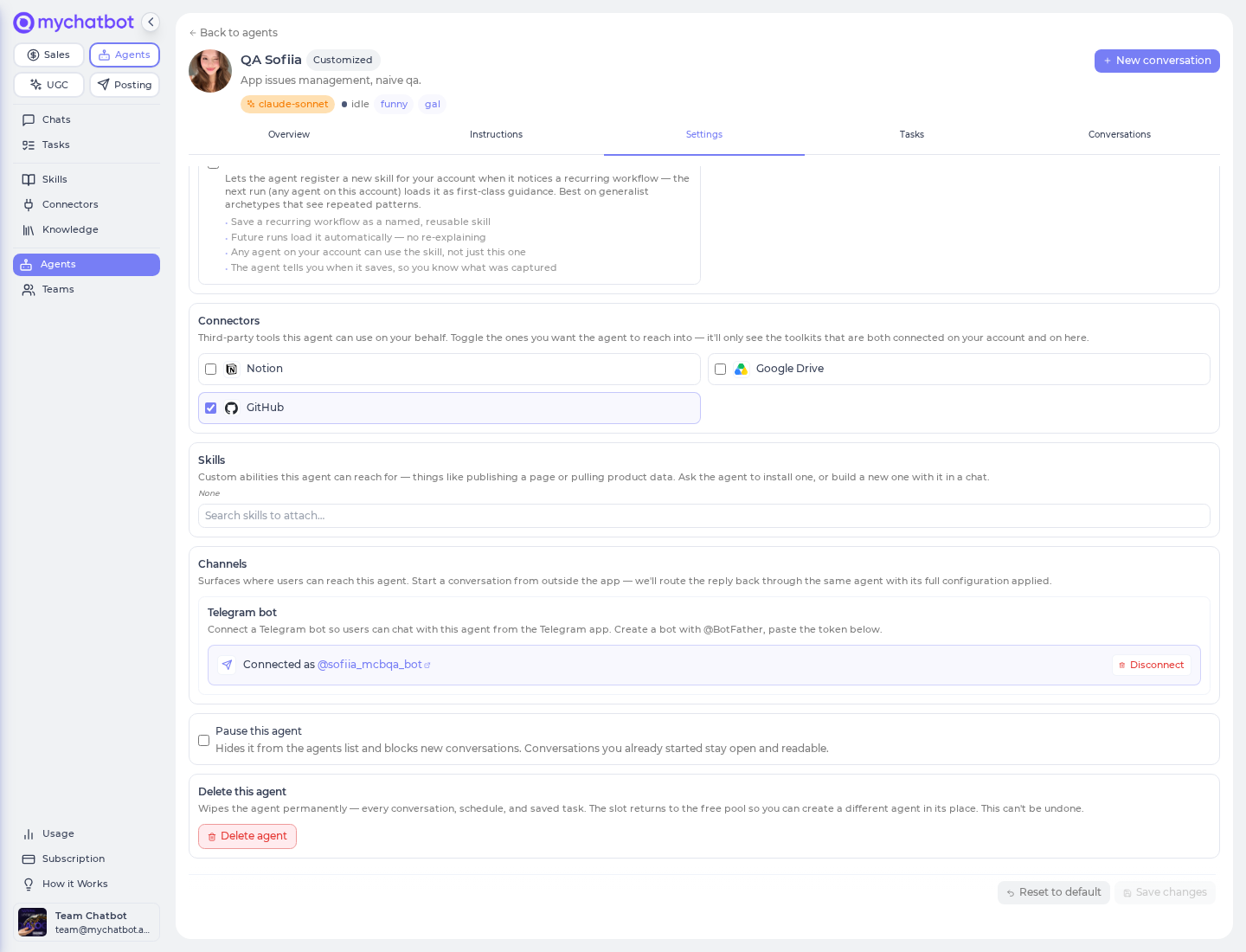
Open your new agent → Settings tab. Everything — tools, connectors, skills — lives as scrollable sections inside that one tab. Scroll to the Connectors section and toggle Gmail on. Then click Save changes.
Skip the reasoning toggle if you picked Opus or GPT-5
There's a Think step by step switch in the What it can do section. It helps smaller, cheaper models reason through the "is this urgent?" call — but frontier reasoning models (Claude Opus, GPT-5, Gemini 2.5 Pro) already think this way internally, so on the models step 3 recommends it's mostly wasted tokens, not sharper judgement. Leave it off there; flip it on only if you dropped down to a lighter model.
5. Write the triage instructions — and make "draft only" a rule
Open the agent's Instructions tab ("How it thinks and talks"). This is the most important step, because it's where you set the safety rule that keeps the agent from ever sending on its own. Be explicit:
text
You triage my email inbox. When I ask, or on a schedule:
1. Read my unread / recent messages.
2. Decide which ones are urgent (need a reply today, involve money,
   an unhappy customer, a deadline, or my boss). Summarize the urgent
   ones for me in chat, most important first.
3. For every message that needs a reply, write a proposed reply and
   save it as a Gmail DRAFT. NEVER send an email. Drafts only, always.
   I will review and send them myself.
4. If you're unsure whether something is urgent, flag it and let me decide.
Keep replies in my voice: warm, brief, and to the point.
Click Save.
The "never send" rule lives in the instructions — so write it firmly
The Gmail connector can create drafts and send email; there's no separate "draft-only" switch to flip. What keeps the agent safe is the instruction itself. State "never send, drafts only" plainly and repeat it, as above. A vaguely-worded agent could decide to send — a clearly-worded one won't.
6. Test it by hand
Open the agent and click New conversation. Ask for a real sweep:
Check my inbox, tell me what's urgent, and draft a reply for anything that needs one — drafts only, don't send.
The agent will read your recent mail, post a short urgent-first summary in chat, and quietly create a draft in Gmail for each message that warrants a reply. Pop open your Gmail Drafts folder to confirm they're there — polished, addressed, and unsent.
"Flag urgent" is the agent's judgement, spoken in chat
There's no separate urgency dashboard on our side. "Flagging" means the agent tells you what's urgent in its chat summary — and, if you like, you can ask it to apply a Gmail label (e.g. Urgent) to those messages so they stand out in your inbox too. Just add that to the instructions.
Try it
The fastest way to trust it is to watch one full loop, then teach it your taste.
- In a New conversation, run the sweep prompt from step 6.
- Open Drafts in Gmail and read one of the replies. Too formal? Missing a detail? Don't fix it silently.
- Back in the chat, use the pencil / correct control under the agent's reply and tell it what to change — "keep replies to three sentences," or "always offer a call for anything about pricing." That correction sticks as a durable instruction, so the next sweep already knows better.
Run the sweep again and watch the drafts come back in your voice. A couple of rounds of this and the agent writes the way you would.
Test sweeps spend from your balance
Every run — test or scheduled — spends from your agents budget, just like any agent. Your conversation history sticks around, so you can reopen past sweeps to see what it did. Make your test prompts realistic; you'll learn more from one true sweep than from ten "hi"s.
Level it up
Put it on a schedule. Turn on Schedule & delegate (Settings → What it can do), then just tell the agent in a conversation to run on a cadence — "sweep my inbox every weekday at 8am and every 30 minutes after that until 6pm" — and it sets up the recurring run itself. The schedule then appears on the agent's Tasks tab, where you can edit its instruction, pause or re-enable it, or delete it. Each run posts into a conversation so you can review what it found. See Tasks & schedules.
Tune the interval — a schedule keeps spending until you pause it
Frequent polling is real work and spends real balance. A 15-minute sweep during business hours is a good starting point; go tighter only if you need to. Important: a scheduled sweep keeps running and keeps spending for as long as it's enabled — the balance is metered after each run, so there's no automatic "you're out of budget, skip this one" for scheduled runs. Watch your Balance card, size the cadence to your budget, and pause or delete the schedule (on the agent's Tasks tab) yourself before you run dry.
Reopen the chat to see a scheduled sweep finish
If a scheduled run completes while you have the chat closed, it may not backfill into an open, idle chat on its own. Reopen the conversation (or ask a quick follow-up) to pull in the finished results.
Give urgent mail a visible label. Ask the agent to apply a Gmail label (like Urgent or Reply today) to the messages it flags, so your inbox itself sorts them — not just the chat summary. It's a one-line addition to the instructions.
Save the sweep as a reusable task. Turn your favourite triage prompt into a one-click task card from its chat message (Save as task), so a manual sweep is a single click instead of a retype.
Keep replies on-brand. If you want the drafts grounded in your own material — a support playbook, canned answers, product facts — attach those as knowledge so the agent can look them up while it writes. See Knowledge bases for agents.
See also
- Build an agent — the full happy path for any agent
- MCP & connectors — how the Gmail connector reaches your inbox
- Tools & toggles cheat sheet — every switch in detail
- Tasks, crons & schedules — put the sweep on a cadence
- Models & reasoning — picking a model for good judgement
- Knowledge bases for agents — ground replies in your own content
- Usage & billing — how sweeps spend your balance
- Agents troubleshooting — connectors, schedules, and more