
Appearance
Configure a sales assistant with Claude or Codex
Use a subsidized Claude or Codex session to configure and test the customer-facing Sales runtime. If higher-level work must repeat, promote that process into an Agents routine.
- What you'll have — A customer-facing Sales assistant configured through the Sales-Management MCP, with instructions, pipeline, knowledge, and a live channel. Optionally, you will also have a validated Agents routine that reviews or coordinates those Sales processes.
- Who it's for — A shop, service business, or team designing a real sales system. You describe outcomes and constraints; Claude or Codex inspects current state and proposes the smallest changes.
- Time & plan — About 20–40 minutes for a first setup. Sales runtime usage and Agents routine usage have separate balances; validate expected volume before activation.
Two planes, two runtimes
Claude or Codex is the temporary configuration and prototyping plane. The Sales assistant remains the runtime for customer conversations and native follow-ups. An Agents routine, when needed, becomes the production orchestration plane around those Sales processes. See the operating model.
Ingredients
Connect only the surfaces and resources the setup needs.
| # | What you'll use | Where | Needed for |
|---|---|---|---|
| 1 | Sales-Management MCP | Agents → Connectors → a From your sales platform card → Connect AI tools | Lets Claude or Codex inspect and configure Sales primitives |
| 2 | Agents MCP (when orchestration must repeat) | Any Agent → Tasks → Connect Claude or Codex | Assembles capabilities, authors YAML, validates, previews, and stages automation |
| 3 | A channel to go live on | A Sales channel — WhatsApp, Telegram, or the Website Widget | Where customers actually reach the assistant |
| 4 | A knowledge base — FAQ and/or product catalog | Sales Platform | So the assistant answers about your products and policies |
| 5 | A lead pipeline with stages | Sales Platform | So the assistant moves people through your funnel |
| 6 | (Optional) A batch of leads to reach out to | Leads → app.mychatbot.app/leads | The audience for a first outreach |
Steps
1. Connect Claude or Codex and state the outcome
Connect the narrowest Sales-Management MCP area that covers the setup—or the combined surface only when the work genuinely crosses several domains. Then describe your business and desired customer journey in plain language:
"I run a small online store selling handmade candles. Inspect the existing Sales setup, then propose an assistant that greets customers, answers questions about scents and shipping, and uses native Sales follow-ups for quiet leads. Do not change anything until I review the plan."
Ask it to inspect relevant assistants, channels, pipeline resources, knowledge, and current automation before writing. Follow the MCP surface map and exact Sales tools reference when a parameter or write boundary is unclear.
The in-product Wizard is the quick alternative
For a small one-off setup, the Sales Platform Wizard inside MyChatBot still offers ready-to-run task cards. Use Claude or Codex when you need several domains, a long iteration, a documented handoff, or routine authoring.
2. Review, then configure the assistant, pipeline, and knowledge
Have the coding agent show the proposed state before you approve each change:
- The assistant — complete instructions, assignment, and settings.
- A pipeline — stages (for example, New → Contacted → Qualified → Won) and intended transitions.
- A knowledge base — catalog/feed and FAQ sources the assistant will search, with no second copy created for Agents.
Read returned state after each write. Keep credentials out of prompts and MCP arguments; complete channel authentication and other secret-bearing steps in the app.
Build your product truth once
The catalog and FAQ you set up here are the same sources your assistant searches on every reply — and you can reuse them across the platform. Update them once and every answer reflects it. See How search works and Knowledge bases.
3. Connect a channel — this part is on you
The coding agent can configure channel resources but cannot sign in to WhatsApp or receive your secrets. Have it direct you to the channel setup page, then finish authentication in your browser.
- Open the link, or go straight to the channel you want — WhatsApp (/channels/whatsapp), Telegram (/channels/telegram), or the Website Widget (/channels/website-widget).
- Sign in / scan the QR / paste your token as that page walks you through, and attach the channel to the assistant you configured.
Once the channel shows connected, your assistant is live — real customers on that channel now reach it.
Channel sign-in is a manual, human step
For your security, Claude or Codex never needs your channel credentials. Connecting WhatsApp, Telegram, or Instagram is a human OAuth/secret-entry step in the web UI.
4. Preview the assistant before customers do
Use the Sales test-dialog capability to open a private test conversation with the new assistant—no live customer channel—so you can inspect how it greets, answers, and handles a tricky question.
"Test the assistant — ask it what candles you have under $20 and whether you ship internationally."
Read the replies. If anything is off, ask Claude or Codex to propose an instruction or FAQ change, approve it, and test again. This proves assistant behavior without sending a real customer message; it does not prove live channel delivery.
5. Kick off a first outreach — and confirm before it sends
For a controlled live delivery check, have the coding agent inspect a small lead audience. Make sure you have test leads first (Leads → app.mychatbot.app/leads), then ask:
"Send a friendly check-in to everyone in the New stage who hasn't heard from us."
Require an audience preview showing the count and a small sample. Review the exact message, channel, audience, and send timing before separately confirming a Sales write that can contact real people.
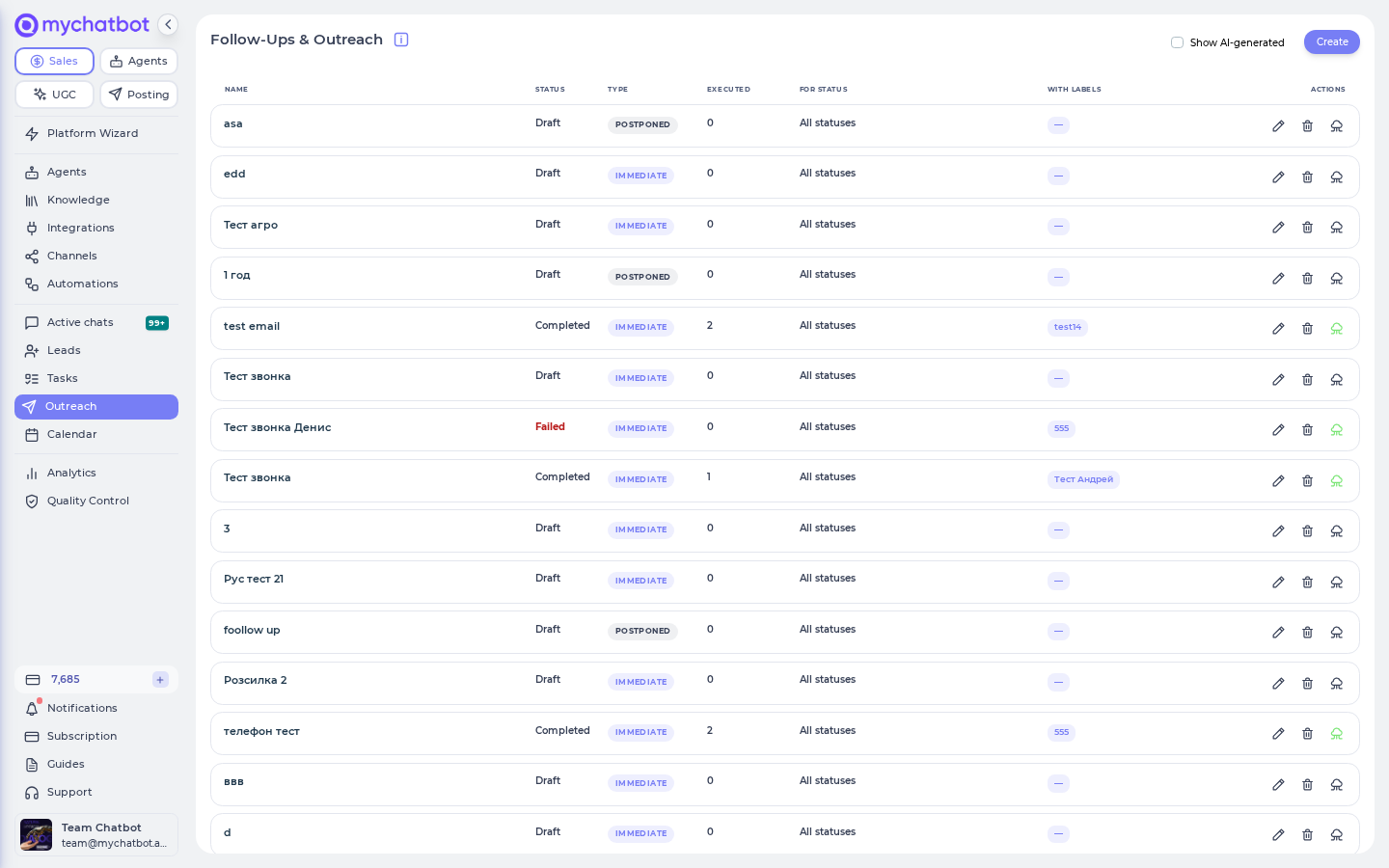
You're always in the loop for outreach
Do not treat a read-only inspection, routine graph preview, or connector readiness check as permission to contact customers. A message, call, or campaign is a separate live effect. Read the Sales tool's preview and confirm boundary; if the audience is wrong, refine it before approving the effect.
"Immediate" means soon, not this second
An immediate outreach campaign starts after a short buffer—a few minutes, not the instant you confirm. That gives the send queue time to line everything up. You will see the campaign on the Outreach page at app.mychatbot.app/follow-up.
6. Let the assistant take the conversation from here
Once the first messages go out, your job is done — the sales assistant runs the rest. When a customer replies on the channel, the assistant answers from your catalog and FAQ, qualifies the lead, and moves it along the pipeline, all on its own.
Those conversations do not come back to Claude/Codex or create one Agents conversation per customer. They live on the Sales Platform. Watch them in Active chats at app.mychatbot.app/chats, and see leads move through stages in Leads. Jump in manually at any time.
If your assistant goes quiet, check your sales-message balance
There are two separate balances at play, and they fail differently:
- The agents budget — the balance that runs Agents conversations, routine previews, and production routine steps.
- The sales-message balance — the pool your live assistant spends every time it replies to a real customer (across every channel, voice included).
If your assistant suddenly stops replying, check the sales-message balance first. When it hits zero, the system turns off all your assistants on every channel — and it does not turn them back on by itself. This is very reachable on a trial's ~10-message pool or a small Standard plan.
To recover: top up your sales messages (buy extra replies), or re-enable the assistant manually by toggling it back on. Topping up is what flips them back on automatically; otherwise flip the switch yourself.
7. Promote higher-level repeatable work into a routine
Keep customer dialogue and native per-lead follow-ups on Sales. Add an Agents routine only for higher-level work such as a daily review, batch enrichment, cross-system update, or periodic quality audit.
- Connect the Agents MCP to the same Claude or Codex session.
- Have it inspect existing agents, skills, connectors, knowledge, and routines before proposing new resources.
- Author and validate one canonical routine, preview its bounded workflow graph, and perform a narrow live check in MyChatBot.
- Stage its schedule disabled, review cost/effects/recovery, then enable separately.
There is no native Sales → Agents event bridge today. If the routine must notice customer replies or Sales record changes, schedule it to poll paginated changes with a cursor or high-water mark. It can process many Sales records in one durable routine conversation.
Try it
Don't wait for a campaign. Prove the whole loop end-to-end in two minutes:
- Message your own assistant on the live channel (or from the Website Widget) as if you were a customer — "Hi, what do you sell?"
- Watch it greet you and answer from the knowledge you set up.
- Open Active chats at app.mychatbot.app/chats and find that conversation, with your new lead attached and dropped into the first pipeline stage.
That is the front office working: greeting, answering, and capturing the lead. If an outreach effect is in scope, use Claude or Codex to preview a test-only audience and review the operation before confirming it.
On a free trial, keep it small
A trial is appropriate for bounded setup and testing, not real outreach volume. Check the current balances and plan limits shown in your account before relying on the system day to day; do not infer production capacity from a small test.
Level it up
- Add a native re-engagement follow-up. Use the Sales-Management MCP to propose a follow-up automation—for example, "if a lead in Contacted is quiet for 3 days, send a check-in"—then inspect its live-effect boundary. Manage it on the Outreach page; see Build and operate outreach with Claude or Codex.
- Capture leads automatically. Wire up an automation so new website-form or Meta lead-form submissions become leads and get a first message instantly — no manual import. Set these up under Automations (app.mychatbot.app/automations); see Automations.
- Reach out by phone. A separately confirmed outbound call needs a Twilio/SIP-backed Calls channel connected first; the in-browser voice channel cannot dial out. Treat the call as a live external effect.
- Ground it in your real catalog. Point the assistant at a live product feed so it always answers from current stock and prices. See Getting inventory in and How search works.
- Connect your CRM. Keep leads in sync with HubSpot, Salesforce, Kommo, and more — available on any Sales plan. See Integrations overview.
See also
- Agents Platform operating model — the complete configuration-to-production flow
- Working with the Sales Platform — ownership, runtime connectors, and the feedback-loop boundary
- MCP surface map — connect Claude or Codex to the correct account surface
- Build routines with Claude or Codex — promote repeatable work into production orchestration
- Build and operate outreach with Claude or Codex — draft, preview, launch, and control customer outreach
- Build an agent — where an agent's settings, tools, knowledge, and channels come together
- Assistant configuration — fine-tuning the Sales assistant you configured
- Automations and Follow-ups — capturing leads and reviving quiet ones automatically
- WhatsApp, Telegram, Website Widget — connecting the channel your assistant goes live on
- How search works — the catalog and FAQ knowledge your assistant answers from
- Leads and Active chats — where your outreach audience and the resulting conversations live