
Appearance
Run a dev task-board manager agent
Point an agent at your Jira, Linear, or GitHub board and it triages the mess, updates the tickets, and drops a tidy status summary in chat — so standup writes itself.
- What you'll have — A dedicated "Devboard Manager" agent connected to your team's task board (Jira, Linear, Asana, Trello, ClickUp, Monday, GitHub, or GitLab). Ask it in plain language and it pulls open issues, flags what's overdue or stalled, moves tickets, and hands you a clean status report — on demand, or on a morning schedule.
- Who it's for — Team leads, PMs, and solo builders who spend Monday morning clicking through a board to figure out what's actually going on, and who'd rather just read a summary.
- Time & plan — About 15–20 minutes to set up. Works on any plan that includes an agents budget (any Sales, Voice, Agents, or UGC plan — the cheapest are Sales+Agents Standard or Agents Starter). There's no separate connector charge and no per-tier lock; the only thing you need is some balance in your agents wallet. See the trial note below.
A 3-day trial is fine for a test, thin for daily reports
During the card-gated 3-day free trial your agents budget is pinned to $1, no matter which plan you picked. That's plenty to connect your board and run a triage a few times, but a recurring morning report over a whole month will outrun it. Learn the recipe on the trial, then convert to a paid plan before you rely on it. See Usage & billing.
Ingredients
Everything here lives in the Agents Platform — switch to it with the product switcher at the top of the sidebar, or go straight to app.mychatbot.app/agents.
| Switch on | Where | Why |
|---|---|---|
| A custom agent named Devboard Manager (or the built-in Personal Assistant) | Agents list → New agent (opens the New custom agent form) | The agent that reads and works your board |
| Your task-board connector — Jira, Linear, Asana, Trello, ClickUp, Monday, GitHub, or GitLab | Agents → Connectors (Projects group) | The connection that lets it read and update tickets |
| The connector toggled on for this agent | Agent → Settings tab → Connectors section | An account connection does nothing until it's switched on for the agent |
| Track multi-step plans | Settings → What it can do | A visible checklist while it triages a long backlog |
| Run code & crunch data (optional) | Settings → What it can do | Group, count, and format the status report |
| Schedule & delegate (optional) | Settings → What it can do | Ask it to send the report on a recurring schedule |
| A report connector (optional) — Slack, Microsoft Teams, Gmail, Notion, or Google Sheets | Agents → Connectors | Post the summary somewhere your team already looks |
Steps
1. Make sure you're on a plan with an agents budget
Any Sales, Voice, Agents, or UGC plan includes one. If your balance is empty, runs can't spend — check the Balance card on the Usage page (app.mychatbot.app/agents/usage) and top up first. Connecting your board and running triage all draw from this same agents dollar wallet.
2. Connect your task board
Go to Agents → Connectors → app.mychatbot.app/agents/connectors. Find the Projects group and click your board's card — Jira, Linear, Asana, Trello, ClickUp, Monday, GitHub, or GitLab. Hit Connect, sign in with your board account, and approve access. You'll land back here and the card flips to Connected and pins to the top of the grid.
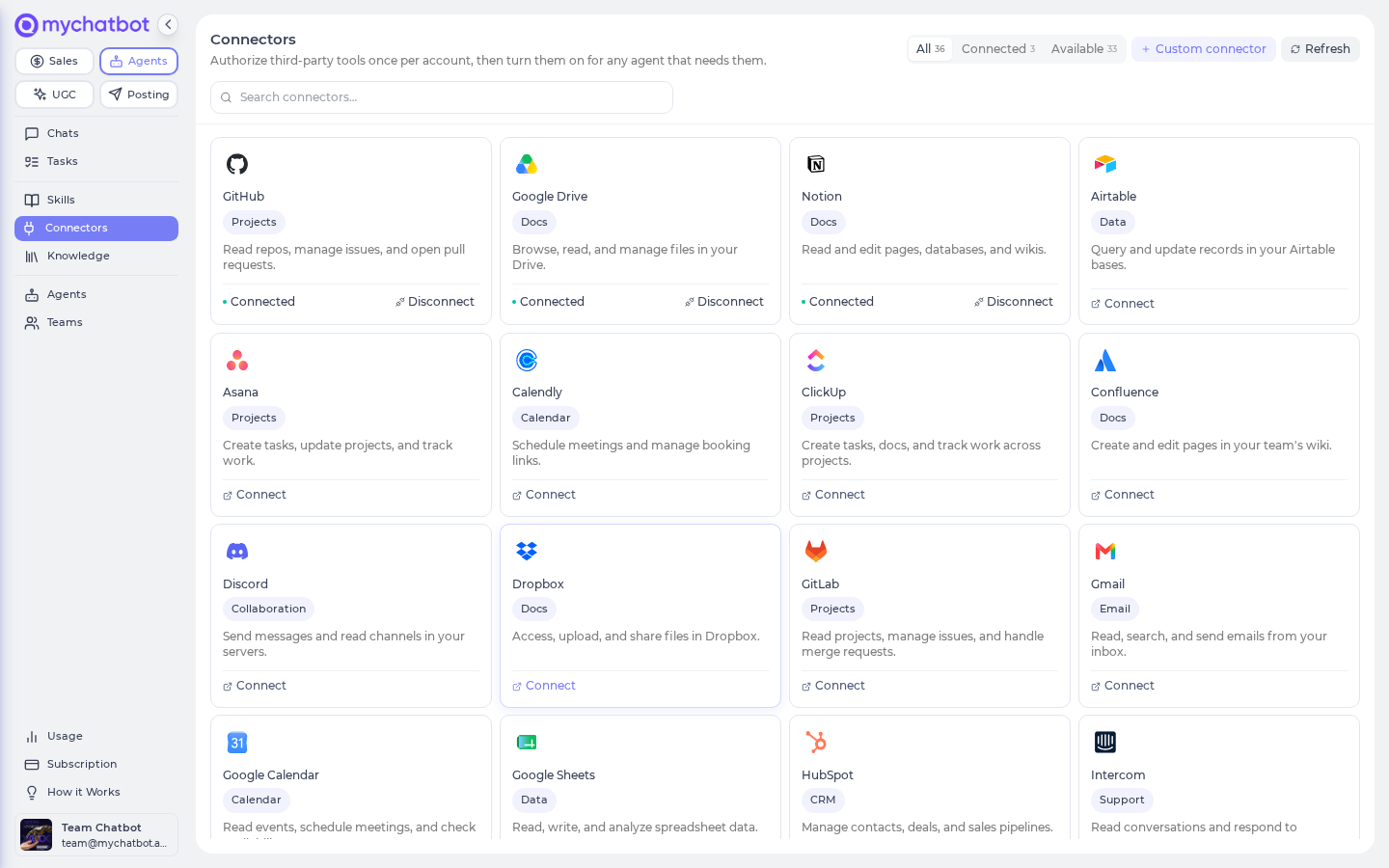
Sign-in is handled for you
These board connectors use managed sign-in — there's no app registration, API key, or OAuth setup on your side. You click Connect, log in to your board, approve, and you're done. Each card carries exactly the actions its board exposes (create issue, update status, move ticket, list sprints, and so on).
Not seeing your board in the list?
The eight cards above are the ones with built-in sign-in. If your team runs a different or self-hosted project tool, you can wire it up as a Custom connector instead (Agents → Connectors → Custom connector) by pointing it at your tool's own connection endpoint. Everything else in this guide works the same way once it's connected. See Custom connectors.
3. Create the Devboard Manager agent
You have two ways to start:
- Fastest — use the built-in Personal Assistant. It already ships with Track plans, Run code, Search the web, and Schedule & delegate turned on. Open it from the agents list and skip ahead to step 4.
- Recommended — claim a custom agent slot. This gives you a reusable, single-purpose Devboard Manager you can name, tune, and schedule. You get up to 10 custom-agent slots per account.
To create one, go to the agents list → New agent (this opens the New custom agent form) (app.mychatbot.app/agents/new). Give it a Name (e.g. Devboard Manager), pick a Model — a strong reasoning model like Claude Opus handles multi-ticket triage best — and click Create agent.
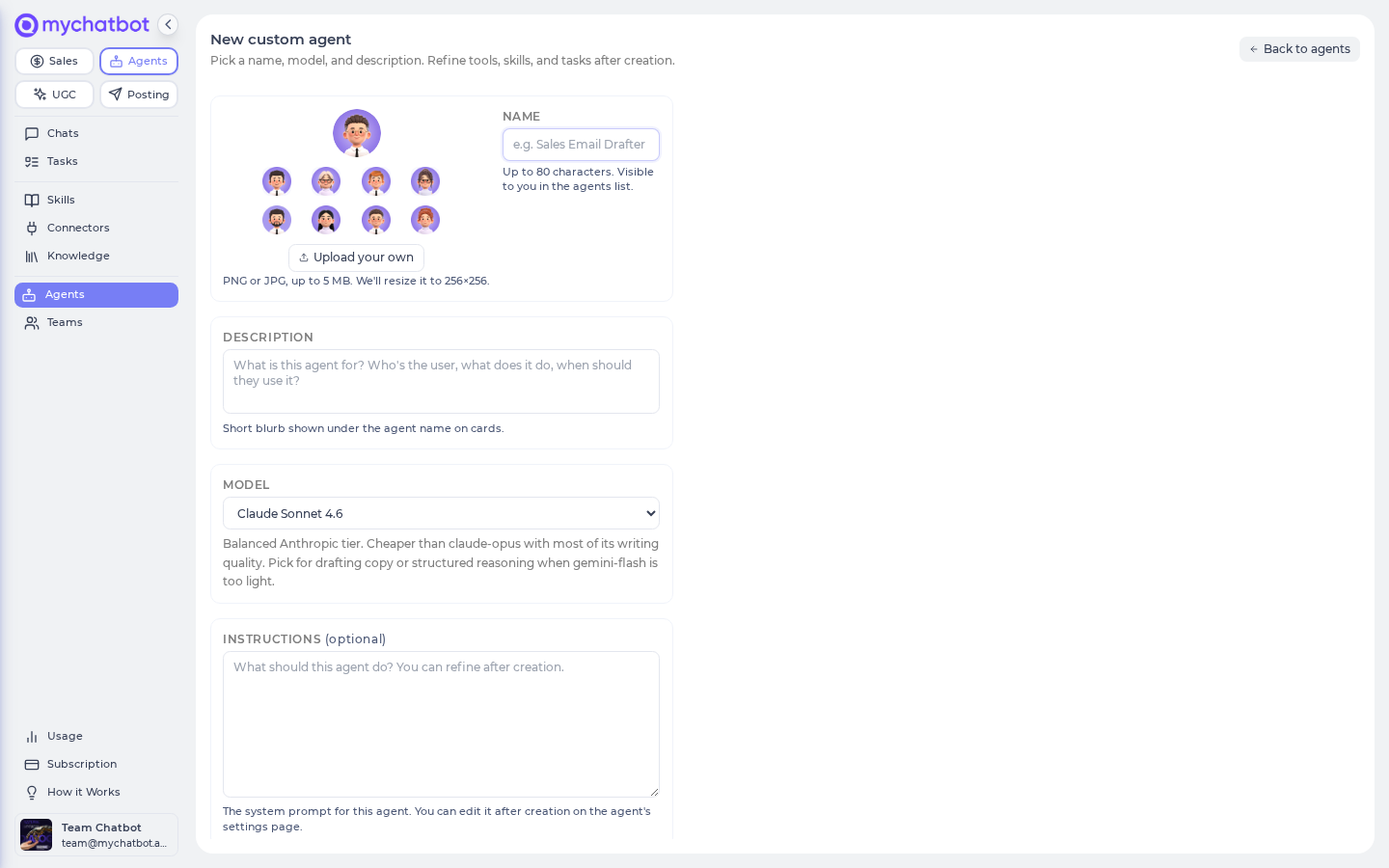
A fresh custom agent starts light
Custom agents ship with only a couple of basics on. That's on purpose — you'll switch on the board connector and the triage tools yourself in the next step. (The Personal Assistant already has the tools on, so you'd only add the connector.)
4. Turn on the connector and triage tools for this agent
Open your agent → Settings tab. Everything — tools, connectors, skills — lives as scrollable sections inside that one tab.
- Scroll to the Connectors section and toggle on your board (Jira, Linear, GitHub…). This is what actually hands the agent the read/update actions at run time.
- Scroll to What it can do and turn on Track multi-step plans (so you can watch it work a long backlog) and, optionally, Run code & crunch data (to group and format the report).
Then click Save changes.
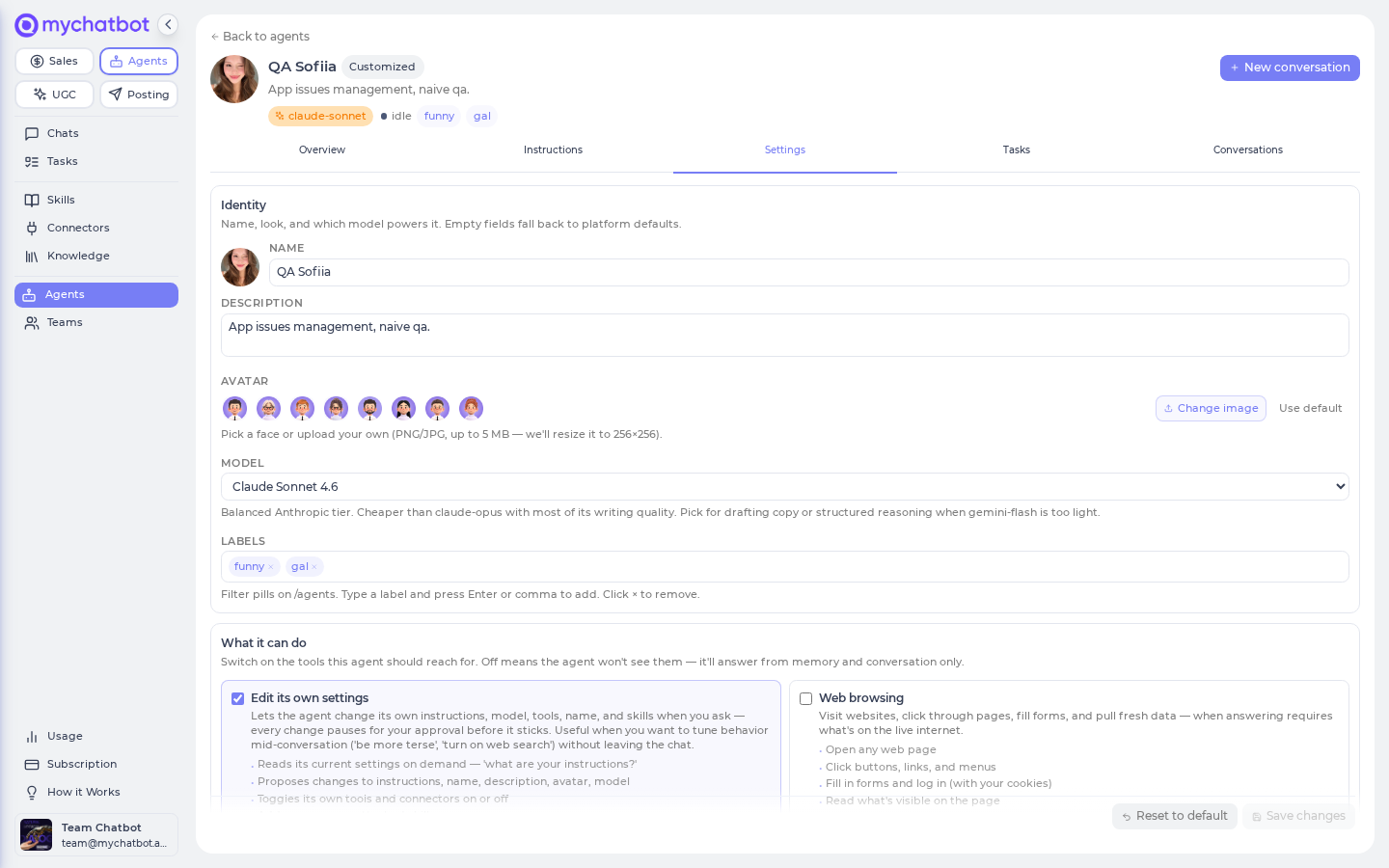
A card must read Connected before an agent can use it
Toggling the board on inside the agent does nothing until its card reads Connected back on the Connectors page. A card that still says Connect, or one that reads Reconnect (sign-in expired), is silently skipped at run time — so if a run comes back saying it couldn't reach your board, that's the first place to look.
5. Give it its standing orders
Open the agent's Instructions tab ("How it thinks and talks") and tell it how you want your board handled — which project or repo, what counts as stalled, and what a good report looks like. For example:
text
You manage our team's task board. When I ask for a triage or a status update:
- Pull open issues from the [YOUR PROJECT / REPO] board.
- Flag anything overdue, unassigned, or with no activity in 3+ days.
- Group by status (To Do / In Progress / In Review / Blocked).
Only change tickets when I explicitly ask (e.g. "close the done ones",
"move the blocked ones to Blocked"). Otherwise just report.
Return a short Markdown summary: counts per column, then the flagged items
as a table with issue key, title, assignee, and why it's flagged.
Click Save. You can refine this any time — small edits, then test.
Read-first is a good habit
Telling the agent to report unless asked to change keeps you in control while you build trust. Once you've seen it triage a few times, loosen the leash — let it auto-close done tickets or auto-assign stale ones.
6. Ask for a triage and watch it work
Open the agent and click New conversation. Give it a real task:
Triage my board. Show me what's in progress, what's overdue, and anything that's been sitting untouched for a week. Don't change anything yet.
Because you turned on Track multi-step plans, you'll see it lay out a plan, pull the tickets, and tick through each step before it hands back the summary. Then act on it in the same breath:
Close the three you marked done and move the two blocked ones to Blocked.
It updates the tickets on your board directly through the connector and confirms what it changed.
Try it
Start small so you can see the whole loop end-to-end. In a New conversation, ask:
How many open issues are on my board right now, grouped by status? Just the counts — don't change anything.
You'll get a tidy breakdown back in chat within a few seconds. Then push it one step further:
Now list the 5 oldest open issues with their assignee and last-updated date.
That's the core recipe: ask in plain language, get a sourced, structured answer, and let it make the changes when you're ready.
Test chats count toward usage
Every message spends from your agents balance like any run, and your conversation history sticks around so you can reopen past triages. Make your test prompts realistic — you'll learn more from one real board sweep than from ten "hi"s.
Level it up
Get a report on a schedule. Turn on Schedule & delegate, then just ask the agent in a conversation to run on a schedule — e.g. "every weekday at 9am, triage my board and post the status summary here." The agent sets up the recurring run itself; you don't fill out a cron form. The schedule then appears on the agent's Tasks tab, where you can rewrite its instruction, pause or re-enable it, or delete it. See Tasks & schedules.
There's no "new schedule" form — set it up in chat
Recurring reports are created by asking the agent in a conversation, not by filling out a form on the Tasks tab. The Tasks tab lets you view and edit an existing schedule's instruction, but the schedule itself has to be born in chat. On-demand triage (just asking in chat) needs none of this.
If a scheduled report seems to go missing
Two quirks are worth knowing. First, give each schedule a distinct name and its own conversation — don't fire two schedules into the same chat. Second, a completed scheduled run can occasionally sort oddly in the history and look like it didn't run. If you can't find this morning's report, reopen the agent's conversation or ask a quick follow-up — the run is almost always there, just out of order. See Agents troubleshooting.
Post the summary where your team looks. On the Connectors page, connect Slack or Microsoft Teams (post the report to a channel), Gmail (email it), or Notion / Google Sheets (write a running status doc). Toggle it on for this agent under Settings → Connectors, then say "post the summary to our #eng-standup Slack channel" and it delivers there instead of just in chat. See MCP & connectors.
Save your favorite sweep as a one-click task. Turn any good triage prompt into a reusable task card from its chat message (Save as task), so next week's board sweep is a single click instead of a retype.
Keep an eye on the spend. Every run — the reasoning plus each round-trip to your board — draws from your agents dollar wallet. A daily report is cheap, but a chatty every-15-minutes schedule adds up against your plan's monthly agents budget. Watch the Balance card on the Usage page and tune the cadence to match.
See also
- Build an agent — the full happy path for any agent
- MCP & connectors — the connector families and how agents reach your board
- Custom connectors — wiring up a board that isn't one of the eight cards
- Tools & toggles cheat sheet — every switch in detail
- Tasks, crons & schedules — how recurring reports are created, edited, and paused
- Models & reasoning — picking a model for multi-ticket triage
- Usage & billing — how runs spend your agents balance
- Agents troubleshooting — stale connectors, missing scheduled runs, and more