
Appearance
Run an appointment-based business
Your AI answers every "can I book Tuesday at 3?" — and quietly writes it onto the calendar, 24/7.
- What you'll have — A sales assistant that books, reschedules and cancels appointments right inside the conversation, on whatever channel your customers use. Every booking lands on a shared day/week calendar with staff columns, so your team sees the day at a glance. No forms, no back-and-forth — the customer just asks, and the slot is taken.
- Who it's for — Any business that runs on appointments: salons, clinics, studios, tutors, coaches, repair shops, consultants. If your day is a stack of time slots against people, this is for you.
- Time & plan — About 20 minutes to set up. Works on any Sales plan (Standard or above), or during the 3-day trial. Booking runs on your shared sales-message balance — each AI reply, including booking turns and voice minutes, draws from it.
Ingredients
| Switch on | Where | Why |
|---|---|---|
| A sales assistant | Agents → Agent configuration | The AI that talks to customers and does the booking |
| The Calendar integration | Integrations → your assistant → Calendar | Native booking — no external account needed |
| Staff Members | Calendar card → + Add Staff | Who the appointments are with (required) |
| Services | Calendar card → + Add Service | What's being booked, with duration and price (required) |
| Booking Instructions | Calendar card | Your routing rules — who does what, notice periods, etc. |
| At least one channel | Channels | Where customers reach the assistant (widget, WhatsApp, Telegram, voice…) |
One assistant, every channel
You configure booking once, on the assistant. It then works on every channel that assistant is connected to — website widget, WhatsApp, Telegram, Instagram, and even voice calls — with no extra setup per channel.
Steps
1. Pick (or create) your sales assistant
Open the Sales Platform's Agents tab — the page is titled Agent configuration at app.mychatbot.app/configuration. Choose the assistant that will handle bookings from the Select an assistant dropdown, or create one. Give it a clear Name and a Communication style that fits your front desk.
One active assistant on Standard and Pro
On the Standard and Pro plans, only one assistant stays active at a time. That's plenty for booking — just make sure the assistant you set up here is the active one. Multipro and Corporate allow several active assistants.
2. Turn on the Calendar integration
Go to Integrations, pick the same assistant, and find the Calendar card under Productivity & Scheduling — subtitle "Native booking & scheduling for your AI agent." This is MyChatBot's own booking calendar, so there's no Google or third-party account to link.
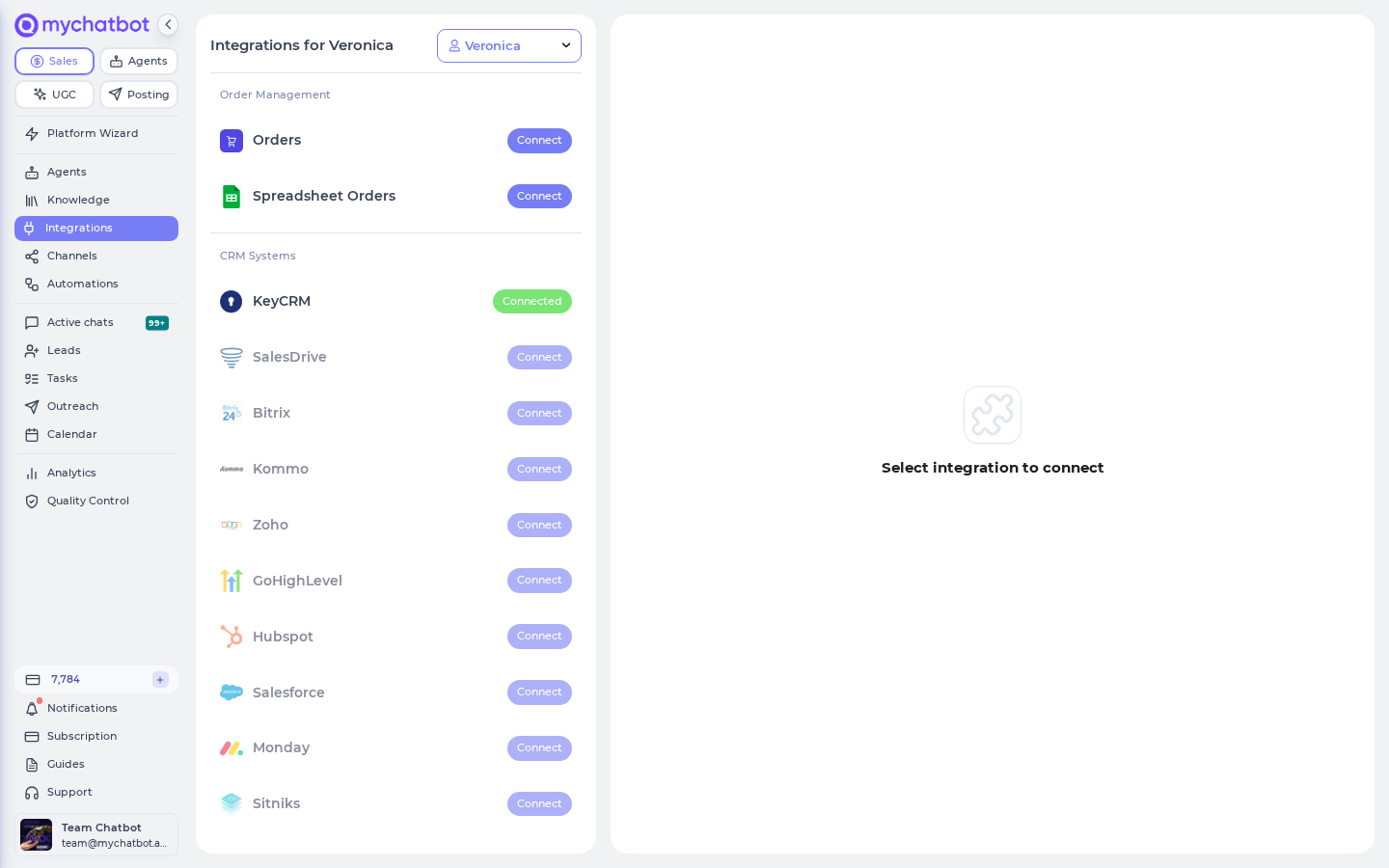
Set these first, then click Connect:
| Setting | Set it to |
|---|---|
| Timezone | Your business's zone — see the warning below |
| Default Duration | Your typical appointment length in minutes |
| Business Hours Start / End | The window customers can book inside |
Change the Timezone before anything else
Timezone starts as UTC. Until you set it to your own zone, a customer asking for "tomorrow at 15:00" gets booked at 15:00 UTC — hours off from what they meant. Set it before you add staff or take a single test booking.
3. Add your staff
On the Calendar card, click + Add Staff for each person appointments are booked with. Give a Name, an optional Role (e.g. "Stylist"), and a Color for their calendar column.
Then set each person's Schedule — by default they follow business hours Monday to Friday. Tick the days they actually work and set start–end times for each, then Save Schedule. The assistant only offers slots inside these hours.
4. Add your services
Click + Add Service for each thing you offer. Set a Name, a Duration (this becomes the appointment length automatically), and an optional Price. That's the whole form — Name, Duration, Price.
Both are required
Booking only works once you have at least one staff member and one service. Until then the card shows a setup warning and the calendar refuses to create events. This is the most common "why isn't it booking?" — check both lists exist.
5. Write your Booking Instructions
Once you have staff or services, a Booking Instructions section appears. At the top is a read-only list of your staff and services, each with a #number — this is what the assistant already knows automatically.
In the free-text box, add your own rules, referencing people and services by their numbers so there's no ambiguity:
"Staff #1 (Anna) handles only Service #2 (Haircut) and #3 (Coloring). Always ask for a phone number. Minimum 24 hours' notice for bookings."
Click Save Config.
Spell out timezones for out-of-town customers
The assistant books everything in the business timezone you set — it doesn't detect where each customer is. If your customers sit in other zones, say so here, e.g. "Our calendar runs on Europe/Kyiv time; always confirm which timezone the customer means."
6. Connect a channel
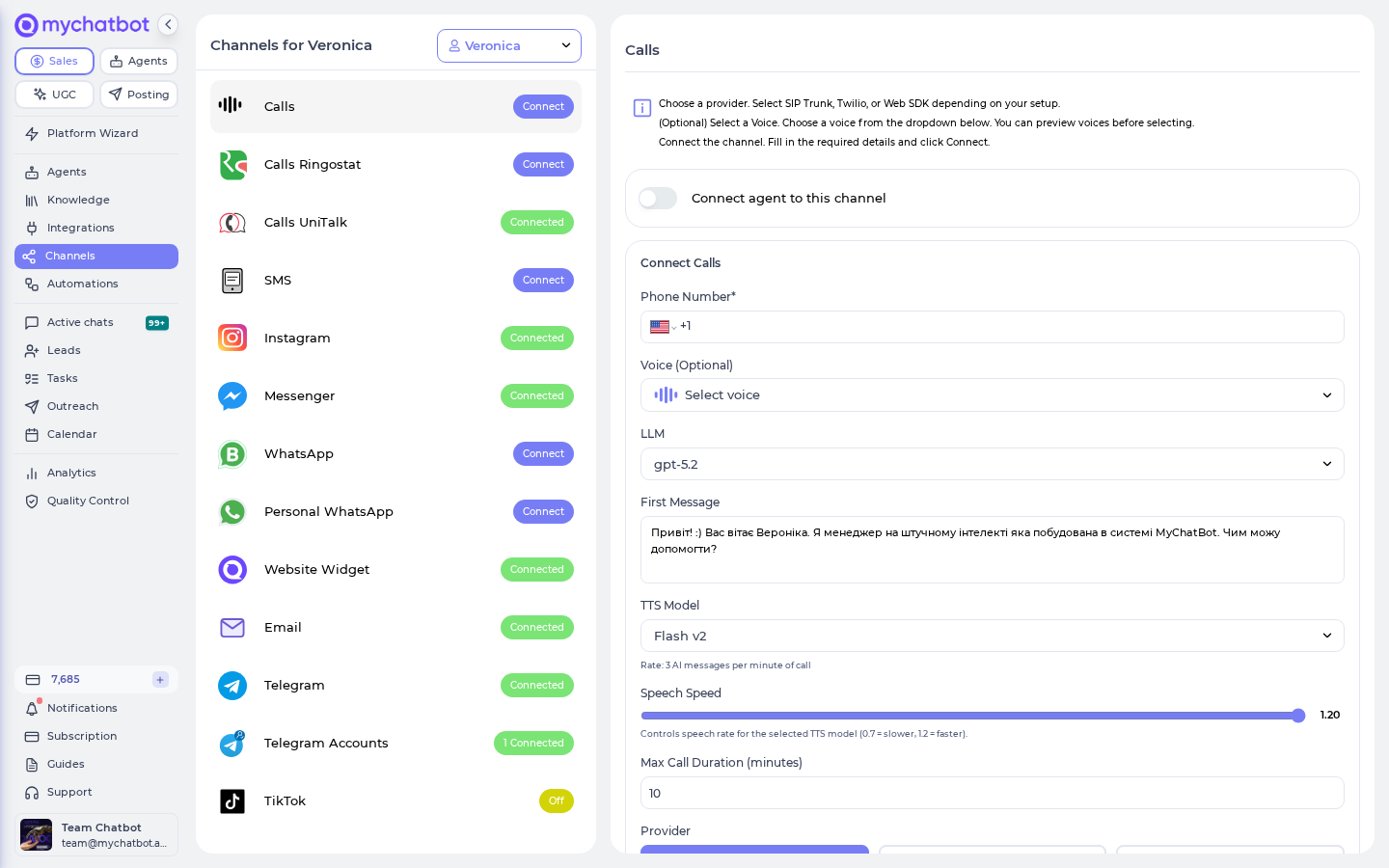
Open Channels and connect this assistant to at least one place customers can reach it — the website widget, WhatsApp, Telegram, Instagram, or voice calls. Booking works the same on all of them; you don't configure it per channel.
Try it
- Open your assistant's test chat (or any connected channel) and ask it to book something: "Can I get a haircut tomorrow at 3pm?"
- The assistant checks availability, offers a slot, and confirms the booking.
- Open the Calendar page in the sidebar — app.mychatbot.app/calendar — and watch the appointment appear as Confirmed in the right staff member's column, at the agreed time.
- Click the event: it shows which channel it came from, plus links straight back to the client card and the exact chat.
- Now ask the assistant to reschedule or cancel it — the calendar updates itself.
The grid shows times in YOUR timezone, not the business zone
The Calendar page grid and the event panel show times in your computer's timezone, not the business Timezone you set. If a teammate views the calendar from another zone, every event looks shifted from the agreed time — but the underlying booking is still correct. Set your computer to the business zone to see them line up 1:1.
Test a double-booking
From a second conversation, ask for the same staff member at the same time. The assistant should refuse the taken slot and offer another — that's the conflict guard doing its job.
Level it up
Add voice. Connect the assistant to phone calls and customers can book by talking to it — the same booking tools work on a live call, quoting real slots and writing the appointment. Voice minutes draw from the same sales-message balance.
Run group classes. The booking engine can seat several people into one session and stop overbooking — the AI tracks seats, shows how many are left, and reserves a spot atomically so two people can't grab the last seat. Heads up: there's no group-class toggle on the Services form yet (it only has Name, Duration and Price). Group sessions are handled by the booking engine and the assistant's tools rather than set up as a field in the app, so reach out if you want classes wired up for your account.
Re-engage no-shows and reminders. The calendar itself sends no reminders and stays silent when your team edits an event. Set up Follow-ups to message customers before a visit, or win back anyone who cancelled or didn't show.
Route booked leads in your CRM. Bookings link to the client and chat, so you can label and pipeline them like any other lead — see Leads & pipelines and Labels and statuses.
Already run on a booking platform? If your business lives in Altegio, Wlaunch, or Google Calendar, you can point the assistant at that instead of the native calendar — it books into your existing system. Pick one source of truth; see Altegio and Google Calendar.
Keep the balance topped up
Booking runs on your shared sales-message balance. If it hits zero, all assistants switch off across every channel — booking included — and they don't turn back on automatically until you top up. Watch the balance the way you'd watch the front-desk phone line.
See also
- Calendar — the full reference for the booking calendar: staff, services, statuses, the day/week grid, availability rules, and every gotcha.
- Assistant configuration — everything else your assistant can be tuned to do.
- Follow-ups — reminders and win-back for appointments.
- Google Calendar — sync bookings to an external Google account instead.
- Altegio — book into an existing salon/clinic platform.
- Channels overview — where your booking assistant can live.