
Appearance
Run a team of scheduled agents (content, ops & more)
Lightweight conversational pattern—not the default production architecture
This guide documents the older/simple pattern of scheduling one agent and using fire-and-forget delegation. For a repeatable business process, the recommended path is one routine authored with Claude or Codex: express sequencing, parallel work, retries, and aggregation in YAML, then stage its schedule disabled. Use this guide only when independent delegated threads are the result you actually want. See the routine-first operating model.
Wake up to a back office that already ran itself: this morning's captions drafted, your inbox triaged, your task board swept — by a crew of small agents that hand work to each other while you sleep.
- What you'll have — A "morning routine" that fires on a schedule and fans work out across several focused agents: one plans the content, one writes the captions, one checks your inbox, one syncs your task board. A lead agent kicks the whole thing off on a cron and delegates each slice to the right specialist, so no single agent has to do everything.
- Who it's for — Small teams and solo operators who want the boring recurring work (content prep, inbox triage, task-board hygiene) to happen on its own, without hiring for it.
- Time & plan — About 30–45 minutes to set up. Works on any plan that includes an agents budget (any Sales, Voice, Agents, or UGC plan) — the whole routine runs against your agents budget (a monthly dollar wallet), so all you need is a plan with one and some balance in it. Two exceptions call for a higher plan and are flagged where they come up: auto-posting to social and a paid trial (see the warnings below).
This is a crew of scheduled agents, not one routine
MyChatBot has "director teams" that coordinate specialists behind a single chat — but you can't put a director team on a schedule today. The pattern that does work, and the one this guide teaches, is a scheduled lead agent that delegates to peer agents. Same outcome (many specialists, one routine), different wiring. Everything below is built on that.
Ingredients
Switch these on before you start. Everything lives under Agents in the left nav.
| # | You'll switch on | Where | Needed for |
|---|---|---|---|
| 1 | Schedule & delegate capability (on the lead agent only) | Lead agent → Settings tab → What it can do section | Running the routine on a schedule and handing each slice to a peer — only the agent that runs the cron needs this |
| 2 | A content agent (Content Factory + Bulk Text Worker abilities) | Built-in agents, or a new custom one | Drafting the content plan and captions |
| 3 | An email agent with the Gmail connector | Account-wide in Agents → Connectors, then toggled on in the agent's Settings tab → Connectors section | Reading and triaging your inbox |
| 4 | A task-board agent with your board connector (Jira, Linear, Asana, Trello, ClickUp, Monday, GitHub, or GitLab) | Account-wide in Agents → Connectors, then toggled on in the agent's Settings tab → Connectors section | Sweeping and updating your dev/ops board |
| 5 | (Optional) A social-poster agent via a custom connector | Agents → Connectors → Custom connector | Auto-publishing the finished posts — see Level it up |
One capability does two jobs
There's just one toggle — Schedule & delegate — and it powers both halves of this recipe. It lets an agent set up its own recurring runs and hand tasks to other agents on your account. Turn it on for the lead agent only — the one that runs the cron and delegates. The peers don't need it: an agent runs just fine when it's delegated to, using its own job tools and connectors. There's no "receive" switch to flip.
Steps
1. Meet your crew (or build one)
Open your agents list at Agents → app.mychatbot.app/agents. You already have specialists that fit these roles:
- Content Factory — makes marketing media (images today; video and audio are on the way).
- Bulk Text Worker — writes captions, hooks, and variants at high volume and low cost.
- Personal Assistant — a capable generalist; this is your natural lead agent (the one that runs the routine and delegates).
You can use these as-is, or claim a blank New custom agent (app.mychatbot.app/agents/new) for the email and task-board roles so each one stays lean. You get up to 10 custom agents.
Keep each agent small and single-purpose
Resist the urge to build one agent with every tool switched on. A focused agent is faster (each connector opens a live connection on every run), cheaper (less clutter in the model's context), and more reliable (fewer wrong-tool mistakes). Split the jobs, then wire them together with delegation — that's exactly what this guide does.
2. Connect the outside apps you'll need
Go to Agents → Connectors → app.mychatbot.app/agents/connectors. This is where you authorize a tool once for your whole account; you'll switch it on per agent in the next step.
- Click the Gmail card and sign in — this is your inbox connector.
- Click your task-board card (Jira, Linear, Asana, Trello, ClickUp, Monday, GitHub, or GitLab) and sign in.
Each card should flip to Connected and pin to the top of the grid.
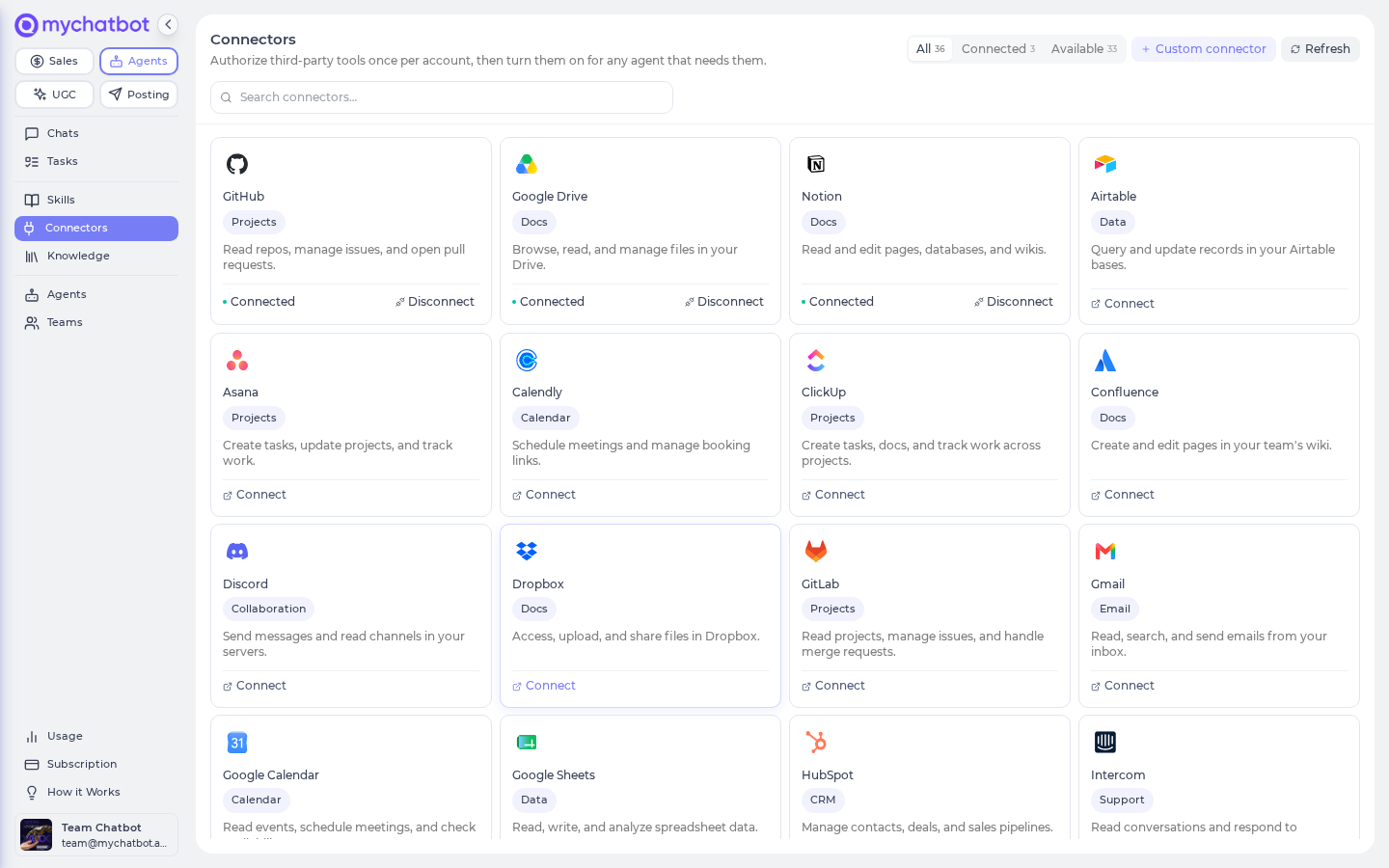
A card must read Connected before an agent can use it
Toggling a connector on inside an agent does nothing until the card is Connected here. A card that still says Connect, or one that reads Reconnect (authorization expired), is silently skipped at run time.
3. Give each agent exactly the tools its job needs
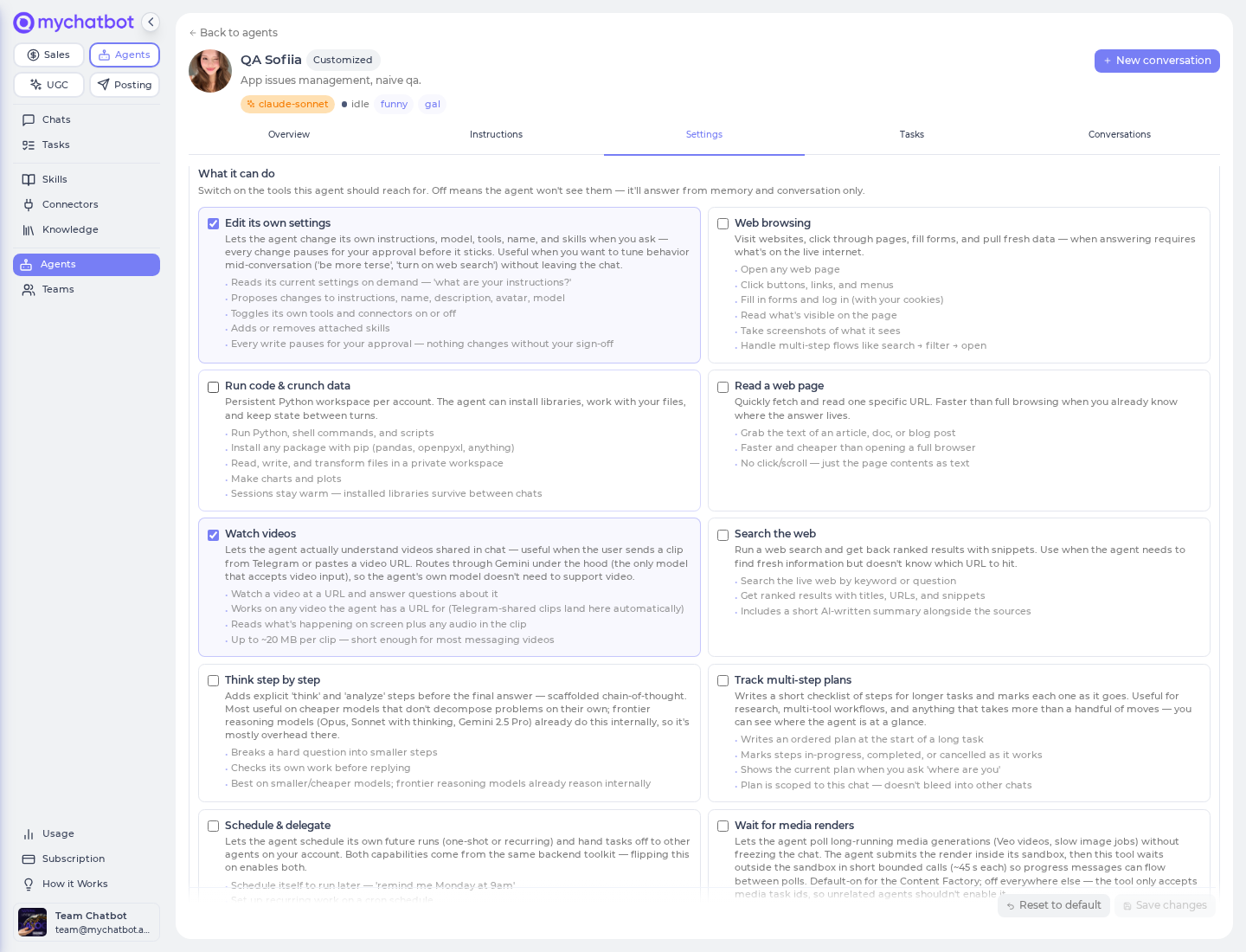
Open each agent and go to its Settings tab. Everything you'll touch — tools, connectors, skills — lives as scrollable sections inside that one tab (there's no separate "Connectors" tab on the bar), so just open Settings and scroll to the What it can do or Connectors section as needed. Set each agent up for one job:
- Content agent — in the What it can do section, make sure it can generate media and write text (use Content Factory for media, Bulk Text Worker for high-volume captions).
- Email agent — scroll to the Connectors section, toggle on Gmail, then Save.
- Task-board agent — scroll to the Connectors section, toggle on your board, then Save.
- Lead agent (Personal Assistant) — in the What it can do section, turn on Schedule & delegate.
That's it for the capability toggle: only the lead agent needs Schedule & delegate — it's what lets that one agent run on a cron and hand off work. The peers don't need it. An agent runs when it's delegated to no matter what its own toggles say; there's no receive-side switch. Each peer just needs its own job tools and connectors (Gmail, your task board, Content Factory) — nothing more.
Knowledge vs. connector — different jobs
If you want an agent to ground its writing in your own content (your product catalog, FAQ, brand docs), attach those as knowledge so it can look them up. Connectors are for taking actions (sending a Gmail, updating a Jira ticket). Your existing Sales Platform product/FAQ knowledge can be attached to the content agent so captions stay on-brand.
4. Tell the lead agent the routine — in plain language
You don't fill out a cron form. You describe the routine to the lead agent in chat, and it sets up the schedule itself and delegates each slice to the right peer.
Open the Personal Assistant, start a New conversation, and say something like:
"Every weekday at 8am: draft this week's content plan and delegate the captions to my content agent. Then check Gmail for anything urgent and summarize it for me. Then sweep my Jira board and flag anything overdue. Post the summary back here."
The agent will:
- Create the schedule (via its Schedule & delegate capability) and pin it to this conversation.
- Delegate the caption work to your content agent, the inbox check to your email agent, and the board sweep to your task-board agent — each one picked because the lead agent already knows what its peers are good at.
Name schedules distinctly and give each its own conversation
A schedule's name has to be unique in your account, and two schedules should never fire into the same conversation (they can clobber each other's history). One routine, one conversation.
Delegated work comes back as separate threads, not one tidy reply
Delegation is fire-and-forget: the lead agent kicks off a peer and moves on without waiting. Each peer's answer lands in its own new conversation (labeled [delegated] in your chat list), not stitched into the lead agent's reply. Plan for a handful of delegations per run, and spell out the context in each hand-off — peers don't share memory, so pass along anything they need.
5. Confirm the schedule exists
Open the cross-agent Tasks page → app.mychatbot.app/agents/tasks and switch to the Scheduled view. Your new routine should appear with its cadence, timezone, and a next-run time. To pause, resume, or rewrite what it sends, open the lead agent → its Tasks tab and click the schedule card.
During a free trial, the agents budget is pinned to $1
A real recurring routine burns more than that over a month. If you're on a card-gated free trial, convert to a paid plan before you rely on this so the wallet has room. When the wallet hits $0, scheduled runs skip gracefully and leave a note in the chat instead of failing loudly.
Try it
Don't wait for 8am. In the lead agent's chat, ask for a one-shot run a couple of minutes out:
"In 3 minutes, draft a 5-post content plan for this week, delegate the captions to my content agent, and give me a one-line inbox summary from Gmail."
Then watch three things happen:
- A run appears in this conversation with the plan.
- A new [delegated] conversation shows up with the captions from your content agent.
- The inbox summary posts back here.
If a piece is missing, open Agents → Connectors and confirm the relevant card still reads Connected — a run silently skips any connector that isn't.
Level it up
- Auto-post the finished content. Content Factory generates media but doesn't publish it. To let a social-poster agent actually post, connect your social accounts on the social surface, mint a posting token under Account → UGC MCP token, then add it as a Custom connector (Agents → Connectors → Custom connector) so the agent can publish on your behalf.
Posting needs a higher plan
Auto-posting to social is available on Multipro or Corporate, or any UGC Starter (or above) plan — and it's not included in a free trial. The rest of this routine runs on any agents-budget plan; only this leg raises the floor. See Custom connectors for the exact setup form.
- Add an "invoices" sweep. There's no dedicated finance connector today, but your email agent (Gmail) can scan for invoices and receipts and summarize them, or a Google Sheets connector can log totals. Add it as another delegated step in the routine.
- Publish a weekly recap page. Point the routine at the Site Builder agent to turn the week's summary into a shareable single-page site at a live
*.page.mychatbot.appaddress. - Route results into your CRM or Sales Platform. Attach a Sales Platform area (Leads, Orders, FollowUp) as a connector so the crew can act on what it finds — for example, drafting a follow-up for a hot lead the inbox scan surfaced.
See also
- Agents Platform operating model — choose the routine-first production architecture
- Build routines with Claude or Codex — model this as one validated, observable workflow
- Tasks & schedules — how schedules are created, edited, paused, and which model they use
- Best practices — keeping agents small, and how delegation and teams compose them
- Connectors cheat sheet — the three connector families and how agents reach external tools
- Custom connectors — the exact form for wiring the social-posting connector
- Knowledge bases — grounding your content agent in your catalog, FAQ, and brand docs
- Build an agent — where settings, tools, connectors, and channels come together