
Appearance
Follow-ups & Outreach
Automated message sequences sent to a client after a specific event or time period, plus one-off broadcast campaigns to a targeted client segment. Follow-ups keep leads and customers engaged even when your team is offline, targeting them by status, label, and timing.
In the app
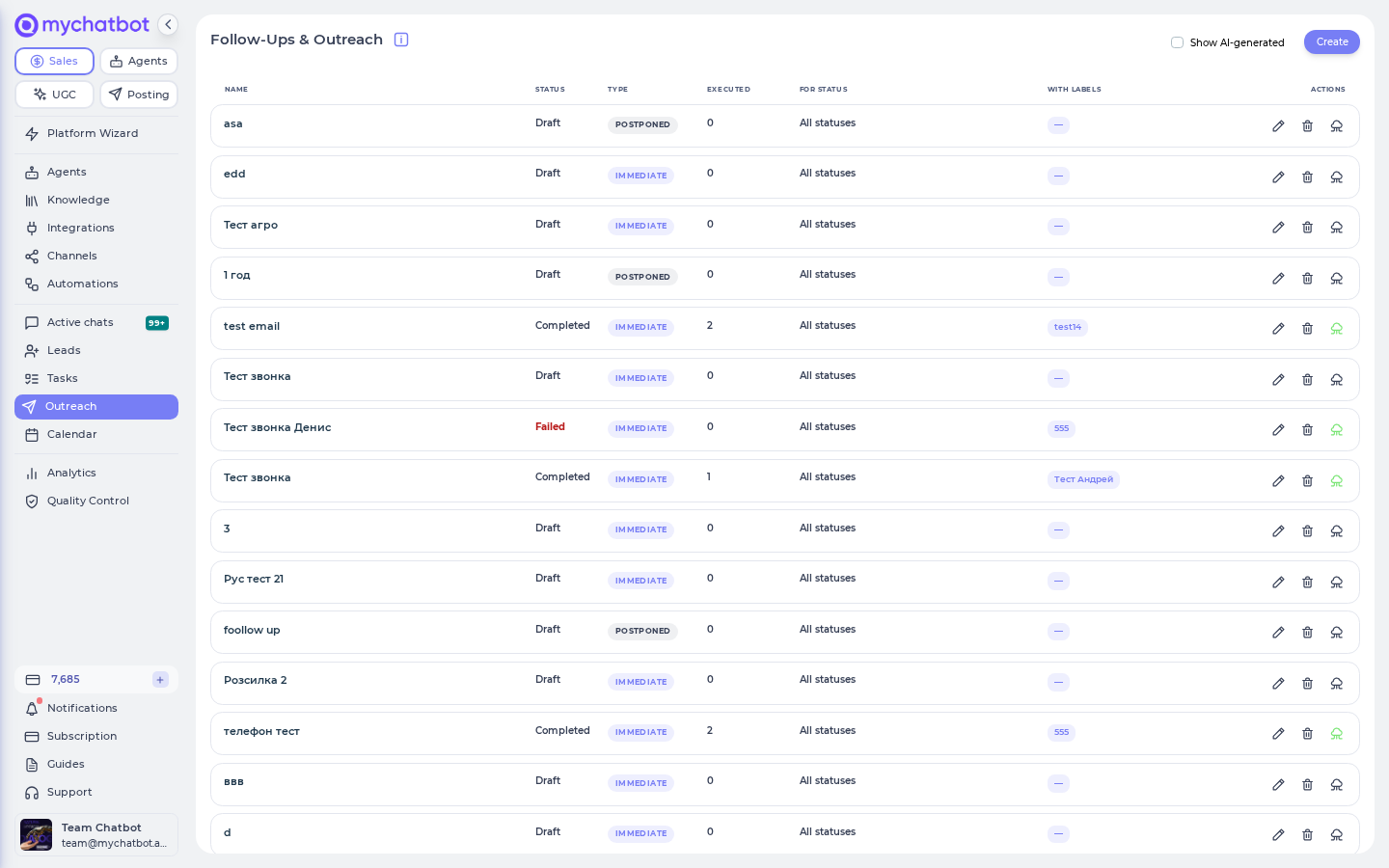
Open Outreach in the left sidebar (the page is titled Follow-ups & Outreach) at app.mychatbot.app/follow-up. Click Create to add a new sequence or campaign.
At a glance
| You need | Where | Result |
|---|---|---|
| A client status and/or label to target | Applied by your AI sales assistant during conversations | Defines who the follow-up applies to |
| A silence-triggered sequence | Outreach → Create → Postponed contextual | Messages fire step by step when a matching client goes silent |
| A one-time broadcast | Outreach → Create → Immediate outreach | A campaign wizard with audience preview, scheduling, and delivery results |
| The sequence to go live | Publish the follow-up | Draft follow-ups never fire until published |
Connect in 3 steps:
- Make sure your assistant applies the target status/label during conversations (see Labels and statuses).
- Go to Outreach → Create and target a status + label combination.
- Define the message and the delay (time since the last message or status change), then Publish.
Two kinds of outreach
When you click Create, you enter a name (Choose a name) and pick an Outreach type:
| Type | What it does | When to use |
|---|---|---|
| Postponed contextual | "Triggers when the client goes silent in a conversation." — fires automatically for matching clients | Ongoing lead nurturing and re-engagement (the classic follow-up sequence) |
| Immediate outreach | "Send a one-time outreach to selected clients." — a one-off campaign, run now or at a scheduled time | Announcements, promos, re-activation blasts, call campaigns to a segment |
Choosing Postponed contextual and clicking Save adds the sequence to the list; choosing Immediate outreach and clicking Continue opens the campaign wizard right away.
Build outreach with Claude or Codex
Connect the sales_outreach Sales-Management MCP area when you want Claude or Codex to author or inspect outreach. Add sales_channels so it can safely resolve enabled delivery channels, and add sales_clients when it also needs pipeline, status, label, or lead values. See Sales Platform MCP for the generated client setup and Sales tools reference for every field and limit.
For the complete inspect → draft → review → publish/schedule → monitor workflow, including copy-paste payloads and current MCP limitations, follow Build and operate outreach with Claude or Codex.
Postponed and immediate outreach have different safety flows:
| Operation | Safe authoring sequence | When customer contact can begin |
|---|---|---|
| Postponed sequence | follow_up_create → get_follow_up → revise with follow_up_update → assistant_attach_follow_up → separately approve status=live | Only after explicit publish, and only for chats of an assistant it is attached to; create always stores draft |
| Immediate campaign | immediate_outreach_preview_audience → inspect count/sample → confirm content, channels, time, and pacing → immediate_outreach_create | Creation itself stores scheduled; now can begin in about three minutes |
Ask for an ordered postponed sequence
Claude does not need to construct the internal editor graph. It supplies a plain ordered steps list; the server creates safe node IDs, edges, silence conditions, and positions. For example:
json
{
  "name": "Proposal follow-up",
  "target_status_name": "Proposal sent",
  "target_labels": ["warm lead"],
  "target_labels_operator": "and",
  "steps": [
    {
      "name": "Gentle reminder",
      "delay_seconds": 7200,
      "chat_depth": 10,
      "instructions": "Briefly remind the client about the proposal and offer to answer questions."
    },
    {
      "name": "Final check-in",
      "delay_seconds": 86400,
      "use_custom_message": true,
      "custom_message": "Just checking in one last time. Reply whenever you would like to continue."
    }
  ]
}
The result remains disabled. Ask Claude to call get_follow_up, show you the full stored definition, and leave it in draft while you inspect it in the app. Publish with a separate follow_up_update call only after the targeting, delays, and every message are correct.
Updating steps is a full atomic replacement. This is how Claude adds, edits, reorders, or removes steps without ever manipulating raw graph fields. To edit a live sequence, it must unpublish by passing status: "draft" in the same update or in a prior call.
Attach the reviewed sequence to its sales assistant with assistant_attach_follow_up (or under the assistant's Toolkit → Follow ups in the app); assistant_detach_follow_up detaches it. The MCP does not accept postponed pipeline targeting. For MCP-authored postponed targeting, use target_status_name and target_labels; pipeline_ids belongs only to immediate outreach.
Give Claude an explicit immediate-outreach boundary
Use a prompt like:
text
Preview an immediate email outreach to annual-plan leads created since 2026-08-01.
Show me the exact filters, matched count, five-lead sample, message instruction,
Email__AssistantID channel, schedule, and pacing. Do not create or schedule anything
until I explicitly approve those exact values. If approved, call
immediate_outreach_create once and return the campaign ID and stored status.
immediate_outreach_create verifies that each ChannelType__AssistantID identifies an enabled channel owned by the account. Use only list_channels rows where immediate_outreach_capable is true. Unknown fields, wrong JSON types, unsupported channels, malformed dates or timezones, unsafe attachment URLs, line breaks in email subjects, invalid lifecycle jumps, and over-limit values are rejected before persistence. For the default static audience, creation also resolves and freezes the recipient set before writing the campaign; if that read fails, no campaign is stored. Set dynamic_audience=true only when send-time re-evaluation is intentional. Per-lead naive wall times are checked in each resolved recipient's actual timezone for a static audience. With a dynamic audience, the time must remain future even at UTC+14 because the eventual timezone values are not known when the campaign is created.
There is no dry-run send
Audience preview performs real read-only selection but sends nothing. Creating immediate outreach is the effect: it schedules real customer messages or calls. A postponed draft is also non-sending, but publishing it allows future matching conversations to enter the sequence.
The outreach list
Every follow-up and campaign appears in one table with columns Name, Status, Type, Executed, For Status, With Labels, and Actions.
| Column | What it shows |
|---|---|
| Status | Draft / Live for postponed sequences; the run lifecycle for immediate outreach (see Run lifecycle and statuses) |
| Type | Postponed, Immediate, or AI Generated (created by an assistant, not by you) |
| Executed | How many times the follow-up fired; for immediate outreach — messages delivered, or "N ready" before the run |
| For Status / With Labels | The status and label targeting of the sequence |
| Actions | Edit (pencil), delete (trash), and publish/unpublish toggles — each asks for confirmation |
Additional list behaviors:
- Show AI-generated — a checkbox that appears once your assistants have created follow-ups on their own (for example via self-scheduled reminders). AI-generated entries are hidden by default; the preference is remembered per account.
- Deleting or (un)publishing always shows a confirmation ("You sure you want to delete this Follow-Up?" / "…publish…" / "…unpublish…").
- The Create button is disabled if the account has no active subscription plan.
What the numbers mean
| Number | Postponed sequence | Immediate outreach |
|---|---|---|
| Executed (list column) | Conversations that completed the whole sequence — it goes up by one when a chat reaches the last step (or a reply ends the sequence), not once per message sent | Messages delivered in the last run. Reset to 0 when a run starts, then counts up |
| N ready (list, before the run) | — | The size of the frozen audience |
| Progress: delivered / matched (campaign header) | — | matched = recipients resolved when the run started (on a resume, the frozen audience); delivered = successful sends |
| Failed | — | A send was attempted and the channel refused it — the reason is in Outreach Results |
| Skipped | — | Never attempted: the person no longer matched the filters when their turn came, the lead or chat was deleted, or the chat was handed to an operator while the message was being composed |
| Estimated … → … | — | With a sending interval: ⌈audience ÷ messages per interval⌉ × interval; without one, about 7 seconds per recipient |
Status names on the list and in the campaign header:
- Starting up means the platform is resuming a run that was interrupted (for example by a restart). Pause is disabled while it shows.
- Failed is used only when nothing was delivered and at least one send failed. A run with any delivery ends Completed, with its failures listed.
- Save outreach always produces Scheduled — Run now simply schedules about three minutes ahead. A campaign with a Sending interval cycles Scheduled → Running → Scheduled between batches, so those transitions are normal.
- If the assistant is switched off when the run time arrives, the whole campaign ends Failed with that reason in the header.
- A Failed campaign on the Calls channel is final, like Completed: it cannot be edited or saved again. The only exception is a run that stored a reason and never placed a call, such as the switched-off assistant above. See Saving and the run lifecycle.
Postponed contextual follow-ups
How it works
A follow-up is triggered by the combination of:
- Client status — e.g.
qualified_lead,dropped. - Client label(s) — e.g.
pricing_question,B2B. You choose whether the client must carry all selected labels (and) or any of them (or). - Time period — how long the client has been silent since the last message.
You set the target status, labels, and pipeline in the Start node settings of the sequence. When a matching client goes silent for the configured time, the entry step fires; each further step fires after its own delay of continued silence. A client reply stops the sequence — the condition for every step is silence.
Tagging must happen before a follow-up can fire
A follow-up only fires when a client actually carries the targeted status/label. Your assistant applies those tags during conversations based on its instructions — so if your instructions never tell the assistant to tag that status/label combination, the sequence never triggers. Configure the tagging first (see Labels and statuses).
The Follow-up Builder
Clicking the edit (pencil) action on a postponed follow-up opens the Follow-up Builder at app.mychatbot.app/follow-up/<id>: "Organize the silence follow-up sequence and fine-tune the messages each step sends." You can rename the sequence inline (Follow-up Name), and the builder shows:
- An Entry step card — the first message. Its footer reads "Triggers when the contact has been silent for X" (or "Triggers as soon as the targeting criteria match." if no delay is set). Buttons: Edit targeting & intro and Edit message.
- Numbered Step cards — each shows a content preview, a Custom message badge if applicable, an attachment count, and "Wait X after the previous step." (or "Sends immediately after the previous step."). Buttons: Delete, Edit content, Move up, Move down.
- An Add follow-up step button to extend the sequence.
Click Save in the builder header to persist all changes; Cancel returns to the list without saving.
Entry conditions — Start node settings
Edit targeting & intro opens the Start node settings modal: "Fine-tune who enters this follow-up and when it fires."
| Setting | Options | Default |
|---|---|---|
| Pipeline | Add pipeline to restrict entry to specific pipelines; Clear to reset | "No pipelines selected (all pipelines)" |
| Statuses | One target funnel status (Change / Reset) | All statuses |
| Labels | Multiple labels via Add label; an and / or toggle appears once labels are selected | No labels; or |
| Follow-up hours | Set follow-up hours — pick days of the week, hours, and timezone during which the sequence may send | Always |
| Condition | Fixed: silence | — |
| Delay | Days / Hours / Minutes / Seconds of client silence before the entry step fires | 0 (fires as soon as targeting matches) |
| Email Settings | Generate Email Subject automatically based on instructions — when on, per-step subjects are ignored and generated by the AI | Off |
Step content — Edit action
Edit message (entry step) or Edit content (any step) opens the Edit action modal:
| Setting | Behavior |
|---|---|
| Name | The step's display name in the builder |
| Email subject (if channel is email) | Optional; disabled and marked "(Generated automatically)" when auto-generation is on in Start node settings |
| Message type | Agent instructions — "Describe the goal and talking points for the assistant." The assistant writes a personalized message. Custom message — "Write the exact message the assistant should send." "Sent to the client word for word. The agent does not act on this text; it only translates it when the chat is in another language." |
| Add attachment | Attach files to the step (up to 10 files, 10 MB each). Instructions and custom message keep separate attachment lists |
| Delay after previous step | Days / Hours / Minutes / Seconds of continued silence (not shown on the entry step — its delay lives in Start node settings). Hours ≤ 23, minutes ≤ 59, seconds ≤ 59; days are unbounded. The builder refuses to save a later step with no delay or with the placeholder instruction still in place. A later step that reaches the platform with no delay at all (for example one created over the API) is sent 5 minutes after the previous one |
| Send via channel(s) | "Optional: choose which channel this step is sent from. Channels of your other agents work too — the message is then sent by that agent." Selected channels are numbered — that is the attempt order; the first successful send stops the rest. Channels that are off, or whose assistant is off, are not offered. Empty = inherit (see Which channel a follow-up sends through) |
| Run alternative instruction if delivery fails | Off by default. When on, enter what the assistant should do if the message is not delivered — "e.g. create a deal, notify a manager". Saving with the toggle on and an empty instruction is blocked: "Please enter an instruction for the delivery-failure case, or turn the toggle off." |
Publishing
New follow-ups start as drafts. A draft is fully editable but will not fire until you publish it. Use Publish Follow-Up when the sequence is ready, and Unpublish to pause it without deleting it.
Assign to an assistant
Follow-ups run in the context of a specific assistant. Attach the published sequences you want an assistant to use from its configuration.
In the app
Open your assistant's configuration, go to the Toolkit section, and add sequences under Follow ups. Only published follow-ups take effect — a draft badge means "publish to activate." You can also enable Allow agent to self schedule follow-ups so the assistant can queue reminders on its own during a chat.
Which channel a follow-up sends through
By default a follow-up message goes out on the chat's own channel — the one the conversation lives in. Two overrides change that, checked in this order:
- Per-step channels — the step's Send via channel(s) field (stored as
outreach_channels), an ordered list. Delivery tries them in order and falls over to the next on failure. Assistant-scheduled messages set this via thechannelparameter; campaign steps can set it where the builder offers a channel picker. - The channel's "Follow-up channels" setting — every connected channel has an ordered Follow-up channels list in its settings. When a step has no channels of its own, follow-ups born from that channel's chats are delivered through this list instead of the channel itself.
If every channel in the list fails and the step has no alternative instruction, whether the step is retried or spent depends on why it failed: see Why a step did or did not send.
Channel entries use the form ChannelType__AgentID — and the assistant does not have to be the chat's assistant. An entry pointing at another assistant's channel makes the platform compose the message with that assistant's instructions and persona and send it from that channel. This is how a voice-to-text handoff works: a call lands in a Calls chat owned by the voice assistant, while the follow-up goes out through the chat assistant's Telegram account in the chat assistant's voice.
Recipe: message the people a call couldn't reach
The combination that makes missed-call outreach work end-to-end:
- When an outbound call is not answered, the client's funnel status is set to
NotAnsweredautomatically (see Call outcomes). - That status change arms any published follow-up targeting
NotAnswered— for that client only. Clients already sitting in the status are never swept; only the transition triggers it, so the sequence reaches exactly the people called today. - The follow-up composes and delivers through the routing above — e.g. set the Calls channel's Follow-up channels to your chat assistant's Telegram account, with Viber next as the fallback.
Attach the sequence to the calling assistant
Sequences only match if they are attached to the assistant that owns the chat — and a missed call lands in the voice assistant's Calls chat. Attach the NotAnswered sequence to the voice assistant (in its configuration → Follow ups), even though delivery goes out through the chat assistant's channel.
A client reply still stops the sequence, and repeated missed calls (auto-recall retries) do not re-trigger it.
Two kinds of calls do not set NotAnswered, so the sequence does not fire for them. A client who picked up and hung up while the assistant's opening line was playing counts as reached even with no transcribed client words (the transcript is the opener alone; a detected voicemail or a line that stayed silent past the opener still sets NotAnswered). And in a call campaign that uses only the Calls channel and has more than one lead, a call the phone provider refused for line capacity (SIP 5xx) sets no status because the campaign dials that client again later.
Sales-assistant scheduled messages (schedule_message)
Beyond status-triggered sequences, a customer-facing Sales assistant can schedule one-off future messages and calls with its runtime schedule_message tool when Allow agent to self schedule follow-ups is on. Each scheduled item is a single-step follow-up with the same delivery routing as above. Claude, Codex, or another MCP client can schedule the same kind of item for one lead with the Sales MCP's own schedule_message tool (sales_outreach, also in the MyChatBot plugin); confirm the recipient, sender, content, time zone, and time first. See the Sales tools reference.
Highlights:
- When: an absolute
run_at(local wall-clock time) + itstimezone; both are required. - Channel: an explicit
channeloverride (ChannelType__AgentID), e.g.Calls__<voice-agent>to schedule a phone call from a text conversation. - Delivery-failure fallback:
trigger_on_delivery_failed+ an alternative instruction runs only when the message could not be delivered at all (no reachable channel). An answered-then-ignored or unanswered call is not a delivery failure — for "didn't pick up" reactions use aNotAnswered-targeted sequence (the recipe above), not the fallback. - Fallback channel:
delivery_failed_channel(ChannelType__AgentID) names the channel the fallback should send on, for example a messenger when a scheduled call could not be placed. Without it the fallback can only reuse the chat's own channel, which for a call means it runs tools but sends nothing.
Follow-up sequence example
Chain multiple steps in one sequence:
- Entry step — 2 hours after the client with status
droppedgoes silent. - Step 1 — 1 day after the entry step if there's still no response.
- Step 2 — 3 days after Step 1 if still no response.
Any reply from the client stops the remaining steps.
Why a step did or did not send
Every decision is written to the chat's Activity tab (client card) — Follow-up scheduled, Follow-up postponed, Follow-up not scheduled, Follow-up step sent (or … sent via …, … sent no message, … could not be delivered) — each with a reason. The rules behind them:
| Rule | What happens |
|---|---|
| One follow-up per conversation | When several published sequences match a chat, the one with the shortest entry delay wins (ties: the oldest). The others get Follow-up not scheduled — superseded / replaced; that entry is informational, not an error |
| A client reply ends it | The queued step is cancelled and the sequence completes (or takes its reply branch). Executed counts it as completed |
| Silence is re-checked | If the client was active after the step was queued, the step is pushed to last activity + delay rather than sent |
| Targeting is re-checked | Status and labels are verified right before the step and again after the message is composed |
| Follow-up hours | Outside the hours you set, the step is postponed (Follow-up postponed — Outside working hours) and re-checked every hour until the hours open |
| Assistant or channel off | The step is parked (assistant off / channel off) and retried; if the condition lasts too long the step is dropped |
| Channel moved to another assistant | The sequence completes silently — attach it to the new assistant |
| Channel rate-limited | Parked and retried. A refusal caused by the contact (blocked the bot, not on the messenger) is not retried — the step is spent and the failure recorded |
| Chat unavailable | Spam chats, chats in Operator mode, and chats inside a Telegram funnel are skipped while the condition holds |
| Once per conversation | A sequence that already completed on a chat never runs there again |
| Five-minute floor | A step after the entry step that carries no delay fires 5 minutes after the previous one, so two messages never land together. A delay you set, even a short one, is kept as is. The entry step has no floor: a zero delay fires as soon as targeting matches |
| Delivery failed on the step's channels, no alternative instruction | Applies when the step sends through Send via channel(s) or the channel's Follow-up channels list and every channel in it fails. The failure is recorded as Outreach send failed, whose summary ends with all outreach channels failed: and each channel's reason. Each channel is judged on its own reason, and the step is spent only when every channel failed for a final one: a refusal caused by the contact (not on Telegram or not found by phone, restricts messages from non-contacts, no phone or address on the card for that channel, blocked or no longer reachable, or a Personal WhatsApp message that WhatsApp confirmed never reached the number, for example because the number is not on WhatsApp) or a channel type the list names but that cannot start a conversation on its own. Then the sequence completes and Executed counts the step. If any channel failed for another reason (the message was never handed over, a Telegram lookup was throttled, or any error that is not caused by the contact), that channel may still deliver, so the step is retried instead. A retry puts the chat back where it stood before the attempt and parks the step as Follow-up postponed (reason send_failed), and the step runs again every hour. If it still fails after 72 hours it is dropped with Follow-up not scheduled (reason send_failed_too_long) and the sequence completes. A delivered step starts a fresh 72-hour window for the next failure |
| Delivery failed with an alternative instruction | The same step runs once more with the alternative prompt, on a substitute channel (the one that refused is excluded). It is terminal: whether or not the second message goes out, the sequence completes. If no substitute channel exists the prompt still runs (so a "create a deal" instruction fires) but nothing is sent |
Two things on the Chats page interact with sequences. When a teammate changes a lead's status or labels and a published sequence matches, a Schedule follow-up? prompt appears — Not now saves the edit without arming anything. And the Hide failed outreach filter hides the empty chat rows that a failed first-touch attempt leaves behind, because outreach creates the chat before it tries to send.
Immediate outreach
Create a follow-up with type Immediate outreach and click Continue — the app opens the campaign wizard at app.mychatbot.app/follow-up/immediate/<id>. The wizard has four blocks: Client Targeting, Audience Preview, Outreach Configuration, Message, and Schedule, plus a live status header once the campaign is saved.
Client Targeting
Start with Client Source:
| Client Source | Who is included | Extra filters shown |
|---|---|---|
| Clients with chats (default) | Clients that already have a conversation | Channels (where they've chatted) and Activity window |
| All clients | Every client matching the filters, with or without chats | Created/Imported date range (defaults to the past 7 days when you switch, to avoid selecting your entire base) |
| Clients without chats | Imported/created leads that have never chatted | Created/Imported date range |
Then narrow the audience:
| Filter | Behavior |
|---|---|
| Pipeline | "No pipeline selected (all pipelines)" until you add one |
| Statuses | Multiple statuses (any-of); Include empty also matches clients with no status |
| Agents | Filter by the assistant(s) that handled the client |
| Labels | Multiple labels — clients must match all selected labels; Include empty also matches clients with no labels |
| Managers | Filter by assigned manager; "No managers selected (all managers)" |
| Contact details | Has phone number / Has email — "Only include clients that have the selected contact details stored." |
| Channels (Clients with chats only) | Filter by the channel the existing chat is on |
| Activity window (Clients with chats only) | Past N days (default 7, max 365) or a custom Date range of last activity |
| Filter by custom field | Up to 10 filters on fields from the lead's Additional information — operators is, contains, is one of (comma-separated values). Field names are case-sensitive (Location ≠ location) |
| Audience limit | Limit to N clients (1–10 000); empty means No limit. Applied before any clients you remove in the preview |
Audience Preview
The Audience Preview section refreshes automatically as you change filters. It shows:
- Matched count — e.g. "128 clients (of 5 000 total)" when an audience limit truncates the match.
- A table of the matched clients: Client, Company, Email, Phone, Last Agent, Manager, Created at, Last active, Chats — with Open links straight into each client's chat.
- "No clients match the current filters." when the audience is empty — you cannot save an outreach with zero matches.
Remove clients from the list
You can leave out specific clients without changing the filters:
- Remove from outreach — the × button at the end of a row takes that one client out of the list.
- Select — tick the checkbox on several rows (or Select all shown in the header). A bar shows "Selected: {{count}}" with Exclude selected and Clear selection.
- Excluded: {{count}} — appears above the table once you remove anyone, with Restore all to bring them all back. Restore all is hidden once the outreach can no longer be edited; the count stays.
- Search by name, phone or email — narrows the rows so you can find a client to remove. It shows "Found {{shown}} of {{total}} for “{{query}}”", or "No clients match your search." The search only filters what you see in the preview; it is not saved and is not a filter.
Removing a client changes neither the filters nor the client's record — the client stays in your base. The Matched count drops right away: remove 2 clients from a list of 84 and it reads 82. Removals are saved with the outreach and are still there when you reopen it. Switching Client Source clears them, because a different source is a different audience.
Removals are applied after the Audience limit. With a limit of 84 and 2 clients removed, the run sends to the remaining 82 — it does not top the list back up from client #85.
The same audience selection drives the preview, the list frozen when you save and the recipients picked at run time. A removed client stays out at run time too, including with Dynamic audience: they are never messaged and do not show up as Skipped.
TIP
By default, saving freezes the currently selected audience for the run. If Dynamic audience is enabled, the platform resolves the filters again at send time, so the final recipient set can differ from the preview. Clients you removed from the list stay out either way. Use the Open links to spot-check a few clients before sending.
Outreach Configuration
Choose which channel(s) send the messages. Channels that can initiate conversations are offered — Personal WhatsApp, Telegram account, Viber, Email, Calls, and SMS — plus WhatsApp Business, which only reaches clients who already have a chat: "WhatsApp Business: only for leads who already wrote to you; Meta blocks messages after 24h without a reply from the client." Each option is listed together with its assistant, e.g. "Personal WhatsApp (Sales Agent) - +1555…".
| Client Source | Channel field | Behavior |
|---|---|---|
| Clients with chats | Channel (optional) | Default is Use existing chat (most recent) — "Messages will be sent to each client's most recently active chat." Pick a channel only to start new conversations instead |
| All clients / Clients without chats | Channel (required) | You must select the channel used to initiate conversations; saving without one shows "Please select a channel to initiate outreach for clients without chats" |
Nuances:
- Multiple channels: "Channels will be attempted in order. The first successful send stops further attempts for that client."
- If no channel can be offered: "No active outreach channels available. Connect a Personal WhatsApp, Telegram Account, Viber, or Email channel to enable outreach. WhatsApp Business also works, but only for clients who already have a chat."
- WhatsApp Business can't start new conversations, so it can't be the only channel for Clients without chats, and with All clients it messages only those who already have a WhatsApp Business chat.
- Channels whose assistant is turned off are hidden: "Some channels are hidden because the agent is off: … Enable the agent to use these channels."
Message
"Choose how the outgoing message is generated." Two tabs (plus Email Subject & Attachments when an Email channel is selected):
| Tab | Behavior |
|---|---|
| Agent instruction | "Describe the outcome, tone, and key talking points for the agent's message." — "The agent will use this instruction to generate a personalized message for each client." |
| Custom message | "Write the exact message to send. Use {name} and {context} as placeholders." — "This exact message will be sent to all targeted clients." |
| Email Subject & Attachments | Subject line and file attachments for Email sends |
Both message tabs support attachments, and both expose Omit core instructions: "If enabled, the agent will only use the instructions provided here and will ignore its general core instructions." Useful when the campaign message should not be colored by the assistant's normal sales persona.
Schedule
| Setting | Behavior |
|---|---|
| Run now | "Running now will start in ~3 minutes to allow processing." |
| Schedule for later | Pick a date/time under Schedule at; the header then shows Scheduled run and an Estimated start → end window based on audience size and send rate |
| Call time adjustment per lead | (Schedule for later only.) Shift the send time into each lead's own timezone: 1) add a field (e.g. timezone) to each lead's Additional information with an IANA value like America/New_York (recommended) or a UTC offset like -5; 2) select that field under "Which field in your leads stores the timezone?". A built-in Timezone reference lists copyable values by region, including US states. The value must be a timezone, "not a place name like Texas" |
| Sending interval | "Limit the send rate to avoid messenger bans. Leave empty to send without throttling." — N messages per interval every S seconds interval (up to 1 000 messages / 86 400 s). A summary shows e.g. "10 messages every 3600s (≈ 1h)"; empty = "No interval (send as fast as possible)" |
| Number of lines | (Calls channel only.) "Concurrent call lines for this campaign. Leave empty to use the channel default." When the campaign uses only the Calls channel and has more than one lead, campaigns like it on the same Calls number share the cap: a new call is placed only while the calls in progress on that number stay below the smallest Number of lines among this campaign and the other campaigns that currently have a call in progress on that number |
Pace cold outreach to reduce anti-spam risk
Cold messaging over personal messenger channels can trigger anti-spam bans. For larger audiences, always set a Sending interval — the header's Estimated end time updates so you can see how long the campaign will take.
Saving and the run lifecycle
Click Save outreach to arm the campaign. Validation requires a non-empty audience, a scheduled time when Schedule for later is selected ("Choose a date and time to schedule the follow-up"), and a channel for audiences without chats.
| Status | Meaning |
|---|---|
| Draft | Created but not yet saved/armed |
| Scheduled | Armed and waiting for the run time |
| Queued / Starting up | The run is being picked up |
| Running | "This outreach is currently running. Progress updates will appear below." — the header shows a live Progress bar (delivered / matched, %) |
| User Paused | You clicked Pause |
| Completed | Finished; the wizard becomes Read only |
| Failed | The run failed; a stored reason is listed in the header. On the Calls channel the campaign is then final and cannot be edited, with one exception (see below) |
Controls while a campaign is scheduled or active:
- Pause / Resume — available for scheduled, queued, starting, and running campaigns. Pausing before the run has started shows "This outreach was paused before it started running. You can resume it, or edit as draft to make changes."
- Edit as Draft — only for campaigns paused before their first send; moves the outreach back to Draft: "Outreach moved to draft. You can now edit and re-schedule it."
- Lock window — within ~3 minutes of the scheduled run time the form becomes read-only: "This outreach is scheduled to run soon and cannot be modified." The save button reads Scheduled soon.
- Finished Calls campaigns — a campaign whose channels include Calls cannot be re-run by saving once it ends Completed or Failed: every field and the save button are disabled (the button reads Read only on a Completed campaign and stays Save outreach on a locked Failed one), because saving would relaunch it with a fresh audience and call everyone again. To call the list again, create a new outreach. The one exception is a Failed run that stored a reason and never placed a call (for example, the assistant was switched off at run time): it stays editable so you can fix the settings and save again.
- Failed notice — "This outreach finished with an error. See the details below — fix the settings and save again." appears only when the run stored an error reason and the form can still be saved.
Outreach Results
After the run, the Audience Preview is replaced by Outreach Results — "Results of the outreach execution." It shows totals (N chats, delivered, failed) and a per-client table: Client, Email, Phone, Channel, Status (Sent / Failed), and Error with the delivery failure reason. Client names link to the resulting chats, so you can follow up on replies directly.
Audience freezing
The recipient list is frozen when you save. At run time the filters are evaluated again and intersected with that list — the run can drop people who stopped matching (they show as Skipped), but it never adds someone who started matching after you saved. Clients you removed in the preview stay out of the run whether or not they still match. A lead that was mid-send when a run was interrupted is finished on resume even if it no longer matches. When a Sending window closes with recipients left, the run saves its position and continues at the next opening. Enable Dynamic audience only when you deliberately want the filters re-resolved at send time.
Use cases
- Lead re-engagement — a postponed sequence on status
dropped: nudge after 2 hours, again after 1 day, final offer after 3 days. - Promo broadcast — immediate outreach to Clients with chats active in the past 30 days, sent to each client's most recent chat.
- Cold lead activation — import leads, then immediate outreach to Clients without chats via Personal WhatsApp with a throttled sending interval.
- Regional call campaign — immediate outreach on the Calls channel, scheduled at 10:00 with Call time adjustment per lead so every lead is called at 10:00 local time.
- Segmented announcements — target by custom fields (e.g.
Locationis one ofTexas, New York) plus labels and pipeline stage.
Best practices
- Keep messages conversational and personalized.
- Include a clear call-to-action.
- Vary the timing — increase the interval between messages.
- Use a different hook in each follow-up message.
- Limit sequences to 3–5 messages to avoid being intrusive.
- Remember to publish — a perfectly configured draft still sends nothing.
- For immediate outreach, start with a small Audience limit to validate the message before the full send.
Test it
- Postponed: create a Postponed contextual follow-up targeting a test status (e.g.
test_followup) with a short entry delay (2–3 minutes), Publish it, and attach it to your assistant's Toolkit → Follow ups. - Open a test chat with your assistant, have it set the
test_followupstatus (or set it manually on the client card), then stay silent — the entry step message should arrive after the delay, and the list's Executed column should increment. - Reply to the follow-up — the remaining steps should stop.
- Immediate: create an Immediate outreach, filter the audience down to your own test client (e.g. by label or custom field), confirm the Audience Preview shows exactly 1 client, pick Run now, and Save outreach. Within ~3 minutes the status should move through Scheduled → Running → Completed, and Outreach Results should show your client as Sent.
See also
- Build and operate outreach with Claude or Codex — complete MCP workflow and examples
- Sales tools reference — exact parameters, types, values, limits, and result shapes
- Labels and statuses
- Email channel — enabling an inbox for automated outreach