
Appearance
API Action
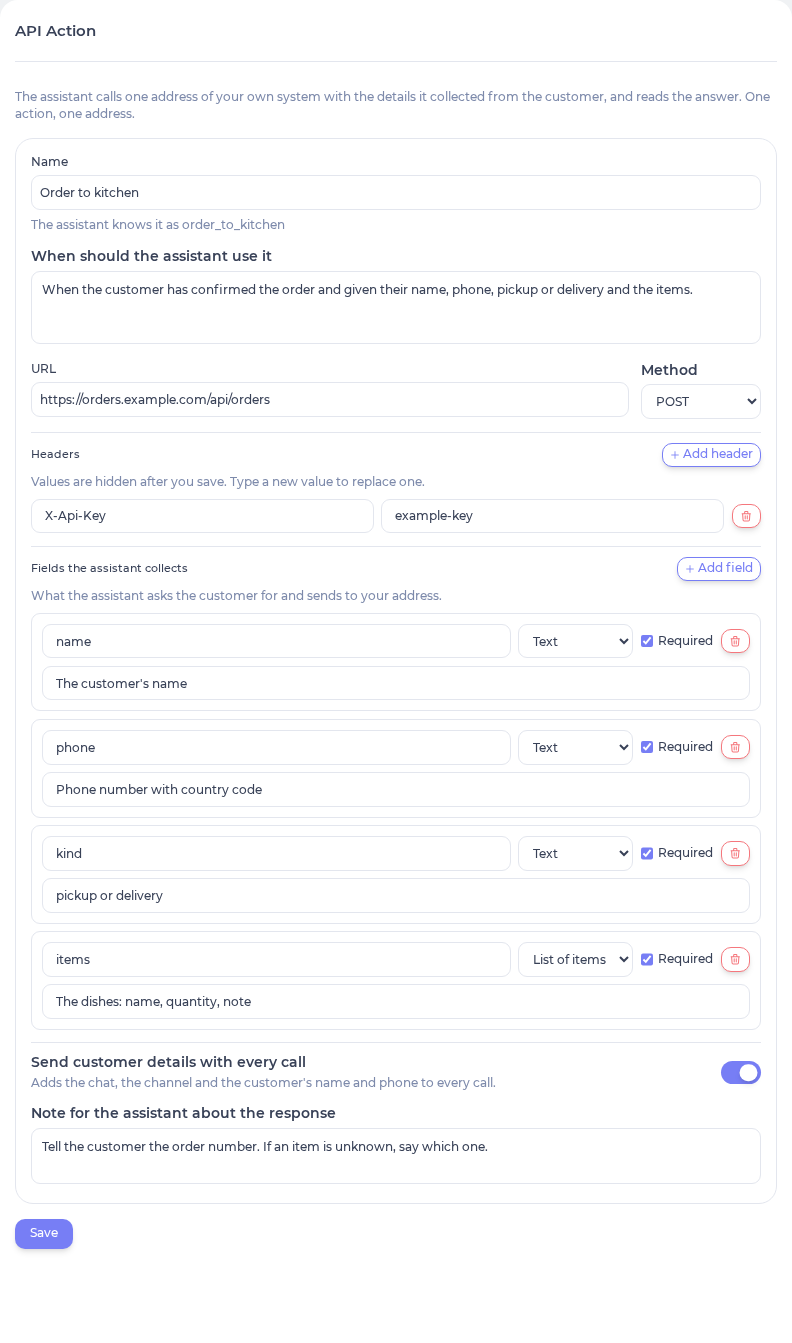
An API Action lets the assistant hand what it collected in a conversation to your own system and use the answer in its next message. You describe the fields the assistant must gather, give the address of your system and the headers it expects, and the assistant takes it from there. A restaurant, for example, collects the customer's name, phone, pickup or delivery, address, a note and the items, sends them to its order endpoint, and tells the customer the order number that comes back, or that an item is unknown. No server of your own beyond the address you already have.
At a glance
| Question | Answer |
|---|---|
| Plan | Pro and above |
| What you enter | Name, When should the assistant use it, URL, Method, Headers, and the Fields the assistant collects |
| What the assistant gets | One action it can use in a conversation, named after your Name |
| What your system gets | One HTTPS request per use, with the collected fields as JSON (or as query parameters for GET); a field written into the URL as {field_name} is sent there instead |
| What the assistant does with the answer | Reads the status and the response and uses them in its reply, guided by your Note for the assistant about the response |
| Where it lives | Integrations → pick the assistant → MCP Providers → API Action (app.mychatbot.app/integration) |
Set up
Open Integrations (app.mychatbot.app/integration) and pick the assistant in the dropdown in the header.
Under the MCP Providers category, select the API Action card ("Call your own API from the assistant").
Fill in the form:
Field What to enter Name What this action does, for example "Order to kitchen". The assistant sees the action under this name, so keep it short and plain. When should the assistant use it One or two sentences the assistant reads to decide when to use the action, for example "When the customer has confirmed an order and given their name, phone and the items." URL The full https://address of your system, for examplehttps://orders.example.com/api/external-order. Plainhttp://is not accepted. You can write a field as{field_name}in the path or the query, for examplehttps://crm.example.com/api/v1/leads/{uuid}; the form says: "To insert a field into the address, write {field_name}, e.g. …/leads/{uuid}. That field must be required, text or a number, and is then not sent in the request body." See Use a field in the URL.Method POST (default), GET, PUT or PATCH. Headers One row per header your system expects, typically an API key such as X-Api-Key. After you save, header values show as••••plus their last two characters; the saved value is kept until you type a new one.Fields the assistant collects One row per value your system needs, see below. Send customer details with every call On: every request also carries who the customer is, see What the assistant sends. Note for the assistant about the response Optional. Tells the assistant what to do with the answer, for example "Quote order_number to the customer. If unknown_item is set, say which item is not on the menu." Click Save. The action is linked to the assistant that was selected in the dropdown at that moment.
You can add several actions to one assistant, one per address. Saved actions show as tabs above the form: open one to change it, click Send a test, or Remove it; + Add action starts another. To use an action with another assistant, switch the dropdown and add it there too.
Fields the assistant collects
Each row is one value the assistant must gather before it uses the action. The assistant reads the row's What it is text to know what to ask for and how to fill it, so write it the way you would explain it to a new colleague.
| Column | What it means |
|---|---|
| Field name | The key your system expects, for example phone or items. Letters, numbers and underscores, starting with a letter. |
| Type | Text, Number, Yes/no, List of texts (several short values, such as toppings), or List of items (several entries that each have their own details, such as the dishes of an order with name, quantity and a note). |
| Required | On: the assistant will not use the action until it has this value, and asks the customer for it instead. |
| What it is | Plain words for the assistant, for example "The customer's phone number with country code" or "Pickup or delivery". |
A restaurant order, for example, has name (Text, required), phone (Text, required), kind (Text, required, "pickup or delivery"), address (Text, "street, number and town, only for delivery"), note (Text, "a note from the customer") and items (List of items, required, "the dishes: name, quantity, note"). Use the field names your system already expects; they are sent exactly as you type them.
What the assistant sends
The assistant sends one request to your URL with the method you chose, the headers you entered, Content-Type: application/json, and the collected fields as a JSON object, except a field written into the URL (see Use a field in the URL). With the restaurant fields above, a POST looks like this:
json
{
  "name": "Anna Example",
  "phone": "+43 600 0000000",
  "kind": "delivery",
  "address": "Example Street 1, Example Town",
  "note": "ring twice",
  "items": [
    { "name": "Pizza Margherita", "quantity": 2, "note": "extra basil" },
    { "name": "Tiramisu", "quantity": 1 }
  ]
}
With Send customer details with every call on, the object also carries a _client block:
json
{
  "_client": {
    "chat_id": 123456,
    "channel": "WhatsApp",
    "client_id": "436000000000",
    "client_name": "Anna Example",
    "client_phone": "+436000000000"
  }
}
For GET, the fields are sent as query parameters instead of a body, again except a field written into the URL. A list becomes its values joined by commas. Customer details travel as _client_chat_id, _client_channel, _client_id, _client_name and _client_phone.
Fields the assistant did not collect are left out. A field that is not in your list is never sent, and a required field that is missing stops the call: the assistant asks the customer for it first.
What comes back. The assistant receives the HTTP status and the response body (parsed as JSON when it is JSON), followed by your Note for the assistant about the response. It uses that to write its next message, for example "Your order number is 1042, it will be ready in 25 minutes." A response other than success is passed on too, so the assistant can tell the customer the order did not go through rather than pretend it did.
Use a field in the URL
Some systems expect a value in the address itself, such as the id of the record to change. Write the field's name in braces in the URL, and the assistant's value takes its place on every call. A field sent in the URL is sent only there: it is left out of the JSON body and, for GET, out of the query parameters.
For example, to move a lead in a CRM to a new status:
| Setting | Value |
|---|---|
| URL | https://crm.example.com/api/v1/leads/{uuid} |
| Method | PATCH (or PUT, whichever your system expects) |
| Fields the assistant collects | uuid (Text, required, "The lead's id in the CRM") and status (Text, required, "The lead's new status") |
When the assistant uses the action with uuid = lead-1042 and status = won, your system receives PATCH https://crm.example.com/api/v1/leads/lead-1042 with this body:
json
{
  "status": "won"
}
The rules:
- Only in the path and the query.
{field_name}can sit in the path (/leads/{uuid}) or in the query (?lead={uuid}). It cannot sit in the scheme, the host or the port, or after#: saving such a URL is refused. - Only a required Text or Number field. The name in braces must be a field in Fields the assistant collects, marked Required, of type Text or Number. Yes/no, List of texts and List of items fields cannot be used in the URL.
- Values are escaped for where they sit. A
/in a value becomes%2Fin the path, so a value never adds a path segment. A number is written as12, not12.000000. - A value cannot empty a path segment. If a value would turn a path segment into nothing,
.or.., the call stops with "invalid url value" and nothing is sent. - Only
{name}counts. Braces around a valid field name are a placeholder; other brace text, such as{"a":1}in a query, is sent as it is. - The address check runs on the filled URL. The Limits on the address apply to the final address, after the values are in.
- Older actions are not converted. An action saved before placeholders were supported may show the URL as
%7Buuid%7D, which is sent literally. Retype{uuid}in the URL and Save.
Test it
- Save the action, then click Send a test. A small box opens with sample JSON built from your fields.
- Edit the sample so it looks like a real request, then click Send. A field written into the URL is filled from the sample too, so give it a value your system knows. The box shows the status your system returned and how long the call took (for example "HTTP 200 · 368 ms"), followed by the response. This is the real call to your system, with your saved headers, so use test data your system can take.
- Message the assistant on a test chat or a connected channel, give it everything the action needs, and check that your system received the request and that the assistant used the answer.
- If the test box reports "this address cannot be called", read Limits below.
Limits
| Limit | Value |
|---|---|
| Address | https:// only, on port 443 or 8443. Public addresses only: private, local and internal addresses cannot be called. Redirects are not followed. |
| Time | Your system must answer within 10 seconds. |
| Answer size | The assistant reads about the first 8 KB of the answer; anything after that is cut. Your system's answer is read up to 64 KB. |
| Calls per reply | At most 3 calls to the same action while the assistant writes one reply. |
| Addresses per action | One, which can carry field values (see Use a field in the URL). For another address, add another action. |
| Request body | JSON built from your fields, minus any field written into the URL. Other formats, retries and sign-in flows such as OAuth are not supported. |
Troubleshooting
| Symptom | Cause | Fix |
|---|---|---|
| "this address cannot be called" when saving or testing | The URL is not https://, uses an unusual port, or points to a private, local or internal address | Use the public https:// address of your system |
| The assistant says the order did not go through | Your system answered with an error status (for example 401, 404 or 500), which the assistant passes on | Check the status in Send a test; fix the headers or the address, or check your system's logs |
| The assistant keeps asking for a value | The field is Required and the customer has not given it, or What it is does not explain what to ask | Make the field optional, or describe it more plainly |
| The assistant stopped using the action in a long reply | It already made 3 calls to this action in that reply | Expected. It can call again in its next reply. |
| A header no longer works after editing the action | A value shown as •••• (with its last two characters) is kept as saved; a value you typed over it replaces it | Re-enter the full header value and Save |
| "A {name} in the address must match a required text or number field" under the URL, or in an error when you click Save | A {field_name} in the path or the query names no field in Fields the assistant collects, or names a field that is optional or of type Yes/no, List of texts or List of items | Add the field or fix the name in the URL, mark the field Required, and make it Text or Number |
| "the URL host cannot use {uuid}; only the path and the query can" or "the URL cannot use {uuid} after #" when you click Save | A {field_name} sits in the host, or after # | Move it into the path or the query; the host is fixed |
| "Only https addresses can be called" under the URL | Among other causes, a {field_name} in the scheme or the port makes the address invalid | Move it into the path or the query; the scheme and port are fixed |
"the URL uses {uuid}, which is not a field" or "field uuid is used in the URL, so it must be required and text or number" from api_action_create or api_action_update | The same problem as the first row; over MCP the form's check does not run, so the server reports it. A placeholder in the scheme, host or port, or after #, comes back as "the URL scheme cannot use …", "the URL host cannot use …", "the URL port cannot use …" or "the URL cannot use … after #" | Declare the field in parameters with required: true and type string or number, or move the placeholder into the path or the query |
| "invalid url value" in Send a test, or the assistant says the call failed | A value would make a path segment empty, . or .., or cannot be placed in the address | Check the value the assistant collected; describe the field more precisely in What it is |
Your system receives %7Buuid%7D instead of the value | The action was saved before placeholders were supported | Retype {uuid} in the URL and Save |
| The assistant misses part of the answer | The answer was longer than about 8 KB | Return a shorter answer; the assistant needs only what it should tell the customer |
See also
- Custom MCP: when your system already has an MCP server with several tools
- Orders: the built-in order management, with no system of your own
- Integrations overview: how integrations are connected per assistant